Get help with Account management
Account management for admins
Usage notifications
In Autodesk account, primary admins can use the inactive users feature to choose when and how often to receive email notifications about inactive users. Primary and secondary admins can then use the Usage Report to unassign inactive users.
Note:
You must be a primary admin to set up inactive user notifications.
Autodesk considers user activity across all teams where you’re a primary admin when determining which inactive users to include in the email notification.
We send the email notification only to the primary admin who set it up.
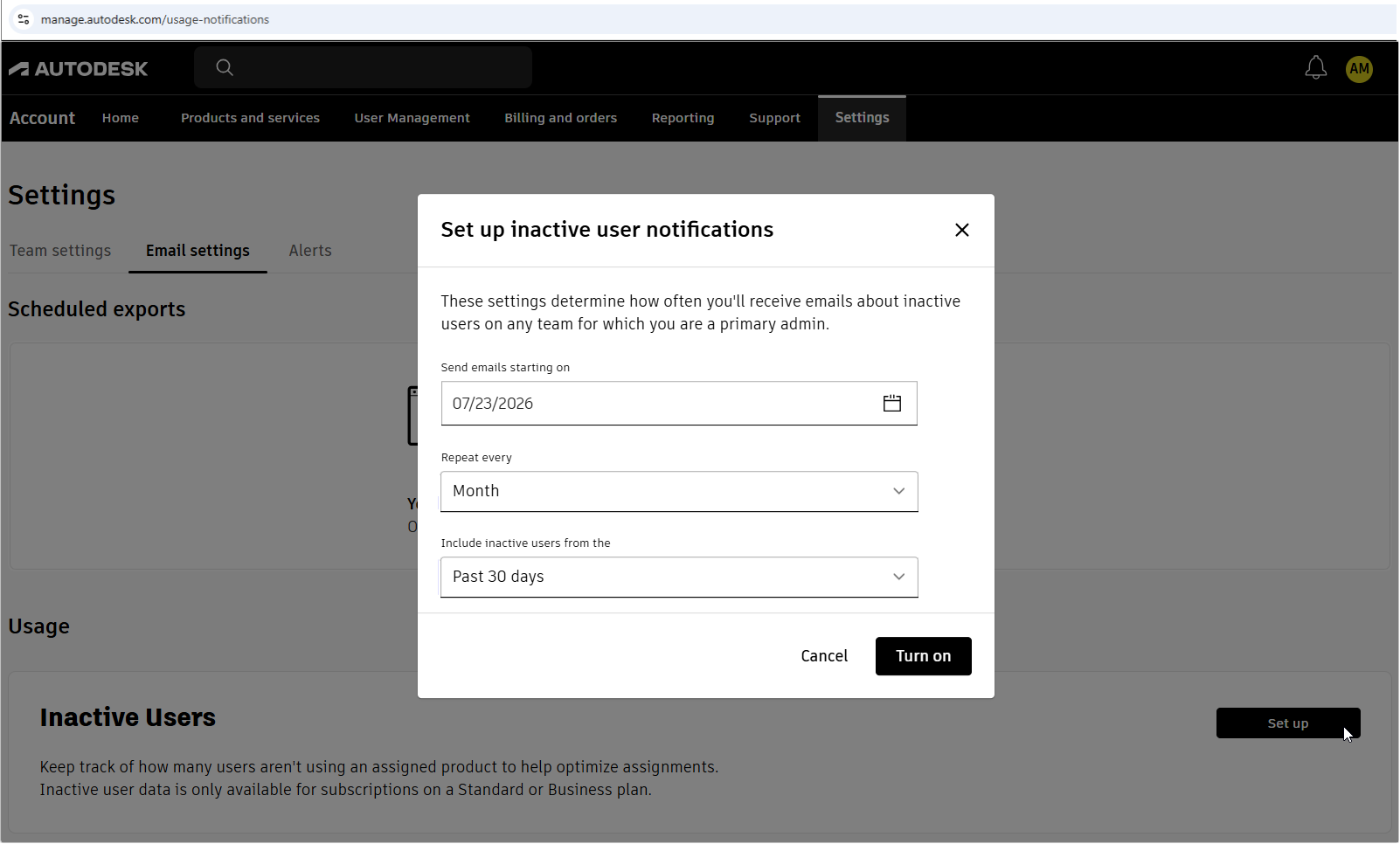
Set up usage notifications
Set up usage notifications to receive emails that show how many users are inactive and link to a prefiltered report in your Autodesk account.
Sign in to your Autodesk account.
Select Settings > Email settings.
In the Inactive Users section, select Set up.
Choose your notification schedule:
From the calendar, choose the date when you want notifications to begin.
Choose how often you want to receive notifications. You can choose to get emails weekly, every two weeks, monthly, or every three months.
Select an inactive date range. You can choose to see reports of inactive users during the past: 30 days, three months, six months, nine months, or one year.
Select Turn on.
A confirmation message appears.
Edit usage notifications
Edit your usage notification settings to change when notifications begin, how often you receive them, or which inactive users are included.
Sign in to your Autodesk account.
Select Settings > Email settings.
In the Inactive Users section, select Edit.
Change the start date, notification frequency, or user inactivity period.
Select Save.
A confirmation message appears.
Turn off usage notifications
Turn off usage notifications when you no longer want to receive emails about inactive users.
Sign in to your Autodesk account.
Select Settings > Email settings.
In the Inactive Users section, turn off the switch.
A confirmation message appears.
Unassign inactive users
When you receive an email notification about inactive users, you’ll see a button with the caption View inactive users. The button appears only when inactive users are found.
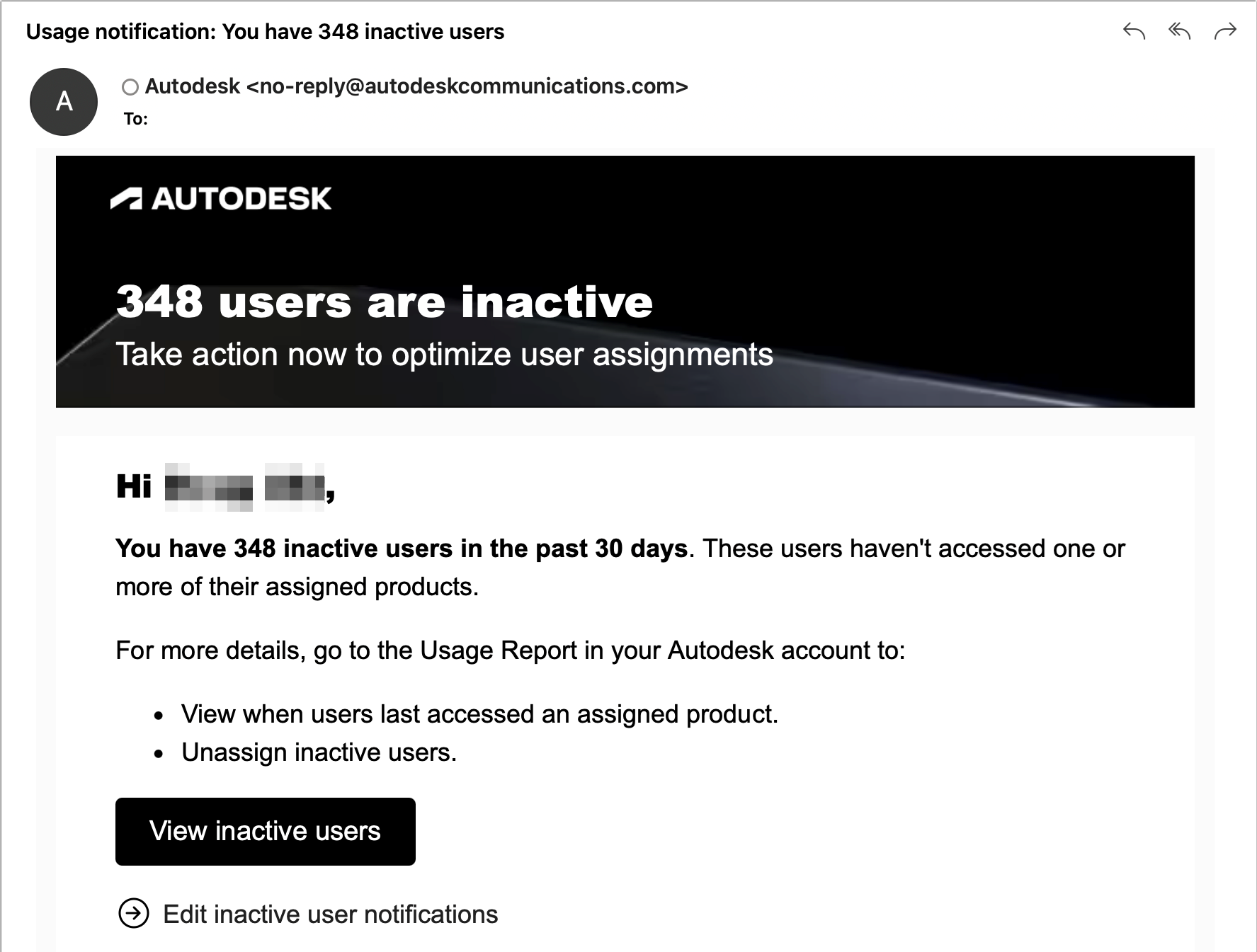
Select View inactive users to open the Usage Report, pre-filtered to show only inactive users.
Select the checkboxes next to the users you want to unassign.
In the message, select Unassign.
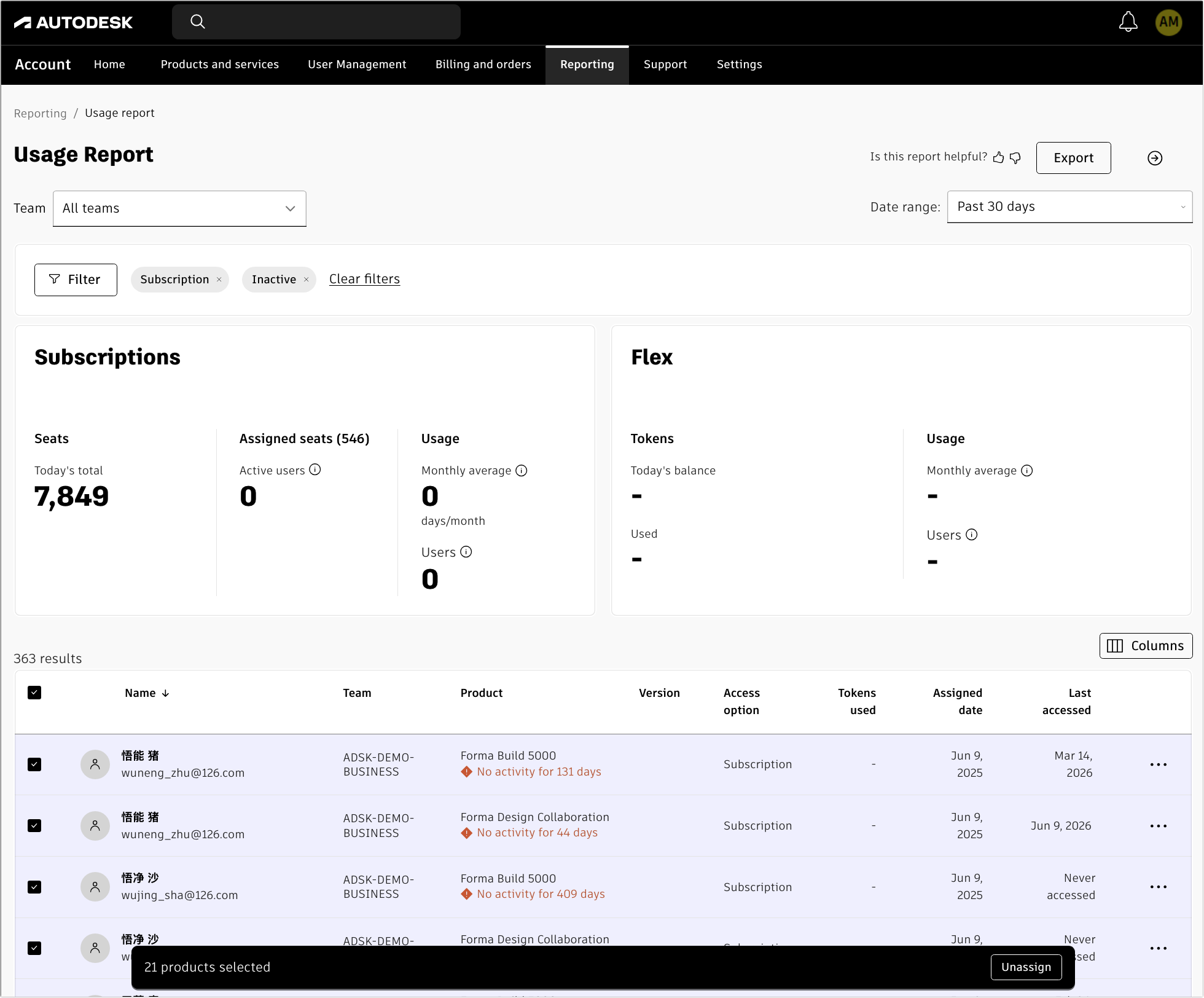
In the unassign confirmation window that appears, select Unassign.
Note:
You can also go directly to the Usage Report in your Autodesk account to unassign users instead of using the email notification. In this case, the report won’t be automatically filtered for inactive users.
Flex users and users assigned through groups cannot be unassigned this way. Use User management to unassign these users instead.
Related resources
Need help? Ask the Autodesk Assistant!
The Assistant can help you find answers or contact an agent.
What level of support do you have?
Different subscription plans provide distinct categories of support. Find out the level of support for your plan.
View levels of support