Autodesk Tutorials

Learn how to use AutoCAD

Discover easy-to-find AutoCAD tutorials from Autodesk. Access step-by-step learning resources, videos, and guided courses that help beginners learn AutoCAD basics and build practical drafting skills at their own pace.

Student using tablet and stylus to learn architectural drafting with a digital floor plan.

AutoCAD tutorials for beginners & students

This page is a central hub for AutoCAD tutorials, bringing together official Autodesk resources to help you learn AutoCAD with confidence. Whether you’re a beginner, a student, or a working professional, you’ll find guided AutoCAD software tutorials that cover everything from CAD basics to intermediate workflows.

Explore a mix of free and paid AutoCAD tutorials, including videos, step-by-step exercises, and structured courses designed to help you build CAD skills at your own pace.

Getting started with CAD: Basics of AutoCAD

If you’re new to CAD or AutoCAD, these CAD basics cover the essential setup and concepts you need before moving to more advanced tutorials. Completing these steps will help you get the most out of every AutoCAD tutorial that follows. These CAD basics form the foundation of any basic CAD course or AutoCAD tutorial. Mastering them helps you work faster, avoid errors, and progress smoothly into more advanced AutoCAD tutorials. 

Install AutoCAD

Get AutoCAD up and running so you can start learning right away.

  • Download and install AutoCAD
  • Activate a license or free trial
  • Select your operating system and version
  • Set basic drawing preferences

Get started: Install and set up AutoCAD

Navigate the AutoCAD interface

Learn to navigate the AutoCAD workspace confidently.

  • Ribbon, command line, and tool palettes
  • Model space and layout tabs
  • Zoom, pan, and view controls
  • Workspace customization

Explore: AutoCAD user interface basics

Learn core CAD concepts

Understand the foundational ideas behind basic CAD workflows.

  • Coordinates and drawing accuracy
  • Layers and object properties
  • File management basics
  • Units and scale

Learn more: CAD fundamentals

Start using essential commands

Start creating and editing drawings with core tools.

  • Draw commands (Line, Circle, Rectangle)
  • Edit tools (Move, Copy, Trim, Offset)
  • Command shortcuts and aliases
  • Undo and command history

Try it: Basics AutoCAD commands and keyboard shortcuts.

AutoCAD drawing step by step tutorials

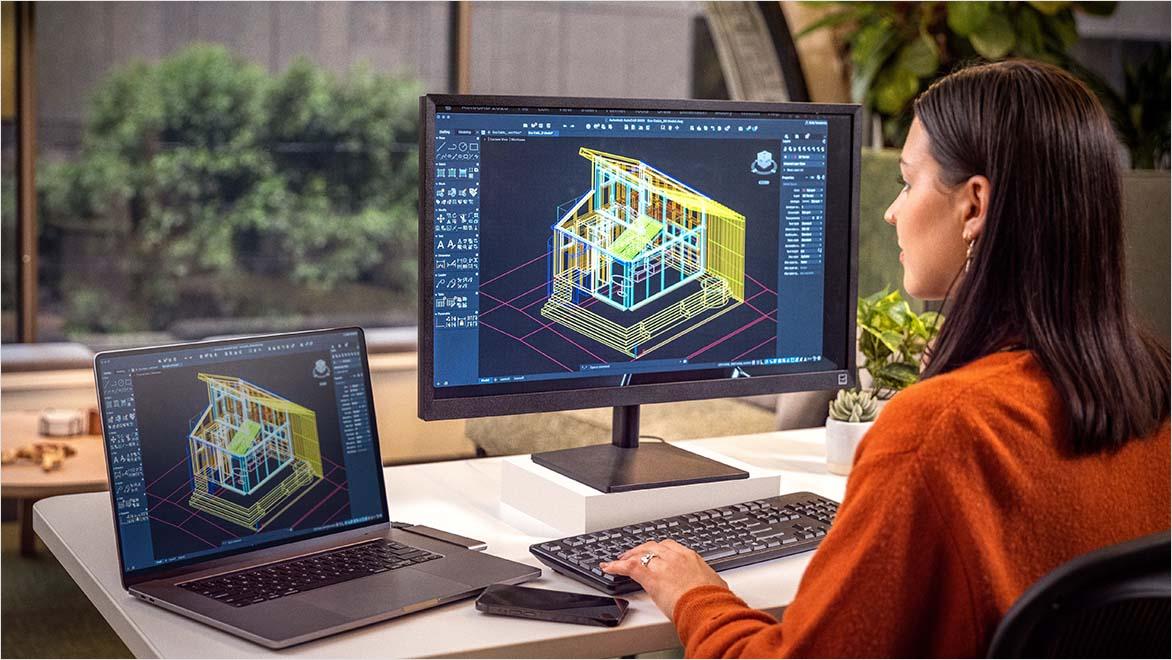
Woman using AutoCAD in an office environment.

Part 1 | Introduction, drawing preparation, creating baselines, and creating blocks

Introduction
AutoCAD Foundations introduces essential features and workflows used across architecture, engineering, and design disciplines. Build the core skills you need to confidently start creating and editing drawings in AutoCAD. Read more.

Tour the AutoCAD UI (video)
Watch this video to get to know the AutoCAD interface. You'll see where to find important tools, how to navigate the workspace, and how the interface supports daily drafting tasks. Watch video (4:49 min.)

Drawing preparation
Begin learning AutoCAD by exploring the main workflows used in different fields. These free CAD tutorials cover basic setup and drafting skills. Completing both exercises will help you build a solid foundation. Read more.

Creating a reference line
Learn to draw basic 2D shapes like lines, rectangles, and circles. These are the building blocks for most AutoCAD drawings. Read more.

Creating a block
Create and use dynamic blocks to make your drawings more flexible and efficient. You'll see how one block can change its shape, size, or setup. Read more.

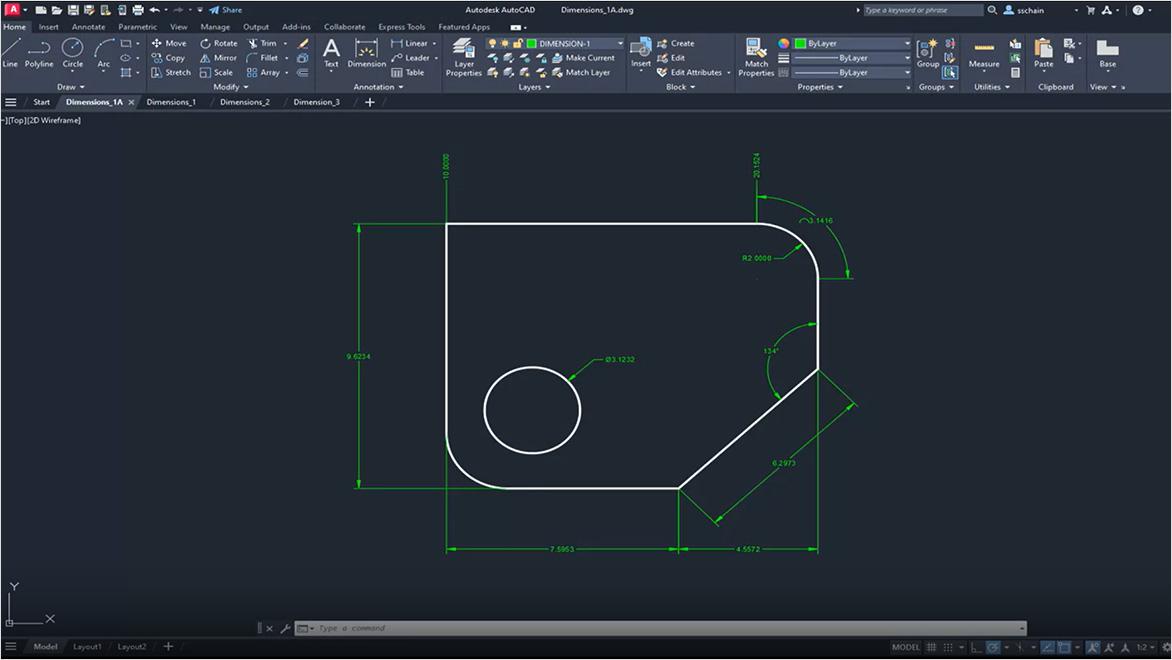
AutoCAD drawing with dimensions and measurements.

Part 2, Part 1 | Setting styles, entering dimensions and inserting blocks, and creating the body

Setting the style
Learn to create and manage text and dimension styles to control how annotations look in your drawings. Styles help you maintain consistent formatting and meet project or industry standards. Read more.

Dimensioning and block insertion
Learn to insert and use dynamic blocks to make dimensioning and design updates easier. You’ll create a window block that can stretch and display different sizes, all from a single block. Read more.

Creating the body
See how to use column grids to quickly add structure and place columns accurately in your drawings in this CAD software tutorial. You’ll also learn how to place and change walls to build your main layout. Read more.

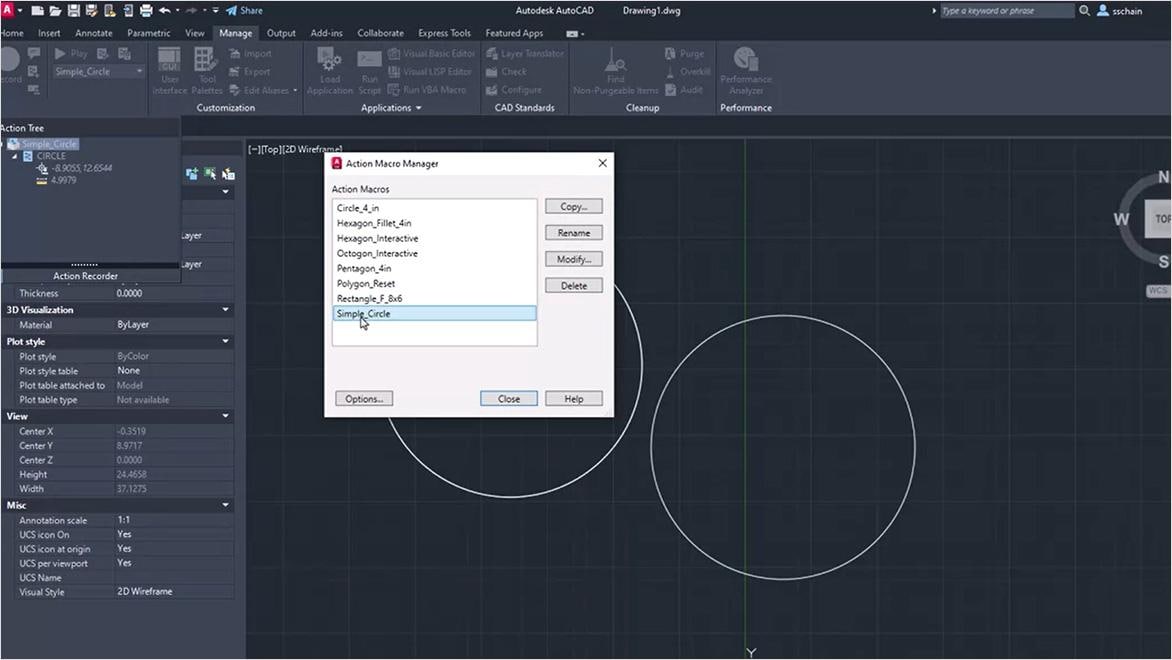
AutoCAD action macro manager interface.

Part 2, Part 2 | Creating a staircase arrow block and an action macro

Creating a stair arrow block
Learn to make a stair arrow block and control its appearance in plan views. This CAD tutorial for beginners shows how to adjust the arrow path, display settings, and break marks. Read more.

Creating an action macro
This free CAD tutorial teaches you how to create, save, and edit an action macro so you can work faster with fewer manual steps. You’ll learn to automate repetitive tasks and make daily work easier. Watch video on how to create simple action macros (3:32 min.) & Watch video on action recorder (1:10 min.)

``

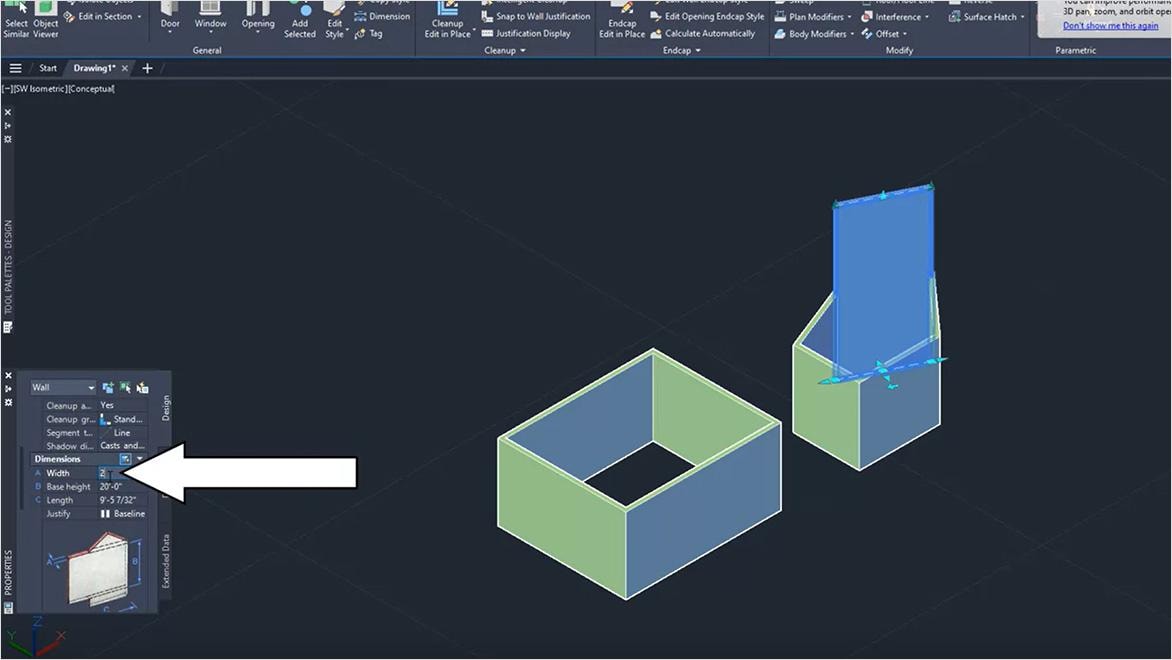
AutoCAD 3d model showing wall openings.

Part 3 | Drawing stairs, storage, and wall openings

Drawing stairs and storage
Learn to add and place stairs using AutoCAD's built-in stair tools and palettes. This CAD tutorial covers how to insert stairs, set their direction and length, and adjust properties to fit your design while keeping your workspace organized.

Drawing wall openings and opening reference lines
Learn to quickly add and manage wall openings with the AutoCAD Architecture toolset. This tutorial shows how to use preset opening styles, change properties, and create new openings or reference lines for doors and windows. Watch more (3:32 min.)

Drawing wall openings and trimming openings
Learn to make and adjust wall openings using preset or custom shapes. This CAD software tutorial shows how to create opening profiles from closed polylines, edit and reuse them, and use them in different drawings for more flexibility.

Drawing wall openings and creating boundaries for the entrance and kitchen
Learn how to add and customize wall openings using predefined or custom shapes to define entrances and kitchen boundaries. This free CAD tutorial covers selecting opening tools, applying profiles, and adjusting dimensions and placement to fit your layout.

Designer working on AutoCAD floor plan.

Part 4, Part 1 | Building fixtures

Creating Building Blocks: What are dynamic blocks?
See how dynamic blocks let you use one block that can change size, shape, or setup, so you don’t need many separate blocks. This tutorial shows how to stretch, rotate, flip, or transform dynamic blocks for flexible, efficient design. Learn more.

Creating a dynamic block of a hinged door
Learn to make a dynamic block with different setups using visibility states. This tutorial shows how to build one block that can switch between layouts, allowing you to display different door or furniture options within a single block.

Creating a dynamic block of sliding doors
Learn to create and modify dynamic blocks that control how sliding doors function and appear in your drawing. This tutorial introduces the Block Editor and explains how to use settings and actions to build flexible 2D blocks that accommodate different sizes and positions. Learn more.

AutoCAD floor plan using dynamic door and window blocks.

Part 4, Part 2 | Dynamic blocking of door and window arrangement and baseline numbers

Placement of fittings
Learn to insert block references from libraries or other drawings to quickly place fittings. This CAD tutorial shows how to insert, move, rotate, scale, and reuse blocks as single objects to speed up repetitive tasks.

Dynamic block of reference line numbers
Learn to make a dynamic block for reference line numbers by editing an existing block. This CAD software tutorial shows how to make annotations more flexible, so you can update and reuse reference numbers easily in your drawings.

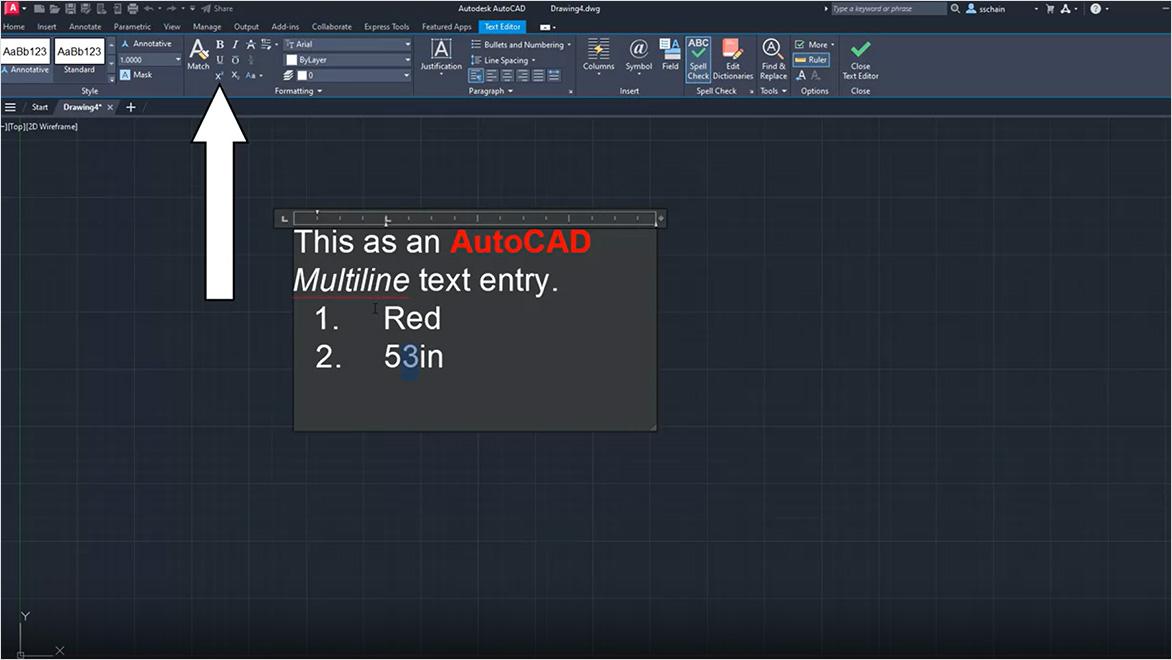
AutoCAD multiline text editor with formatting options.

Part 5, part 1 | Arranging furniture blocks, hatching floors and paving stones, and writing room names

Furniture block placement
Learn to place and use furniture blocks to keep your drawings neat and efficient. This free CAD tutorial shows how blocks help you quickly insert, move, scale, and update furniture, while keeping things uniform and managing data with block attributes.

Hatching of floors and paving stones
Learn to use hatch patterns, solid fills, and gradients to show floors and paving in your drawings. This CAD tutorial also explains how to put hatch objects on their own layers to control what you see and keep your drawings organized.

Enter the room name
Learn to use multiline text in AutoCAD to add clear room names and notes to your drawings. This tutorial shows how paragraph text fits in a set area, so you can manage and edit labels easily as one object.

People using AutoCAD in a mobile environment.

Part 5, Part 2 | Quantifying door blocks and creating drawing frame blocks with title blocks

Picking out the quantity of door blocks
Learn quicker and more accurate ways to count door blocks with AutoCAD’s built-in tools. This free CAD tutorial introduces the COUNT and Quick Select features, showing how to count blocks, create count tables, and filter blocks by properties to save time.

Creating a drawing frame block with title block
Learn to create a drawing frame and title block using block attributes to easily manage drawing information. This CAD tutorial shows how attributes help keep title blocks standardized and project data consistent in your drawings. Learn more.

Designer working on AutoCAD building model.

Part 6, Part 1 | Creating a page setup, creating and configuring viewports, and printing drawings

Creating page settings
Learn to set up page settings and layouts to get your drawings ready for printing or sharing. This CAD software tutorial explains how to use named layouts instead of model space to control print settings and create physical or digital files.

Creating and configuring a viewport
Learn to create and manage layout viewports to show scaled views of your model in paper space. This tutorial shows how to place, scale, and arrange viewports on a layout to control how your drawing looks when printed.

Printing drawings
Learn to print your drawings to PDF using layouts and page setups that ensure your output fills the page. This tutorial also covers tips for printing at full page size or adjusting margins so your drawings print clearly and correctly.

Professional reviewing 3D AutoCAD design.

Part 6, Part 2 | Preparing a block library, creating templates and standard drawings

Preparing the block library
Learn to organize related blocks into a block library drawing for easy reuse. This CAD tutorial shows how to create, store, and insert blocks from a library file to keep things consistent and speed up your work in different drawings. Read more.

Creating templates and standard specification drawings
Learn to make drawing templates and standard drawings to make future projects easier. This CAD software tutorial shows how to save templates from current drawings so new files use the same settings and standards automatically.

Continue learning with additional AutoCAD resources

Whether you’re just starting out with using AutoCAD for the first time or you want to get more familiar with one of the robust AutoCAD toolsets, this is for you.


Explore the latest features and improvements in AutoCAD 2027.


Learn the drawing basics and become an expert in no time.


Navigate AutoCAD like a pro with searchable commands, customizable workspaces, and an expansive toolkit.


Add dimensions to any and all objects in your drawing.


Use palette tools two different ways.


Essential tutorials for AutoCAD beginners

Getting started with AutoCAD

This CAD tutorial for beginners helps you get familiar with the AutoCAD user interface and core tools. Learn how to navigate the ribbon and command line, open or create drawings, and build simple geometry using construction lines, grids, and the UCS—an ideal starting point for anyone new to CAD software.


Designing with AutoCAD

Discover the tools that make designing faster, easier, and more precise in this hands-on CAD software tutorial. Learn how to use object snaps, polar tracking, layers, properties, and modify commands, and insert blocks for specialized symbols and details used in real-world CAD workflows.


Documentation in AutoCAD

Once your model is complete, this CAD tutorial shows how to move into paper space to create professional documentation. Learn how to annotate drawings with text, multileaders, and dimensions, then plot your work to paper or PDF for easy sharing—perfect for teams working remotely.


Productivity tips for AutoCAD

Take your skills further with advanced techniques covered in this free CAD tutorial. Learn how to create arrays, use advanced fillet options, and apply other productivity tools that help streamline repetitive tasks and improve drafting efficiency.


AutoCAD tips and tricks

Leveraging keyboard shortcuts

Speed up everyday drafting tasks with this CAD software tutorial focused on AutoCAD keyboard shortcuts and commands. Using the AutoCAD Shortcut Keyboard guide, you’ll learn essential hotkeys that help beginners and experienced users work faster and more efficiently.


Saving and managing files in the cloud

Learn how AutoCAD files are stored, maintained, and recovered in this practical CAD tutorial for beginners. This section explains key commands like PURGE, AUDIT, and RECOVER, and offers tips for organizing drawings into projects and folders for easy access, version control, and cloud collaboration.


Troubleshooting common issues

Overcome common challenges with help from this free CAD tutorial designed for new AutoCAD users. Learn best practices for working with Desktop Connector, along with simple troubleshooting tips—such as checking constraints and using undo and redo—to keep your workflow moving smoothly.


People using AutoCAD in a home office environment.

Learn AutoCAD and prepare for certification

Build your AutoCAD skills with stepbystep tutorials and ondemand learning resources designed for beginners and experienced drafters alike. Explore guided AutoCAD tutorials, prepare for official Autodesk certification, and deepen your understanding of 2D design and drafting workflows at your own pace.

Earn your AutoCAD Professional certification
Explore AutoCAD learning courses
Prepare for AutoCAD certification

Additional AutoCAD tutorial resources

A CAD tutorial for beginners that helps you quickly learn AutoCAD basics and start creating accurate 2D drawings and 3D models.


Explore the latest AutoCAD tutorials, tips, and workflow guidance from Autodesk experts. Stay up to date with new features, best practices, and real-world use cases.


A free CAD tutorial that introduces the AutoCAD interface, core tools, and simple geometry to help new users get started fast.


A CAD software tutorial collection for Mac users, featuring beginner guides, videos, and community support to help you learn AutoCAD on macOS.


AutoCAD support resources

Connect with the AutoCAD community to ask questions, share knowledge, and explore solutions to common drafting challenges in the Autodesk forums.


Search official AutoCAD documentation and troubleshooting articles to find solutions, browse common issues, and resolve technical problems quickly.


Build your skills with instructor-led, self-paced, and online AutoCAD training designed to help you stay current and competitive.


Autodesk AutoCAD software

2D and 3D CAD tools, with enhanced insights, AI-automations, and collaboration features. Subscription includes AutoCAD on desktop, web, mobile, and seven specialized toolsets.


Best-in-class tool for 2D CAD drafting, drawing, and documentation. Subscription includes AutoCAD LT on desktop, web, and mobile.


View, edit, and create CAD drawings in a simplified user interface that runs in your web browser.


Frequently asked questions (FAQs) when learning AutoCAD

How do I teach myself AutoCAD?

You can teach yourself AutoCAD by starting with structured tutorials that cover the basics of the software and gradually build toward real-world drafting workflows. Begin with a CAD tutorial for beginners that explains the interface, drawing tools, and navigation, then practice by recreating simple drawings such as floor plans or mechanical parts.


Many learners use a combination of free CAD tutorials, official documentation, and hands-on exercises to reinforce concepts. Consistent practice—especially using real examples—is key to building confidence and retaining skills as you progress.

How to draw in AutoCAD for beginners step by step?

To draw in AutoCAD as a beginner, start by learning how to create and edit basic geometry such as lines, circles, and rectangles. From there, you’ll move into essential steps like using object snaps, layers, and dimensions to control accuracy and organization in your drawings.


A step-by-step CAD software tutorial typically follows this progression: set up your drawing, create geometry, modify objects, add annotations, and prepare layouts for printing or sharing. Following guided tutorials helps beginners understand not just how to draw, but why each step matters.

Can I learn AutoCAD in 30 days?

Yes, you can learn the fundamentals of AutoCAD in about 30 days with focused, consistent practice. Many beginners use a structured learning plan that starts with interface navigation and basic commands, then moves into drawing, editing, and documentation workflows.


While 30 days is enough to become comfortable with core tools, mastery comes with continued use. Completing a CAD tutorial for beginners and practicing daily can help you build a strong foundation that you’ll continue to develop over time.

What are the basic principles of CAD?

The basic principles of CAD include precision, organization, and consistency. CAD drawings rely on accurate geometry, clearly defined dimensions, and structured layers to ensure designs are easy to read, modify, and share.


Other core concepts include working with coordinates, using reusable elements like blocks, and following drafting standards. These principles apply across most CAD tutorials and form the foundation for both 2D drafting and 3D design workflows.

Is AutoCAD hard for beginners?

AutoCAD can feel overwhelming at first, but it’s very approachable for beginners when learned step by step. The interface and command-based workflow take some adjustment, but most users find that basic drawing and editing tools become intuitive with practice.


Starting with a free CAD tutorial designed for beginners helps reduce the learning curve by focusing on essential tools first. As confidence grows, more advanced features become easier to understand and apply.

Can a non-technical person learn AutoCAD?

A non-technical person can absolutely learn AutoCAD. Many beginners come from design, construction, or creative backgrounds rather than technical or engineering fields, and AutoCAD tutorials are designed to support a wide range of learning styles.


By following a CAD tutorial for beginners and practicing with real examples, non-technical users can quickly learn how to create, edit, and document drawings. Patience, repetition, and hands-on learning are more important than technical experience.

Is there an official AutoCAD certification?

Yes. Autodesk offers official AutoCAD certifications that validate your skills and proficiency in using AutoCAD for design and drafting. These industry-recognized certifications are designed for professionals and students who want to demonstrate their expertise with AutoCAD and strengthen their credentials.

How can I prepare for the AutoCAD certification exam?

Autodesk provides an ondemand AutoCAD design and drafting certification prep course to help you prepare for the certification exam. The course covers core AutoCAD concepts and workflows and allows you to learn at your own pace, making it a practical way to build confidence before taking the exam. See more AutoCAD learning courses online.

See more FAQ