How to get more value from AutoCAD

Explore AutoCAD Updates: Features, Improvements, and Resources

AutoCAD continues to evolve based on customer feedback, with improvements aimed at reducing friction in everyday drafting workflows. Exploring what's changed across recent releases can help you understand how AutoCAD has progressed over time and identify enhancements that may support your team's work. 

User working in AutoCAD on a laptop displaying a detailed building model while collaborating with team members at a table.

Work with more confidence in AutoCAD

Your work depends on reliable tools that help you get the details right without slowing you down. We know that updating AutoCAD can raise practical questions, especially when you're managing active projects, custom workflows, and tight deadlines.

Explore recent AutoCAD improvements, practical resources, and support options designed to help you reduce workflow friction, stay productive, and get more value from the latest release.

AutoCAD feature improvements

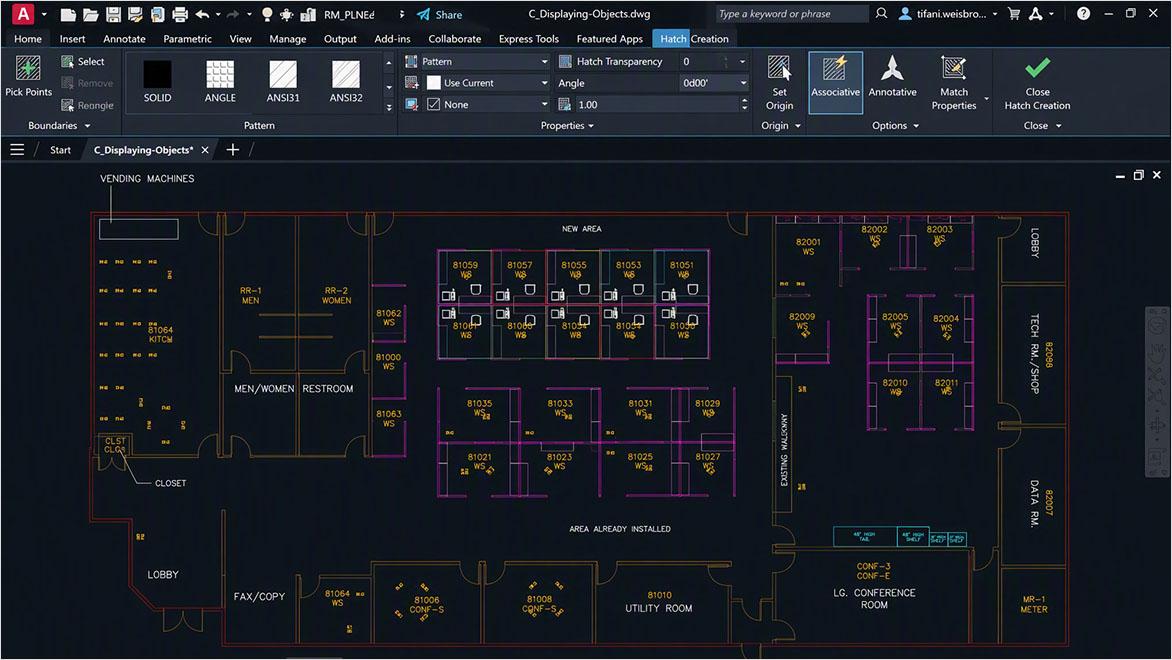
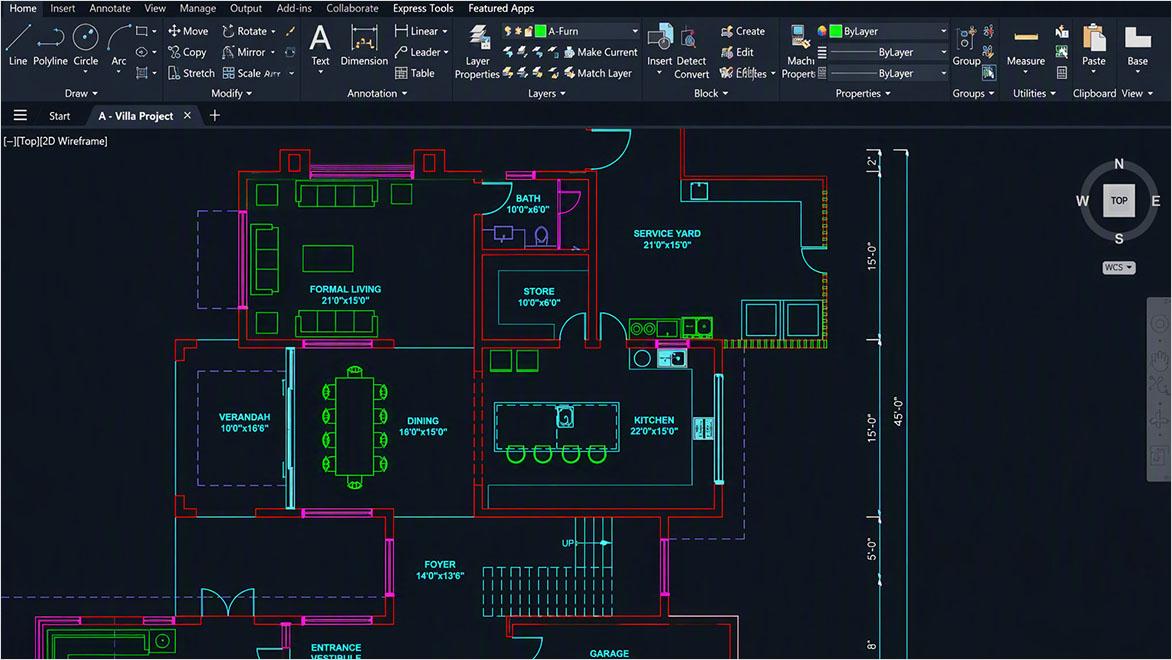
Improve your everyday drafting experience with smarter hatch workflows, automated geometry cleanup, and smoother performance across common tasks.

Improve hatch workflows

Recent updates have made it easier to create and manage hatches, including more flexible boundary and path-based options.

Reviewing hatch patterns, boundaries, and overall workflow setup can help improve performance and consistency, especially in complex drawings.


Learn hatch basics in 5 minutes

Watch hatch workflow improvements on YouTube

Explore hatch command options

Read AutoCAD blogs on hatch

Smart Geometry Cleanup

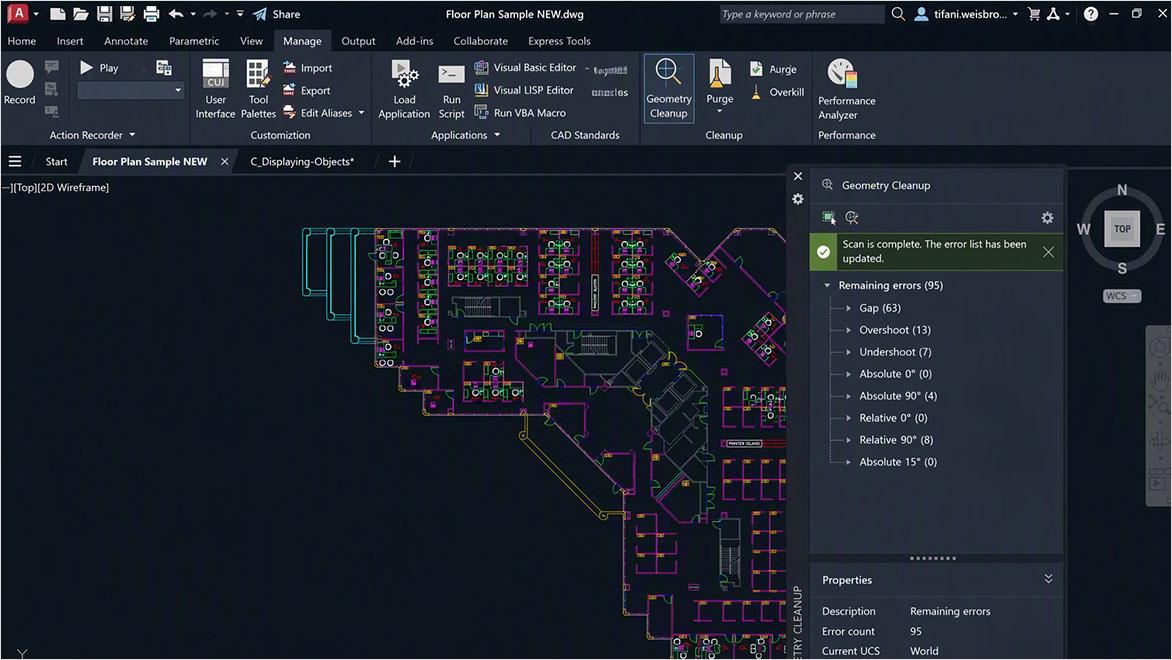
Geometry Cleanup identifies common geometry errors such as gaps, overshoots, undershoots, and misaligned angles and suggests targeted fixes. By streamlining error detection and correction in DWG files, it reduces manual cleanup, improves drawing quality and boosts drafting productivity, making files more reliable for downstream workflows.


Watch Geometry Cleanup in action

Explore Geometry Cleanup in 2027

Smoother daily performance

AutoCAD continues to improve performance across everyday workflows like such as file open, layout switching, and 3D navigation. Tasks that once felt slow—such as switching layouts or navigating complex 3D views—are now smoother and more responsive, especially in larger drawings. Improvements are incremental and can vary by file and workflow, but ongoing graphics enhancements help deliver a more seamless experience over time.


Explore performance enhancements

AutoCAD software updates

Reduce interruptions and keep your workflows running smoothly with guidance on updates, configuration migration, and preparation.

Lengthy update times

Update progress may appear to pause at certain percentages, but the installer is often still running in the background. During this time, AutoCAD may be applying updates or completing setup steps. If possible, allow the process to finish without interruption to avoid restarting or corrupting the installation. 


Read the help article

Keeping your custom setup intact

AutoCAD includes tools to migrate custom settings such as menus, tool palettes, and routines. Some configurations may still require manual updates. Reviewing your environment after migration helps ensure your most important tools continue working as expected. 


See how to migrate settings

Planning your update window

Taking a few steps before updating can help avoid interruptions later. Reviewing system requirements, licensing setup, and active files ahead of time helps ensure a smoother experience—especially across shared environments or ongoing projects. A little preparation can go a long way in keeping your workflows on track. 


Review the pre-update checklist

Common AutoCAD update concerns and what to know before you update

Teams often hesitate to update AutoCAD because stability, compatibility, and predictability matter. These are the most common questions we hear, with guidance to help you evaluate risk and plan the next steps.

Where can I find the latest AutoCAD improvements, features, and update resources?

To explore the latest AutoCAD improvements, features, and updates, visit the AutoCAD product details page, official AutoCAD blog, and support site. You can also connect with the community in the AutoCAD forums to learn from other users and stay up to date. 

Will my older DWG files still work?

File compatibility is a common concern for teams managing long-running projects or shared drawing standards. AutoCAD continues to support DWG workflows across releases, and drawings can be saved to earlier DWG formats when needed. For example, when working in a lower version such as AutoCAD 2015 and opening a DWG file created in AutoCAD 2026, the DWG file must be saved in the 2013 format or earlier. There are two methods to convert a DWG file to a lower version.  See AutoCAD Help and Learn more

Should I wait until others test the release?

While some teams prefer to wait, upgrading sooner allows you to benefit from the latest performance improvements, workflow enhancements, and fixes. Reviewing release notes and support resources can help you plan a smooth transition and take advantage of these updates with confidence.  See recent improvements and updates

How can I prepare for an AutoCAD 2027 update?

A good first step is to review known limitations, compatibility information, and available workarounds for AutoCAD 2027. This can help you understand how the release may affect your workflows and identify any areas that may require testing or preparation before deployment.

See more FAQ

New and recent features that address everyday AutoCAD workflows

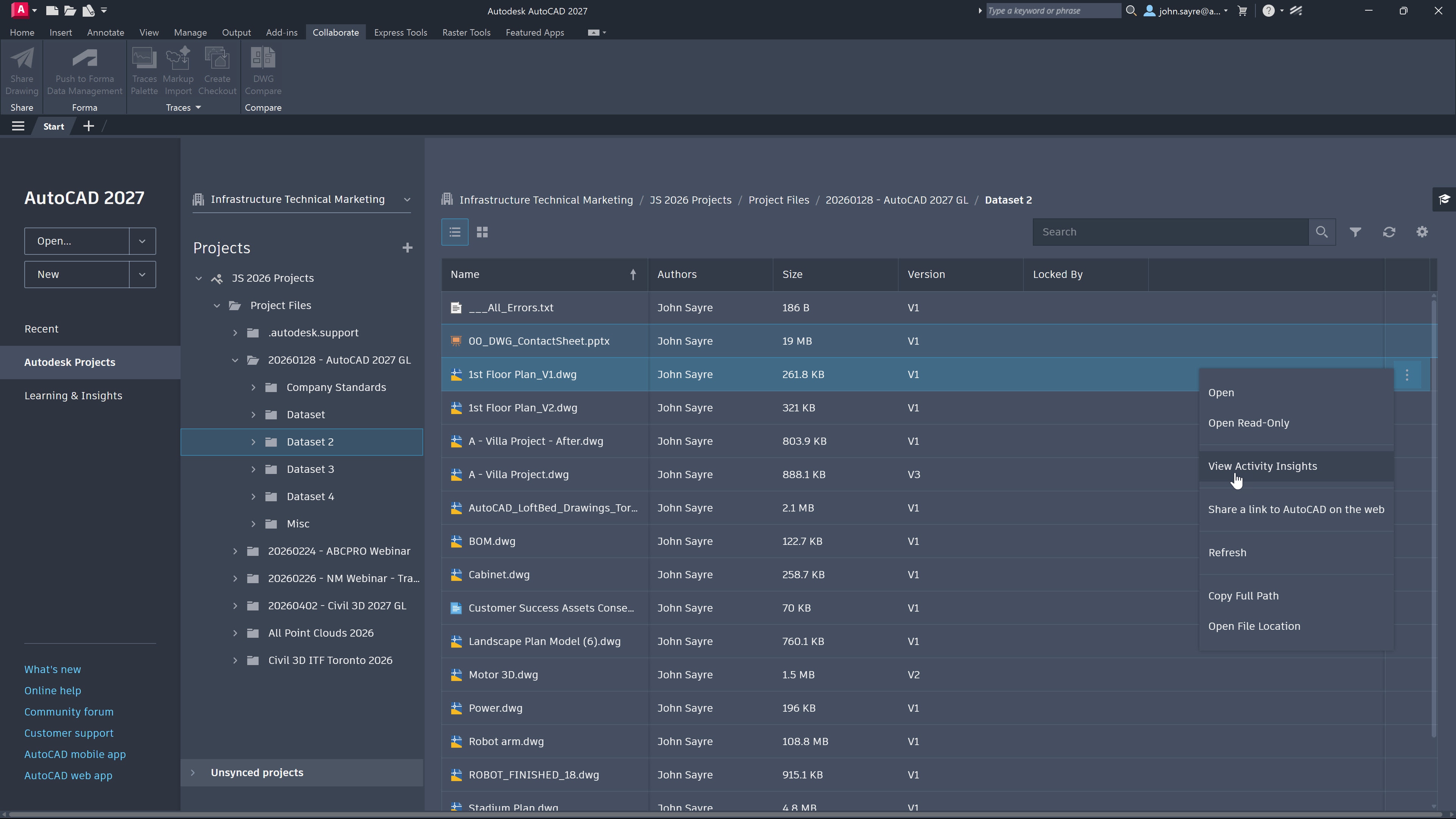
AutoCAD 2027 screen displaying project file list, versions, and Activity Insights options in Forma Data Management.

Discover what’s improved in AutoCAD 2027

Explore the latest AutoCAD updates designed to improve everyday workflows—from performance enhancements to new tools that help reduce manual work and increase drafting efficiency.

Explore additional features and enhancements introduced in AutoCAD 2027

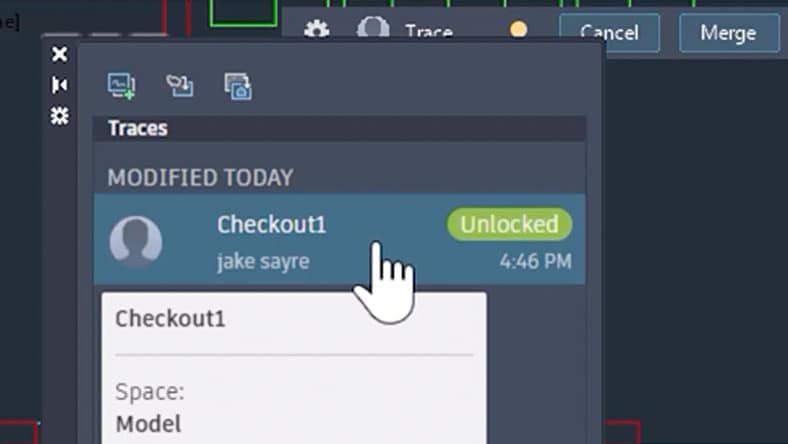
AutoCAD Traces panel showing a drawing checkout entry marked unlocked with user and timestamp.

Checkout

Checkout introduces a new way of collaborating on shared DWG files by reserving only the geometry you need, allowing you to work in parallel within isolated editing environments and safely apply changes back to the source drawing via Forma Data Management, keeping you in control.


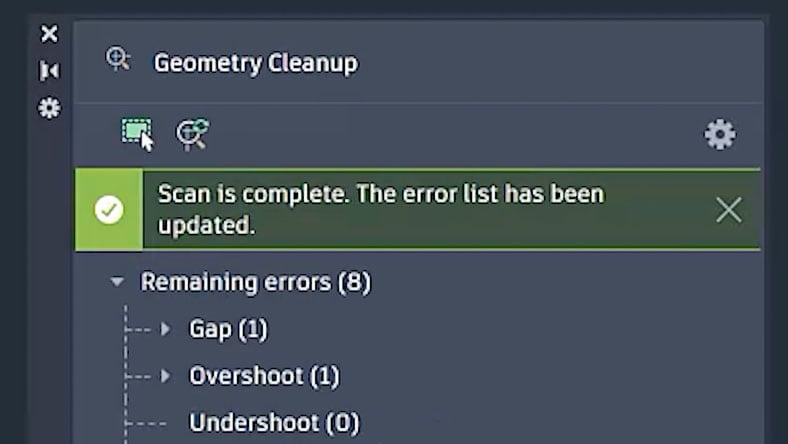
Geometry Cleanup tool showing scan results and a list of remaining errors such as gaps and overshoots.

Geometry Cleanup

Geometry Cleanup identifies common geometry errors such as gaps, overshoots, undershoots, and misaligned angles and suggests targeted fixes. By streamlining error detection and correction in DWG files, it reduces manual cleanup, improves drawing quality and boosts drafting productivity, making files more reliable for downstream workflows.


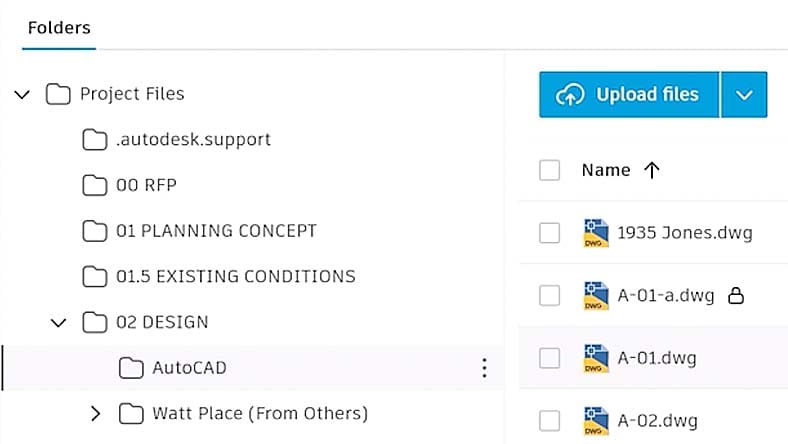
Project files folder view displaying DWG drawings and an upload files button in Format Data Management Essentials.

Forma Data Management Essentials 

Forma Data Management Essentials is now included with standalone subscriptions of AutoCAD, bringing cloud-based project data management directly into the tools you already use.


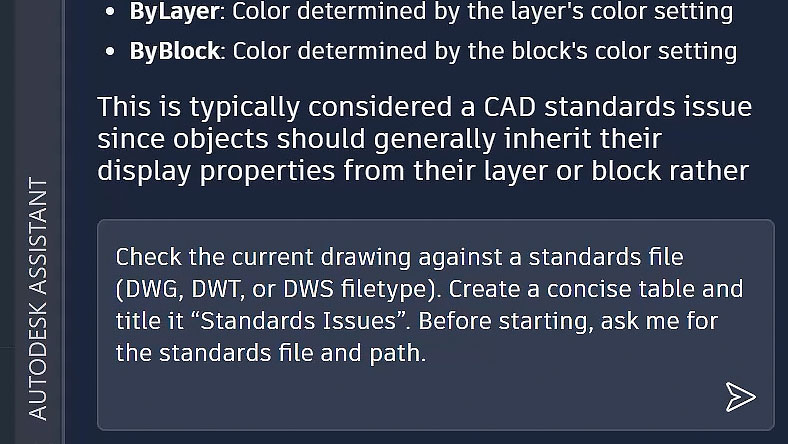
Autodesk Assistant panel showing guidance about CAD standards and checking a drawing against a standards file.

New Autodesk Assistant 

The Autodesk Assistant delivers intelligent, in-context guidance powered by Autodesk AI. With the introduction of Model Context Protocol (MCP), it now interprets drawing context and user intent, enabling CAD standards checking and allowing you to leverage enhanced AI chat and prompt-driven workflows.


AutoCAD interface displayed on a laptop as a user reviews and refines design work.

See how AutoCAD has improved over time

Learn more about what’s new, improved, and important to know in AutoCAD 2027

Useful resources on AutoCAD updates

AutoCAD official blog

Stay up to date with AutoCAD releases, feature announcements, workflow tips, and insights from the AutoCAD product team.


Known limitations and workarounds

Review known issues, limitations, and recommended workarounds to help you plan and troubleshoot your AutoCAD 2027 deployment.


AutoCAD Support

Find technical documentation, troubleshooting resources, downloads, and support options for AutoCAD


AutoCAD Community and Forums

Connect with AutoCAD users, ask questions, share knowledge, and learn from real-world experiences across the AutoCAD community.


Third-party plug-ins and compatibility

Third-party plug-in compatibility can vary by vendor and version. Before upgrading, review compatibility information and check with your plug-in providers to help avoid workflow disruptions.


Autodesk Marketplace

Explore Autodesk-approved apps, plug-ins, and integrations that extend AutoCAD workflows and functionality.


Small Business Hub

Get guidance and support tailored to small businesses, including questions about AutoCAD updates, subscriptions, and update planning.


Team working together on a CAD design while preparing for an AutoCAD software update.

Prepare your team for an AutoCAD update

Plan and deploy AutoCAD across your organization with confidence. This guide highlights key considerations—from setup to testing—to help reduce errors and ensure a smoother rollout experience. 

Suggested checklist

  • Review your current AutoCAD version and project requirements
  • Check third-party plug-in compatibility
  • Confirm customizations, LISP routines, templates, CUI, and support files
  • Test representative drawings and workflows
  • Review file compatibility and collaboration requirements
  • Validate hardware and graphics requirements
  • Review installation steps for individuals or admins
  • Plan communication and rollout timing for teams

AutoCAD products

2D and 3D CAD tools, with enhanced insights, AI-automations, and collaboration features. Subscription includes AutoCAD on desktop, web, mobile, and seven specialized toolsets.


Best-in-class tool for 2D CAD drafting, drawing, and documentation. Subscription includes AutoCAD LT on desktop, web, and mobile.


Draft, annotate, and add field data to your drawings online via your web browser or mobile device. Access and edit DWG files, and quickly collaborate with AutoCAD users on designs.