Use pan and zoom tools in InfoAsset Manager
Step-by-step guide
InfoAsset Manager includes several tools to navigate the GeoPlan window, including tools to zoom and pan. When combined with keyboard shortcuts and mouse gestures, these tools can improve the efficiency of your work.
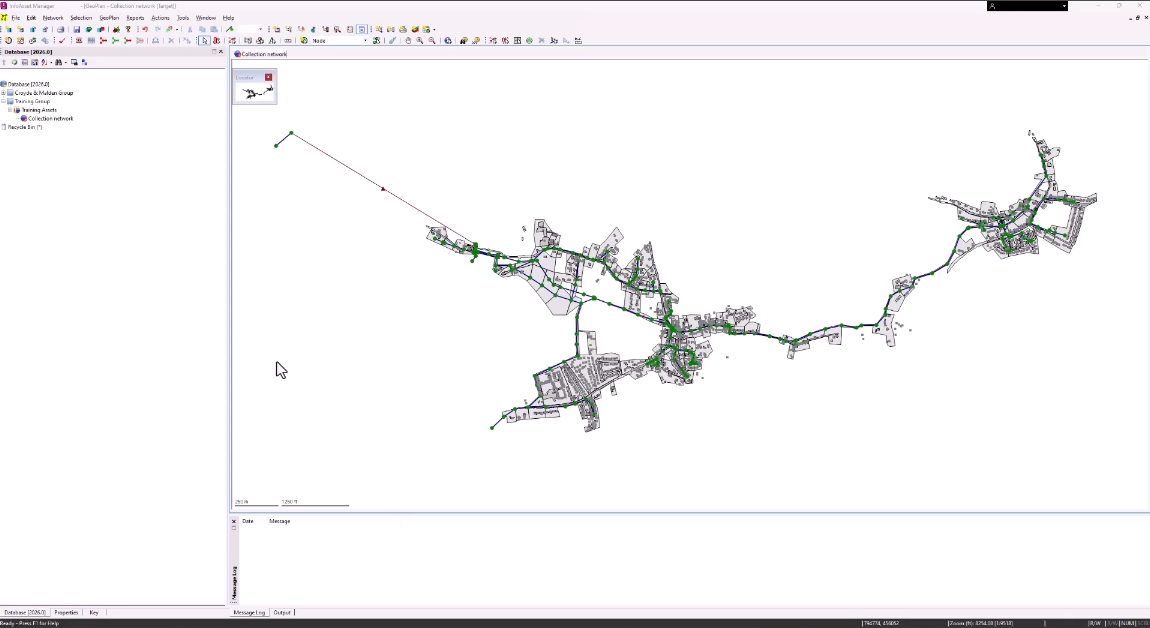
Panning tools allow small movements within a currently visible area. To manually pan:
- From the GeoPlan Tools toolbar, click Pan (or press F8) to turn panning mode on.

- Click and hold the left mouse button while dragging the pointer to another part of the GeoPlan to pan.
- Alternatively, hold down the scroll wheel while dragging the pointer across the GeoPlan.
There is also an option that enables automatically panning in the GeoPlan window.
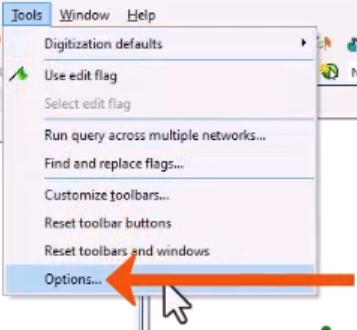
- From the Tools menu, select Options.
- In the Options dialog, open the GeoPlan tab.
- Select Enable Auto-Panning when at the edge of the GeoPlan.
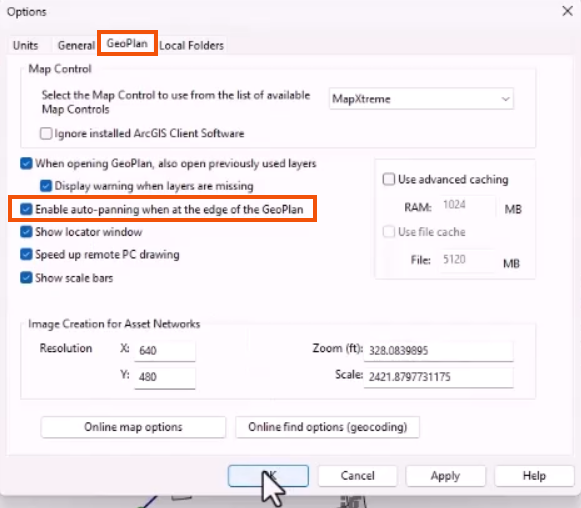
- Click OK.
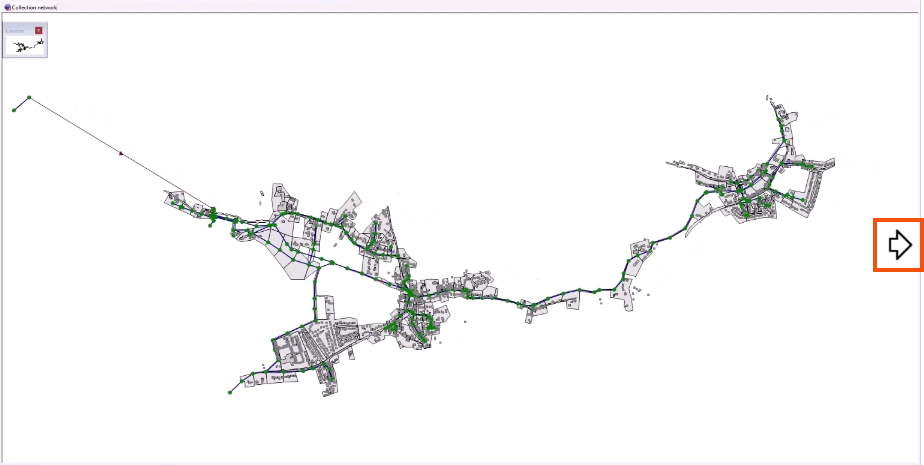
Now, when the cursor is moved close to the edges and corners of the GeoPlan, large arrows appear.
- Click to scroll the view in the direction indicated, or click and hold to scroll repeatedly in that direction.
Zoom options
The current zoom level is displayed on the Status bar.

- To zoom in, from the GeoPlan Tools toolbar, click Zoom in (or press F9).
- Click once on the GeoPlan to zoom in by a fixed amount.
- Click and hold as you drag the mouse to create a box around an area to magnify.
- To zoom out, from the toolbar, click Zoom out (or press F10).

- To change the zoom level on the GeoPlan without activating Zoom in or Zoom out, use the mouse scroll wheel.
- To activate the QuickZoom feature, press and hold SHIFT.
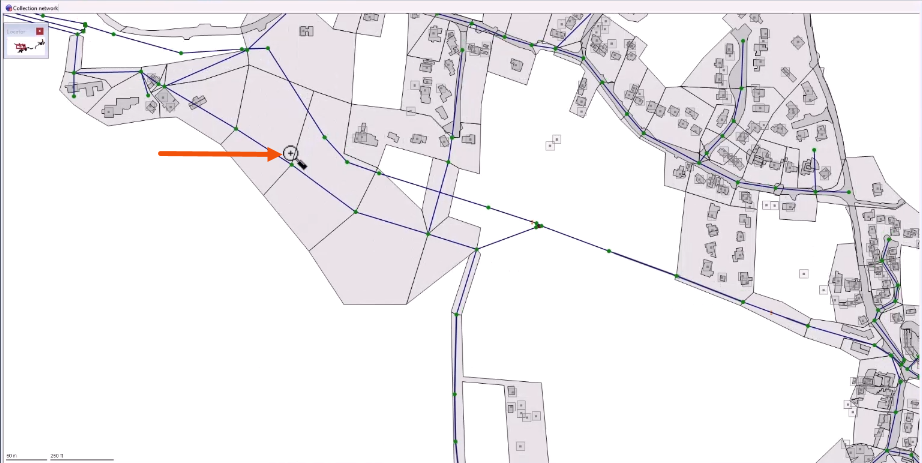
This allows zooming in on the network without changing the currently selected tool.
- To deactivate QuickZoom, release the SHIFT key.
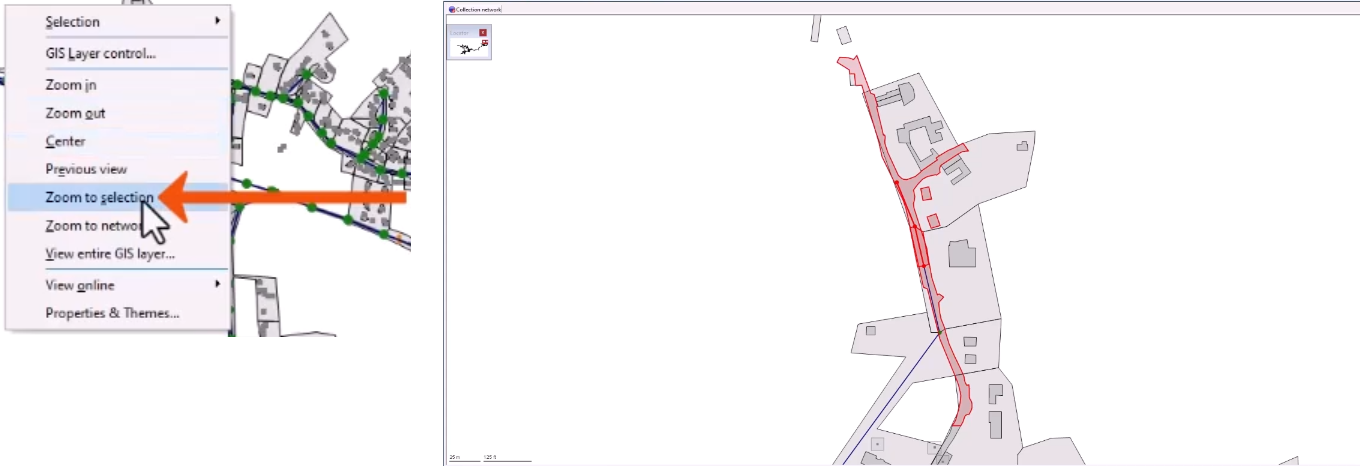
- Right-click the GeoPlan and select Zoom to network (or press F12) to zoom the view in or out to show the entire network within the window.
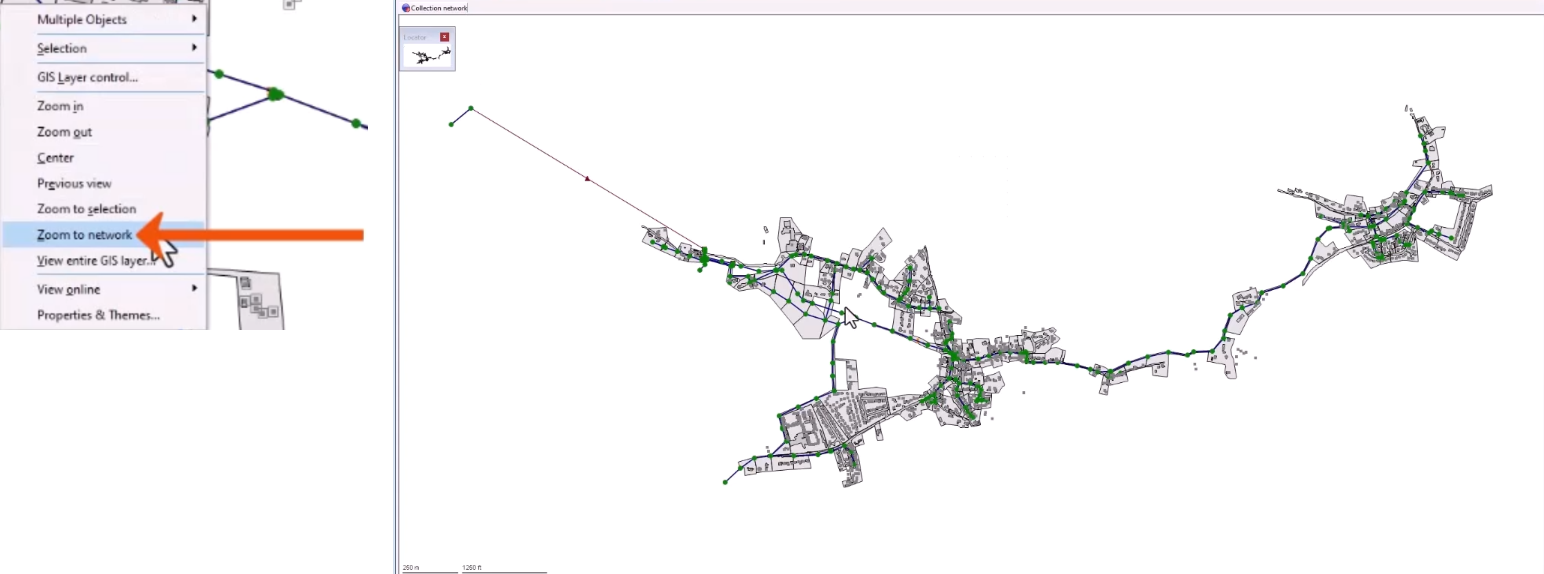
- Select Zoom to selection (or press SHIFT+F12) to zoom the view in or out to show all selected objects within the window.