Create spatial bookmarks in InfoAsset Manager
Step-by-step guide
In InfoAsset Manager, the zoom extent of a particular location or a selection of objects can be saved as a spatial bookmark. Bookmarks can be saved to the network for future reference, enabling specific views or areas of the network to be easily accessed.
To create a spatial bookmark:
- From the GeoPlan menu, select Spatial bookmarks.
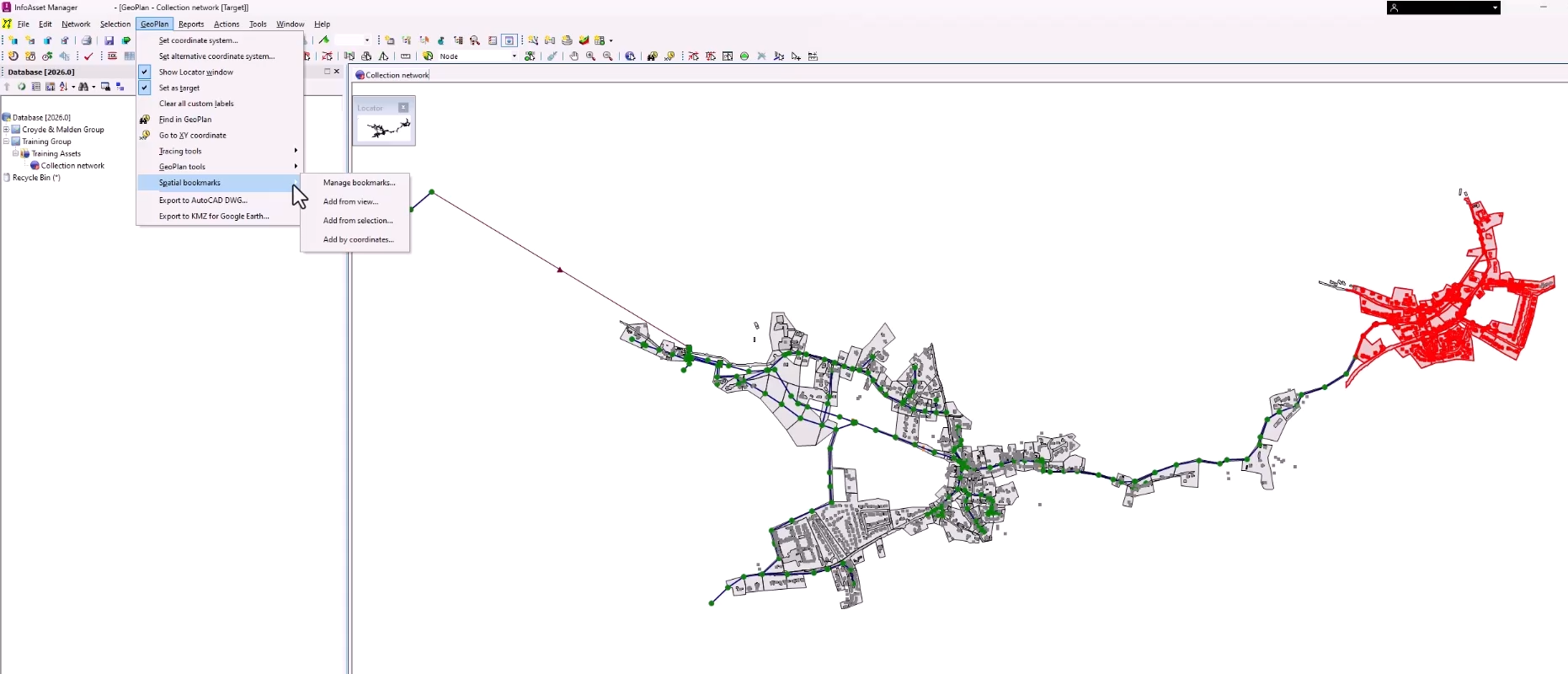
- In the flyout, select an option to determine how the coordinate values will be set and displayed in the Spatial bookmarks dialog.
- Add from view sets the coordinates from the extents of the currently displayed view in the GeoPlan window.
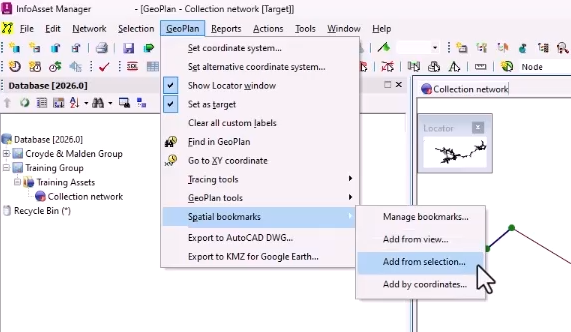
- Add from selection sets the coordinates from the extents of the view that will be displayed when zooming to selection. If there is no selection, coordinates are set from the extents of the currently displayed view in the GeoPlan window.
- Add by coordinates sets the coordinates to the center of the current view extents. Coordinates to be used as view extents can also be manually defined.
- In this case, choose Add from selection.
The Spatial Bookmark dialog displays the initial settings for zoom extent coordinates.
- To save the bookmarked view as a network preference, select Save to network.
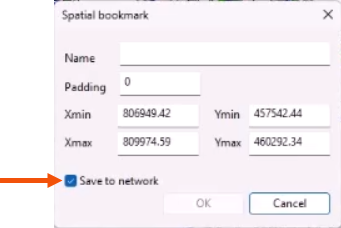
If this option is not selected, the bookmark will not be remembered after the network is closed.
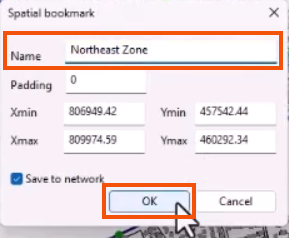
- Enter a Name for the bookmark, such as “Northeast Zone”.
- Click OK.
To view and use your saved bookmarks:
- From the Window menu, select Spatial bookmarks window to open a dockable window.
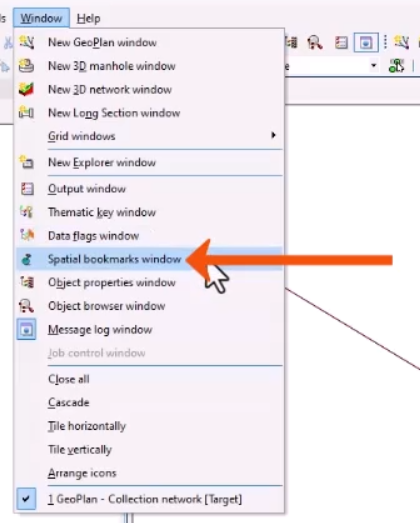
- In the Spatial bookmarks window, select a bookmark to jump to the bookmarked view in the GeoPlan.
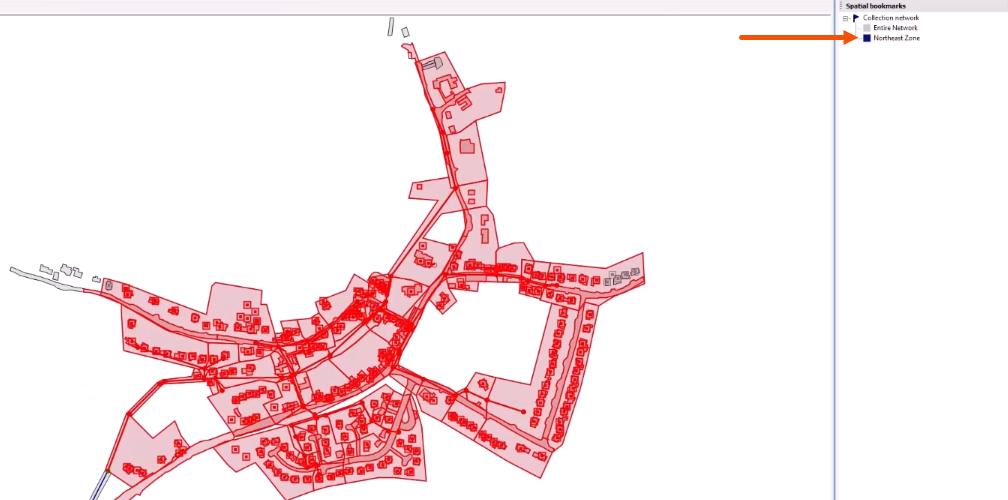
To manage your spatial bookmarks:
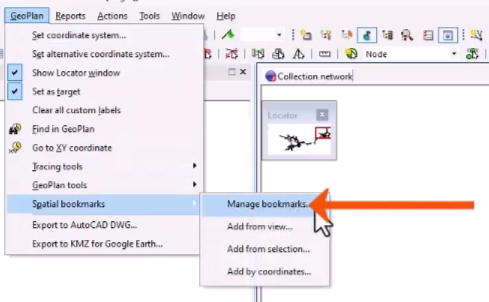
- Select GeoPlan > Spatial bookmarks > Manage bookmarks.
The Manage spatial bookmarks dialog includes options to Edit or Delete bookmarks, and to Import or Export bookmarks in .xml format. Note that importing spatial bookmarks removes existing bookmarks.
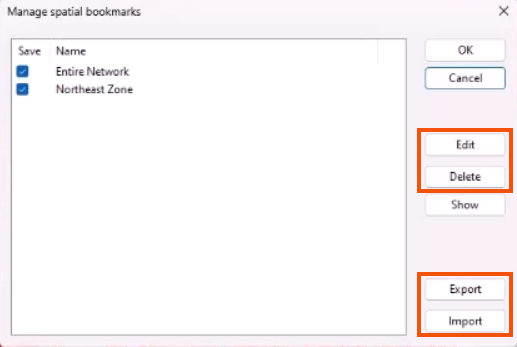
Next to each bookmark, a selected checkbox indicates that it is saved to the network.




