Compare network data in InfoAsset Manager
Step-by-step guide
In InfoAsset Manager, two version-controlled items can be compared to identify differences. A list of uncommitted changes can also be viewed, either when comparing the local copy of the version-controlled item with the latest version in the database, or when comparing two separate version-controlled items.
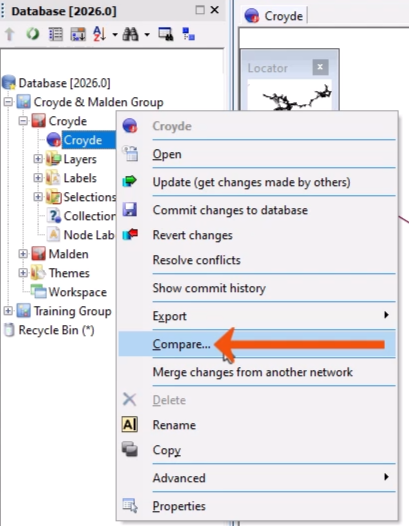
- In the Explorer window, right-click the version-controlled item and select Compare.
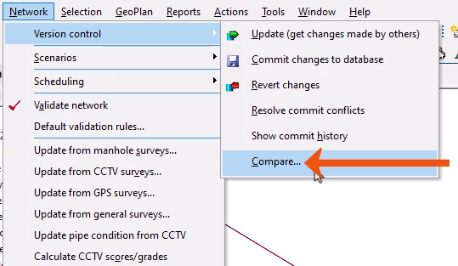
- Alternatively, open the Network menu and select Version control > Compare.
To view uncommitted changes:
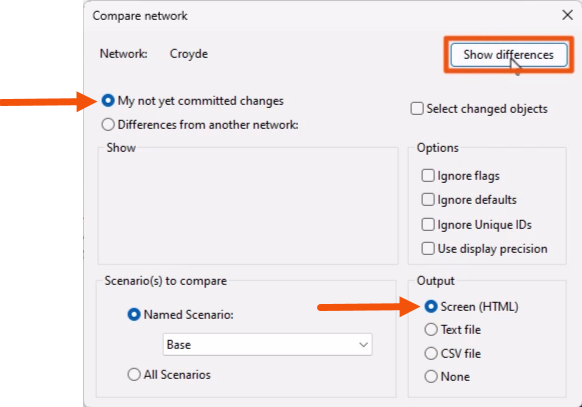
- In the Compare network dialog, select My not yet committed changes.
- Set the Options, as needed.
- Under Output, set the destination for the report, such as Screen (HTML).
- Click Show differences.
A new tabbed window displays the differences between the last committed version in the database and any uncommitted changes made.
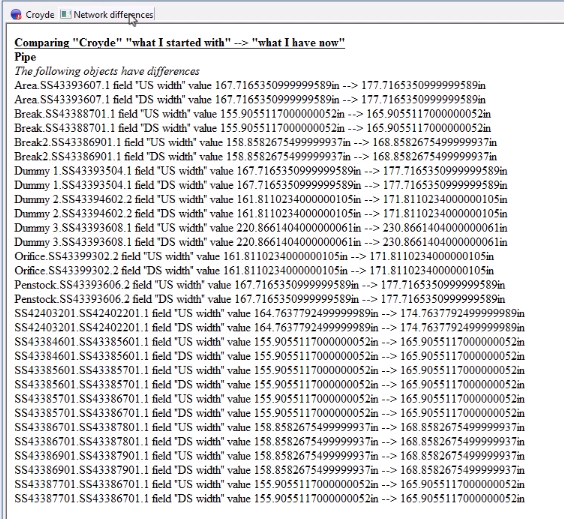
- Close the window.
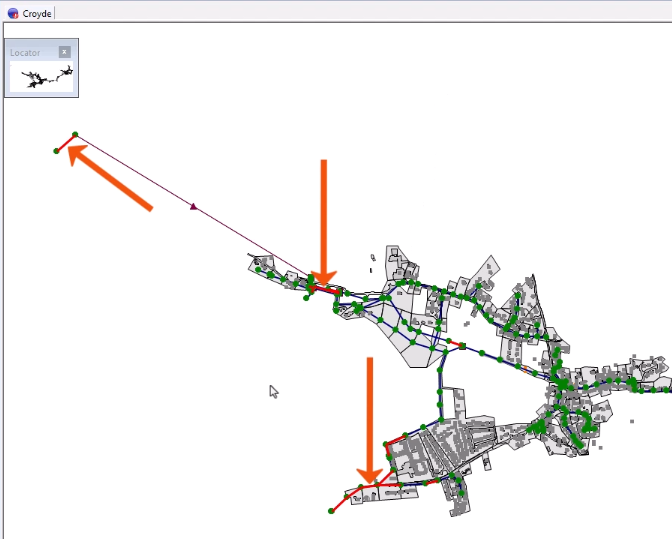
Another option is to highlight the changed objects in red on the GeoPlan.
- Reopen the Compare network dialog for the version-controlled item.
- Set the Output to None.
- Enable Select changed objects.
- Click Show differences.
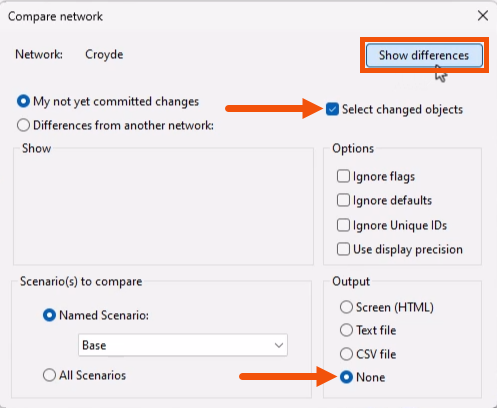
The changed objects display in red on the GeoPlan.
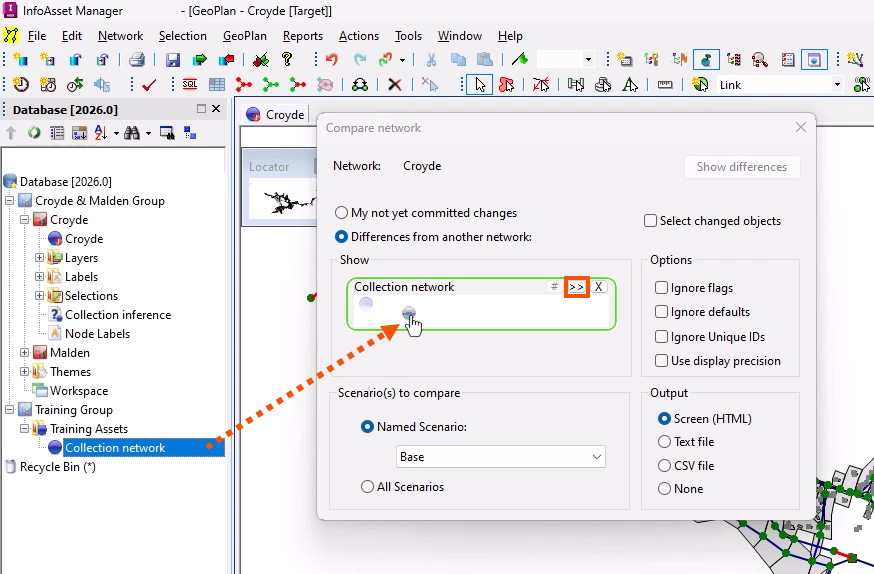
To compare two separate version-controlled items, such as two networks of the same model or similar models:
- Reopen the Compare network dialog.
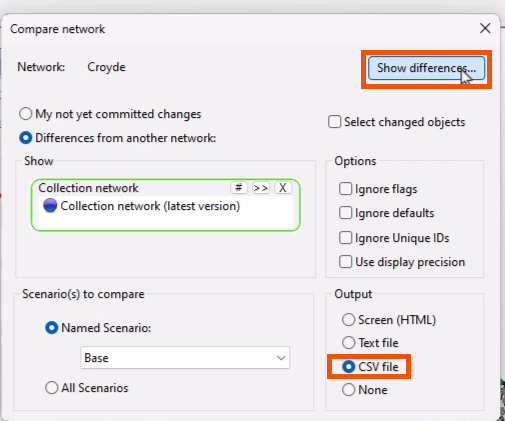
- Select Differences from another network.
- From the Explorer, drag the second version-controlled item into the Compare network dialog and drop it into the Collection network box.
- Alternatively, click Browse to select the comparison item.
- Set the Options, as needed.
- In this case, set the Output to CSV file.
- Click Show differences.
- In the Save As dialog, set the name and location of the CSV file.
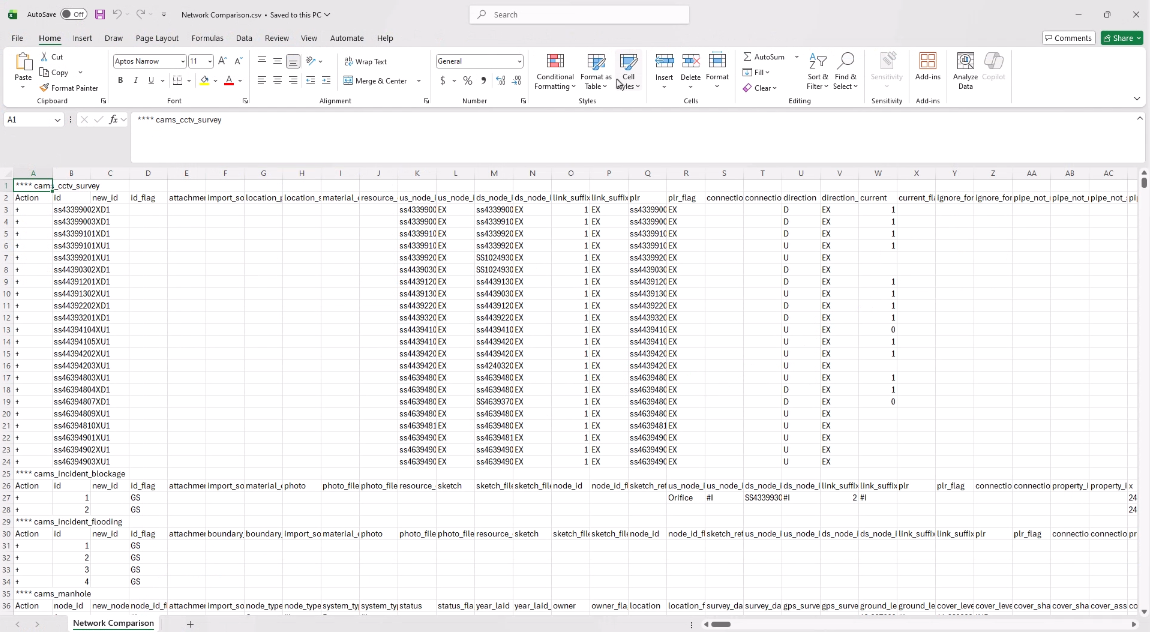
- Open the CSV file to view the full comparison details.