Compare CCTV surveys in InfoAsset Manager
Step-by-step guide
A network may include multiple CCTV surveys, such as surveys conducted on different dates, or the same survey with different settings applied. There are several ways to compare survey data.
CCTV surveys can be reviewed individually through the survey or pipe property sheets. Here, the conditions, defect scores, and other criteria can be reviewed and used for a side-by-side comparison with other open property sheets.
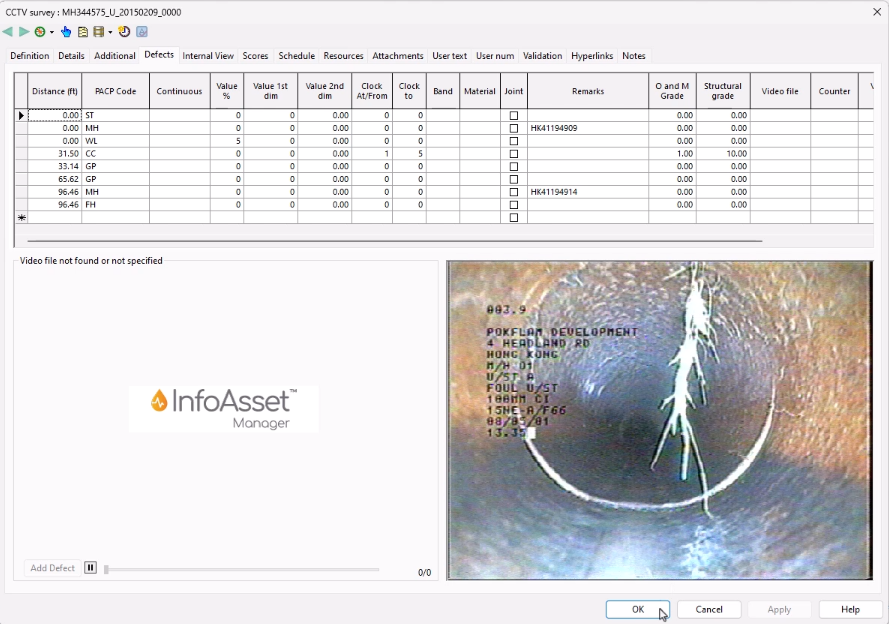
Another way to compare CCTV data from multiple surveys is to create a Selection List or open a survey window.
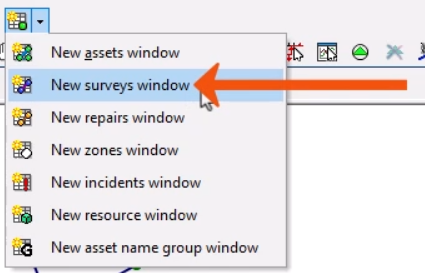
- From the Asset Grid Windows toolbar, click New surveys window.
- In the surveys window, select the CCTV Survey tab.
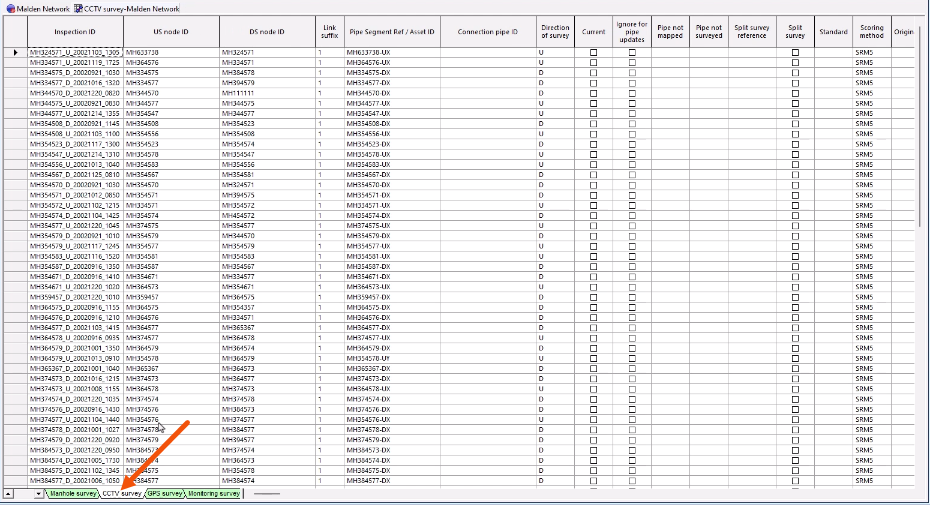
- Right-click a column with common data for different surveys, such as US Node ID, and select Sort on Selected Columns Ascending.
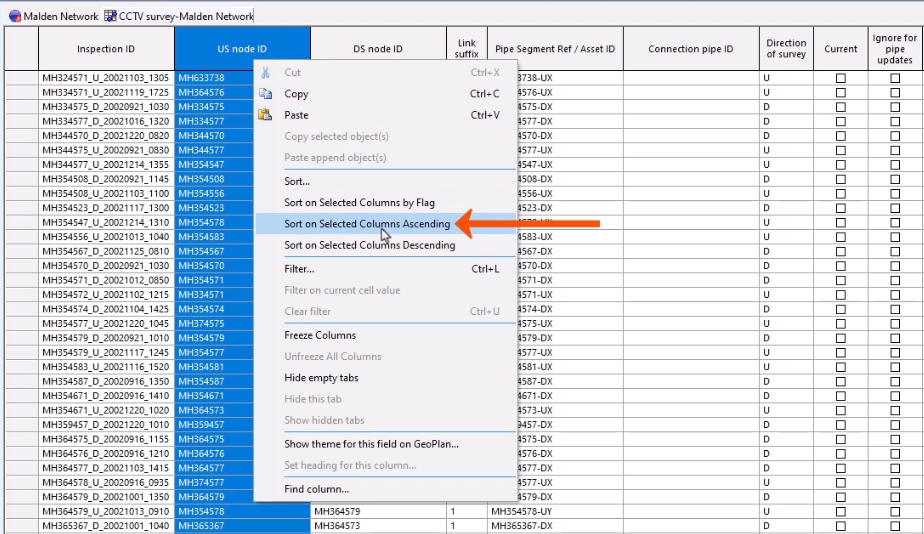
With the data sorted, the differences between surveys with the same US node ID can be easily identified.
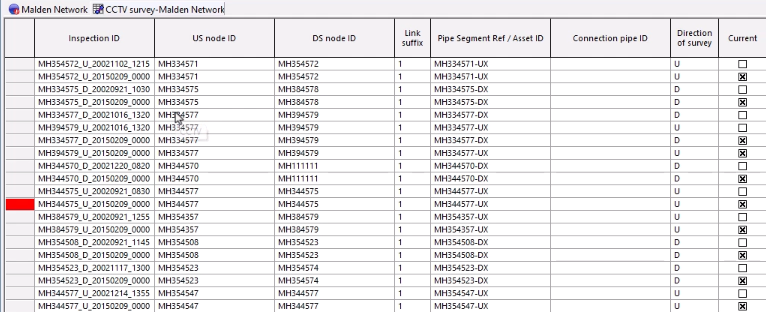
If changes are committed to the database multiple times for CCTV surveys, this information can also be used to compare survey info.
Viewing the commit history for an individual object can be a useful way to compare CCTV scores over the life of a network.
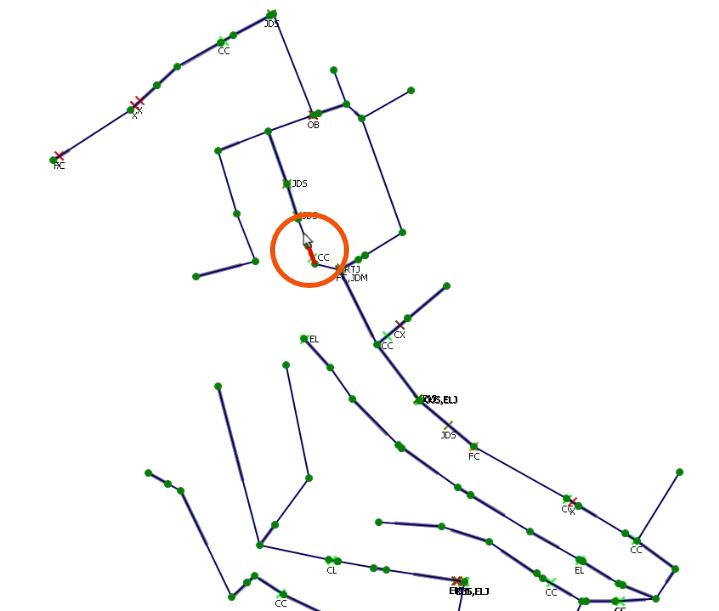
- From the GeoPlan, open the property sheet for a pipe in the network.
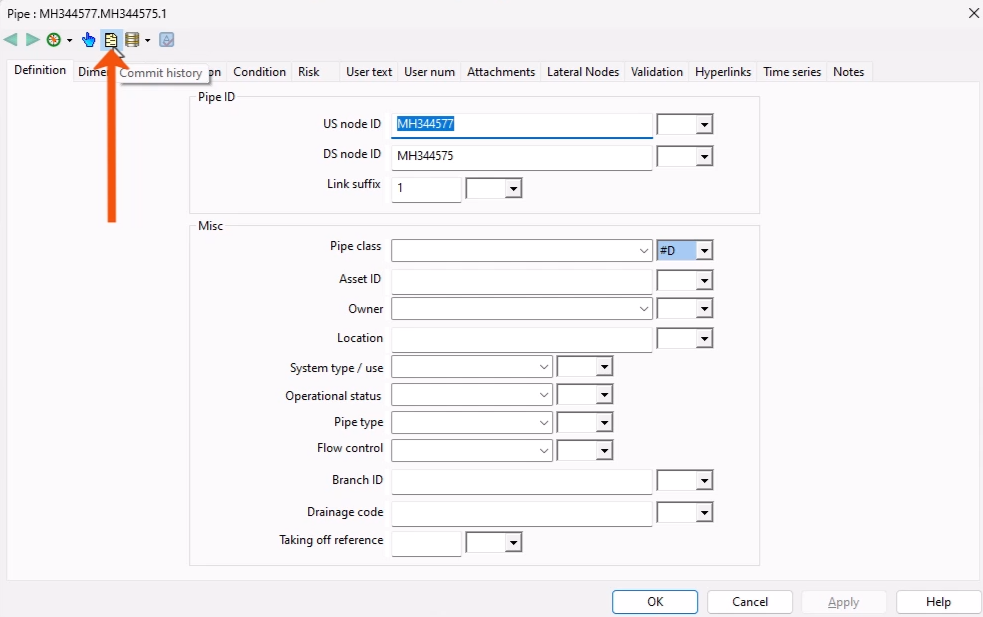
- From the property sheet toolbar, click Commit History.
- In the Commit history dialog, select a current or previous commit.
- Click Details.
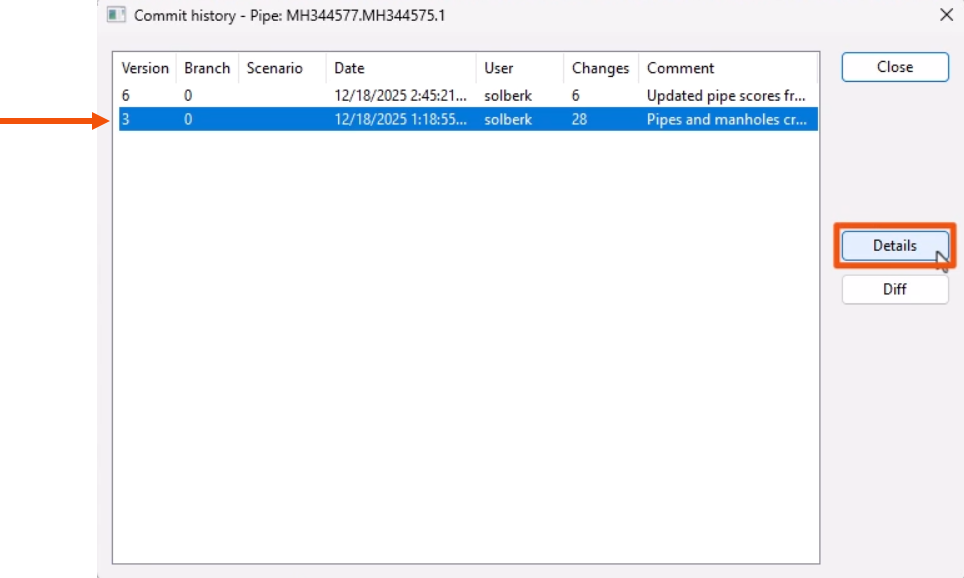
- In the Object Commit Details dialog, review the CCTV data details for that commit.
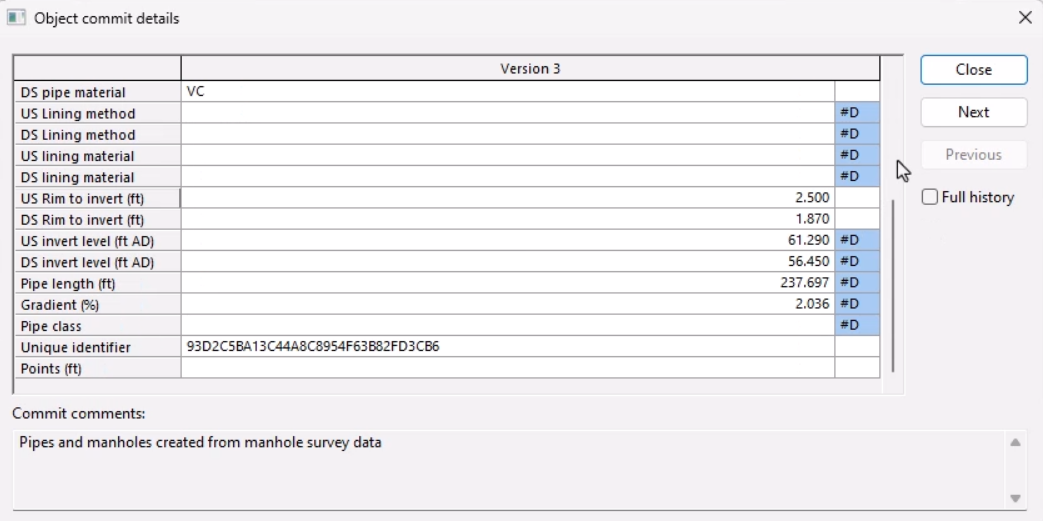
- Close the dialog.
Alternatively, to view the differences between two commits:
- Back in the Commit History dialog, select two commits.
- Click Diff.

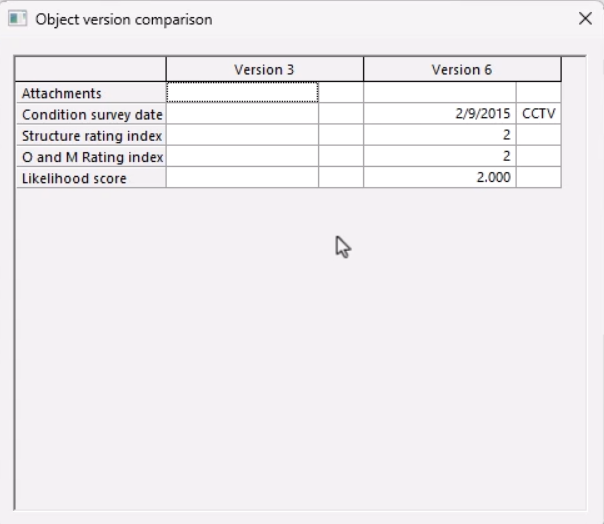
- In the Object version comparison dialog, review the different commit versions.