Update pipe conditions from survey scores in InfoAsset Manager
Step-by-step guide
Once CCTV data has been imported into a network and condition grades have been calculated, the CCTV condition information can be used to update pipe condition fields for the pipes in the network. Pipes can be updated each time new CCTV data is imported.
To update pipe condition fields from CCTV data:
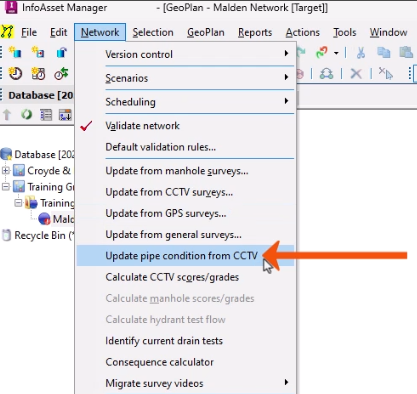
- From the Network menu, select Update pipe condition from CCTV.
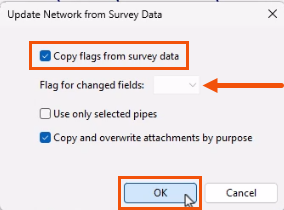
In the Update Network from Survey Data dialog, set the flag options as needed:
- To import any flags stored with the survey data, select Copy flags from survey data.
- To select a default flag for all imported data, expand the Flag for changed fields drop-down and select an option. In this case, no default flag is needed.
- Click OK.
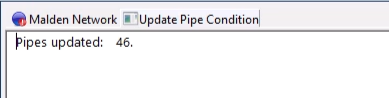
A message log displays the number of updated pipes and any warnings.
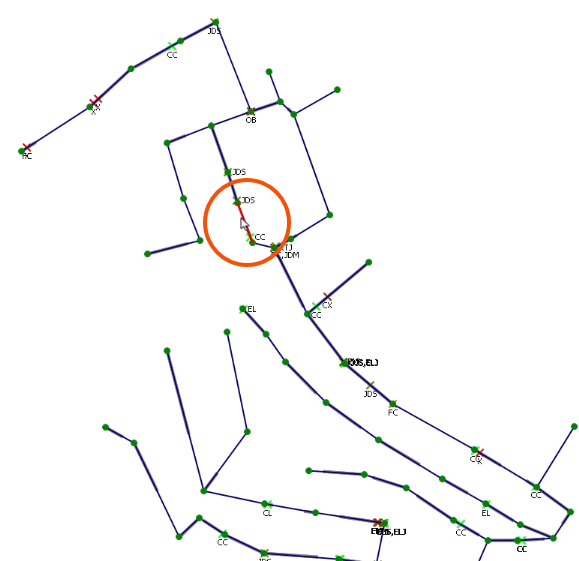
- Back in the GeoPlan, select a pipe and open its property sheet.
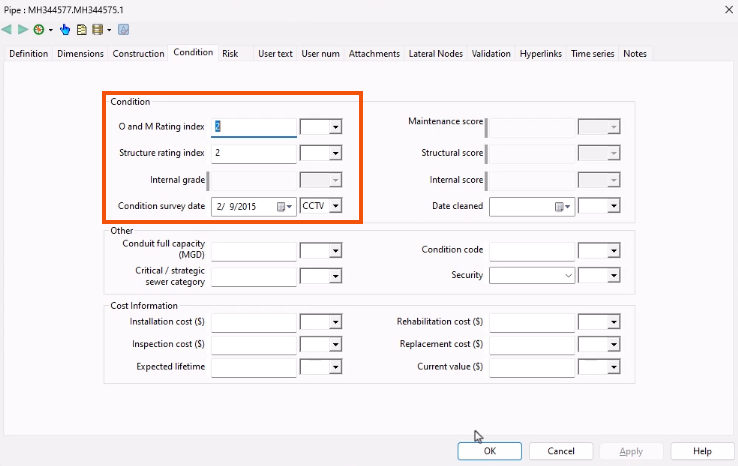
- In the property sheet, select the Condition tab.
The pipe condition fields, including the pipe Condition Survey Date field and the Likelihood score, are updated with the most recent CCTV Survey for that pipe.
- Click OK.
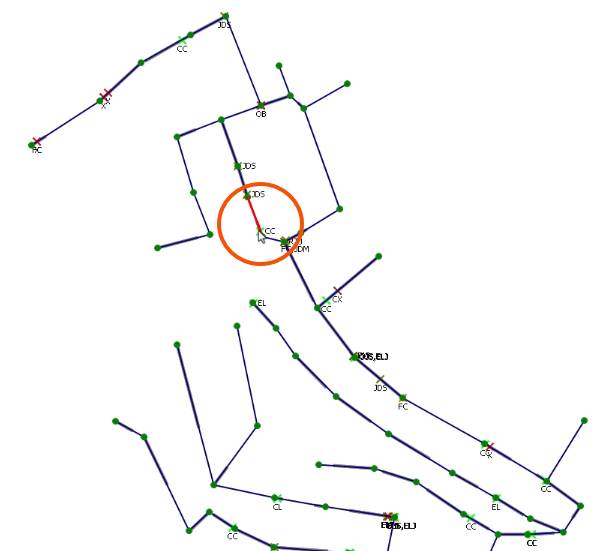
- Back in the GeoPlan, for the pipe that was just reviewed, open the property sheet for the corresponding CCTV survey.
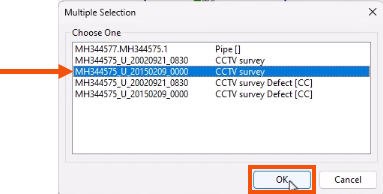
- If the Multiple Selection dialog appears, be sure to select the CCTV survey used most recently to update the data.
- Click OK.
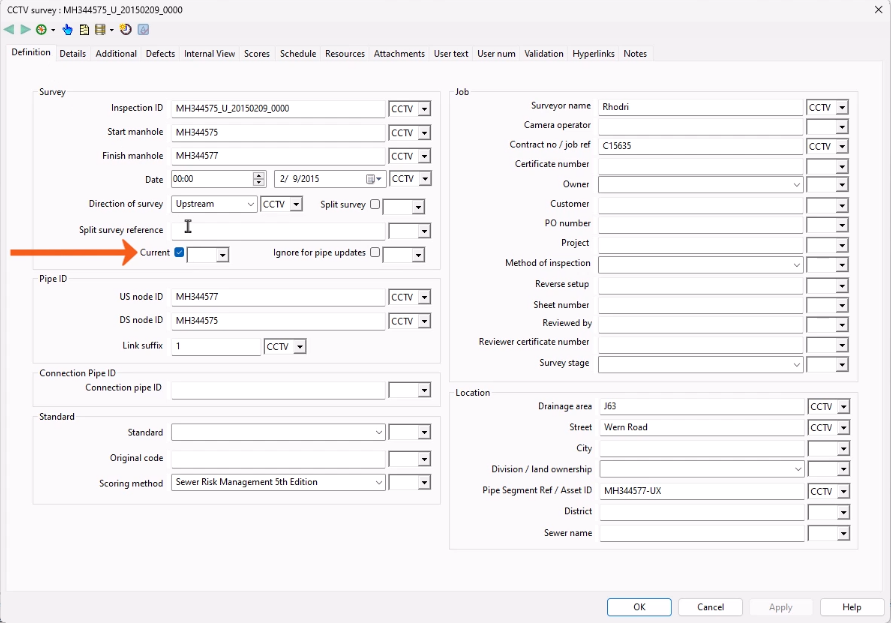
- In the CCTV survey property sheet, select the Definition tab.
- Note that the Current field is now selected.
Condition information of pipes in the network is updated from CCTV data according to the following rules:
- The most recent CCTV survey is considered first. If the survey covers the entire pipe length, then this survey controls the pipe condition, and the pipe grade is set to be the grade of the survey.
- If the most recent survey covers only part of the pipe, then the most recent survey from the other end of the pipe is also considered, if applicable. The pipe grade is set to be the worst grade of the two surveys.
Additionally, the calculated structural or service grade may be overridden to allow engineering expertise to take precedence over the automatic scoring process.




