Step-by-step guide
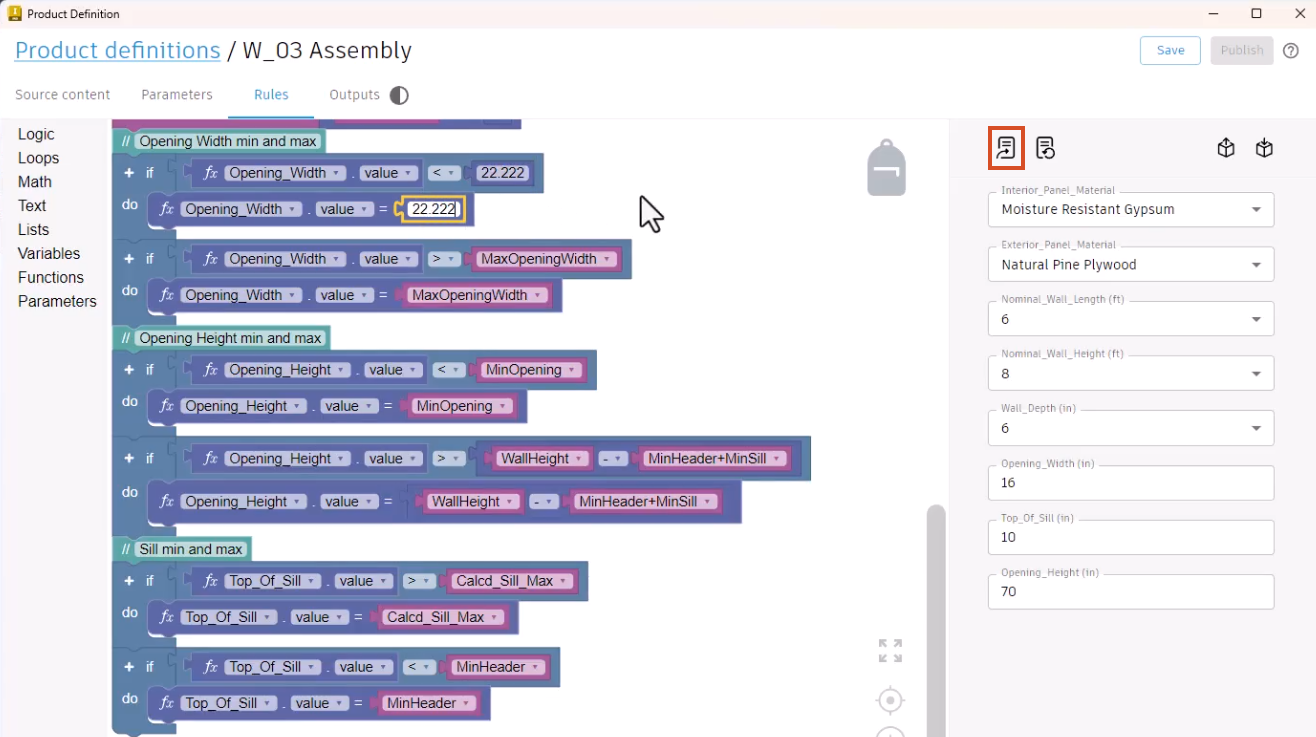
After creating and editing Codeblock rules within an Informed Design product definition, click Update form to apply the rules and changes to the form. Then, test the behavior of the form, as defined by the code blocks, by entering input values and choosing options within the form, to see if it works as expected.
To test a set of values in the form against the Inventor model:
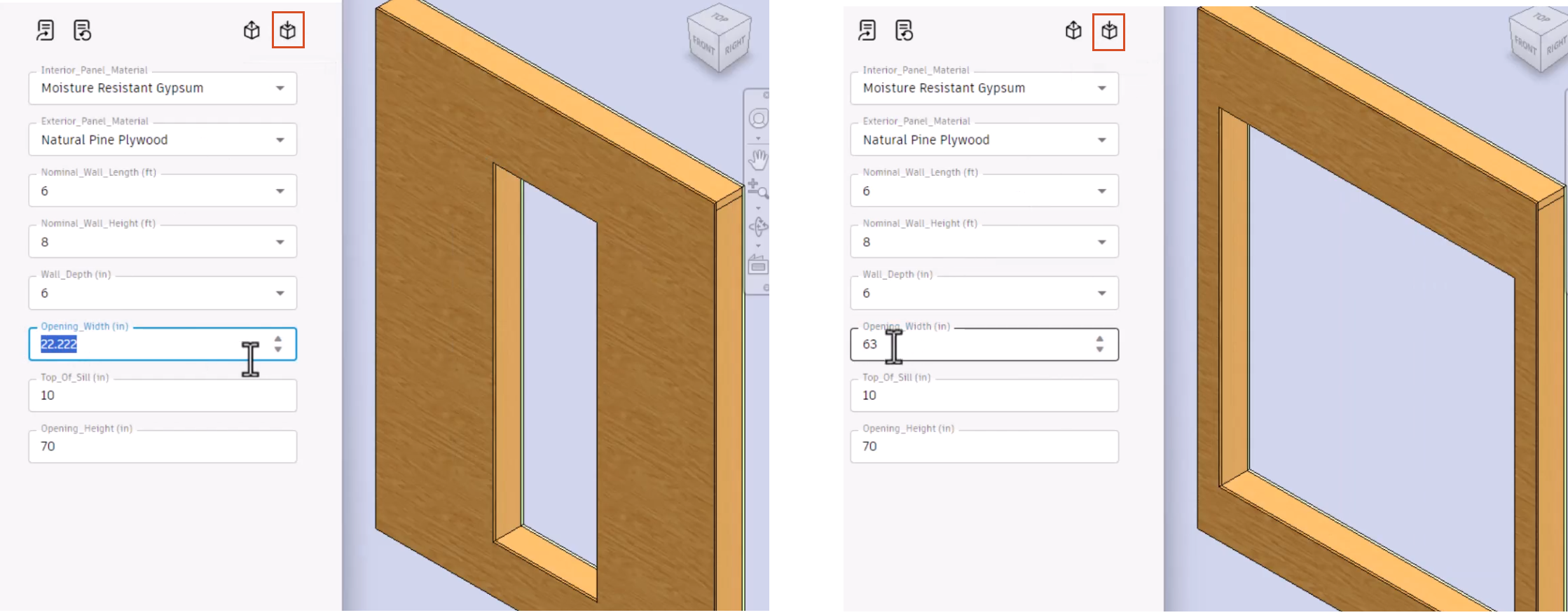
- In the form, update a value, such as the Opening Width.
- Click Set model values. The Inventor model updates accordingly.
- Test the values as many times as needed to ensure that the Inventor model updates as expected when generating different configurations.
- Make any necessary changes to the Inventor model, making sure to Save and Close the Product definition first.
After parameters are updated within the Inventor model, when the Product definition is reopened, then the model and product definition will no longer be in sync.
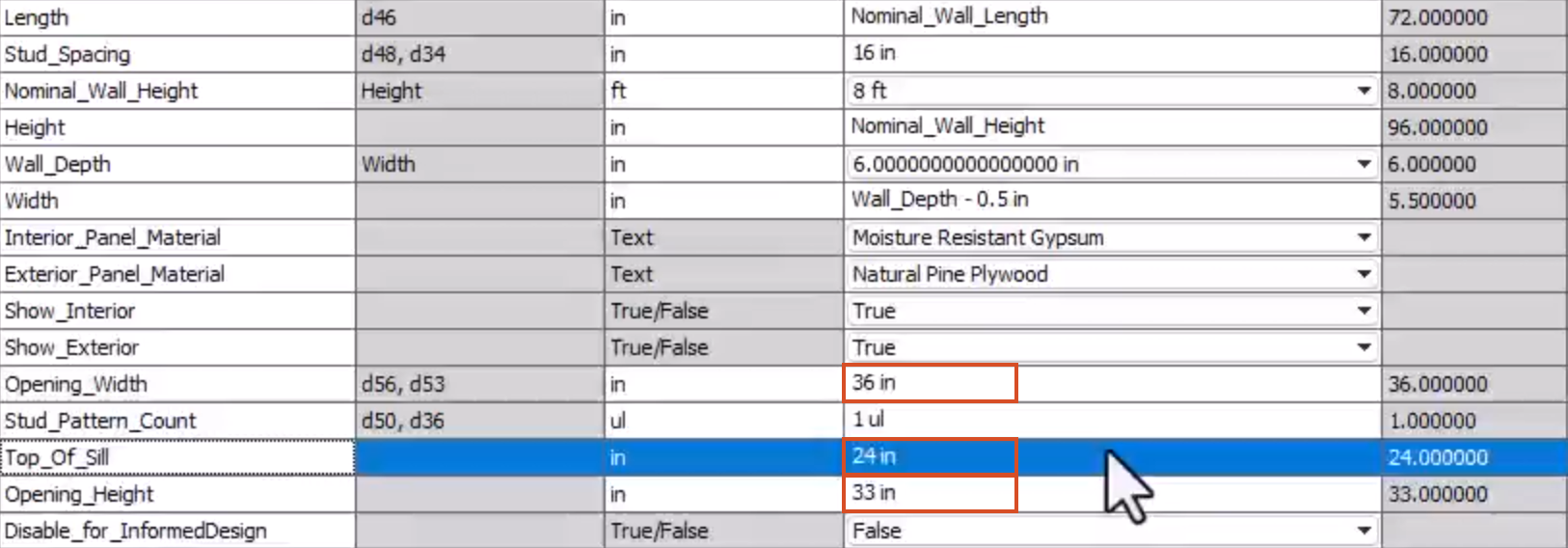
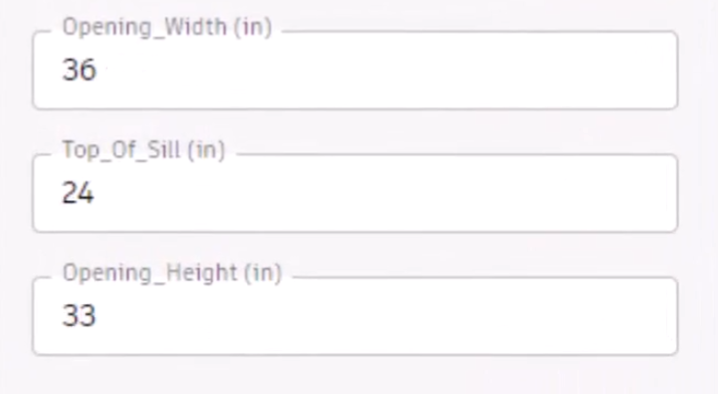
In this example, the Inventor model parameters are updated to an opening width of 36, a sill height of 24, and an opening height of 33:
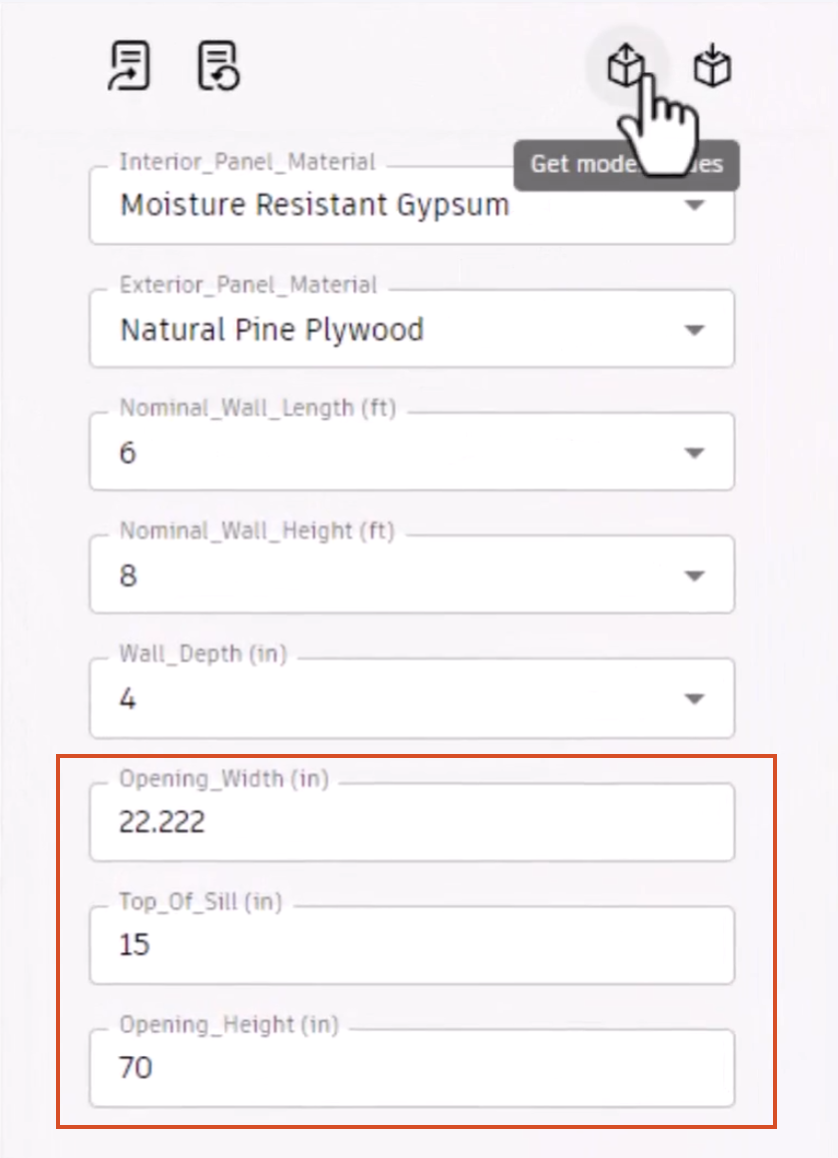
When the product definition is reopened, it is out sync and shows the previous opening width of 22.222, sill height of 15, and opening height of 70.
- To synchronize these values, click Get model values.
The product definition updates to the latest parameter values, as set in the Inventor model.
Conversely, the Inventor model can be updated to match changes to the product definition.
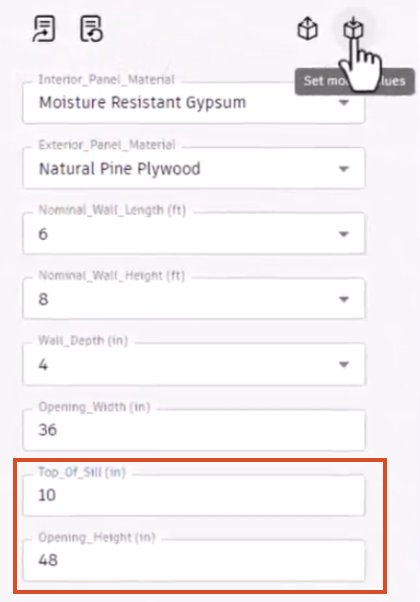
- On the form, change the Top of Sill and Opening Height values.
- Click Set model values to update the Inventor model.
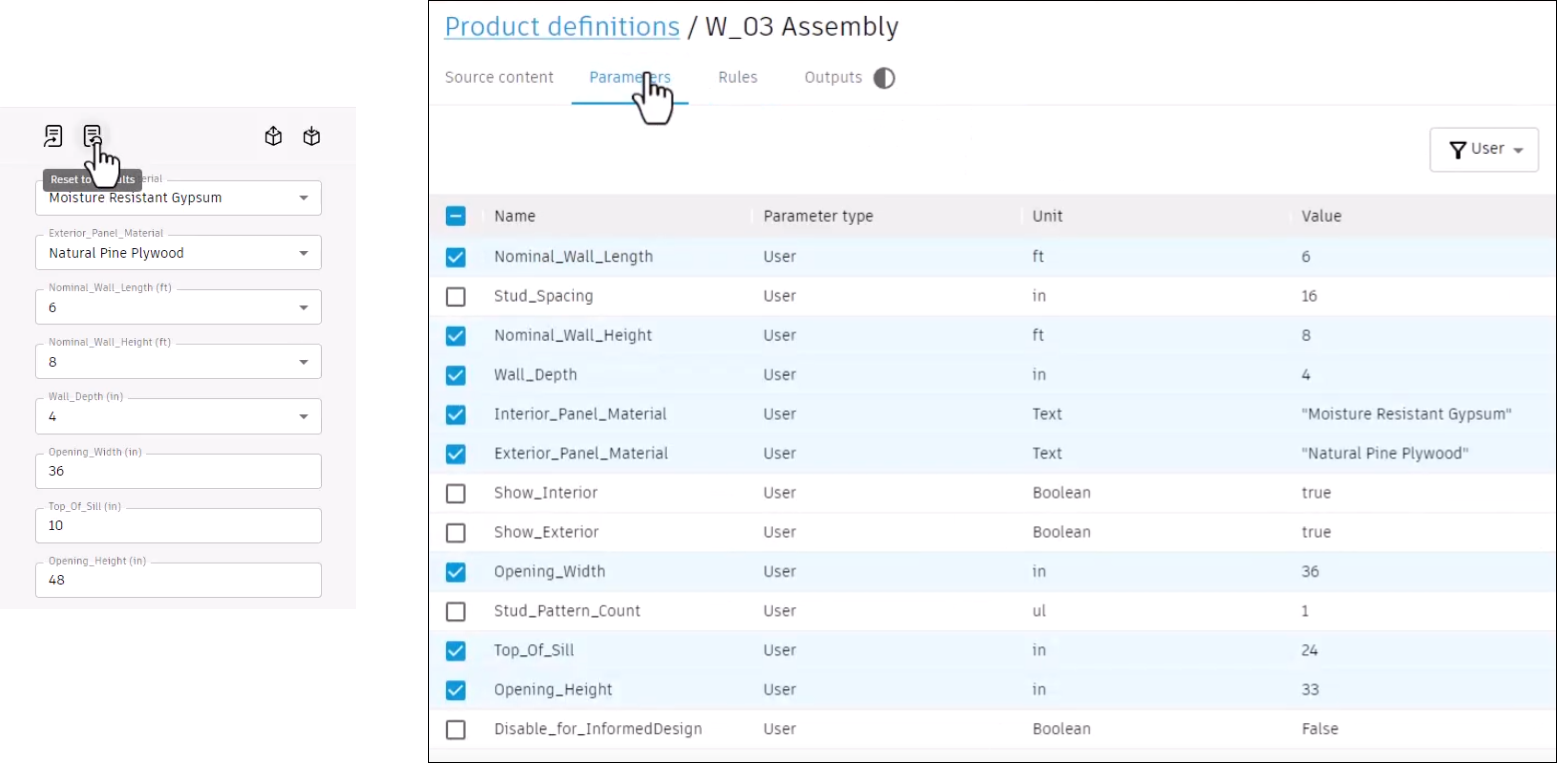
- To set the values in the form back to the default parameter values, as shown on the Parameters tab, click Reset to defaults.
These defaults are set at the time of parameter adoption from Inventor, and reset every time you click Get model values.
Before publishing, it is important to verify that the parameter values are the same in the Inventor model, on the product definition Parameters tab, and in the form on the Rules tab. Also, ensure that the Inventor model and product definition have been saved with the latest parameter changes before publishing.
In summary:
- When making changes to the code blocks in the product definition Rules tab, use the Update form button to implement those changes in the form.
- Use the Set model values button to push changes from the form in the product definition Rules tab to the Inventor model.
- Use the Get model values button to pull parameter updates from the model.
- Use the Reset to defaults button to reset the product definition to the adopted defaults.