Compare network data in InfoAsset Manager

Compare two version controlled items to identify their differences.


Compare network data in InfoAsset Manager

Step-by-step guide

In InfoAsset Manager, two version-controlled items can be compared to identify differences. A list of uncommitted changes can also be viewed, either when comparing the local copy of the version-controlled item with the latest version in the database, or when comparing two separate version-controlled items.

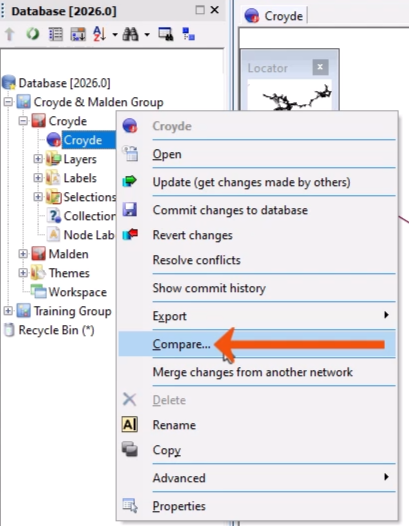
  1. In the Explorer window, right-click the version-controlled item and select Compare.
    The Explorer window, with the context menu for the version-controlled item expanded, and Compare being selected and called out with a red arrow.
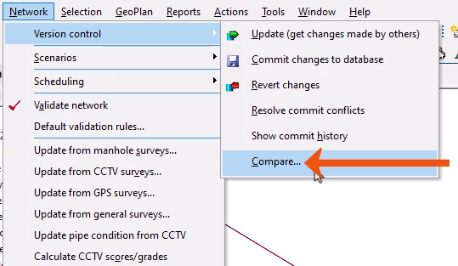
  2. Alternatively, open the Network menu and select Version control > Compare.
    The Network menu expanded, with Version control selected, and in the flyout, Compare being selected and called out with a red arrow.

To view uncommitted changes:

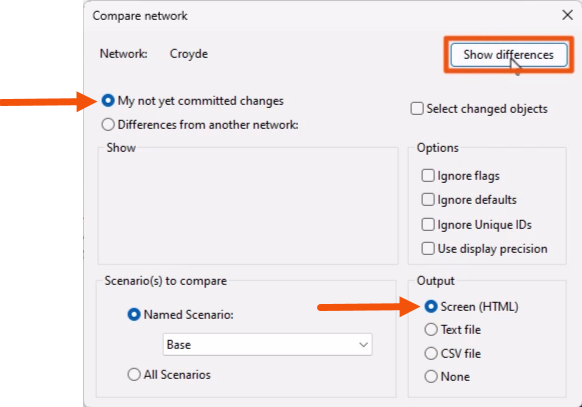
  1. In the Compare network dialog, select My not yet committed changes.
  2. Set the Options, as needed.
  3. Under Output, set the destination for the report, such as Screen (HTML).
  4. Click Show differences.
    In the Compare network dialog, My not yet committed changes selected and an Output of Screen (HTML) selected, both called out with red arrows, and Show differences being selected and highlighted in red.

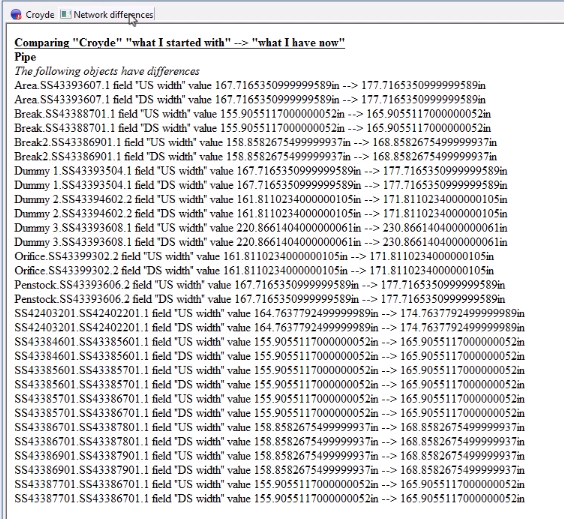
A new tabbed window displays the differences between the last committed version in the database and any uncommitted changes made.

A window with a list the differences between the last committed version in the database and uncommitted changes.

  1. Close the window.

Another option is to highlight the changed objects in red on the GeoPlan.

  1. Reopen the Compare network dialog for the version-controlled item.
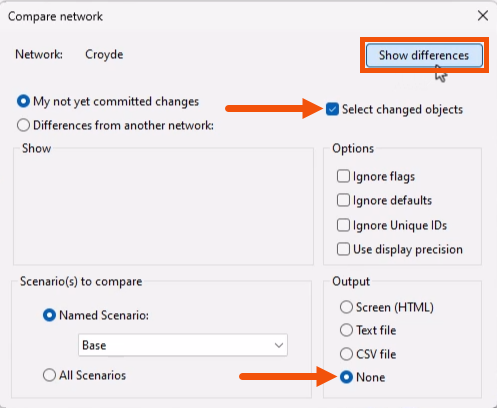
  2. Set the Output to None.
  3. Enable Select changed objects.
  4. Click Show differences.
    The Compare network dialog, with the Output set to None and Select changed objects enabled, both called out with red arrows, and Show differences being selected and highlighted in red.

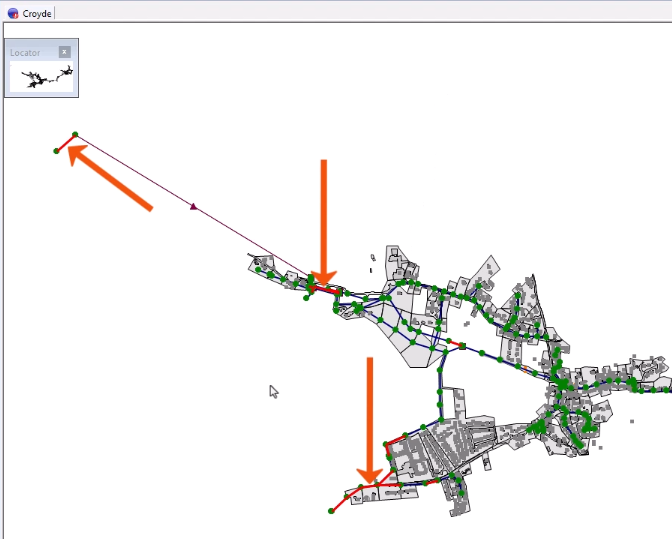
The changed objects display in red on the GeoPlan.

The GeoPlan, with changed objects displayed in red and called out with red arrows.

To compare two separate version-controlled items, such as two networks of the same model or similar models:

  1. Reopen the Compare network dialog.
  2. Select Differences from another network.
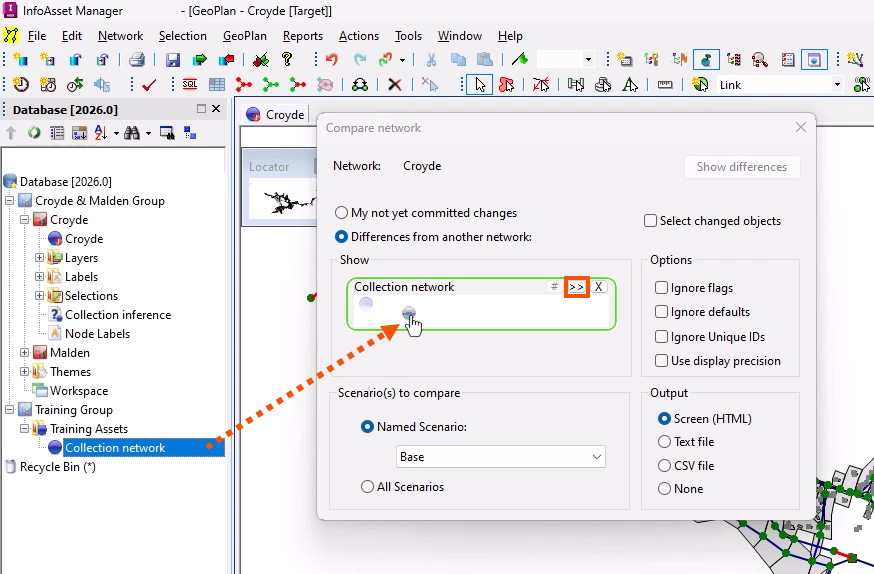
  3. From the Explorer, drag the second version-controlled item into the Compare network dialog and drop it into the Collection network box.
  4. Alternatively, click Browse to select the comparison item.
    From the Explorer, a dotted red arrow showing the path of the second version-controlled item being dragged into the Compare network dialog, Collection network box, with the Browse button highlighted in red.
  5. Set the Options, as needed.
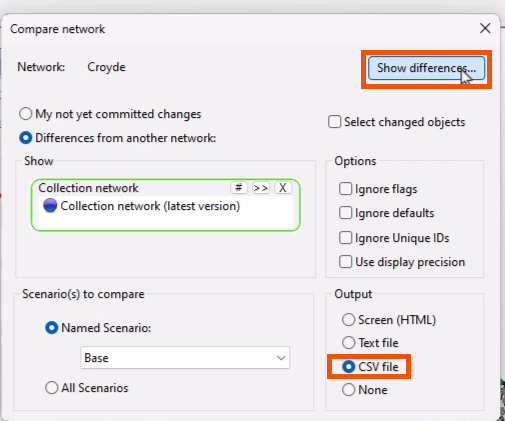
  6. In this case, set the Output to CSV file.
  7. Click Show differences.
    In the Compare network dialog, CSV file selected for the Output and Show differences being selected, both highlighted in red.
  8. In the Save As dialog, set the name and location of the CSV file.
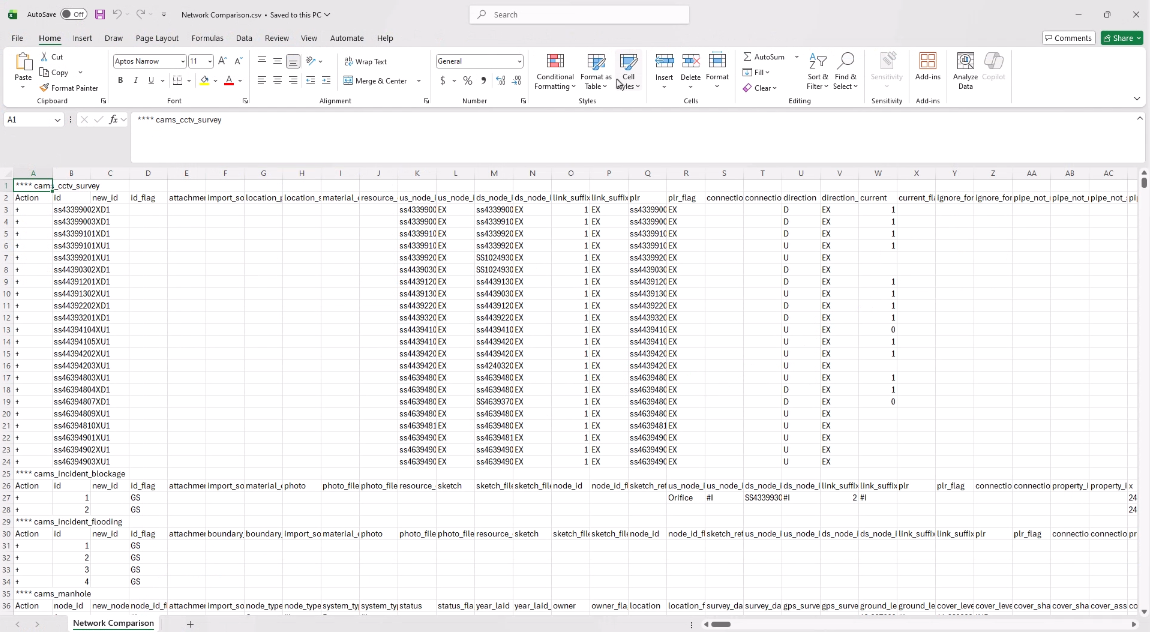
  9. Open the CSV file to view the full comparison details.
    The open CSV file showing comparison details.