Move nodes and edit links in InfoAsset Manager

Edit the geometry of network objects directly on the GeoPlan.


Move nodes and edit links in InfoAsset Manager

Step-by-step guide

In InfoAsset Manager, the geometry of network objects on the GeoPlan window can be edited. This can include moving nodes or links, and editing links, such as adding vertices.

To move a node:

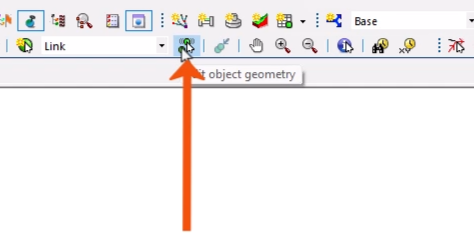
  1. From the GeoPlan Tools toolbar, click Edit object geometry to toggle this option on.
    The GeoPlan Tools toolbar, with Edit object geometry being selected and called out with a red arrow.
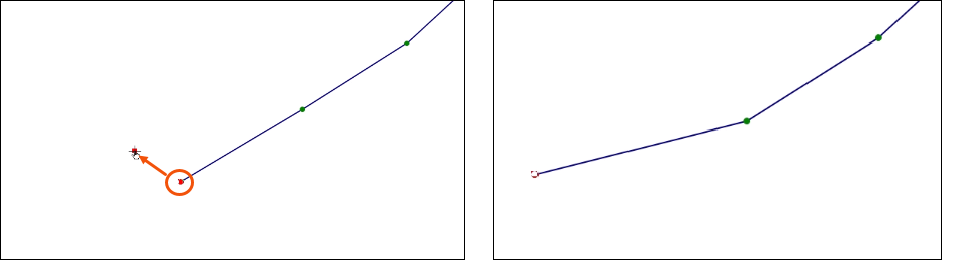
  2. On the GeoPlan, click a node object to move. The object displays in red, indicating it is selected.
  3. Click the object again, and while holding down the mouse button, drag the object to its new location.
  4. Release the mouse button to complete the move.
    On the left, a node selected and highlighted in red, and the node being moved to a new location, called out by a red arrow. On the right, the new location for the node completed, and the connecting line adjusted.

Next, edit a link to add vertices.

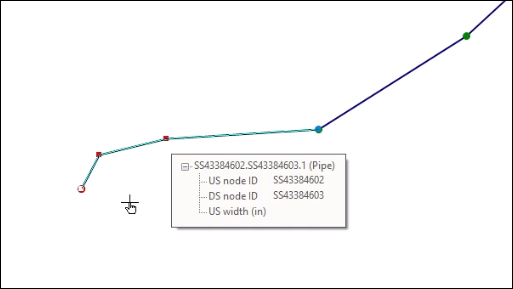
  1. With Edit object geometry still active, on the GeoPlan, click to select a link.
  2. Press and hold CTRL while clicking the line at the position of the new vertex.
  3. If needed, click and drag the new vertex to move it.
  4. Repeat these steps to add more vertices.
    The selected link, with two vertices added and moved to different locations.

To delete a vertex:

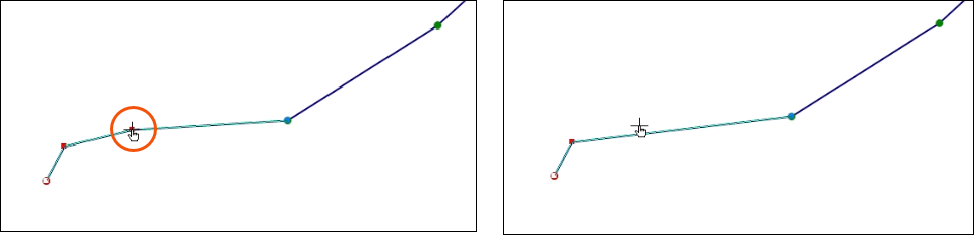
  1. Hold the cursor over the vertex until a cross appears, indicating it is locked on that point.
  2. Press and hold ALT while clicking to delete the vertex.
    On the left, the cursor hovering over a vertex with the cross visible, highlighted in red. On the right, the same link after deleting the vertex.

Use these same procedures for polygon objects to move corner points, or to add or remove vertices.

  1. To turn the Edit object geometry tool off, press ESC or activate another tool.