Delete data in InfoAsset Manager

Delete network objects using several methods.


Delete data in InfoAsset Manager

Step-by-step guide

In InfoAsset Manager there are several methods of deleting network objects.

Since deletion is a destructive operation, it is helpful to add a safeguard in the form of a confirmation dialog.

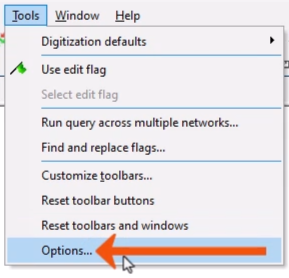
  1. From the Tools menu, select Options.
    The Tools menu expanded, with Options being selected and called out with a red arrow.
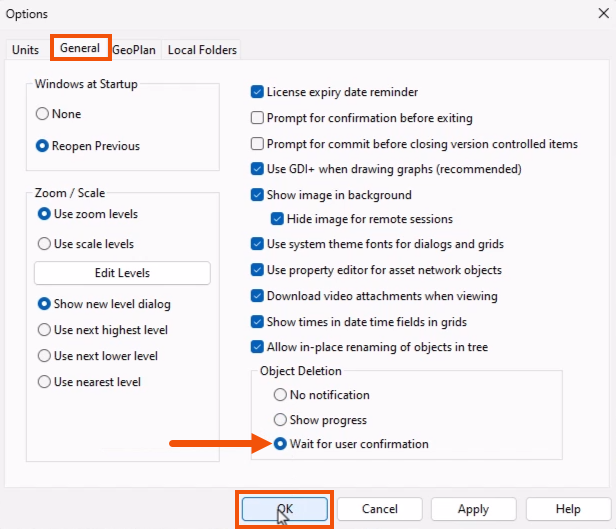
  2. In the Options dialog, switch to the General tab.
  3. Under Object Deletion, select Wait for user confirmation.
  4. Click OK to save the change.
    The Options dialog, with the General tab selected and highlighted in red, Wait for user confirmation selected and called out with a red arrow, and OK being selected and highlighted in red.

To delete selected objects from the GeoPlan:

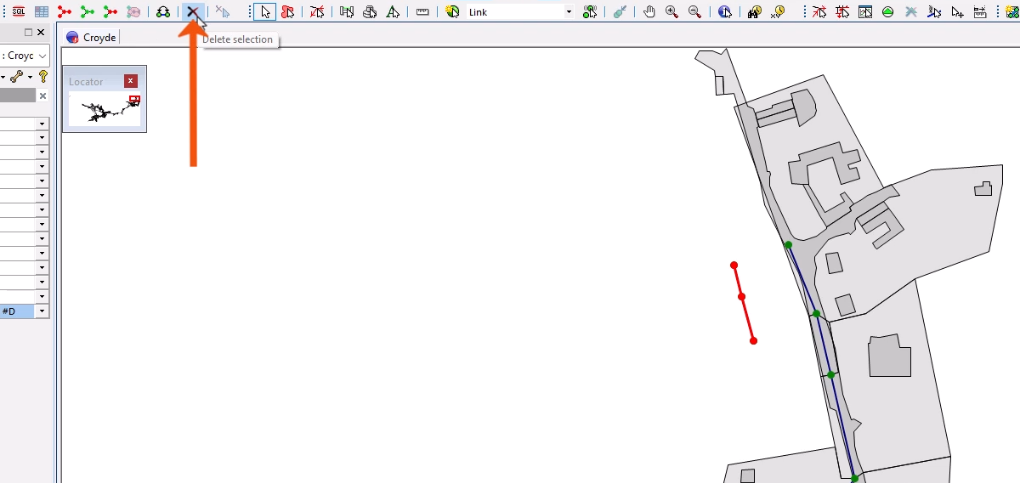
  1. On the Selection toolbar, click Delete selection.
    The GeoPlan with selected objects displayed in red, and on the toolbar, Delete selection being clicked and called out with a red arrow.
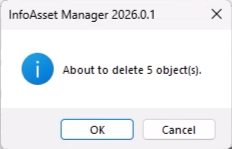
  2. In the confirmation popup, confirm or cancel the deletion.
    A confirmation popup indicating the number of objects to be deleted, with the option to click OK or cancel.
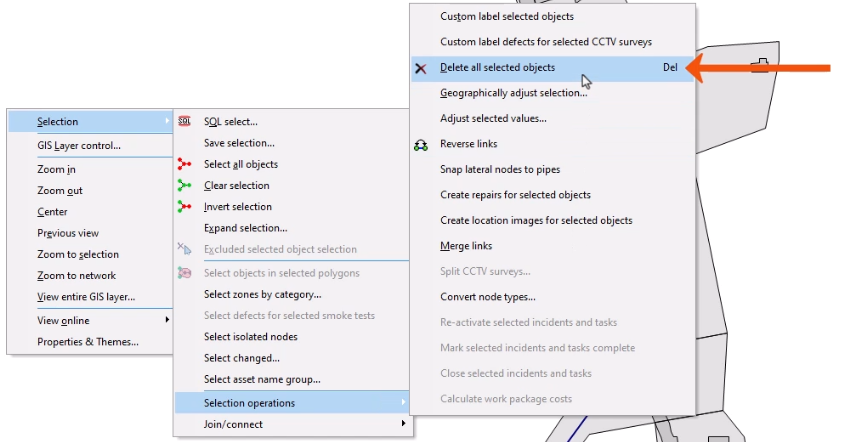
  3. Alternatively, right-click the GeoPlan, and click Selection > Selection operations > Delete all selected objects.
    In the context menu for the GeoPlan, Selection expanded, with Selection operations highlighted, and in the flyout, Delete all selected objects being selected and called out with a red arrow.

To delete objects from grid windows:

  1. Select one or more objects.
  2. Press Delete.
  3. Or, from the Selection toolbar, click Delete selection.
    On the left, a grid window with an object selected, and on the right, the toolbar with Delete selection being clicked and called out with a red arrow.

This technique only deletes the selected rows from a single grid. It does not remove any selected network objects from other grids.

A deletion can be reversed, provided it is the most recent change made.

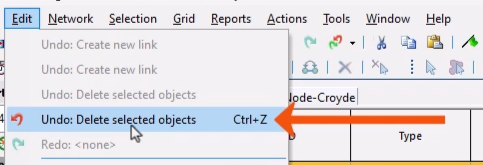
  1. In the Edit menu, select Undo.
    The Edit menu expanded, with Undo Delete selected object being selected and called out with a red arrow.