How to create and link properties - Exercise
Create change order properties
You can define properties in addition to the default properties (change order number, change order title, description, and so on). An administrator must configure additional properties before they can be used.

Note: The Value of a user-defined item properties in a change order can be edited in the Open and Work state.
- Click Tools > Administration > Vault Settings.
- In the Vault Settings dialog box, click the Behaviors tab.
- Click Properties.
- Click New.
- In the New Property dialog box, enter a name for the new property.
- Select a property type from the Type list.
- Select Change Order from the Associations list.
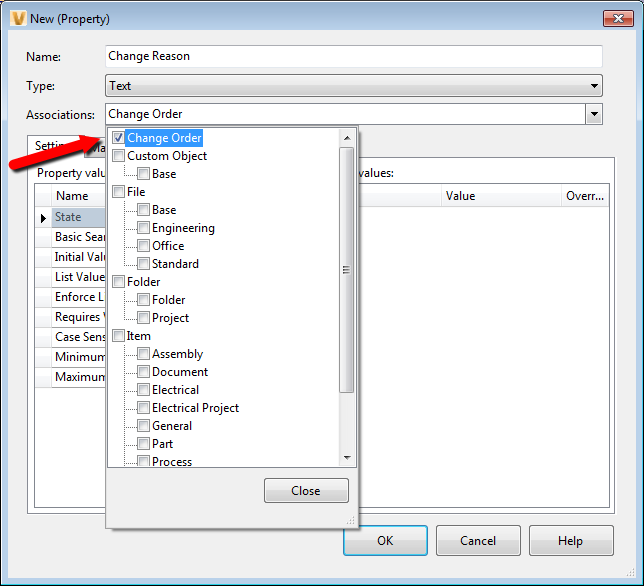
If you want this property to be associated with other entity classes, select them from the Associations list.
- Enter a value in the Initial Value text box.
- If you would like a list of values for the user to choose from, click in the List Values field and create your list.
- Select whether a value is required for this property from the Requires Value drop-down list.
- If the field is case-sensitive, click in the Case Sensitivity field and select the case requirements.
- If there is a minimum or maximum length for the property, enter the values.
Note: Change Order user-defined properties cannot be mapped to another property.
- Click OK to create the new property.
- To delete a user-defined property, select a property, and then click Delete. Deleting a Property does not remove it from change orders that have already been created.
- Click OK.




