Import CCTV survey data in InfoAsset Manager
Step-by-step guide
InfoAsset Manager assumes that manhole surveys provide the primary structural and connectivity information for a network. While effective for this purpose, manhole surveys are unable to provide pipe condition information. This information is typically obtained through closed-circuit television (CCTV) surveys.
A CCTV survey object contains information related to a single survey of a pipe in a specific direction. Each CCTV survey object may be associated with a single pipe, and a pipe may have multiple surveys linked to it—for example, upstream and downstream, or at different times.
Be sure to import data that matches the CCTV standard selected for the database. Importing mismatched data can result in data fields not properly matching or incorrect defect scoring.
In this example, import CCTV survey data using the MSCC XML format. The Manual of Sewer Condition Classification (MSCC) standard is used by the UK water industry and other organizations to classify defects in sewers.
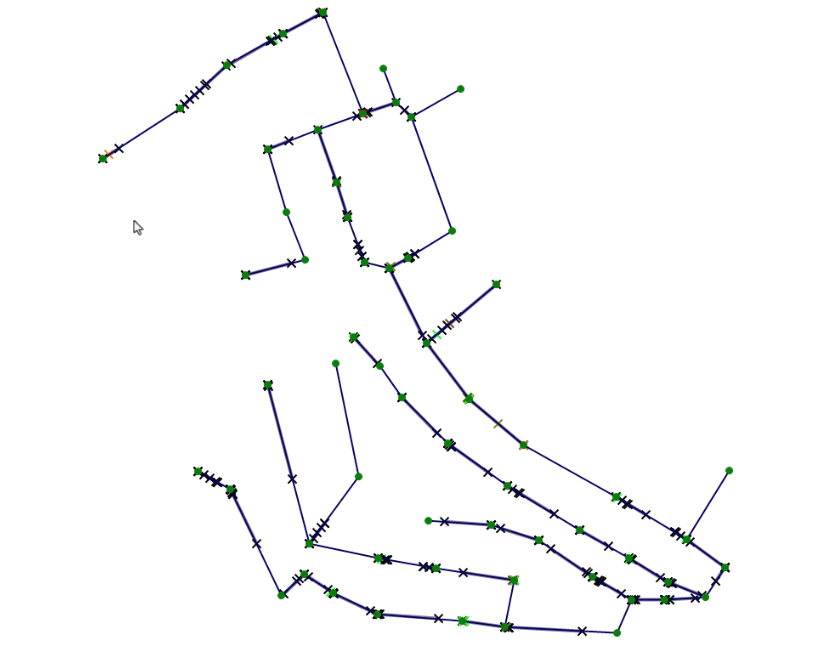
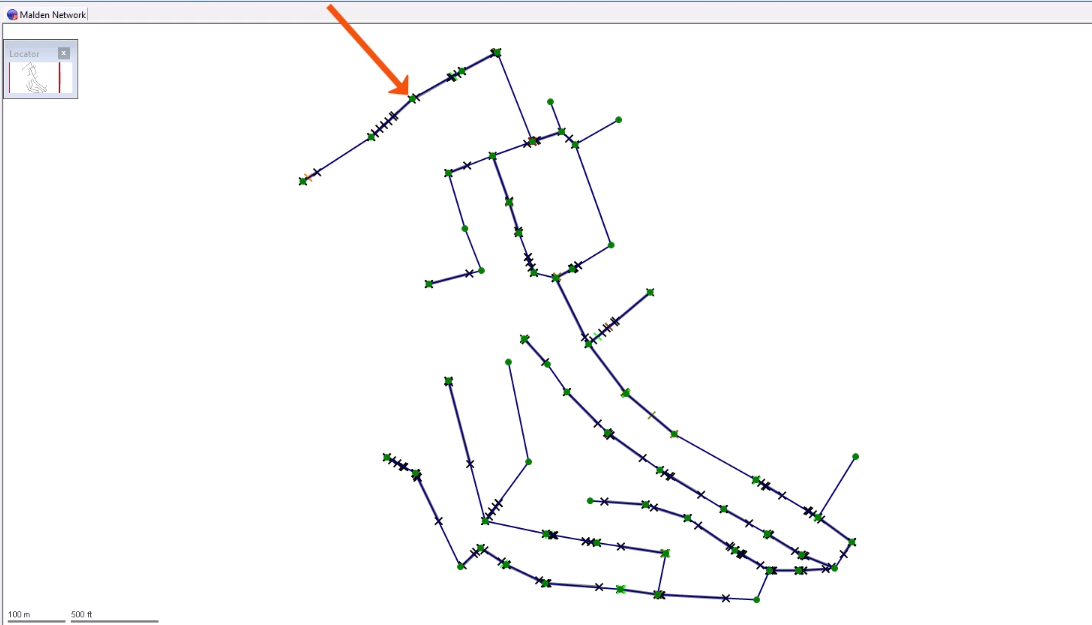
Begin with a network open on the GeoPlan.
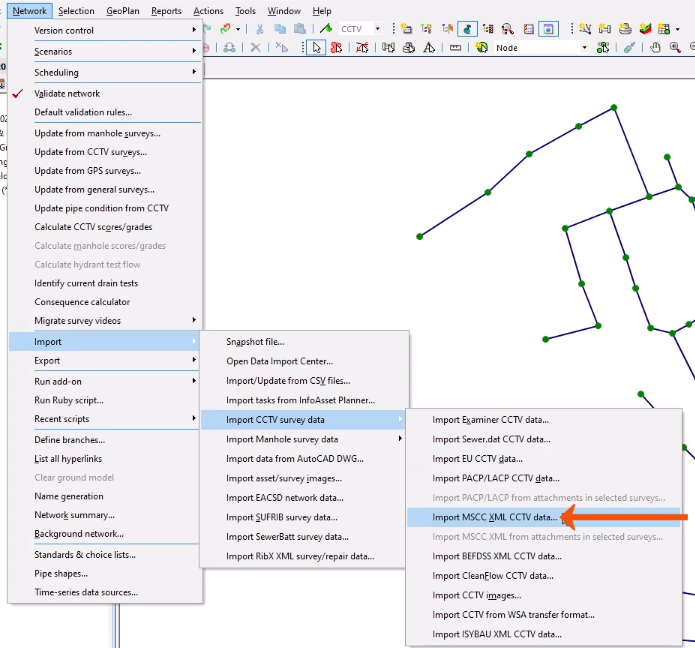
- From the Network menu, select Import > Import CCTV survey data > Import MSCC XML CCTV data.
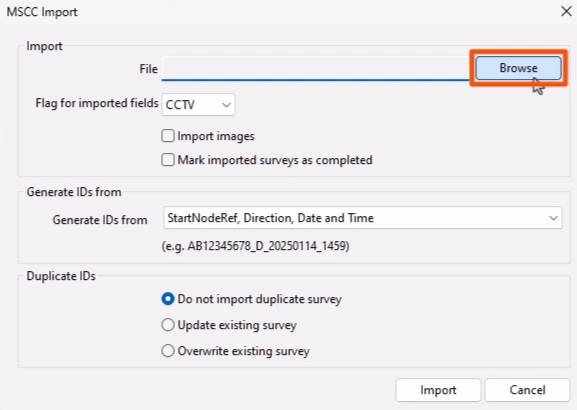
- In the MSCC Import dialog, next to File, click Browse.
- In the Open dialog, locate and select the XML file to import.
- Click Open.
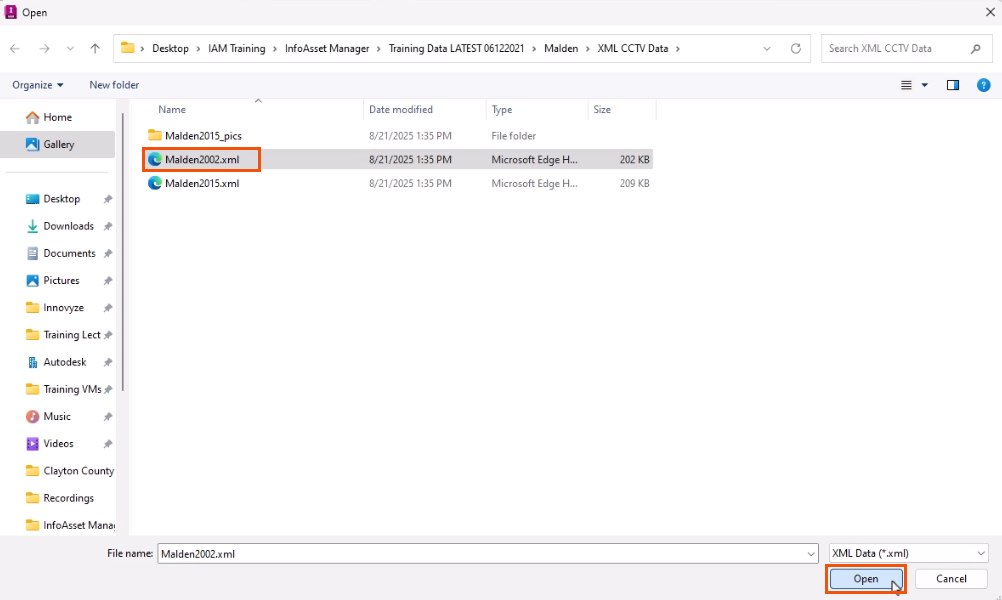
Multiple files can be selected to import together, if needed.
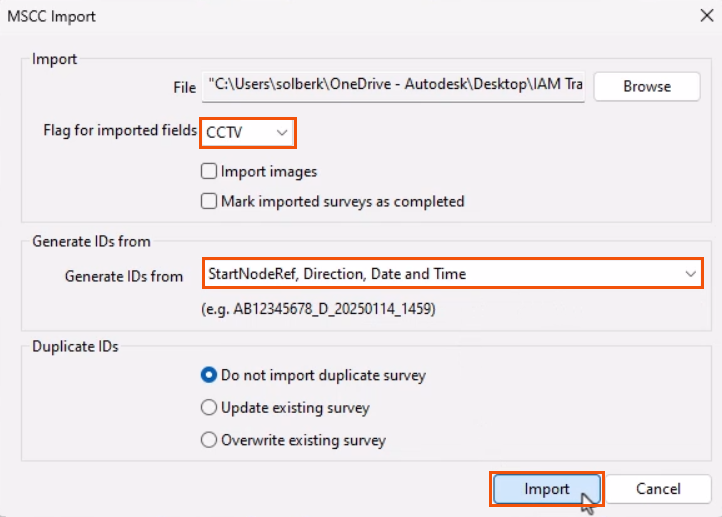
- Back in the MSCC Import dialog, set the Flag for imported fields to CCTV.
- In the Generate IDs from drop-down, select a method for generating survey IDs, such as StartNodeRef, Direction, Date and Time.
- Click Import.
A message indicates that the import was successful and confirms the number of surveys imported.
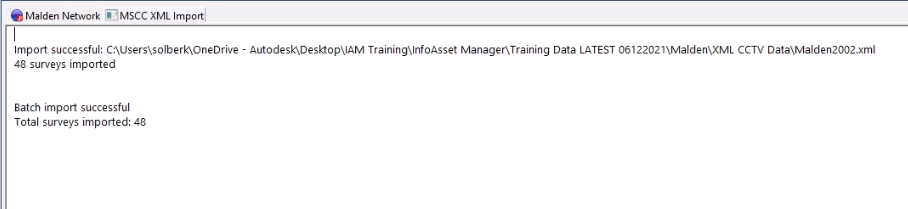
- Close the message window.
CCTV objects now appear on the GeoPlan. If needed, these can be made more visible by adjusting them in the Properties & Themes dialog.