Creating an animated thematic map
Step-by-step guide
Creating an animation of a color-coded map can help view extended period simulation results. For example, map display options can be configured to create an animated map of pressure for junctions and velocity for the pipes in a network.
- To open ArcGIS Pro, double-click the desired project .aprx file.
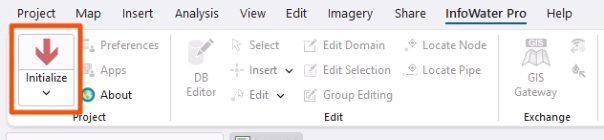
- Click the InfoWater Pro tab.
- In the Project panel, click Initialize.
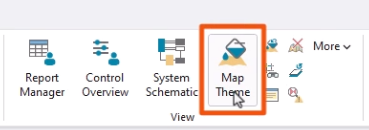
- On the ribbon, in the View panel, click Map Theme.
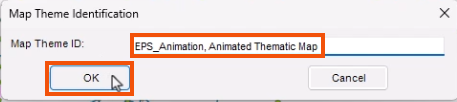
- In the Map Theme Identification popup, give the theme a name, such as “EPS_Animation, Animated Thematic Map”.
- Click OK.
In the Map Theme dialog box, configure the map theme to display the needed information.
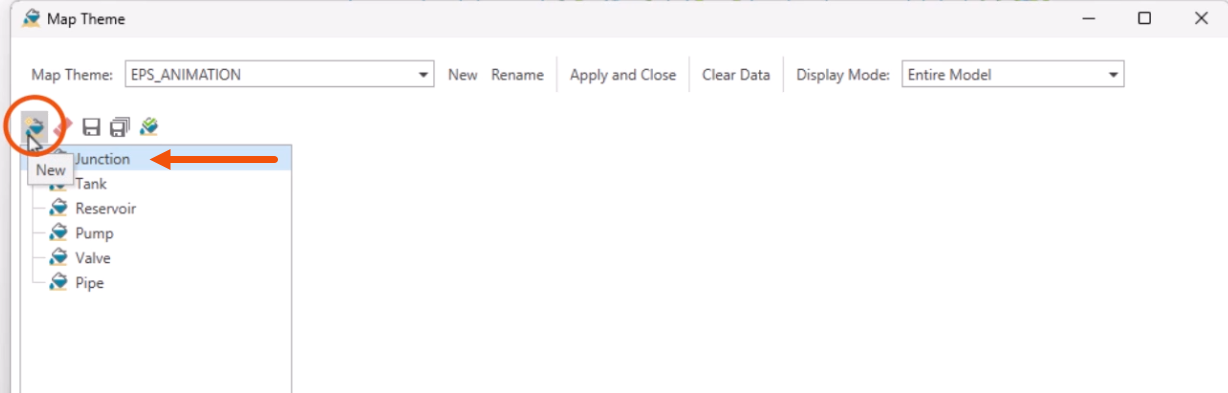
- Select Junction from the element type list.
- Click New to create a new junction sub-theme.
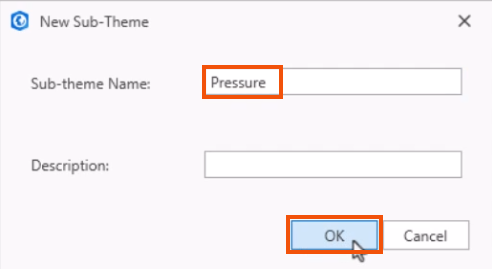
- In the New Sub-Theme dialog, give the sub-theme a name, such as “Pressure”.
- Click OK.
- In the Standard Sub-Theme window, Data Source group, set the Table drop-down to Output.
- Set the Field drop-down to Pressure (psi).
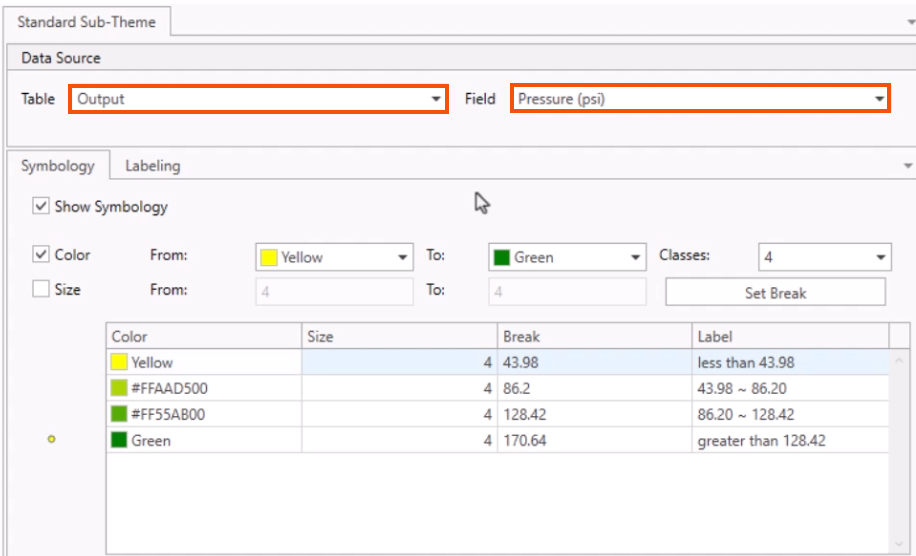
On the Symbology tab, the color theme table updates.
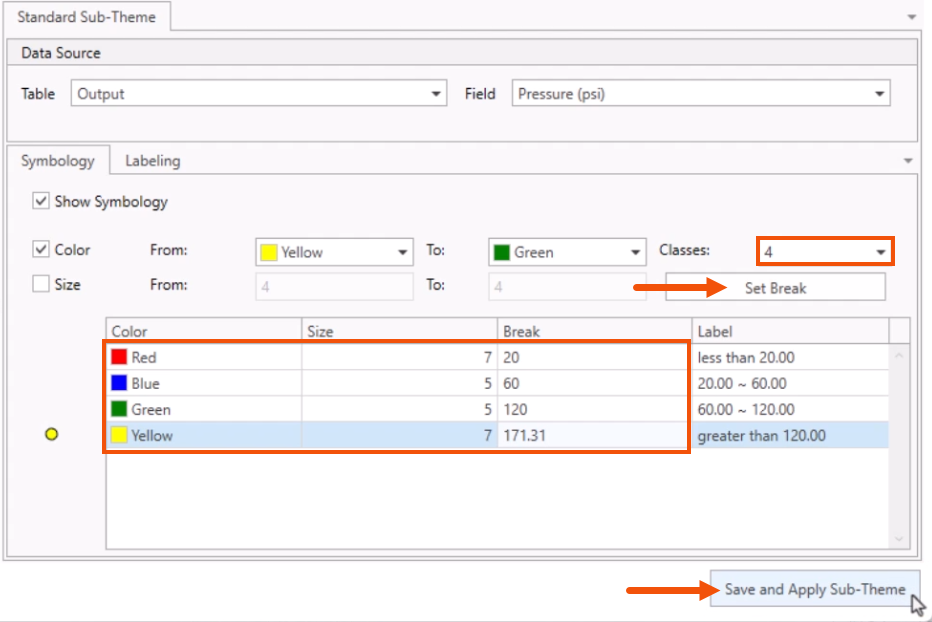
- Set Classes to 4.
- Click Set Break.
- In the table, change the settings as follows:
- Row 1: Color Red, Size 7, Break 20.
- Row 2: Color Blue, Size 5, Break 60.
- Row 3: Color Green, Size 5, Break 120.
- Row 4: Color Yellow, Size 7, Break 171.31.
- Click Save and Apply Sub-Theme.
Now, create a new pipe sub-theme.
- For the element type, select Pipe.
- Click New.
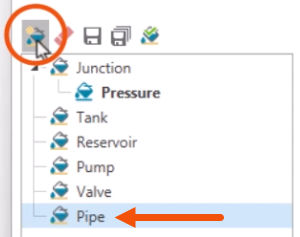
- In the New Sub-Theme dialog, give the sub-theme a name, such as “Velocity”.
- Click OK.
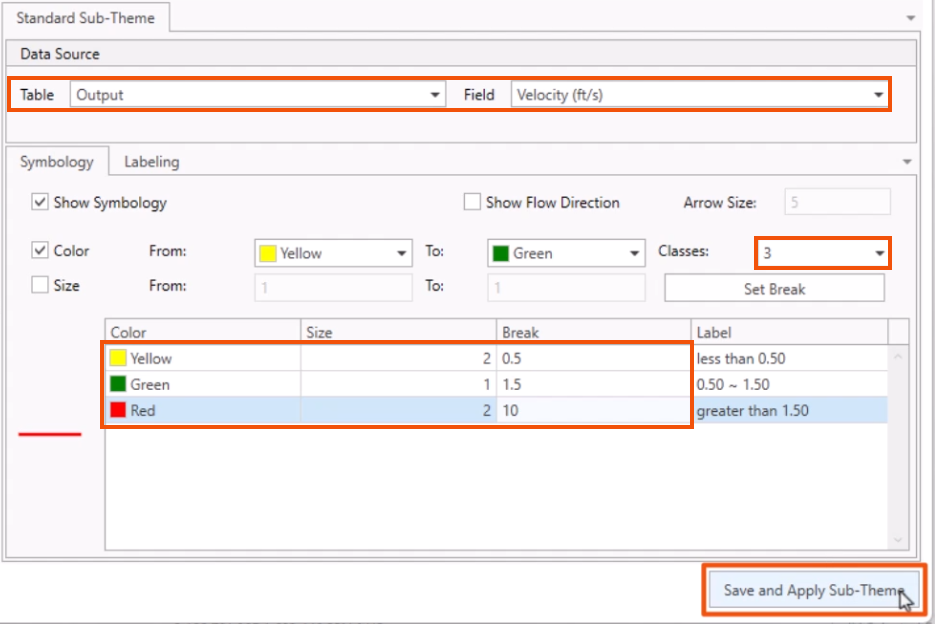
- Set the Table to Output, Field to Velocity (ft/s), and Classes to 3.
- Click Set Break.
- In the table, change the settings as follows:
- Row 1: Color Yellow, Size 2, Break 0.5.
- Row 2: Color Green, Size 1, Break 1.5.
- Row 3: Color Red, Size 2, Break 10.
- Click Save and Apply Sub-Theme.
- Close the Map Theme dialog.
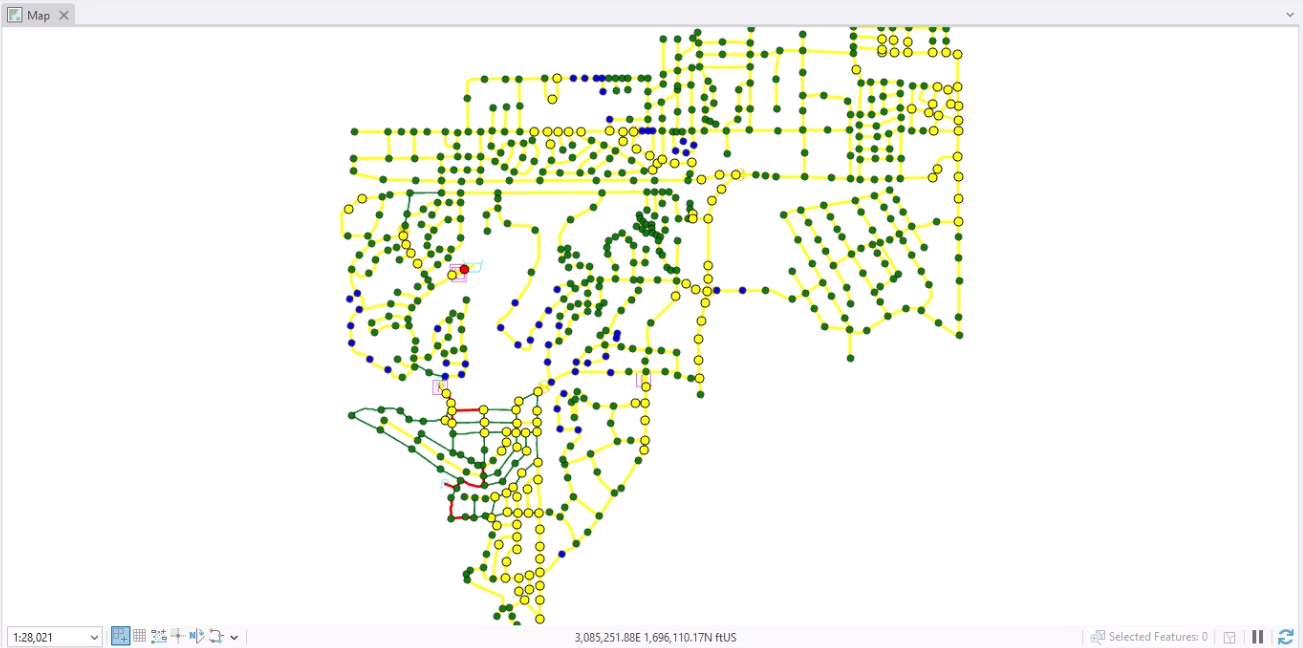
- Zoom to the extents of the model.
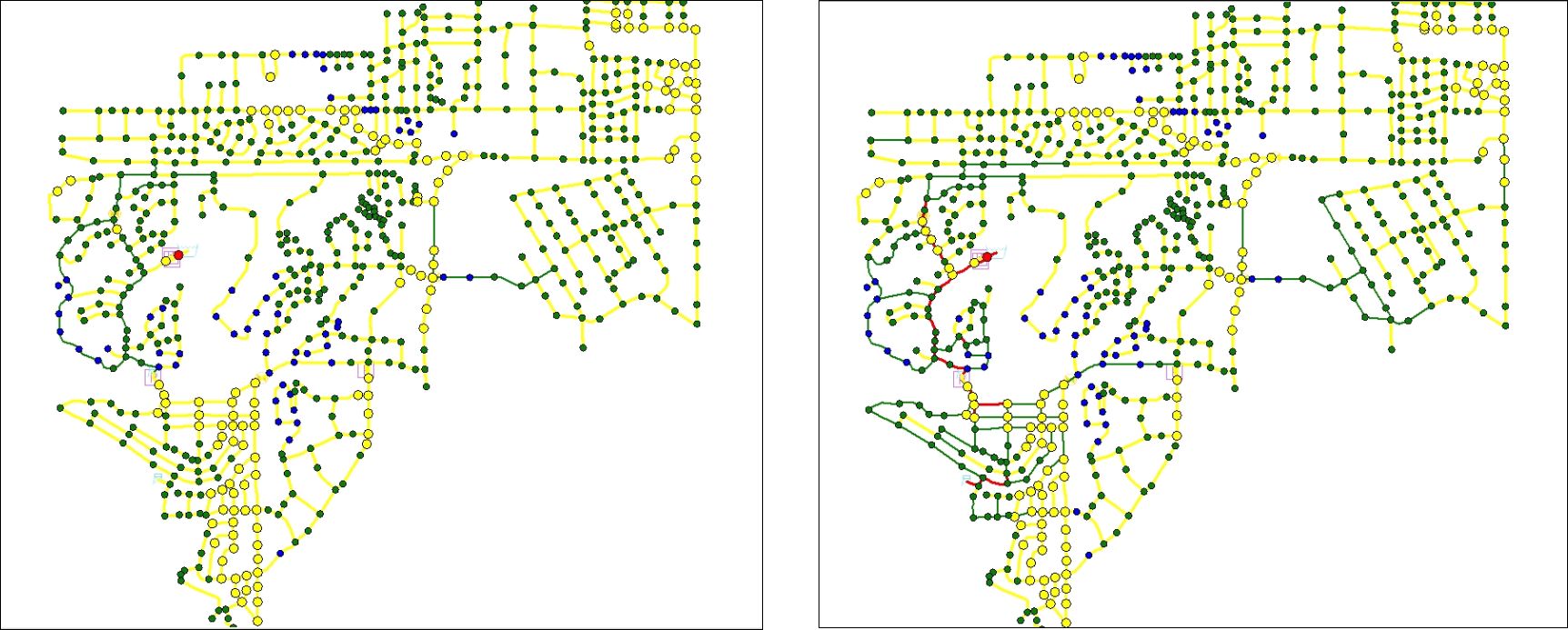
The map shows the pressure and velocity displayed by these color-coded ranges.
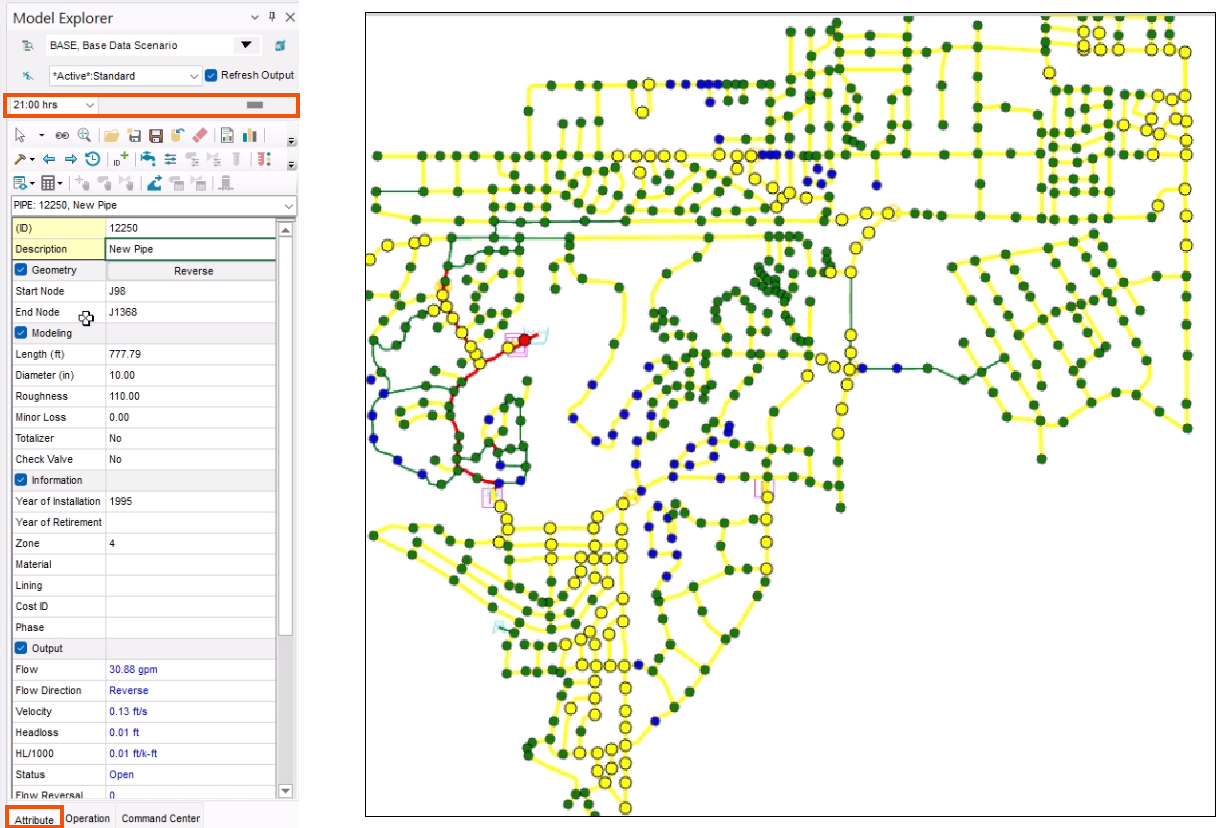
- In the Model Explorer, select the Attribute tab.
- Scroll the output time slider to a different time, such as 21:00 hrs.
The map color-coding updates to reflect the current output value.
Be aware that, in large models, dragging the time slider may cause the map to freeze as it loads in the corresponding data.
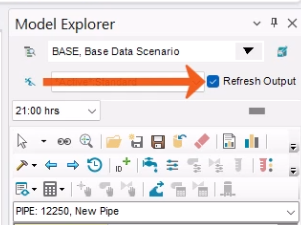
- To prevent this, disable Refresh Output.
- Make sure to re-enable this option to update the map at the desired timestep.
Now, set up an animation of this color-coded map.
- Drag the time slider back to 00:00 hrs.
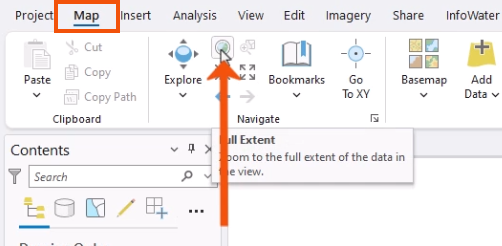
- To see the full extent of the model in the display, on the Map tab of the ribbon, in the Navigate panel, click Full Extent.
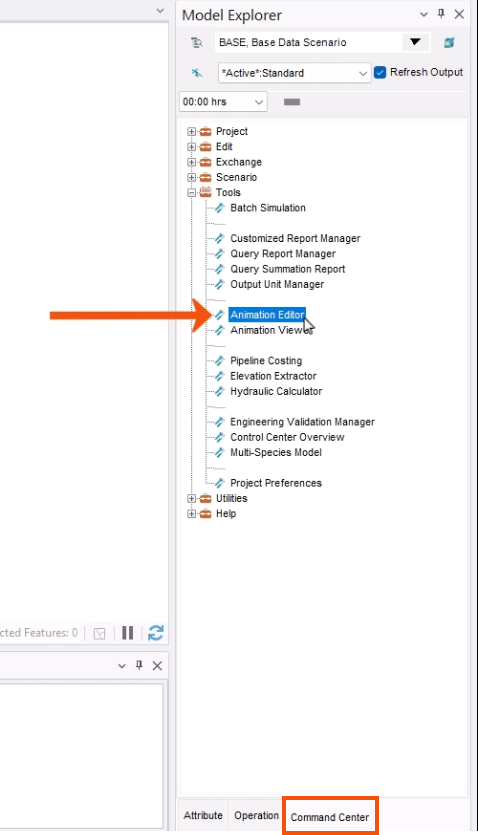
- In the Model Explorer, on the Command Center tab, expand the Tools folder.
- Double-click Animation Editor.
- In the Animation Editor dialog, select Save Animation to File.
- Enter a name of “PV” for pressure velocity.
- Click Create.
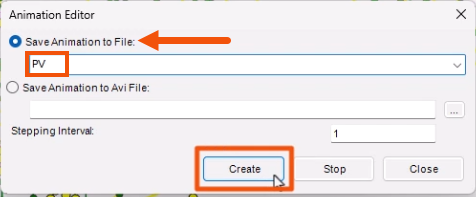
A progress bar appears as a screen shot is taken of the thematic map at each output timestep. This can take a few minutes to complete.
- In the Tools folder, double-click Animation Viewer.
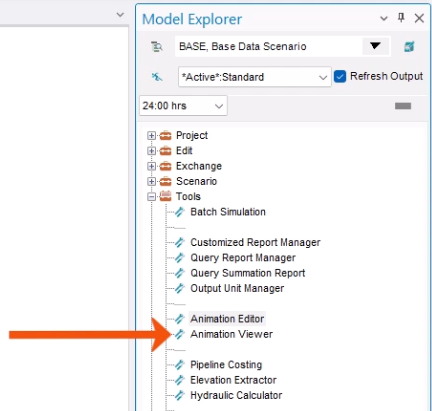
If the model was not zoomed to extents, then the animation will only include the features that were in the viewable map area when the animation was created.
- In the Animation Viewer, click Delay Setting.
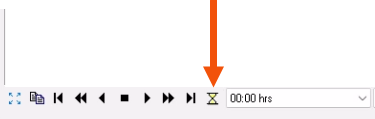
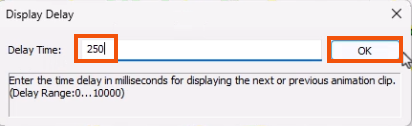
- In the Display Delay popup, set the Delay Time to 250 milliseconds.
- Click OK.
- To animate the graph, click Fast Forward.
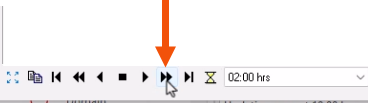
For optimal results, the viewer should be the same size and dimensions as the map area when the animation was created.
Map Themes provide a dynamic and powerful way of categorizing a project visually based on defined criteria. It can also be used for other data elements, such as pumps, valves, tanks, and reservoirs.
- Close the Animation Viewer.
To reset the display to the default, as set in the Preferences:
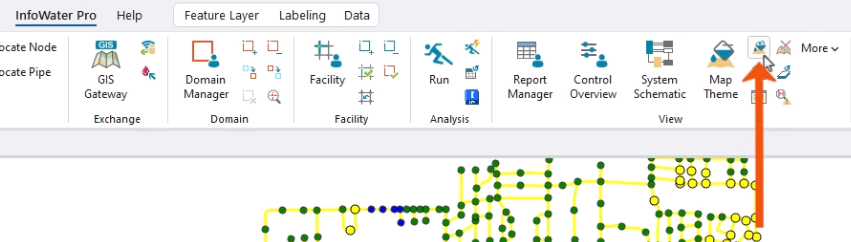
- On the ribbon, in the View panel, click Reset Map Theme.