Advanced structural families
Create family geometry - Exercise
- If you are not already, go to the West elevation view and select the rectangular extrusion.
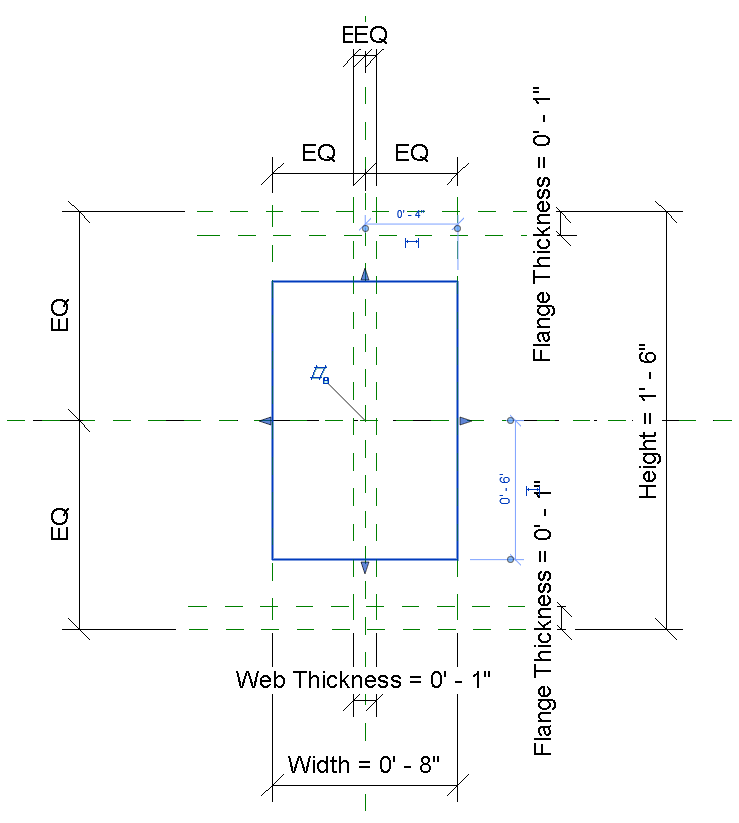
- On the modify tab of the ribbon, Mode panel, click Edit extrusion.
- Select and delete the existing rectangle.
- On the Draw panel, select line. Draw an I beam shape, like below. Do not draw the lines over the reference planes. In the next step, we will lock the geometry to the references.
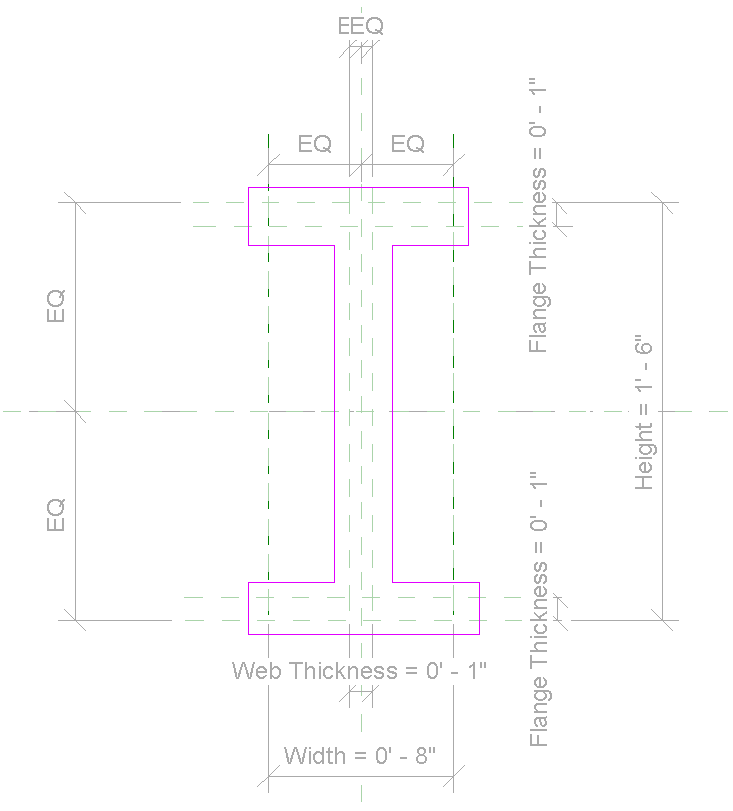
- On the Modify panel, select Align. Select a reference, then an adjacent line to align it, clicking the padlock each time to constrain them together.
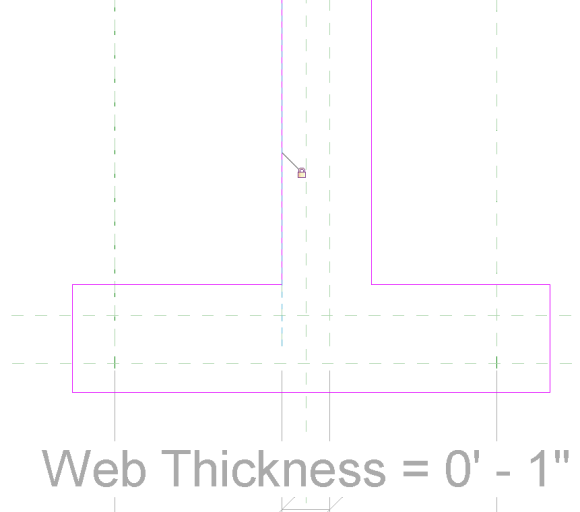
- Continue until all lines have been locked.
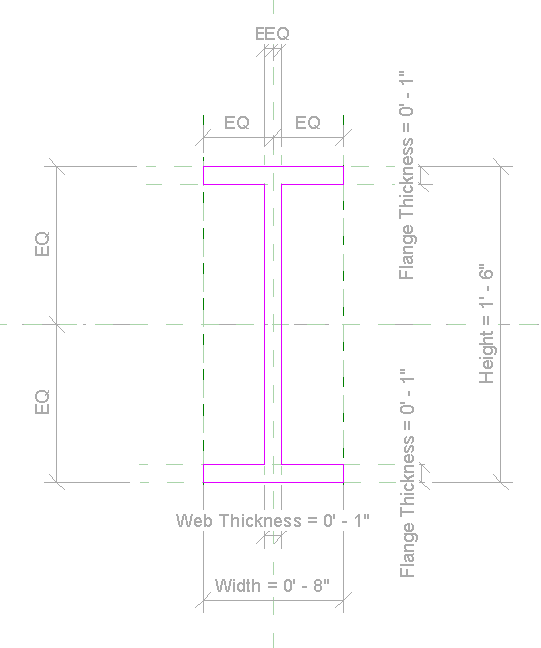
- Click the green tick on the Modify panel to complete the extrusion.
- Try changing the value of one of the parameters and check that the extrusion updates correctly.
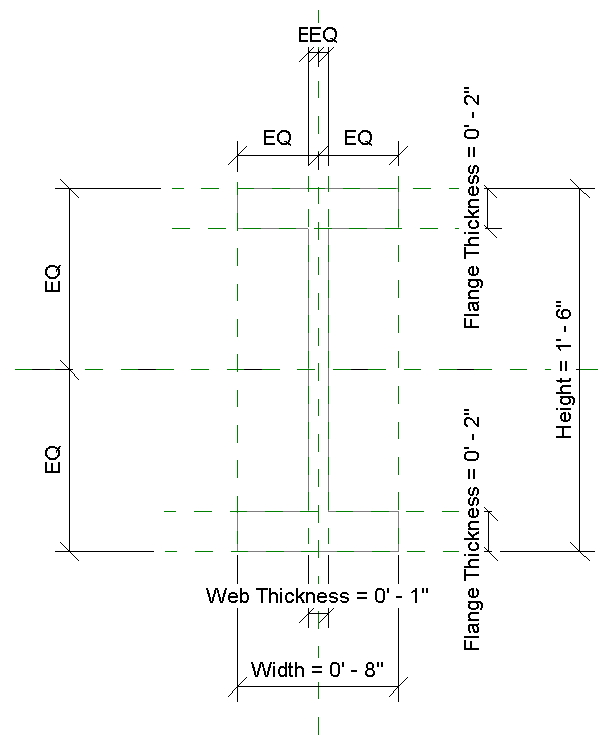
- If the geometry does not update as expected, select the extrusion, click Edit, and check that you aligned everything correctly.
- You have now created a structural beam which you can load into a project and use.
- Click File > Save.




