Controlling annotation display

Create a new dimension style - Exercise

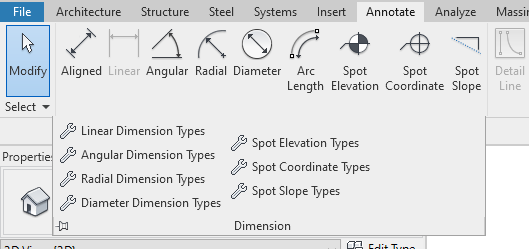
  1. On the Annotate tab > Dimension panel, click on the down arrow and select Linear Dimension Types.

  2. Click on Duplicate and set the name as Arrow – 3/32" Times New Roman.
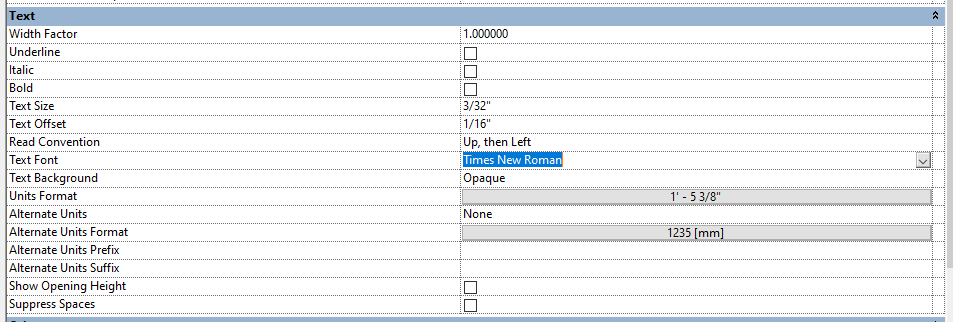
  3. Scroll to the Text section. Change Text Font to Times New Roman.

  4. Change Text Background to Transparent.
  5. We are going to set an Alternate Unit. Set the Alternate Unit to Below.

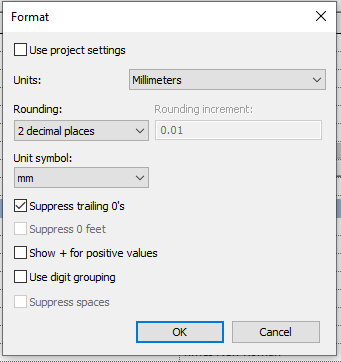
  6. Click on Alternate Unit Format. Set Rounding to 2 decimal places, set unit symbol to mm, and tick Suppress trailing 0's.

  7. Click OK and then OK to close the Dimension dialogue.
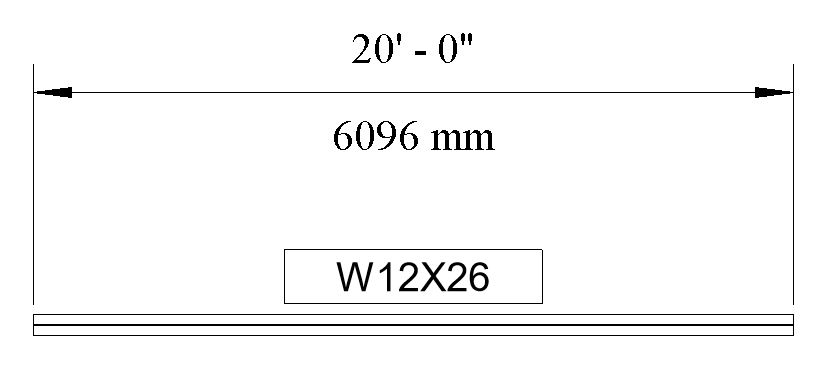
  8. Place a test of the new dimension style.

  9. Delete your dimension and test geometry.
  10. Click File > Save.