Exploring cover settings

Explore cover settings - Exercise

To configure the cover settings in concrete elements, do the following:

  1. Open Revit then the file STRUCTURAL.RVT (or open any Revit project you are working in).
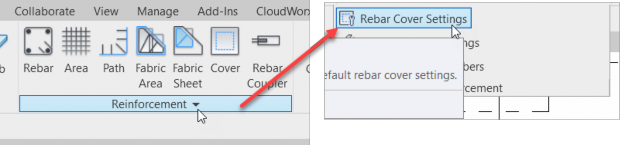
  2. On the Structural tab, click the arrow on the Reinforcement tab.
  3. Select the Reinforcement Cover button (see below).

  4. With the rebar settings dialog open, observe the predefined settings that are available.
  5. Click Cancel.
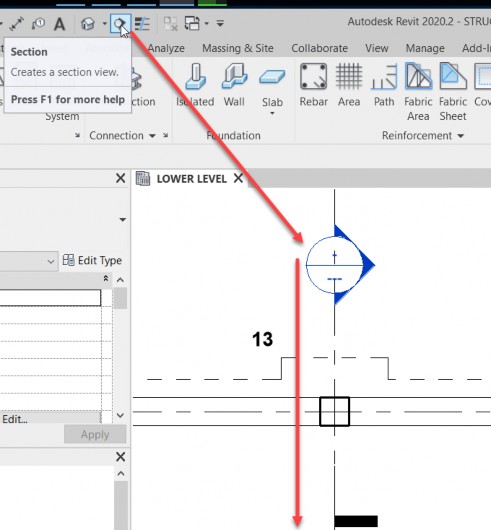
  6. Zoom into the area and cut a section as shown in the figure below.

  7. Hit ESC.
  8. Open the section by double clicking on the section callout head.
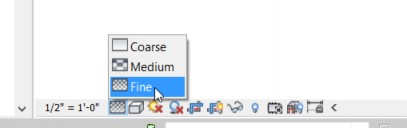
  9. In the View Control toolbar, set the scale to ½"=1'-0".
  10. Change the Detail Level to Fine.

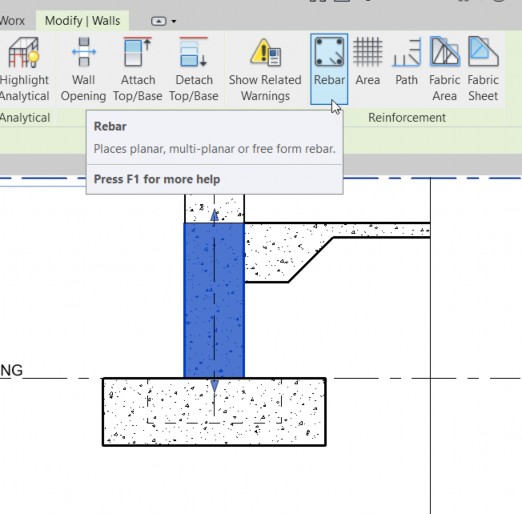
  11. Select the wall.
  12. Select the reinforcing button, as shown below.

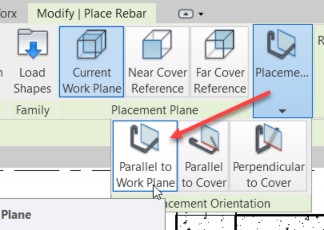
  13. Select Parallel to Work Plane, as shown below.

  14. Move your cursor over the wall. Notice the bar will only extend to the blue lines imbedded in your wall.
  15. Rename the section to Footing Section 13.
  16. Save the model.