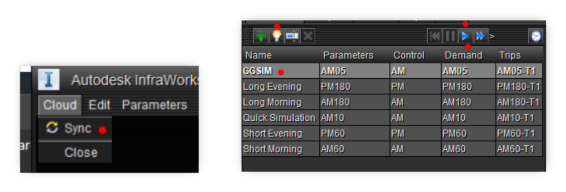
Discover traffic simulation advanced options
Discover traffic simulation advanced options - Exercise
Task 1: Create your own 15 min long traffic simulation
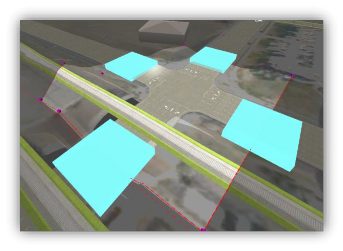
- Create a TSA – Traffic Study Area.
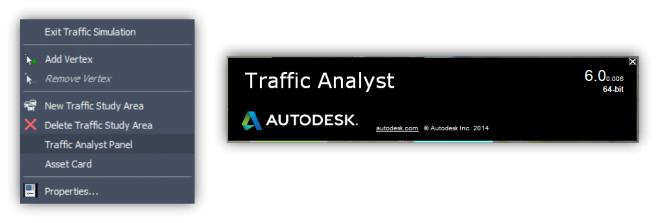
- Right-click on the canvas to open the Traffic Analyst Panel.
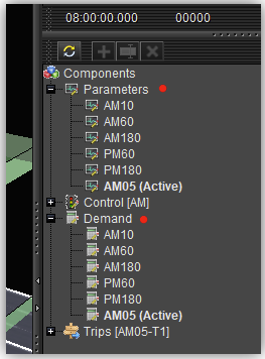
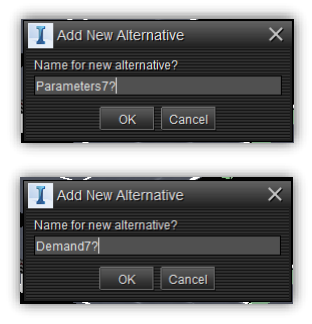
- On the right-hand side menu, within the SIMULATION tab under Components, expand the parameters option, select any of the available ones, and select the “plus” sign to create a new component.
- Do the above point for the Demand Component too.
- Click on the refresh button, move to the top on the SIMULATION tab, select the “plus” sign to create a New Simulation, and type a name for the Simulation.
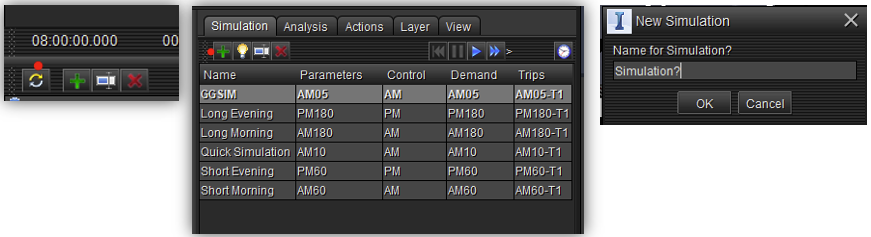
- Assign the Parameters previously created and the Demand on the table.
- Click on the BULB to make the newly created Simulation ACTIVE.
- Once the simulation is active, under Components, expand Parameters, select the newly created Parameter, right-click on it, and select EDIT.
- Edit the starting hour and the ending hour, making sure that they are 15 min apart.
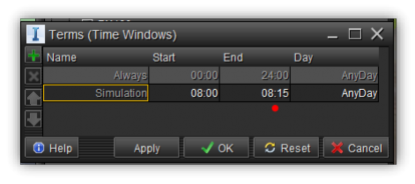
- Once finished, click Apply and then OK.
- Under Components, expand Demands, select the newly created Demand, right-click on it, select EDIT, change the Direct Demand Matrix, and press OK.
- Cloud sync before running the new simulation, make active the new simulation, and run the simulation.