Create custom Excel reports in InfoAsset Manager

Set up and run a custom Excel report based on data in your network.


Create custom Excel reports in InfoAsset Manager

Step-by-step guide

A Custom Report is a customized Microsoft Excel report template that is used to generate reports on the data in an InfoAsset Manager database. This export process uses a Custom Report template that is stored in the database. The underlying template can be edited in Excel, enabling any type of data analysis that is supported by Excel.

To create a report from scratch, an Excel file is required to base it on. A simple example is included in the InfoAsset Manager installation.

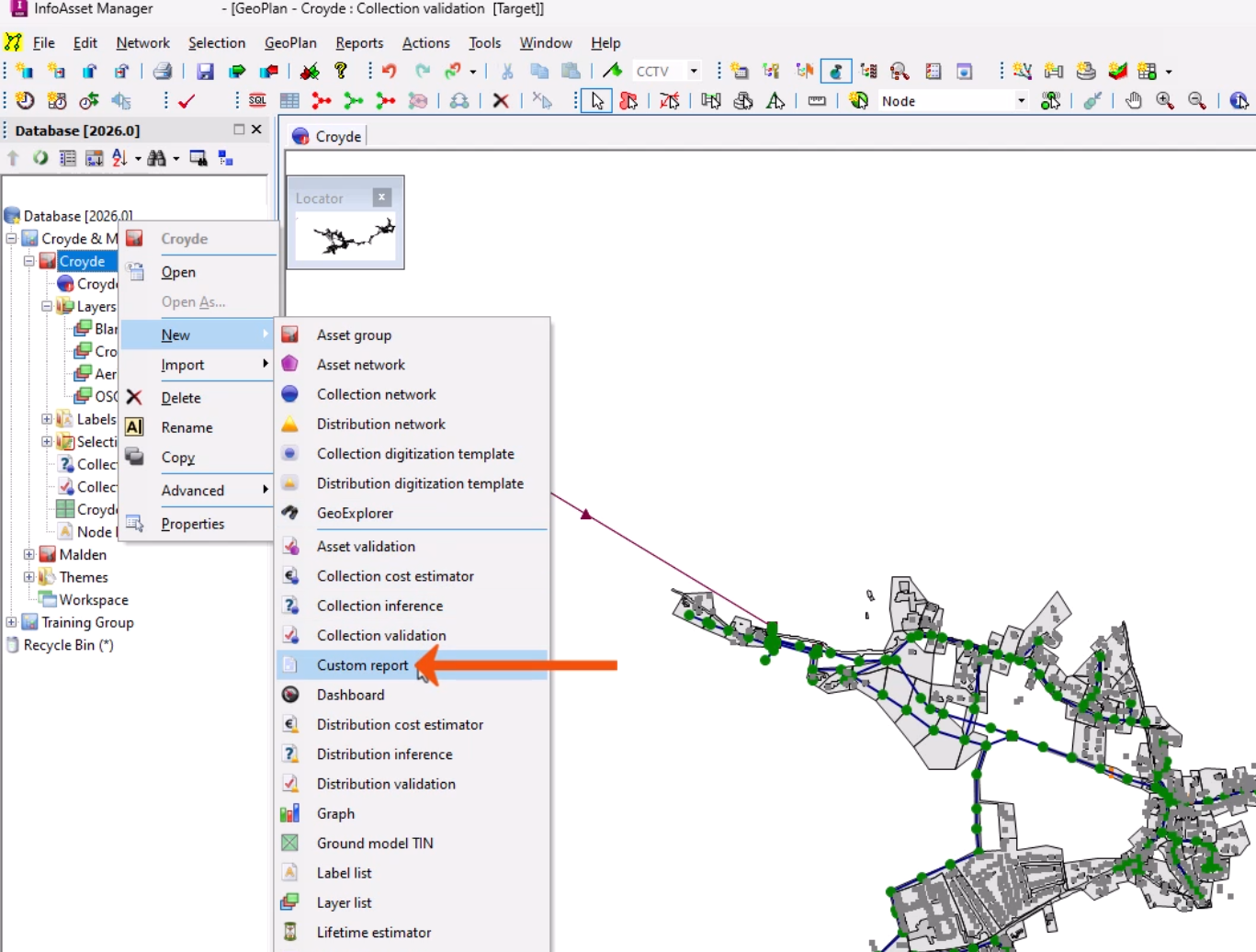
  1. In the Explorer window, right-click an Asset Group and select New > Custom report.
    The top-left corner of the InfoAsset Manager interface, with a network open in the GeoPlan and in the Explorer, the context menu for an Asset Group is expanded with New selected, and in the flyout, Custom report is being selected and is called out with a red arrow.
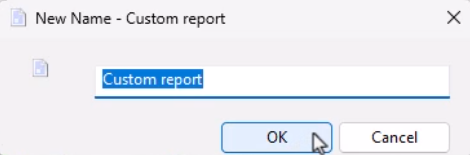
  2. In the New Name popup, enter a name.
  3. Click OK.
    In the New Name – Custom report popup, a name of “Custom report” has been entered and OK is being clicked.
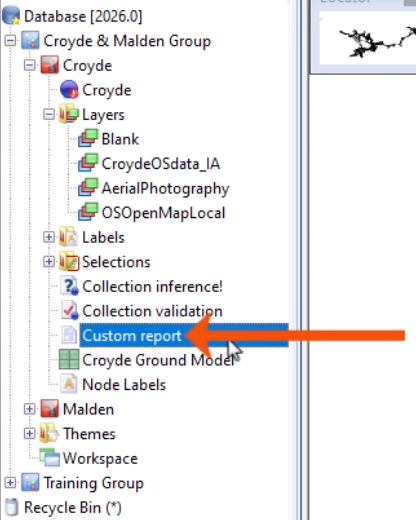
  4. In the Explorer, double-click the newly created custom report object.
    In the InfoAsset Manager Explorer, the custom report object is being selected and is called out with a red arrow.
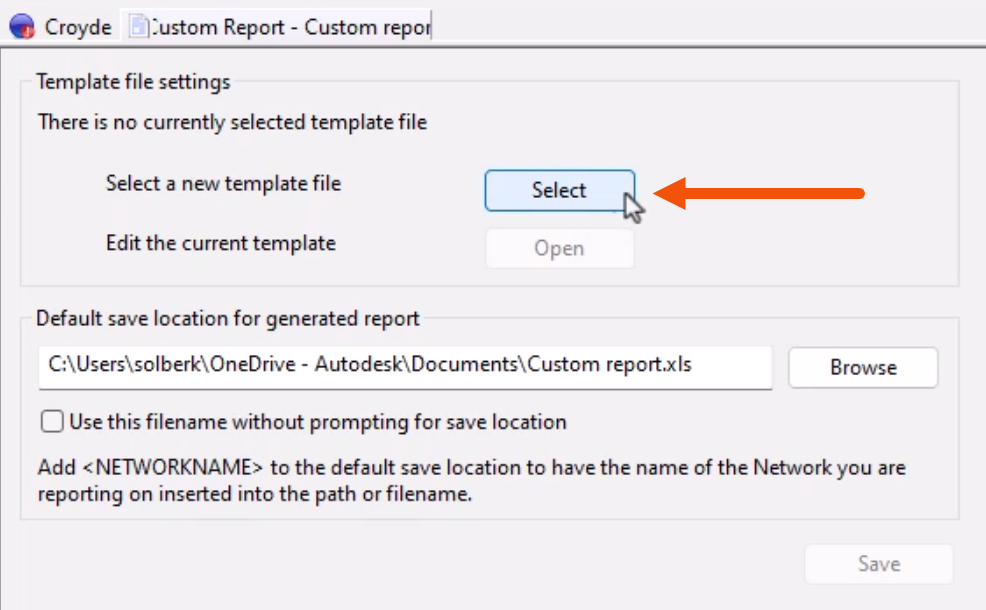
  5. In the Custom Report dialog, click Select to browse for and select the Excel template to be associated with the custom report.
    In the Custom Report dialog, in the Template file settings group, adjacent to Select a new template file, the Select button is being clicked and is called out with a red arrow.
  6. Click Open to edit the associated template as needed.
  7. Specify the save location and filename for the generated report.
  8. Click Save.
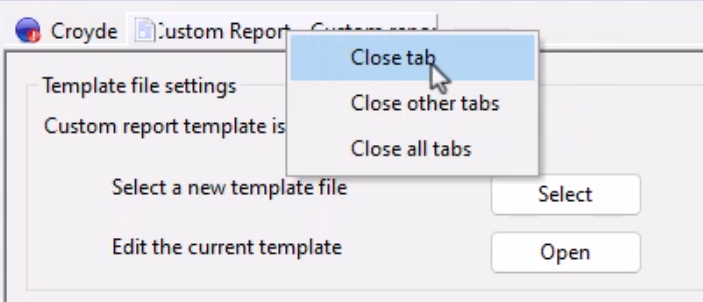
  9. To close the dialog, right-click the Custom Report tab and select Close tab.
    In the context menu for the Custom Report tab, the Close tab option is being selected.

Now, generate the report.

  1. From the Explorer window, drag the custom report and drop it onto the network.
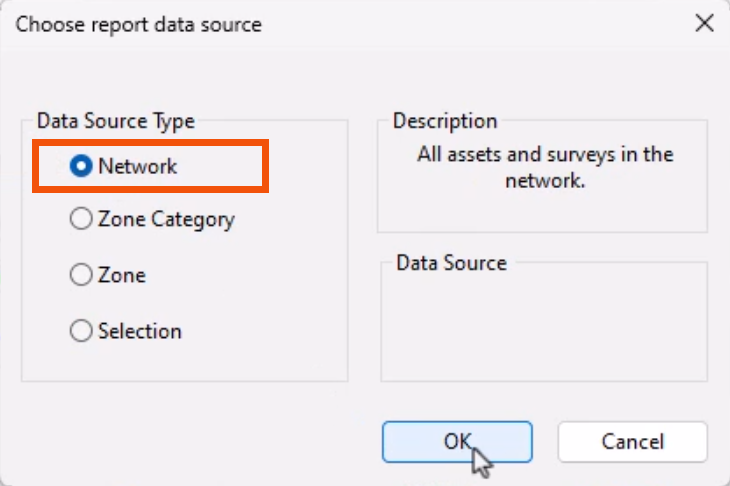
  2. In the Choose report data source dialog, for this example, select Network.
  3. Click OK.
    In the Choose report data source dialog, under the Data Source Type group, the Network option radio button has been selected and is highlighted in red, and OK is being clicked.

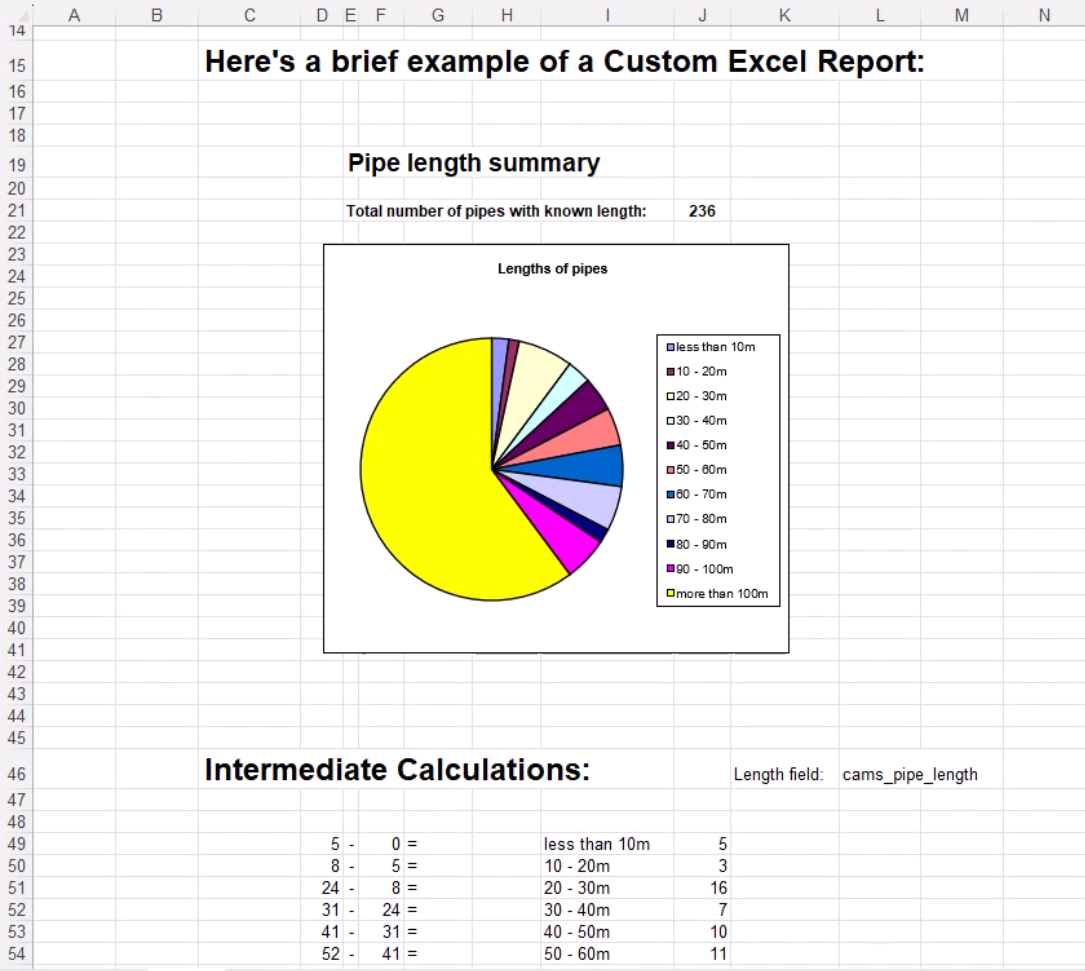
The report is saved in accordance with the options selected in the Custom Report dialog. InfoAsset Manager then opens the report file in Excel.

An example of a Custom Report open in Excel, which shows the title at the top, a pie graph of pipe lengths in the center, and a table of intermediate calculations at the bottom.