Control the display of CCTV defects in InfoAsset Manager

Control which CCTV defects are displayed on the GeoPlan.


Control the display of CCTV defects in InfoAsset Manager

Step-by-step guide

In InfoAsset Manager, the display of CCTV survey defects can be controlled on the GeoPlan window for collection networks. You can choose to show defects of a particular type, defects at or above a specified grade, and defects that are recorded in CCTV surveys marked as current.

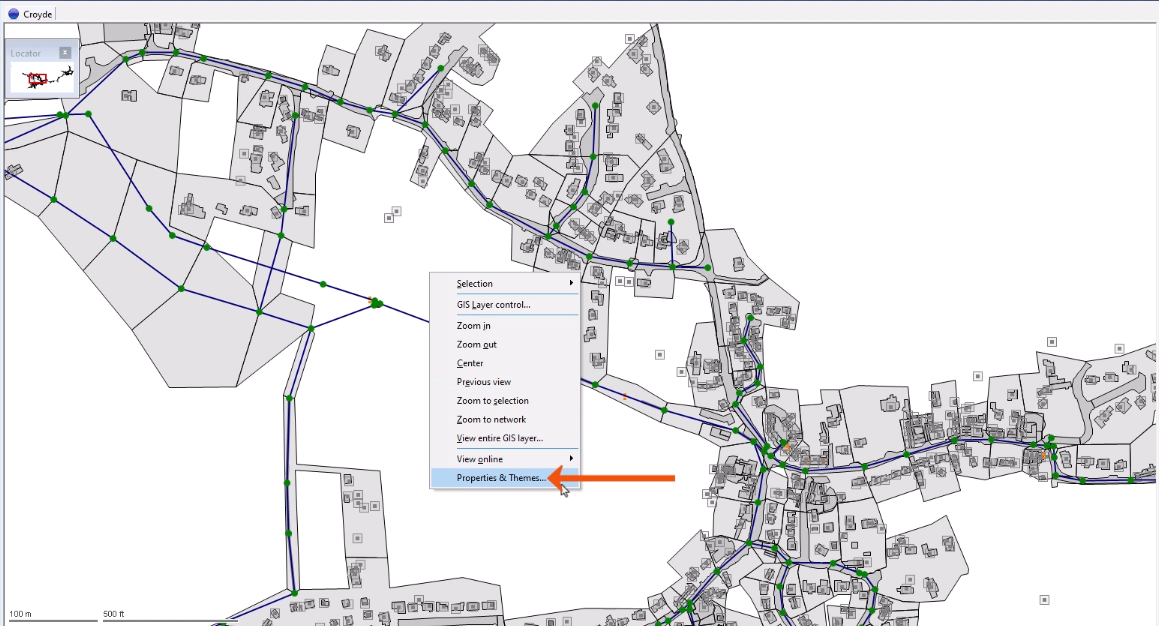
  1. Right-click the GeoPlan and select Properties & Themes.
    The GeoPlan, with the context menu expanded, and Properties & Themes being selected and called out with a red arrow.
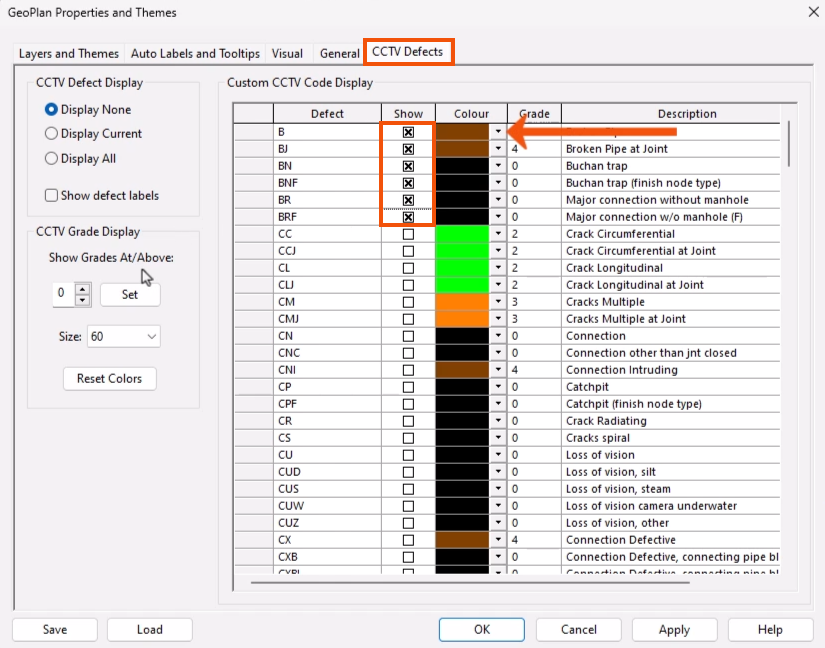
  2. In the Properties and Themes dialog, select the CCTV Defects tab.

The Custom CCTV Code Display grid enables control over exactly which types of defects are shown.

  1. In the Show column, select the checkbox to display a specific defect type.
  2. Change the default color for a defect type to make it stand out on the GeoPlan.
    In the GeoPlan Properties and Themes dialog, on the CCTV Defects tab, the Show column selected for several Defects and highlighted in red, and the Colour drop-down called out with a red arrow.
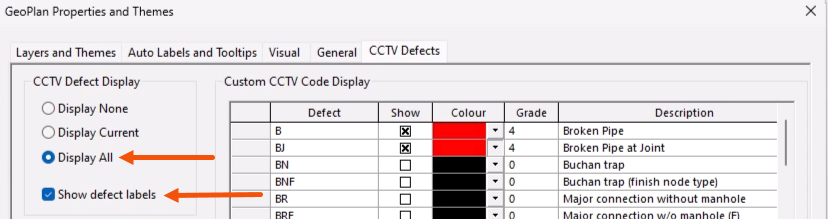
  3. In the CCTV Defect Display group, select a general display option, such as Display All.
  4. To auto-label all defects shown with the defect code, select Show defect labels.
    On the CCTV Defects tab, in the CCTV Defect Display group, Display All and Show defect labels selected and called out with red arrows.

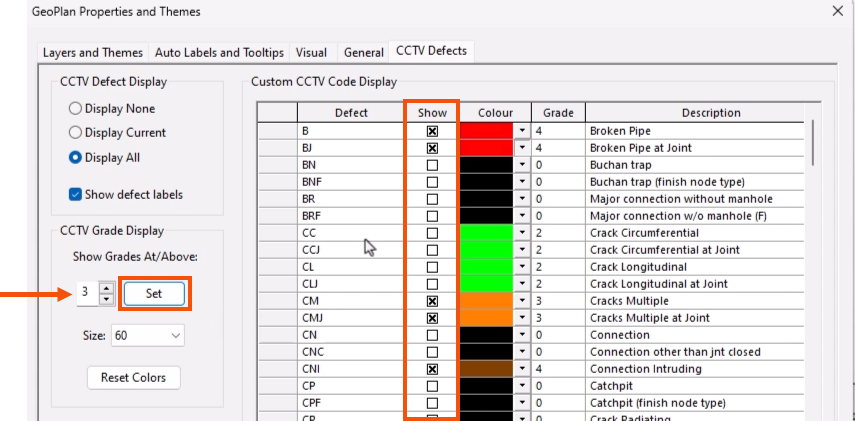
The CCTV Grade Display group provides a quick way to control the Show settings in the grid.

  1. Choose a Defect Grade of between 0 and 5, such as 3.
  2. Click Set.
    On the CCTV Defects tab, in the CCTV Grade Display group, the Grade set to 3 and called out with a red arrow, the Set button highlighted in red, and the Show column highlighted in red to show the appropriate values selected.

This selects the Show column for all defects with a grade equal to or greater than the grade selected.

  1. Use the Size drop-down to set the defect symbol size.
  2. Click Apply to apply the changes to the GeoPlan.
  3. Click OK to finish.

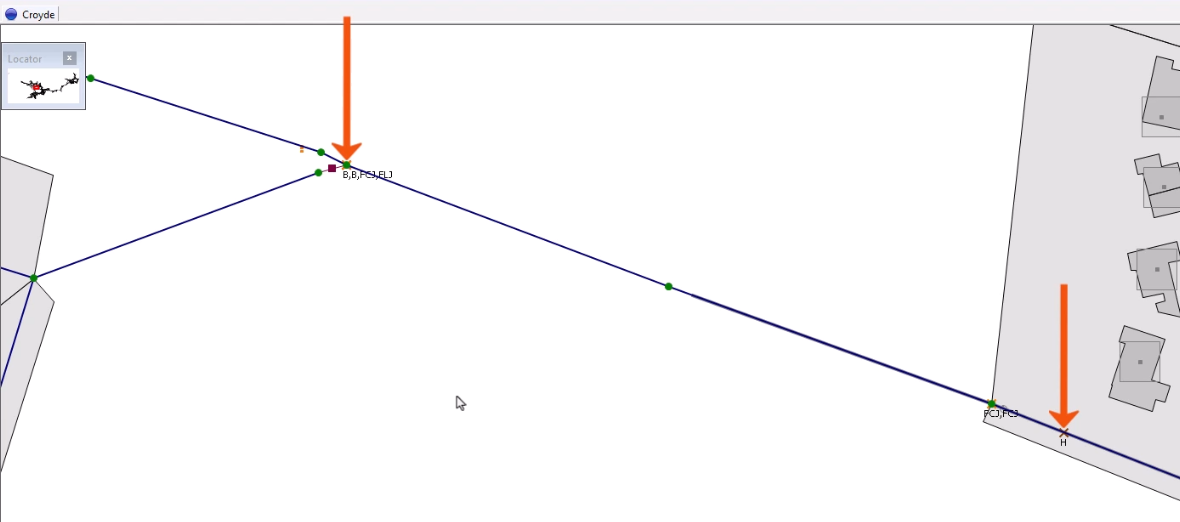
Defects are displayed as a cross at the point on the survey where the defect is recorded, in the color selected for that defect grade.

The GeoPlan, with two defects called out with red arrows.