Build and run an SQL query in InfoAsset Manager
Step-by-step guide
In InfoAsset Manager, SQL (Structured Query Language) is used for selecting and updating network objects using specified criteria.
An SQL query consists of clauses, separated by semi-colons. Each clause can do one of the following:
- Select objects
- Deselect objects
- Update fields in objects
- Clear the selection
These operations are built with syntax keywords, such as SELECT, COUNT, SET, CLEAR, DELETE, UPDATE, and DESELECT.
Queries are built in the SQL dialog.
To build a query:
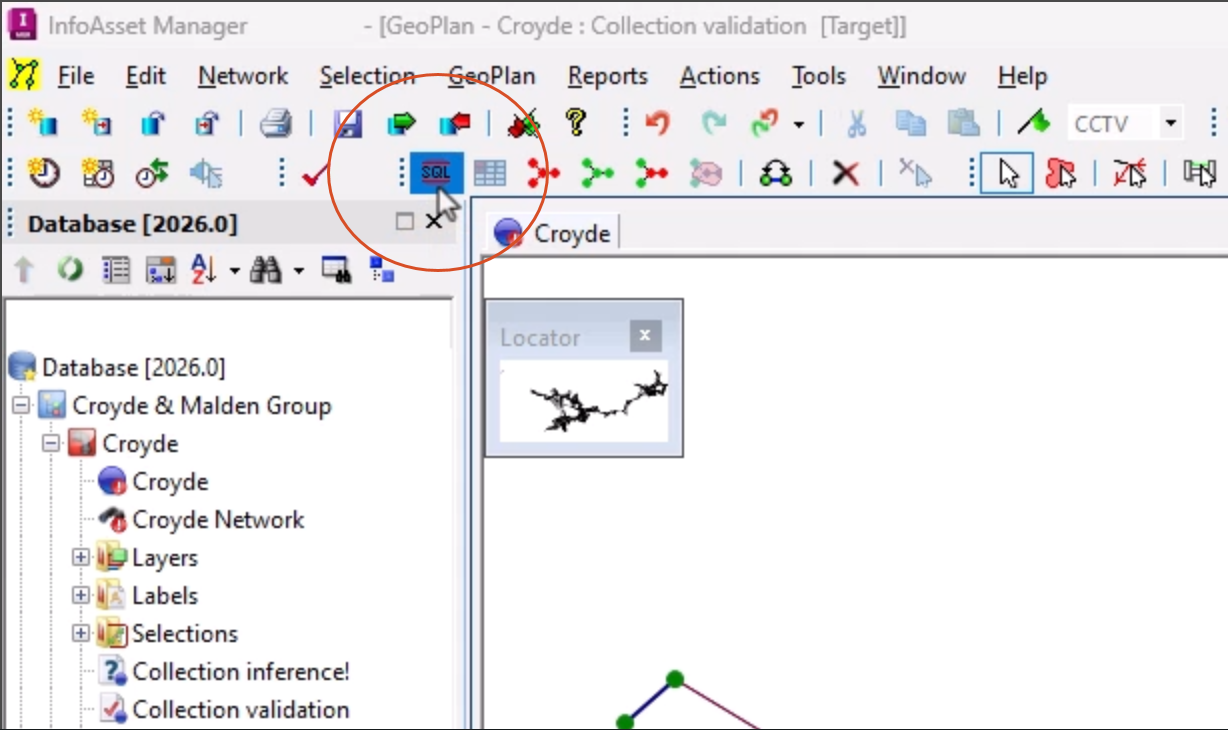
- Open the network on the GeoPlan.
- From the Selection toolbar, click SQL Select.
- Set the Object Type to Pipe.
TIP: Since this is a long drop-down, type P to quickly jump to that point in the alphabetical list.
- In the text box, type SET and add a space after it.
- In the Field drop-down, select user_number_10.
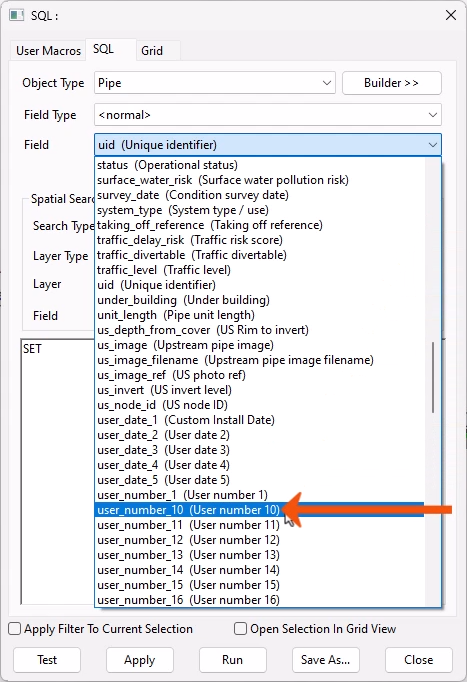
The query text should now be:
SET user_number_10
Next, make the set field equal to the survey length from the CCTV Survey table. Use the query builder to help construct the rest of the query.
- Click Builder to display a set of buttons that represent the operators that can be included in the query.
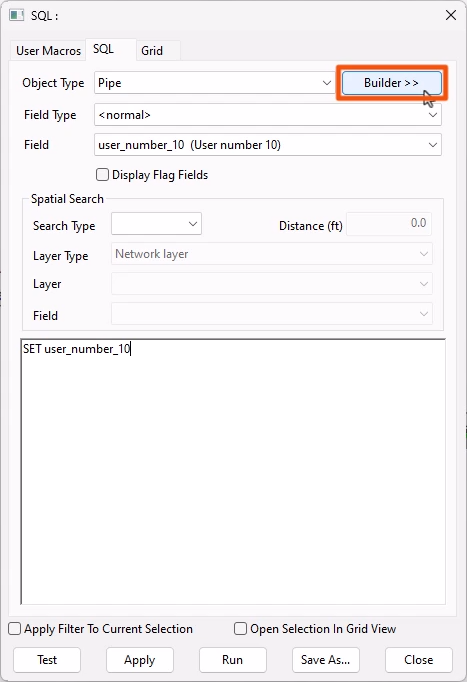
- In the Comparison group, click the equals (=) sign.
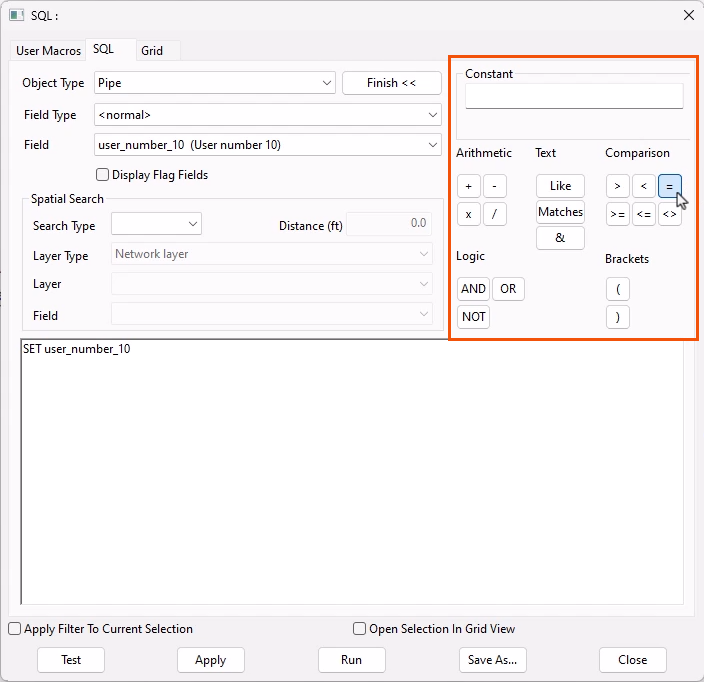
- To select the fields from associated CCTV Surveys, in the Field Type drop-down, select cctv_surveys.
- From the Field drop-down, select surveyed_length.
The query is complete and should be set as the following:
SET user_number_10 = cctv_surveys.surveyed_length
- Click Test.
- In the message popup, click OK.
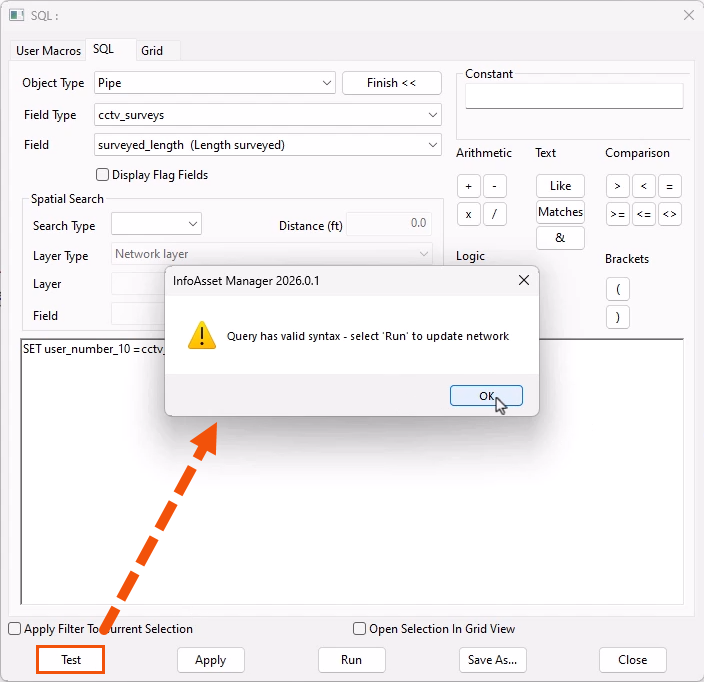
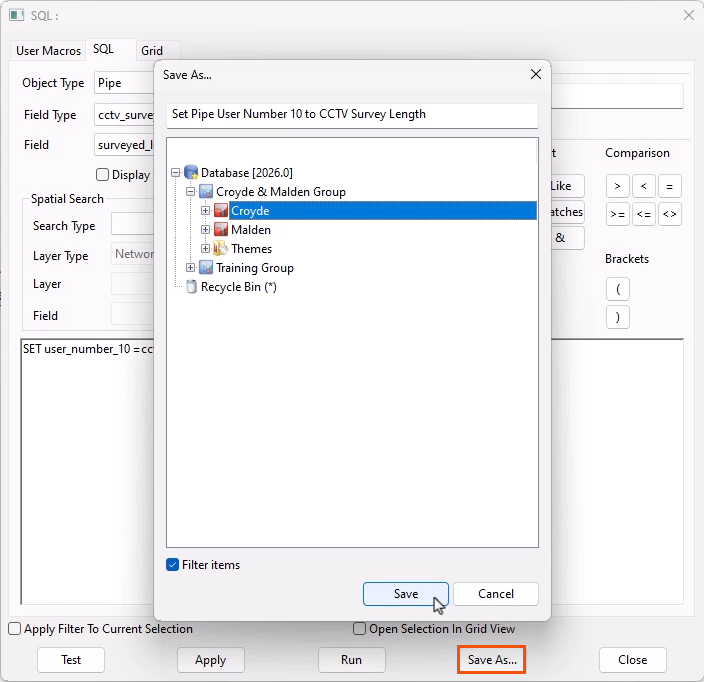
To save the query for later use, if needed:
- Click Save As.
To run the query:
- Click Run.
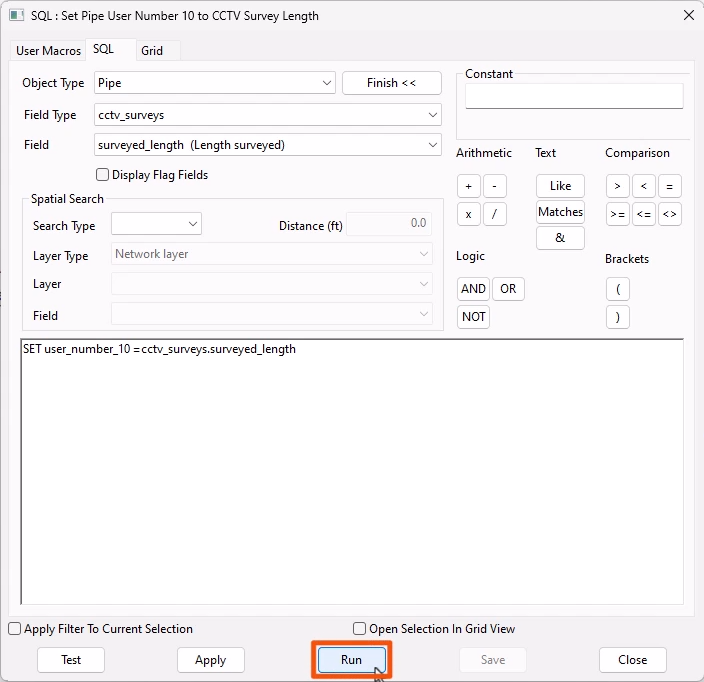
To see the results of the query:
- Open the property sheet for a pipe in the network.
- Under User defined properties, note the value in the User number 10 field.
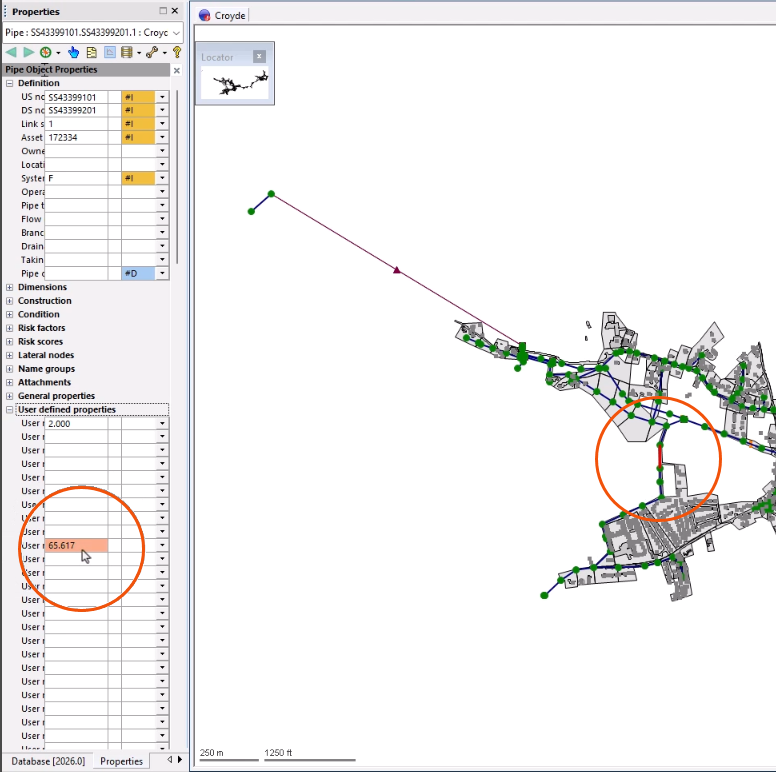
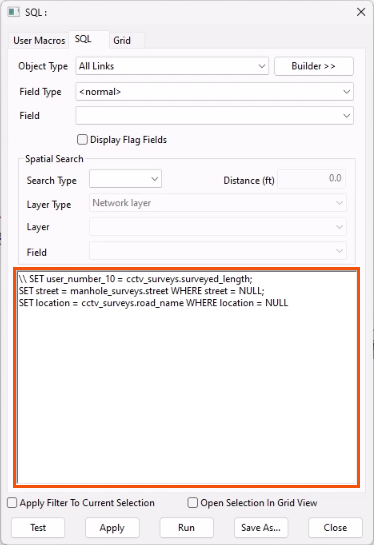
Another SQL query that can be built and run is to set the street field of the node based on the Manhole Survey, where it is not currently set on the asset:
SET street = manhole_surveys.street WHERE street = NULL
Or, build a similar query for pipes from CCTV Surveys:
SET location = cctv_surveys.road_name WHERE location = NULL
TIP: Run various queries across multiple tables together. Combine queries with a semi-colon at the end of each query syntax.
TIP: Add comments or ignore lines of syntax by adding two backslashes (\\) at the beginning of a line. Everything on the same line after the backslashes will be displayed in green and ignored when running the query.