Import and update data from CSV in InfoAsset Manager

Use subtable CSV files to update an existing table with more recent data.


Import and update data from CSV in InfoAsset Manager

Step-by-step guide

By importing network data into InfoAsset Manager, existing network objects can be updated or deleted, and new objects can be added. This allows the most recent asset and survey data to be included, helping to ensure model accuracy.

In this example, subtable data from a manhole survey must be imported from CSV files. The actual manhole survey table has already been imported as a GIS file, and the incoming and outgoing pipes now need to be updated using the CSV data.

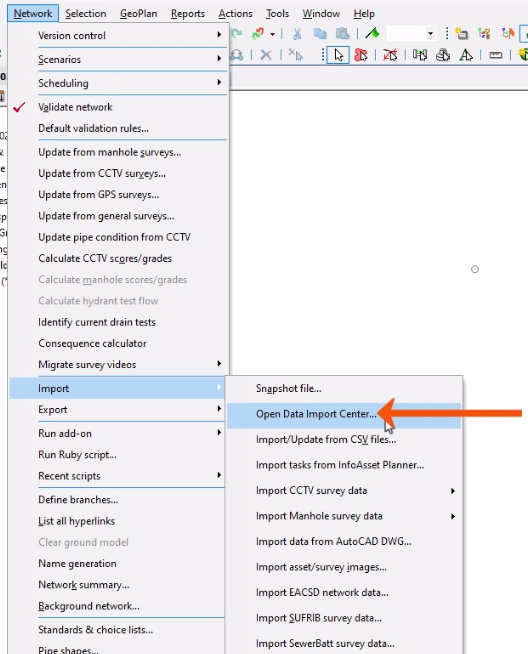
  1. From the Network menu, select Import.
  2. Select Open Data Import Centre to open the ODIC.
    The Network menu expanded, with Import selected and, in the flyout, Open Data Import Center being selected and called out with a red arrow.
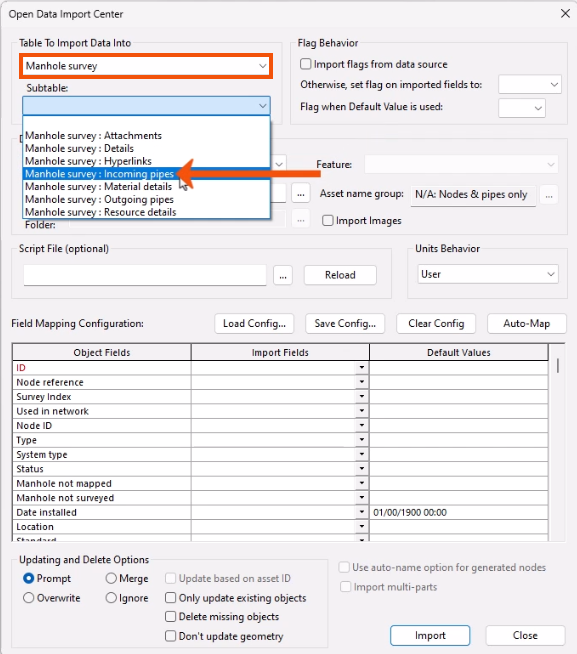
  3. In the Open Data Import Center dialog, expand the Table to Import Data Into drop-down and select Manhole Survey.
  4. In the Subtable drop-down, select Manhole survey : Incoming pipes.
    In the Open Data Import Center dialog, Table to Import Data Into set to Manhole survey and highlighted in red, and the Subtable drop-down expanded, with Manhole survey : Incoming pipes being selected and called out with a red arrow.
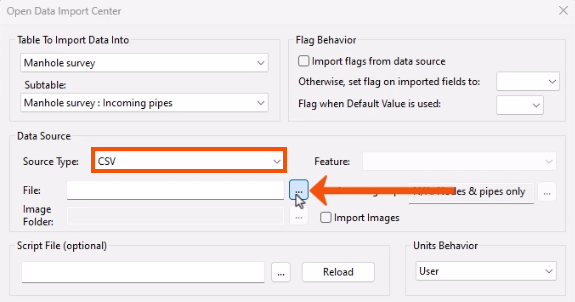
  5. Under Data Source, for Source Type, select CSV.
  6. Next to File, click Browse (…).
    In the Open Data Import Center dialog, the Source Type set to CSV and highlighted in red, and next to File, Browse being clicked and called out with a red arrow.
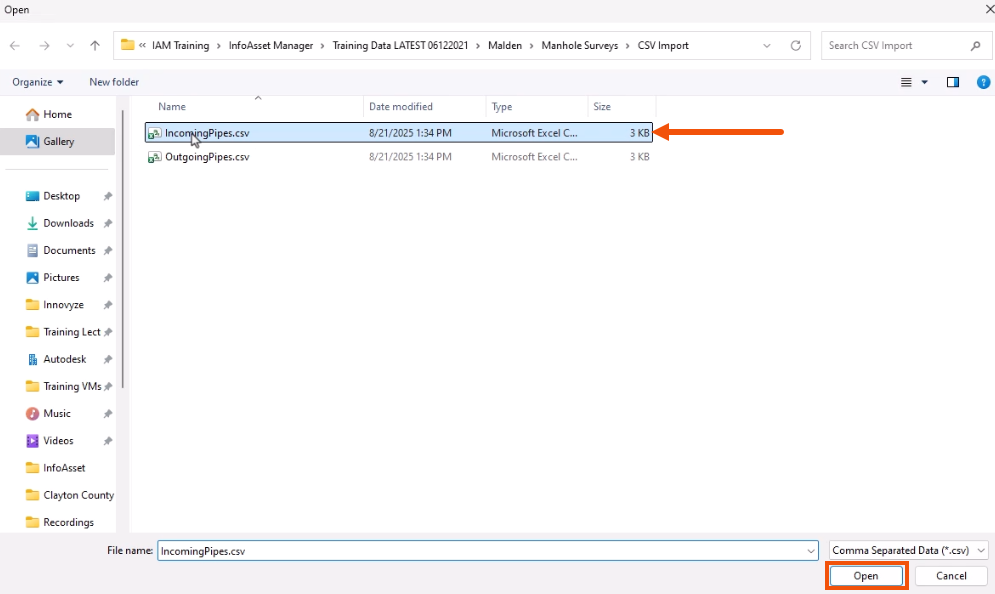
  7. In the Open dialog, locate and select the IncomingPipes.csv file.
  8. Click Open.
    The Open dialog, with the .csv file for this example selected and called out with a red arrow, and the Open button highlighted in red.

For the Field Mapping Configuration, a previously saved configuration (CFG) file that contains details of the settings in the assignment grid can be loaded to save time.

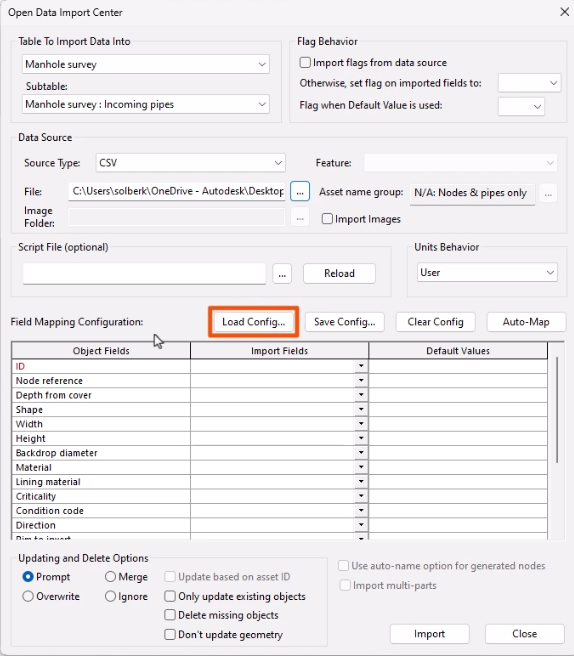
  1. Click Load Config.
    The Open Data Import Center dialog, with the Load Config button highlighted in red.
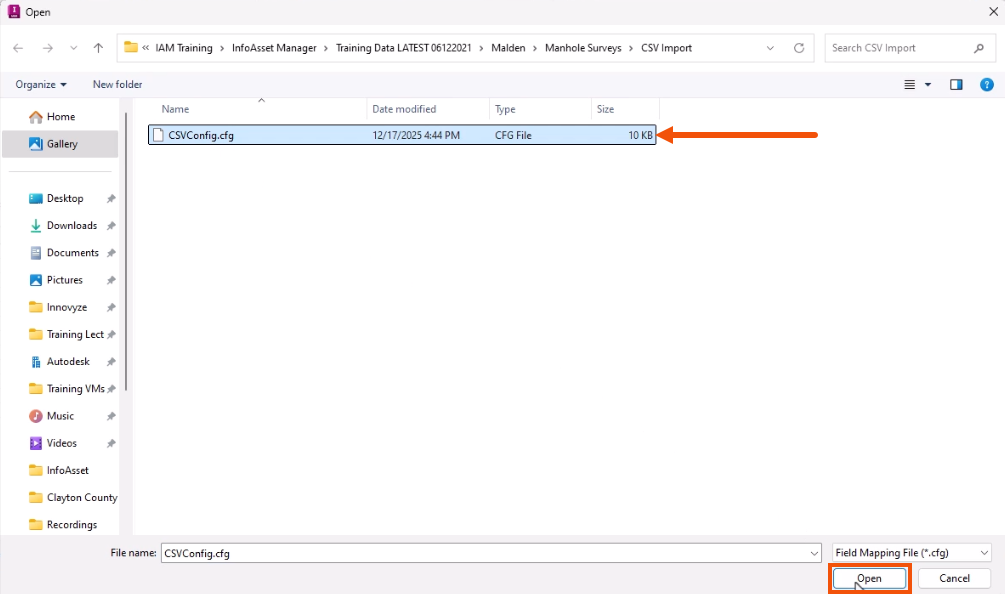
  2. In the Open dialog, locate and select the saved .cfg file.
  3. Click Open.
    The Open dialog, with the .cfg file selected and called out with a red arrow, and Open being selected and highlighted in red.

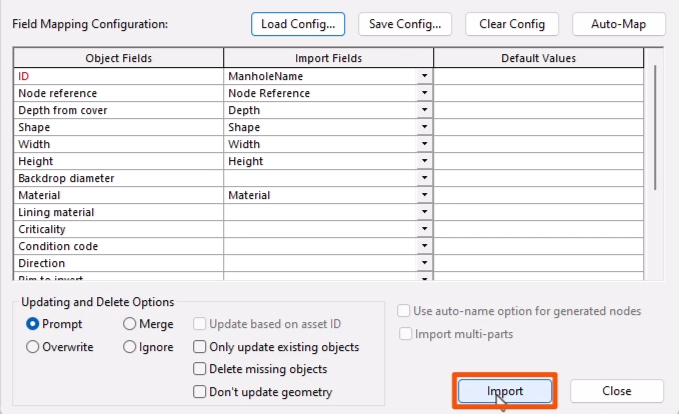
The mapping table automatically updates with the saved information.

  1. Click Import to import the incoming pipe data.
    In the ODIC, the Field Mapping Configuration table updated with the .cfg data, and Import being selected and highlighted in red.

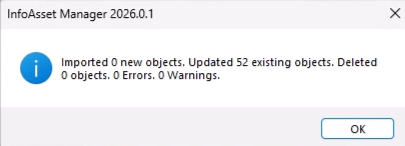
A summary popup shows no new objects imported and 52 existing objects updated.

A summary popup showing no new objects imported and 52 existing objects being updated.

  1. Click OK.
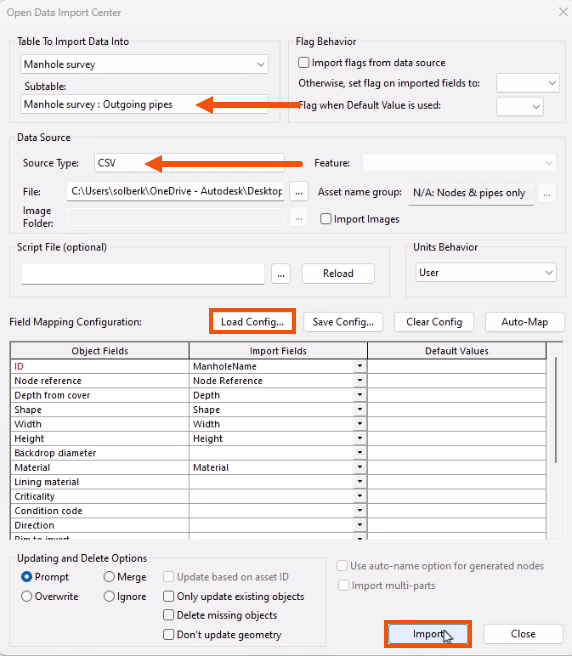
  2. Repeat the import process with the Manhole survey : Outgoing pipes subtable, making sure to select the OutgoingPipes.csv file and load the same saved config file.
    In the ODIC, settings updated for the Subtable and Data Source File, both called out with red arrows; with Load Config already selected and Import being clicked, both highlighted in red.

Now, commit the changes.

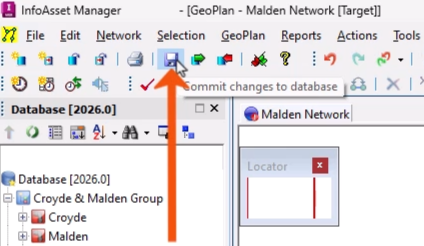
  1. From the File toolbar, select Commit changes to database.
    The File toolbar, with Commit changes to database being selected and called out with a red arrow.
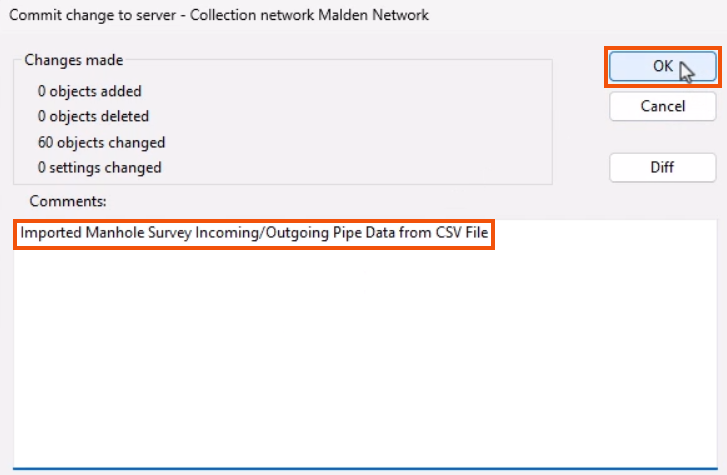
  2. Add a comment, such as “Imported Manhole Survey Incoming/Outgoing Pipe Data from CSV File”.
  3. Click OK.
    The Commit change to server dialog, with comments added and highlighted in red, and OK being selected and highlighted in red.