Update changes from other users in InfoAsset Manager
Step-by-step guide
InfoAsset Manager includes a multi-user version control system that supports concurrent editing of a network. As InfoAsset Manager develops, it can manage larger and larger networks, and it becomes increasingly important for team members to collaborate on the same network and then merge their changes together.
To minimize the possibility of conflicting changes being made to the same data, it is important to obtain changes from other users regularly. Changes made to a version-controlled database object are continuously and automatically saved locally in the working folder until they are committed.
To update a version-controlled item with changes from other users, do one of the following:
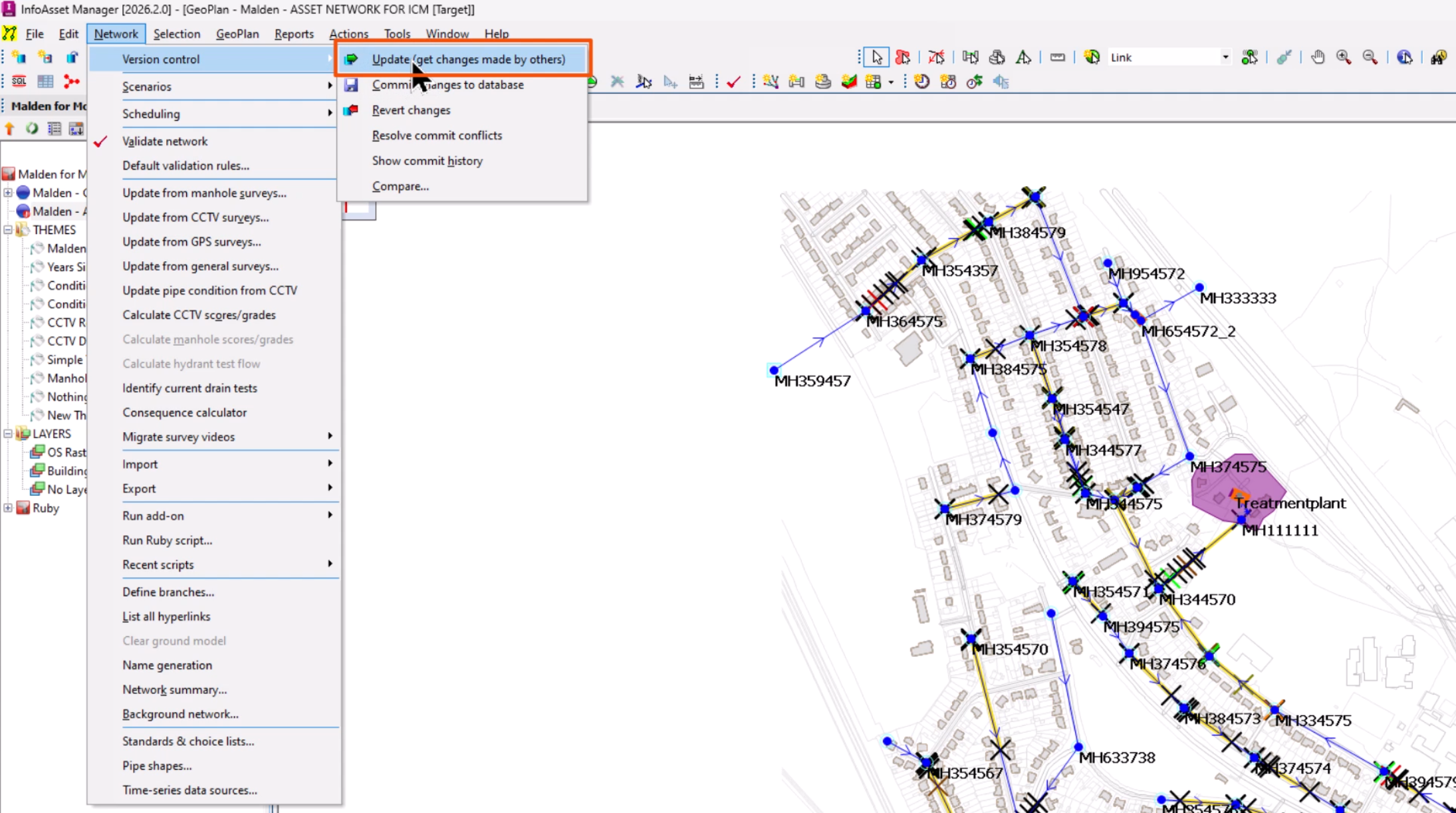
- From the Network menu, expand Version control and select Update (get changes made by others).
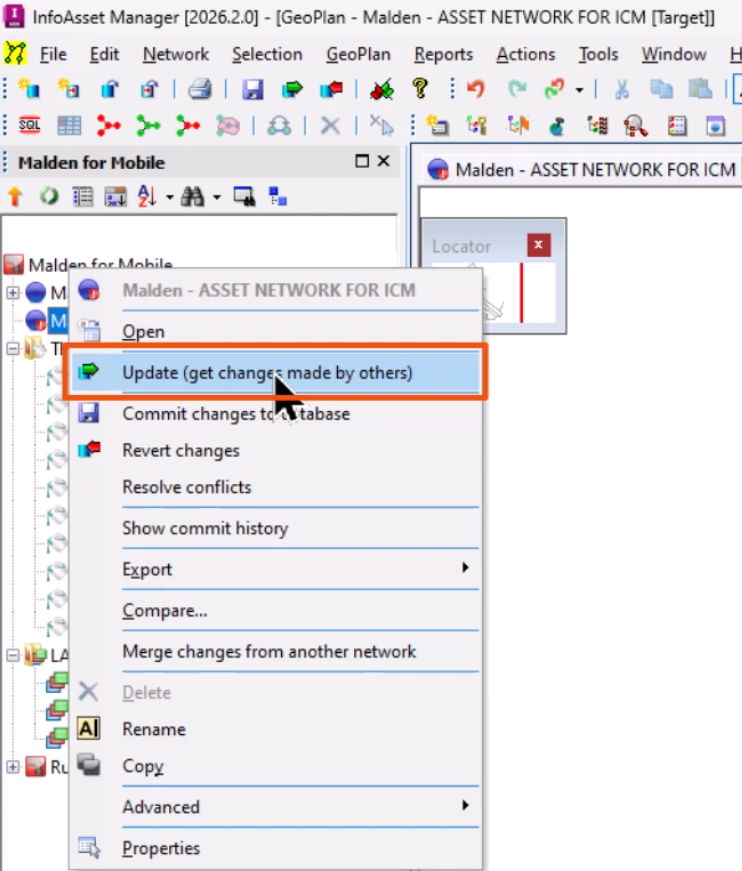
- From the Explorer window, right-click the database item and choose Update (get changes made by others).
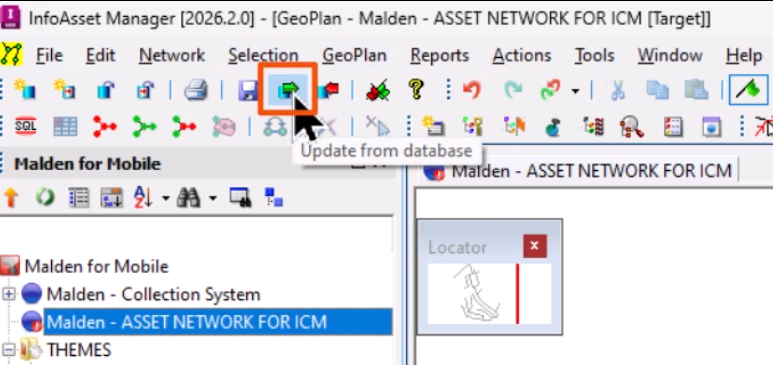
- From the File toolbar, click Update from database.
If there are conflicts, they must be resolved. In this case, a notification indicates that there is one conflict.
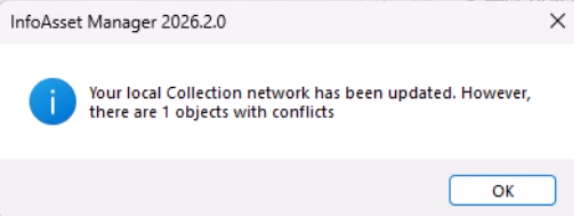
- Click OK.
The Resolve Update Conflicts dialog opens to display the conflicts for the object. Each row on the grid represents a single conflict.
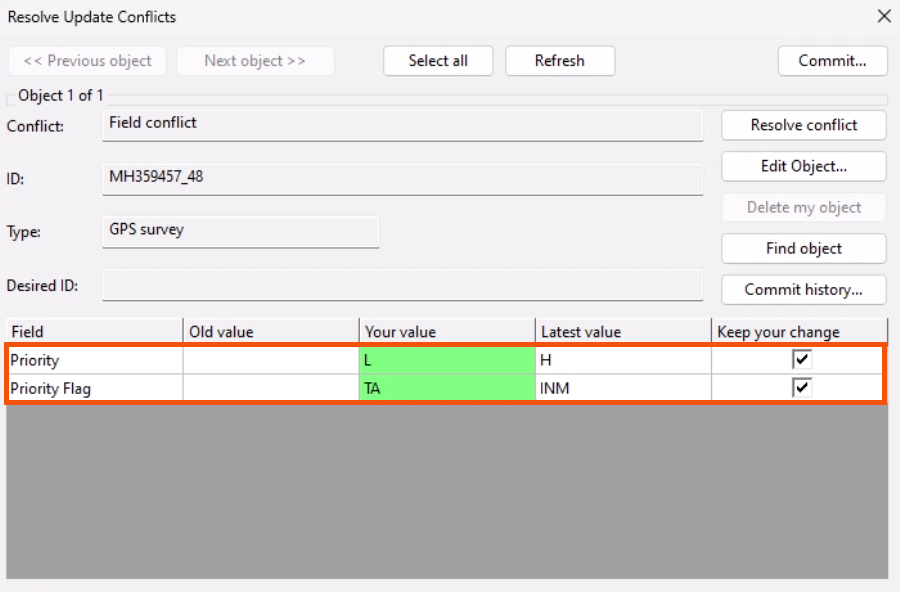
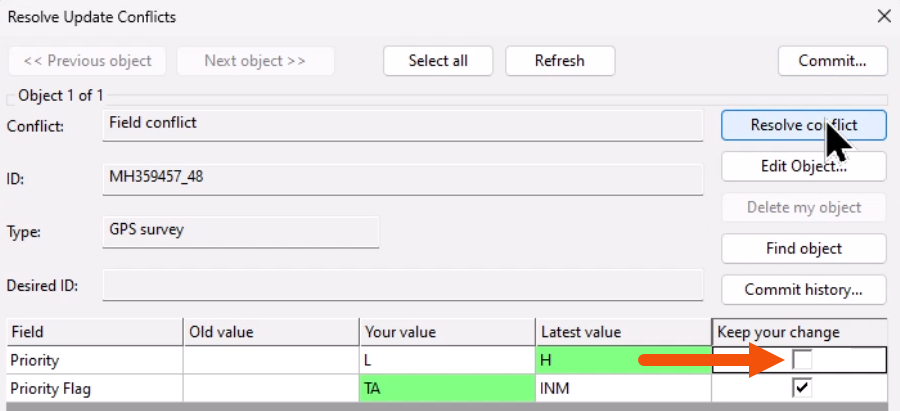
- For each row, use the Keep your change checkbox to determine which value will be used. For this example, in the Priority row, deselect Keep your change.
The Latest value is now highlighted in green.
- Click Resolve conflict.
- Click Commit.
If a local copy of the network is opened that contains uncommitted local changes, as well as changes committed by other users, a message displays prompting retrieval of the most recent version of the network.




