Set the coordinate system in InfoAsset Manager

Set the coordinate system to be used for the network.


Set the coordinate system in InfoAsset Manager

Step-by-step guide

Before data can be imported into a new network, the correct coordinate projection system must be set. InfoAsset Manager has a default coordinate system that is used for all new networks. However, this system can be changed and set as the default for a database.

To change the coordinate system for an existing network:

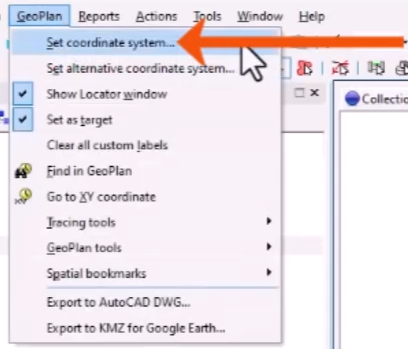
  1. From the GeoPlan menu, select Set coordinate system.
    The GeoPlan menu expanded, with Set coordinate system being selected and called out with a red arrow.
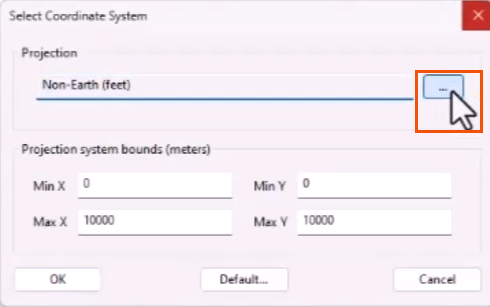
  2. In the Select Coordinate System dialog, next to the Projection field, click Browse.
    In the Select Coordinate System dialog, next to the Projection field, the Browse button being clicked and highlighted in red.
  3. In the Choose Coordinate System dialog, select a coordinate system from the list or use the Find box to help locate a coordinate system. Here, select British Coordinate Systems > British National Grid [ESPG 27700].
    The Choose Coordinate System dialog, with the Find box highlighted in red, and British National Grid [ESPG 27700] selected and called out with a red arrow.
  4. Click OK.

To make the selected system the default for all new networks in the database:

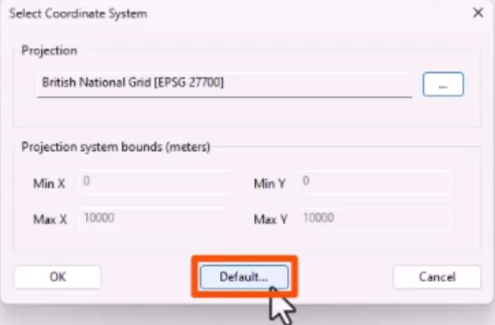
  1. Back in the Select Coordinate System dialog, click Default.
    The Select Coordinate System dialog, with Default highlighted in red.
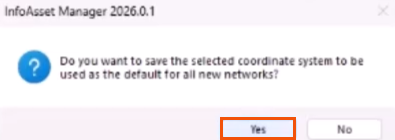
  2. In the confirmation pop-up, click Yes.
    The confirmation pop-up with the Yes button highlighted in red.
  3. Click OK to apply the new coordinate system.

The GeoPlan view changes to reflect the new location in space.

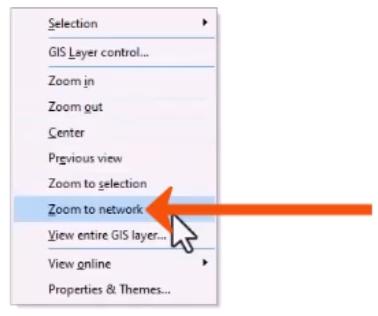
  1. If you have objects in the view, right-click the GeoPlan and select Zoom to network to work with the repositioned objects.
    The context menu for the GeoPlan, with Zoom to network being selected and called out with a red arrow.

This helps to ensure that the network objects align with any displayed background layers or mapping.

For databases without a map control, an online map projection system must be specified to enable the use of online maps.

To set the online map projection system for an existing network:

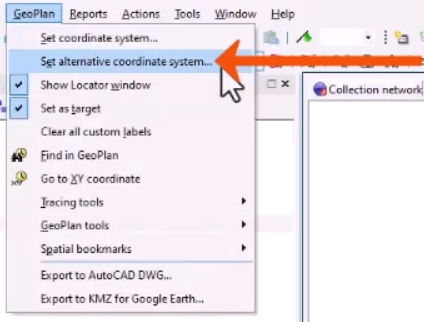
  1. From the GeoPlan menu, select Set alternative coordinate system.
    A zoomed-in view of the expanded GeoPlan menu, with Set alternative coordinate system being selected and called out with a red arrow.
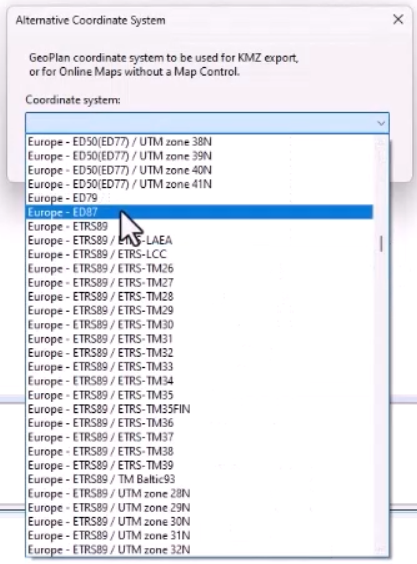
  2. In the Alternative Coordinate System dialog, select a coordinate system, such as Europe – ED87.
    The Alternative Coordinate System dialog, with Europe – ED87 being selected.
  3. Click OK.