Adding reinforcement to a footing

Add reinforcement to a footing - Exercise

There is a plethora of different footing configurations when it comes to reinforcement. Let’s look at the more common approach.

  1. Open Revit then the file STRUCTURAL.RVT (or open any Revit project you are working in).
  2. Go to Footing Section 13.
  3. Delete that weird bar we used as an example in the last video.
  4. Select the footing.
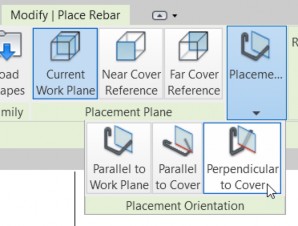
  5. Click the Rebar button.
  6. Make sure Rebar Shape: 00 is selected.
  7. Make sure Perpendicular to Cover is selected in the Placement Orientation Panel.

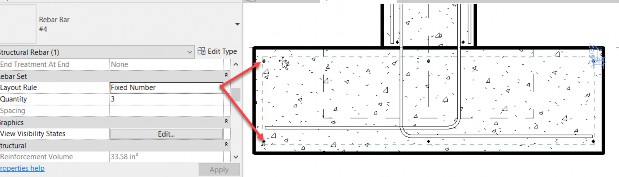
  8. In the Properties, set the layout rule to Fixed Number.
  9. Set the Quantity to 3.
  10. Add this configuration to the top cover and to the bottom cover, as illustrated below.

  11. Now set Parallel to Work Plane in the Placement Orientation Panel.
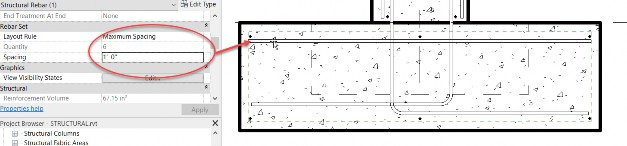
  12. Set the Layout Rule to Maximum Spacing.
  13. Set the Spacing to 1'-0".
  14. Add a bar below the perpendicular bars riding the top cover.