 Trent Still
Getting started with Autodesk Fusion? This is a great place to start. Here’s an overview of the platform, toolsets, and functionality, and a few things to keep in mind.
Welcome to Autodesk Fusion
Autodesk Fusion, formerly Fusion 360, is the industry-leading cloud-based design, engineering, and manufacturing software. We’re thrilled to have you join our community of professionals who rely on Fusion to revolutionize their design processes. As a leader in cloud-based solutions, Autodesk Fusion empowers you to seamlessly transition from conceptual design to engineering analysis and manufacturing, all within a single integrated solution.
Autodesk Fusion encompasses CAD, CAM, CAE, electronics and PCB design, built-in PDM, and collaboration capabilities. With its robust suite of tools and features, you can create intricate 3D models, simulate and optimize designs, generate toolpaths for machining, and so much more.
Embracing the power of Autodesk Fusion enables you to harness the full potential of cloud-based design, engineering, and manufacturing. We’re committed to providing you with exceptional support and resources throughout your journey.
Autodesk Fusion overview
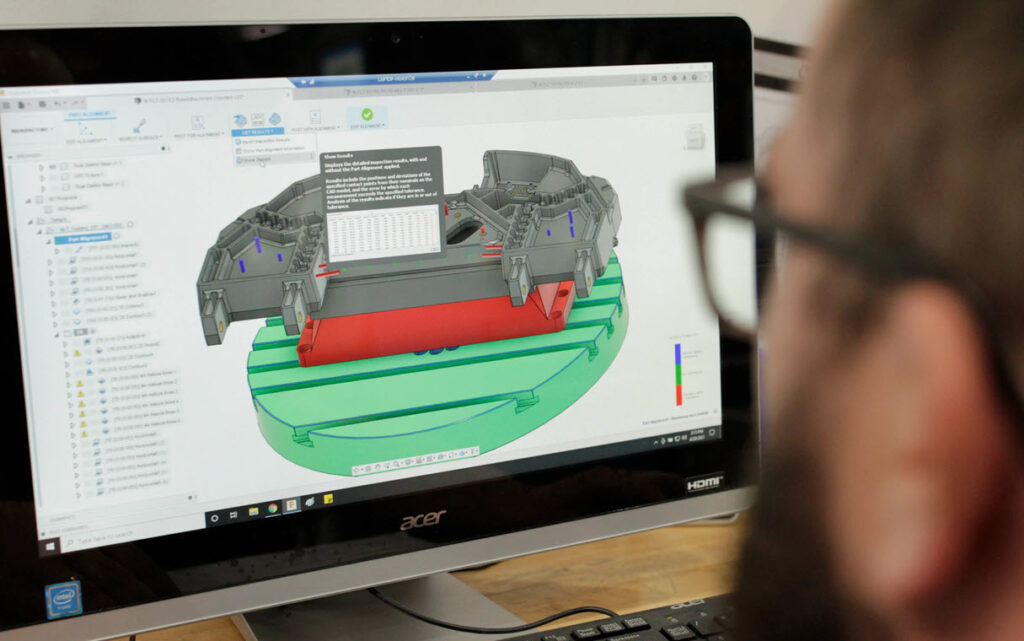
What truly sets Autodesk Fusion apart is its seamless integration of CAD, CAM, CAE, and PCB functionalities. Easily transition from design to manufacturing while continuously refining and optimizing your product.
The CAD space offers a seamless and intuitive workflow powered by parametric modeling tools that enable you to create precise and intricate 3D models.
The CAM space opens up the possibility for computer-aided manufacturing. It lets you generate toolpaths, simulate machining operations, and optimize manufacturing processes with exceptional efficiency and accuracy.
As you venture into the CAE space, you’ll find a realm of engineering analysis and simulation tools that help you evaluate your designs’ structural integrity, performance, and behavior. Whether conducting finite element analysis, fluid dynamics simulations, or exploring thermal behavior, Fusion provides the comprehensive tools you need to drive your engineering projects forward.
With ECAD in Fusion, you can seamlessly design and collaborate on complex electronic projects. This integration reduces the need for separate software tools and enables a unified design environment. From schematic design to PCB layout and manufacturing, Autodesk Fusion’s PCB design tools empower you to bring your electronic designs to life.
This tight cross-discipline integration helps keep your design intent remains intact throughout the product development lifecycle, fostering efficient and effective workflows. Embracing Fusion’s capabilities will give you an unparalleled advantage.
A seamless workflow from design to manufacture
As a new user, it is vital to recognize the significance of mastering Autodesk Fusion for CAD design. Especially in the context of agile product development and rapid prototyping. Fusion offers a range of tools and features that empower you to quickly iterate on your designs and easily accommodate design revisions.
This agility translates into accelerated manufacturing throughput. A smooth integration between design and manufacturing lets you generate toolpaths and optimize production processes directly from your designs. Additionally, professional simulation capabilities allow you to validate your designs before manufacturing, reducing costly errors and maximizing efficiency.
By mastering Autodesk Fusion, you’ll be able to harness the power of agility, rapid prototyping, and seamless integration to bring your ideas to life faster than ever before.
Ready to experience a seamless workflow from prototype to product?
Comprehensive Getting Started Guide
- Autodesk Fusion 360 Basics: Getting Started with Sketching
- Autodesk Fusion 360 Basics: 3D Modeling Made Easy
- Autodesk Fusion 360 Basics: The Fundamentals of Assemblies
- Autodesk Fusion 360 Basics: Manufacturing Fundamentals
- Autodesk Fusion 360 Basics: Simulation Tools for Everyone
- Autodesk Fusion 360 Basics: Collaboration and Data Management
- Autodesk Fusion 360 Basics: Library Features, Tools, and More
- Autodesk Fusion 360: It’s More Than Just a Great CAD Tool
Frequently asked questions (FAQs)
Yes. You can start learning Fusion with no prior computer-aided design (CAD) experience. A good first step is the free Learn Fusion for CAD in 90 minutes course, which covers sketching, modeling, assemblies, and rendering with downloadable practice files. After that, the 10-step Fusion Quick Start Guide walks you through setup and the core workflows. Fusion uses the same tools that professional engineers and machinists use, so the skills you build now carry forward as your projects grow.
Most people with no CAD background get comfortable with the basics in one to three months, practicing a few focused hours each week. More advanced work, such as complex assemblies or computer-aided manufacturing (CAM), can take several more months to a year of regular practice. Your pace depends on your prior experience and how often you practice. Short, frequent sessions on real projects tend to work better than occasional long ones. The self-paced learning collection for Fusion organizes hundreds of videos and model files by topic, so you can learn in small steps.
Learn the skills in the order you’ll use them on a real part. Each one builds on the last:
– Sketch 2D shapes on a plane
– Add dimensions and constraints to control the sketch
– Turn sketches into 3D solids with tools such as extrude and revolve
– Organize parts as components
– Connect components with joints to build an assembly
– Create a 2D drawing to document the design
The getting started series covers these steps in order, beginning with Sketching and Parametric Basics in Autodesk Fusion. It also helps to set up navigation the way you like early on. Fusion Navigation and Preferences shows you how.
A body is a piece of 3D geometry. A component is a container for bodies, sketches, and other components, and it has its own origin. The difference matters because joints, which define how parts move, work only with components. Parts lists and bills of materials (BOMs) in drawings also come from components. A simple habit for beginners is to create a new component before you model each new part. For a deeper look, read 5 Things You Should Know About Bodies vs Components in Autodesk Fusion.
Line color shows whether your sketch is fully constrained. Blue lines can still move, because they have no dimensions or constraints holding them in place. Black lines are fully constrained, so they stay fixed until you change a dimension. A fully constrained sketch updates more predictably when you edit your design later. Read the sketch basics tutorial to understand constraints and learn practical tips for dimensioning from Mastering Sketch Dimensions.
In parametric modeling, dimensions and a recorded history of features drive your design. Fusion stores each step, such as a sketch, an extrude, or a fillet, on the timeline at the bottom of the screen. When you change a dimension or edit an earlier step, the features that depend on it update automatically. This approach makes revisions faster, because you edit the design instead of rebuilding it. Fusion also supports direct modeling, which lets you push and pull geometry without history. Direct modeling is useful for editing files imported from other CAD tools.
Yes. Fusion has several free and low-cost options, depending on how you plan to use it:
Free trial: 30 days with access to all capabilities, for commercial evaluation
Personal use: a free version with limited functionality for home-based, non-commercial projects
Education: free access for qualifying students and educators
Startups: a program that eligible early-stage companies can apply for
To see what the free personal use version includes and when to upgrade, read Fusion for Personal Use vs. Autodesk Fusion. You can also start a free trial or explore Fusion for education.
You can print from Fusion in two ways. To use your usual slicer, right-click a body or component in the browser, choose Save As Mesh, and save an STL or 3MF file. You can also use the 3D Print command under the Make menu in the Tools tab to send the model straight to a supported slicer application.
To slice inside Fusion, switch to the Manufacture workspace. There you choose your printer and material, set up supports, and generate G-code in the same file as your design. Fusion has worked as a slicer for fused filament fabrication (FFF) printers since 2020, and it added Bambu Lab printer support in 2025. How to Export Your Autodesk Fusion Model for 3D Printing walks through each method, and All About Fused Filament Fabrication (FFF) in Fusion covers the print settings.
Yes. Fusion creates 2D and 2.5D toolpaths for CNC routers, mills, water jet cutters, and laser cutters. That makes it a common choice for woodworking, sign making, and small-shop fabrication. You design the part and program the machine in the same file, so your toolpaths update when the design changes. Sheet metal parts can be flattened and cut with water jet, laser, or plasma strategies. Advanced work, such as 4- and 5-axis milling or nesting many parts on one sheet, uses the Manufacturing Extension or Autodesk Fusion for Manufacturing. To get started, read Autodesk Fusion Manufacturing Fundamentals.
Yes. You can export industry-standard formats, including STEP, IGES, DWG, DXF, STL, and OBJ. With AnyCAD, you can reference designs from Inventor and other CAD tools directly, without translating files first. Mesh modeling tools let you edit and repair STL and OBJ files, such as 3D scans.
Yes. CAM is built into Fusion, so you program CNC machines from the same model you designed, and toolpaths update when the design changes. Fusion supports 2D and 2.5D machining, 3-axis milling, turning, and turn-mill. Some advanced 3-axis strategies, and 4- and 5-axis simultaneous milling, require the Manufacturing Extension or Autodesk Fusion for Manufacturing.
Data management features are included with every Fusion subscription:
– Version control tracks every change, so you can compare and roll back.
– Project permissions control who can view and edit your data.
– Comments and markups capture feedback directly on the design, from any device.
– Share links let anyone review a 3D model in a web browser, even without CAD software.
Start by setting up your Fusion Hub. For teammates who only need to review and participate, see Autodesk Fusion Contributor.
Consider Autodesk Fusion for Manufacturing when CNC programming becomes a core part of how your business makes money. A standard Fusion subscription already includes integrated computer-aided design (CAD) and computer-aided manufacturing (CAM). That covers 2D and 2.5D machining, core 3-axis milling, turning, and positional 3+2 machining. Fusion for Manufacturing adds the Manufacturing Extension, and it’s worth a look when your shop:
– Runs 4- or 5-axis machines and needs simultaneous multi-axis toolpaths
– Programs similar parts often and wants to automate the work with templates and hole recognition
– Uses spindle-mounted probes for part setup, inspection, or tool wear checks
– Cuts many parts from sheet stock and wants nesting to reduce material waste
– Works with metal additive processes such as powder bed fusion or directed energy deposition
Fusion for Manufacturing bundles core Fusion with the Manufacturing Extension for less than buying them separately. At the time of writing, the US list price is $2,040 per year. Check current pricing for your region, or try it free for 30 days on your own parts and machines.
Autodesk Fusion for Manufacturing is available for $170 per month, paid annually. See pricing options here.
5-axis milling: A standard Fusion subscription includes positional 3+2 machining. Fusion for Manufacturing adds simultaneous 4- and 5-axis milling, with options such as swarf, flow, and multi-axis contour toolpaths. It also includes multi-axis collision avoidance, which helps protect your machine and tooling.
Turning: You get dedicated 2D turning strategies. Combined milling and turning operations generate NC code for multi-tasking turn-mill machines.
Hybrid additive: Directed energy deposition (DED) toolpaths drive deposition heads mounted on CNC machines and robotic arms. You can create a deposition stock model and use it in a following milling setup to finish the part on the same hybrid machine. Fusion for Manufacturing also supports metal powder bed fusion, with process simulation.
To see these workflows in context, read Autodesk Fusion Manufacturing Fundamentals.