 Shayne Prichard
This post is also available in:
Collaboration is at the core of Fusion, and in today’s flexible work landscape, it’s more important than ever. Fusion enables teams to work together anytime, anywhere, opening up the possibility for remote or hybrid work models in the design and make industries. There are many ways to collaborate and engage with your team (and even external stakeholders) in Fusion—here are just a few.
Creating a team in Fusion and organizing projects
The first step to collaborating with your teammates is to create a team in Fusion. Once you create a team, you can invite your collaborators and get started on your next project.
A team in Fusion allows you to enable/disable design reservation, enable role-based security settings, reference almost any CAD file without translation via AnyCAD, and re-use designs between projects in your team with cross-project references. Teams also provide the core data management tools needed for a design organization, including a history of the design for traceability a ‘where used’ capability to analyze the impact of changes, and an integrated viewer to visualize design data.
Your organization only needs one team in Fusion, so be sure to check with stakeholders before creating a new team. View step-by-step instructions on how to create a team here.
Once a project has been created, folders and subfolders can also be created to help organize data or emulate an existing folder structure that users will recognize.
If you need quick feedback from an external collaborator, there are two ways to go about this. They can access data through Fusion Team where they can participate in the design and make process by adding additional files, viewing designs, adding comments and markups, and exporting design data to additional formats that they may need for manufacturing or getting outside quotes from suppliers. Or, simply create a share link (with password protection if needed), and you’re all set to share your project. Check out how to create a share link and other ways to share your project here.
Accessing your Fusion data on the go
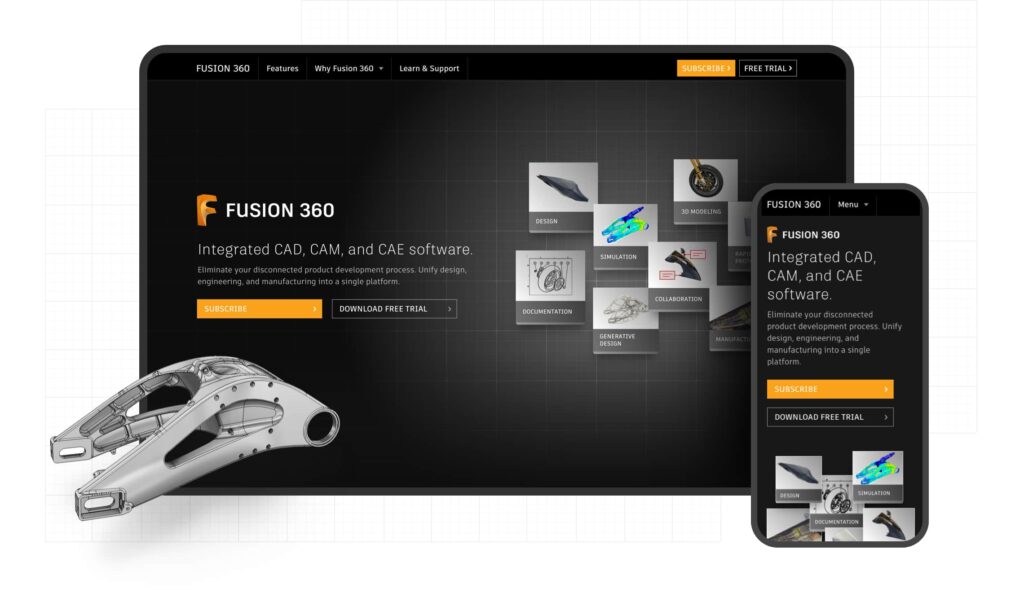
As hybrid and remote working conditions become the norm, it’s more important than ever to be able to access your data anytime, anywhere, and on any device. You can access your Fusion data via our web app and iOS/Android apps, enabling you and your team to collaborate in separate locations and check project progress on the go.
- Desktop app – Full design and editing capabilities
- Web app – Explore data, view designs, provide feedback, add team members, and adjust team settings
- iOS app – View designs and provide feedback on the go
- Android app – View designs and provide feedback on the go
Setting up your team’s security settings
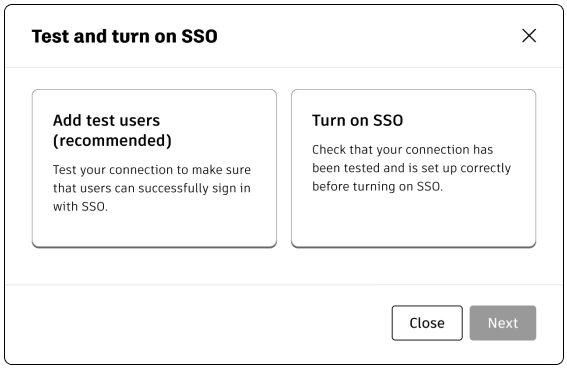
Fusion always ensures that your project data stays safe and secure. For example, all Autodesk subscriptions include Single Sign-on (SSO). SSO allows you to use your organization’s credentials to access Fusion, eliminating the need for multiple usernames and passwords. With SSO you and your team can enhance security, streamline administration, and improve user productivity with one-click access to Fusion. If you haven’t set up SSO for Fusion yet, learn more here.
If you are the administrator of your team in Fusion, here are a few key security features you can configure.
File sharing settings
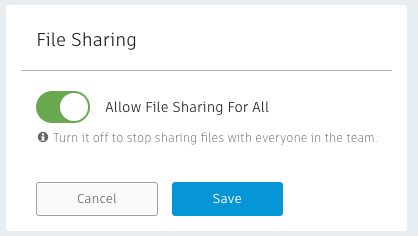
A great feature of Fusion is that your team members can share links for feedback with collaborators, and password protection is available. However, if this feature isn’t for you and your team, it can be disabled from the admin portal in the Fusion Team web app.
Adding new team members
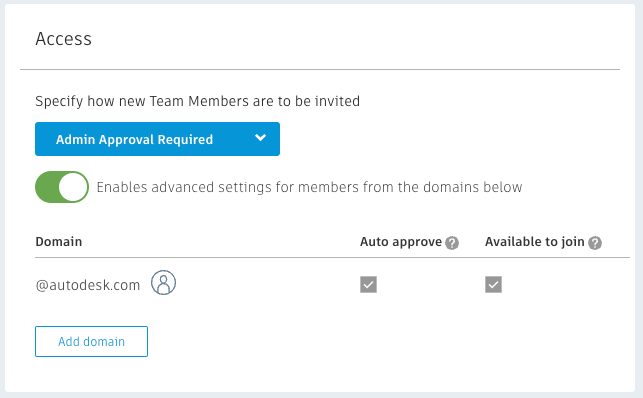
As an admin, you can control who has permission to add new team members—admin invite-only, admin approval required, and no admin approval required.
Assigning team and project roles
You can have users with different permissions or roles on your team. Roles in Fusion Team are applicable at two levels: team and projects. Roles determine what a member can do on the team and within a project.
| Role Level | Role Type | Permissions & Capabilities |
|---|---|---|
| Team | Admin | Full control over team settings, member management, security configuration, and all projects |
| Team | Member | Access to assigned projects, ability to collaborate and contribute to designs |
| Project | Admin | Manage project settings, assign project roles, control project-level permissions |
| Project | Member | View, edit, and collaborate on project designs |
| Project | Viewer/Moderator | View designs and provide feedback; moderators can also manage comments and markups |
Extending Fusion capabilities with cloud data access
All of Fusion’s data management and collaboration capabilities are backed by a powerful Cloud API called MFGDM API. This allows customers and partners to extend Fusion’s data management capabilities by directly leveraging its granular cloud data to connect ERP or MRP business systems, analyze sustainability impacts, or integrate with costing and purchasing tools.
This simple GraphQL API enables an application to discover the user’s Hubs, traverse Projects, and query designs for their assembly structure, meta-data, mass properties, and even export individual components to STEP files. Learn more about this API and explore sample apps here.
Frequently asked questions
How do I create a team in Fusion? To create a team, open Fusion and follow the team creation workflow in the data panel. View step-by-step instructions in the Autodesk Help documentation.
What is SSO in Fusion? Single Sign-On (SSO) allows you to use your organization’s credentials to access Fusion, eliminating the need for separate usernames and passwords while enhancing security.
Can I access Fusion data on mobile? Yes, you can access your Fusion data via the iOS and Android apps to view designs and provide feedback on the go.
What roles are available in Fusion teams? Fusion supports admin and member roles at the team level, and admin, member, and viewer/moderator roles at the project level, each with specific permissions.