 Shannon McGarry
Learn how to manage plastic rules, create new plastic rules, edit existing rules, and save rules to a library to use in future designs using the Fusion Product Design Extension.
The Fusion 360 Product Design Extension enables an automated approach to creating complex product designs with advanced 3D design and modeling tools.
Let’s walk through how to manage plastic rules using the extension.
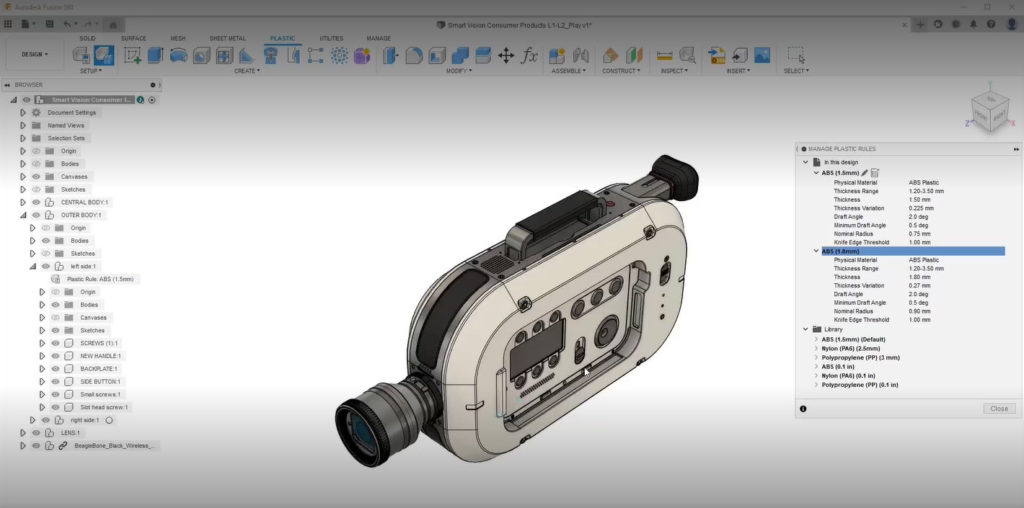
Manage Plastic rules – overview and setup
With the Fusion Product Design Extension, a best practice is to assign a plastic rule to your components before you begin modeling. As a result, this ensures that any subsequent plastic design features automatically inherit the respective plastic properties.
However, there may be occasions when you need to edit the plastic properties or change the plastic rule and have these edits propagate to components with that same plastic rule assigned.
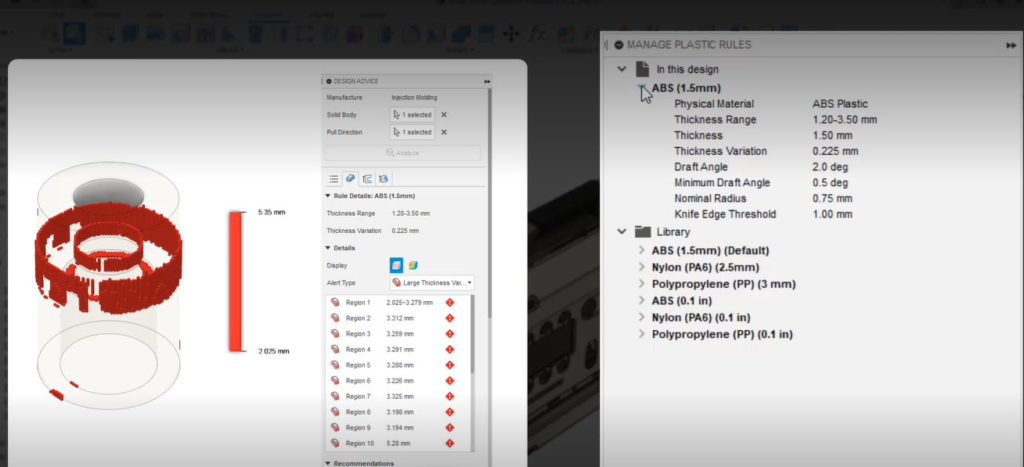
Edit a plastic rule
To access the command in the Design workspace, switch to the Plastic tab. Next, locate it on the toolbar or from the browser.
In the dialog, you’ll see two dropdowns: In this Design, which are plastic rules that are local to the active document, and Library. These rules are on the cloud library, and you can share them between projects.
If you expand one of the materials, you can see what these plastic rules contain in more detail, including:
- Physical Material: Assigns the selected plastic physical material from the Material Library to the component.
- Thickness: Applies the specified thickness value as the default nominal wall thickness used in certain settings.
- Draft Angle: Applies the specified draft angle value as the default nominal draft angle used in certain settings.
- Thickness Range: Defines the valid range of thickness values for solid bodies that Design Advice will analyze.
- Minimum Draft Angle: Defines the minimum draft angle for solid bodies that Design Advice will analyze.
- Nominal Radius: Applies the specified radius value as the default nominal radius used in certain settings.
- Thickness Variation: Defines the maximum percentage variation of thickness for solid bodies to be analyzed by Design Advice.
- Knife Edge Threshold: Defines the minimum thickness value of thin gaps on the solid body to be analyzed by Design Advice.
To edit any of these values, click on the pencil symbol to bring up the Edit Plastic Rule dialog. From there, adjust the name, physical material, or respective values.
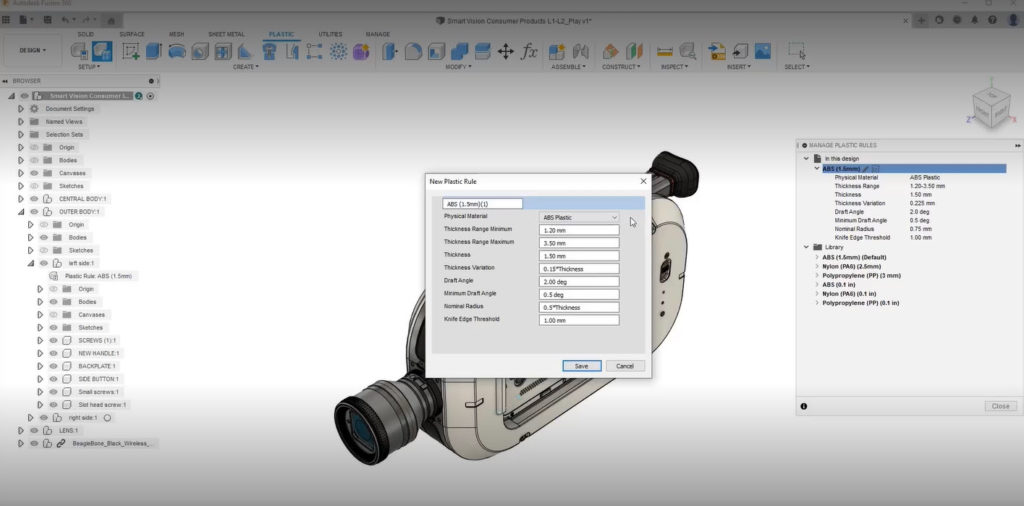
Manage plastic rules – create a new plastic rule
In addition, Fusion provides some base plastic rules in metric and imperial. You can also create new plastic rules locally or in your cloud library.
Click on the New Plastic Rule button next to any material you wish to duplicate. Next, enter a name, select your physical material and, again, enter the values that are respective of your material selection.
Set a plastic rule as default
If you have a plastic rule that you use more often than others, right-click and select Set As Default. This sets the rule as your default plastic rule.
Delete A Plastic Rule
Finally, right-click the plastic rule and select Delete if you wish to remove a plastic rule either locally or from your cloud library.
Get started with a free trial today to expand your 3D design capabilities.
Fusion vs Fusion Design Extension – Capabilities
Note: The Fusion Design Extension can only be added to an exsiting Autodesk Fusion subscription, and unlocks the following capabilities:
| Capability | Fusion | Fusion Design Extension |
|---|---|---|
| CONFIGURATION & AUTOMATION | ||
| Configuration rules (logic-driven product configuration) | No | Yes |
| Low-code rules engine for design logic | No | Yes |
| Parameter-driven configuration control | Yes | Yes |
| PLASTIC DESIGN | ||
| Plastic design rules (material, thickness control) | No | Yes |
| Plastic feature automation (rule libraries) | No | Yes |
| Plastic design tools (bosses, snap fits, ribs, webs) | No | Yes |
| Draft angle and manufacturability controls | Yes | Yes |
| DESIGN REUSE & PRESETS | ||
| Reusable design presets | Limited | Yes |
| Standard parameter reuse | Yes | Yes |
| ADVANCED GEOMETRY & PATTERNS | ||
| Standard sketch and feature patterns | Yes | Yes |
| Advanced geometric patterning (gradients, distribution control) | No | Yes |
| MESH & ORGANIC MODELING | ||
| Standard mesh editing | Yes | Yes |
| Organic mesh to solid/surface/T-Spline conversion | No | Yes |
| LATTICE & LIGHTWEIGHTING | ||
| Volumetric lattice generation | No | Yes |
| Lightweight structure design tools | Limited | Yes |
| DESIGN ANALYSIS & GUIDANCE | ||
| Standard design validation tools | Yes | Yes |
| Automated design advice (manufacturability feedback) | No | Yes |
| Built-in recommendations for performance and manufacturability | No | Yes |