 Emily Suzuki
Exporting STL files for 3D printing involves several methods that provide control over mesh quality, file formats, and integration with slicer applications. Autodesk Fusion offers versatile options for exporting single parts or assemblies, refining mesh resolution, and directly sending files to slicers or generating G-code for printers. The video tutorial below reviews the most common ways to export your Autodesk Fusion model for 3D printing, including:
Multiple STL export methods
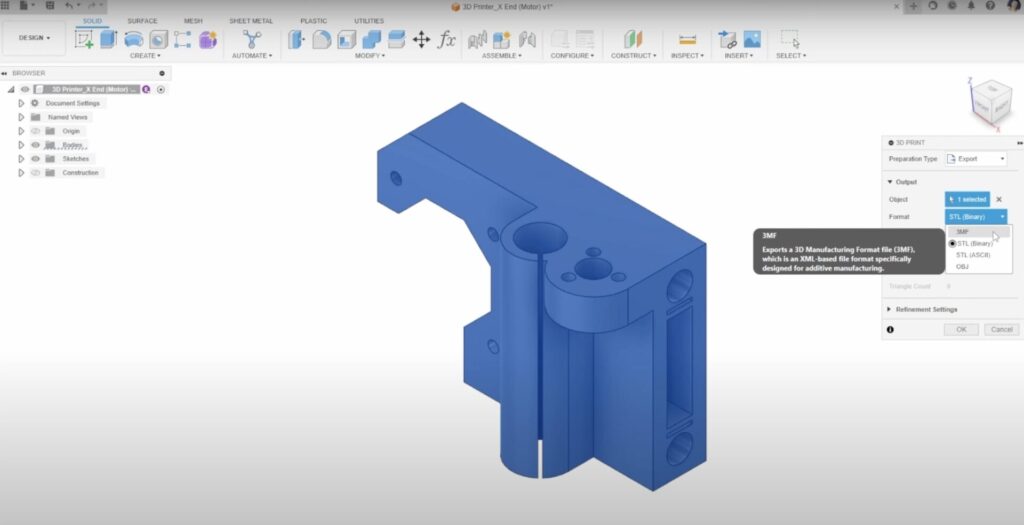
STL files can be exported via File > Export or through the 3D Print utility, offering different controls over mesh refinement and file formats, including STL binary, ASCII, 3MF, and OBJ.
Mesh refinement settings
Users can adjust mesh quality from medium to high, especially for curved surfaces, balancing detail with file size and slicer compatibility. Custom mesh settings are also available.
Direct slicer integration
The 3D Print utility allows sending STL files directly to slicers like Bamboo Studio or PreForm, streamlining the workflow by automatically opening the slicer with the prepared file. Custom slicer applications can be added as well.
Assembly export options
When exporting assemblies, users can choose to export the entire assembly as one file or export each body as separate files, useful for multi-color printing setups.
Save as mesh from the browser tree
Individual components can be right-clicked in the browser tree and saved as mesh files, accessing the same export settings for convenience.
Manufacturing workspace features
Switching to the manufacturing workspace enables the selection of 3D printer models, materials, and the generation of additive tool paths with simulation and post-processing to produce G-code files ready for printing.
Advanced tool path generation
The manufacturing workspace supports detailed positioning, tool path creation, and simulation, ideal for users needing direct G-code output for their 3D printers, complementing standard slicer workflows.