 Keqing Song

October is here, and Fusion is bringing more treats than tricks. This update delivers faster performance for complex assemblies, more context-aware help from Autodesk Assistant, new ways to work with imported designs, and improvements across modeling, manufacturing, electronics, drawings, data management, and more. The vibes may be spooky, but your workflows don’t have to be.
Highlights
v.2706.1.14 – October 21, 2026
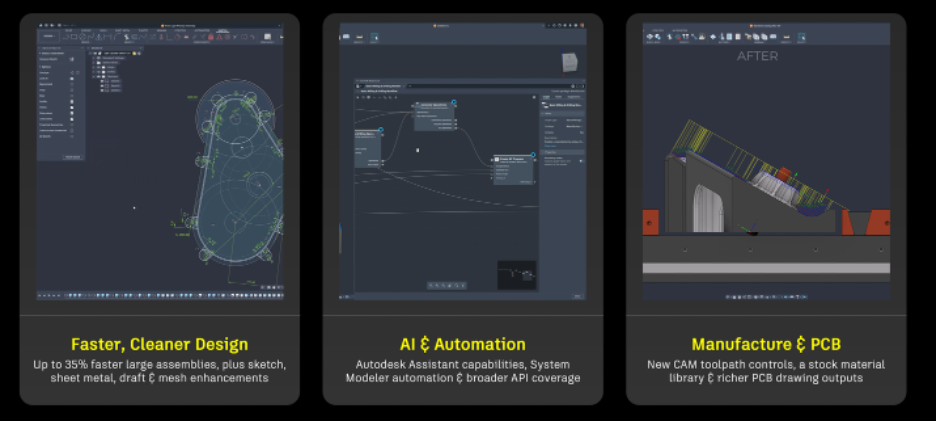
Whether you’re bringing imported CAD back from the dead as something you can actually edit, tracking down an under-constrained sketch before it burns you, automating a repetitive workflow, or waiting for a large assembly to load like it’s the final boss, there’s a lot to explore. Let’s get into what’s new.
Key Highlights:
- Autodesk Assistant now has better context awareness, helping it deliver more relevant guidance without making you explain the entire backstory. Spooky levels of insight, minus the mind reading.
- System Modeler helps automate repeatable workflows, because doing the same thing by hand over and over is the real horror story.
- Broader API coverage means more of Fusion can be scripted and connected to your own tooling. Your automation possibilities just got a serious power-up.
- Copy across hubs in Fusion web lets you move designs from one Fusion hub to another, giving you more flexibility to reuse existing work wherever it needs to go. No portal-opening ritual required.
- Integrated Task Management brings intuitive task boards, Kanban and list views into Fusion, helping you organize work, track progress, and keep project information connected to the data it represents. Chaos: managed.
- AutoTimeline uses AI-assisted feature reconstruction to bring imported geometry back from the dead as an editable, parametric Fusion design.
- Find Under Constrained gives you a list of under-constrained sketch geometry directly from the Sketch Palette, so you can track down issues before they become a jump scare.
- Shared Sheet Metal Rules are now available through the new Hub Library experience, giving your team a central place to access consistent company standards across projects. One shared rulebook, fewer plot twists.
- Selection Bar in the Manufacturing workspace puts a focused set of selection tools directly on the canvas while keeping you connected to the operation you’re working on. The tools you need, right where the action is.
- Additive manufacturing supports now save with the document, stay constrained to the build volume, and generate around no-build regions. Support structures behaving themselves? We love to see it.
Usability
Important: End of support for Intel-based Macs
At the end of March 2027, Autodesk Fusion will require an Apple silicon Mac to remain up-to-date. Essential application libraries that Fusion depends on are no longer being built for the x86_64 macOS platform, making it impossible to continue delivering new Intel-compatible releases. After the cutoff, Intel-based Macs will no longer receive Fusion updates or product support, and new releases will not install or run on this hardware. The final Intel-compatible release can continue to launch until its normal eight-month build-expiration window ends. Your files and cloud data will remain securely stored in your Fusion hub and are not affected. To stay current, move to a supported Apple silicon Mac; eligible Education and Commercial users can also access Fusion in a browser while planning their transition.
Learn more about the end of life for Fusion on Intel-based Macs.
Faster Performance Across Assemblies, File Operations, and Startup
This update brings targeted performance improvements across large and nested assemblies, file operations, memory use, and Fusion startup, meaning less time watching progress indicators and more time working with your designs.
Assemblies
- Up to 35% faster open, save, and edit performance on large, nested assemblies.
- Up to 80% faster opening of legacy assemblies after a one-time override cleanup. Consider the cobwebs cleared.
File Operations
- Open: Up to 12% faster when opening large assemblies with appearances and decals.
- Save: Up to 31% faster when saving large assemblies.
- Open / Close: Up to 22% less memory use when opening and closing designs with graphics cache enabled.
Startup
- Launch: Up to 71% faster startup for users with large preference files.
Performance improvements were measured using customer-provided datasets; results may vary by design.
Autodesk Assistant
Modify the BOM with Autodesk Assistant
Editing your bill of materials one row at a time? That workflow can rest in peace. You can now use natural language in Autodesk Assistant to update multiple BOM rows at once, helping you stay in flow while preparing a BOM for ERP handoff, adjusting procurement quantities, or simplifying the information you share with a manufacturing partner.
Ask Autodesk Assistant to apply bulk property updates, hide subassembly children for a cleaner top-level view, resequence rows, or exclude a component from one BOM or every BOM. You can also override quantities, estimated costs, and physical properties independently of the CAD model, with each override clearly identified in the BOM. Less clicking, more commanding.
AI Visualization Command
Rendering from a prompt just got easier to summon. AI Visualization is now easier to discover and access directly from the Render workspace. Using natural-language descriptions, you can quickly explore high-quality rendered scenes, environments, and textures. When selected, Fusion captures a preview of the current viewport to provide context, without modifying your model, camera, materials, lighting, or render settings.
Fusion automatically opens Autodesk Assistant and starts an AI Visualization conversation when needed. If a conversation is already active, you can continue the current chat while retaining its history, create a dedicated new chat, or cancel the request without changing the active conversation.
Create and Modify Configuration Rules
Autodesk Assistant can now create and modify Configuration Rules from a natural language description. Describe the logic you want and the assistant applies the rule automatically.
- Open Configure > Create Configuration Rules to review existing rules before making changes
- Ask Autodesk Assistant to create or modify a Configuration Rule in plain language (for example, “Set the material to aluminum when the thickness is less than 3 mm”)
- Review the changes in the Configuration Rules panel
You can also use the new Configuration Rules API to create and modify rules programmatically.
Learn more about Configuration Rules
Autodesk Assistant Understands More of Your Fusion Context
Autodesk Assistant can now read the room, or at least your current Fusion session. It can now use context from your current Fusion session to provide more relevant answers, so you don’t have to manually describe information that is already available in Fusion.
For manufacturing workflows, this can include details from the active document and setup, such as the assigned machine, tools, stock, and supported errors. This means questions such as how to approach a machining setup can be answered with more awareness of the work you’re doing, rather than relying only on the information you enter in your prompt.
Get More Contextual Help with Fusion Errors and Warnings
When something goes wrong, Autodesk Assistant can now use supported Fusion error and warning information when you ask for help, reducing the need to manually copy, paste, or describe what happened.
If an operation fails or a warning appears, you can ask questions such as “Why did that fail?” or “How do I fix this?” Autodesk Assistant can use the available Fusion error context to provide a more specific diagnosis and suggested next steps.
See more Autodesk Assistant Improvements
Rename and Pin Autodesk Assistant Chats
That one useful conversation no longer has to disappear into the chat-history void. You can now rename chats so they’re easier to recognize and pin important conversations to keep them within reach.
Rename a chat directly from your chat history or from the active conversation, and pin conversations you want to return to frequently. Pinned chats are grouped in a dedicated section above your recent conversations, making it easier to keep ongoing design questions, troubleshooting sessions, or other useful discussions organized.
Pop Out and Re-dock Autodesk Assistant
Autodesk Assistant no longer has to stay in its assigned seat; you now have more flexibility in where Autodesk Assistant sits alongside your work in Fusion. The new Pop Out control lets you quickly detach Assistant from its docked position and use it as a floating, resizable window.
Once popped out, you can resize and reposition Autodesk Assistant to give longer prompts and conversations more room, or you can move it to another display in a multi-monitor workspace. When you’re ready, use Re-dock to return Assistant to its docked position in Fusion.
Export Autodesk Assistant Conversations
Need to save or share a conversation? You can now export the full Autodesk Assistant conversation, so your questions and Assistant’s responses stay together in context, whether you’re keeping a record for yourself or sharing it with colleagues or Autodesk support.
Conversations can be exported as PDF or Markdown. In Fusion, PDF export now uses the standard Save As dialog, allowing you to choose the file name and save location rather than automatically saving the file to your Downloads folder. PDF export is also more reliable on macOS, resolving an issue that could previously cause Fusion to crash.
Draft Your Next Prompt While Autodesk Assistant Responds
You no longer have to wait for Autodesk Assistant to finish responding before drafting your next question. The chat input remains available while Assistant is generating a response, making longer or multi-step conversations feel more fluid.
If you stop the current response, any text you’ve already started typing is preserved so you can continue editing or send it afterward.
Search Skill in Autodesk Assistant
Finding your data shouldn’t become a side quest. A dedicated Search skill is now available through Autodesk Assistant and MCP-connected workflows, using SearchByHub APIs to provide consistent search results and help you locate Fusion data faster.
Component Replacement
We’re rolling out a dedicated Replace skill through Autodesk Assistant and our MCP stack. It uses Fusion’s in-assembly replace APIs so you can swap parts or components in plain asks—without leaving the design workflow.
Automated Drawings
Manual drawing setup is also getting an automation assist. We’re integrating automated drawing creation into the Autodesk Assistant synthesis workflow, enabling Assistant to use 3D design context to produce drawing outputs with fewer manual steps.
Data Management
Autodesk Fusion is the connected platform for teams, unifying people, data, and processes so you can move faster, reduce errors, and innovate with confidence – and this update continues to bring more.
Learn more about Collaborative Editing (CE) enhancements here.
Integrated Task Management
Task Management for Fusion brings planning, assigning, and tracking work directly into your design environment, so project details don’t disappear into a haunted maze of disconnected tools. Tasks can be linked to Fusion designs, giving your team one place to manage design data and the work that goes with it. Open the right design directly from a task or uncover related tasks while working on a design. Mystery solved.
Organize work with intuitive task boards, track progress using Kanban or list views, and keep project information connected to the data it represents. You can also ask Autodesk Assistant to create tasks, update existing work, or find what you need using natural language. By bringing tasks and design data together, Fusion helps teams stay aligned with fewer context-switching side quests.
Copy Designs Across Fusion Hubs*
With Copy across hubs in Fusion web, you can now copy designs from one Fusion hub to another, giving you more flexibility to reuse existing designs wherever your work needs to happen. To ensure everything you need comes with, selection of an assembly will bring with all its Uses Design References without having to select each individual design. And if you need more than one, you can multi-select designs.
*Staged Rollout: This feature will be gradually rolled out to you over a two-week period. As a result, they may not be immediately available to everyone, but all users will have access once the rollout is complete.
Enhanced Save As and Copy Design*
Copying designs in Fusion hasn’t always been predictable. Depending on the workflow, referenced components could remain linked to the original design, drawings might get left behind, and similar copy operations could produce different results. A few too many plot twists for one copy command.
We’ve enhanced Save As, Save As and Replace, and Copy Design to give you clearer control over what gets copied and what gets reused. Selected items are copied, while related assemblies or components you don’t select are reused.
Together, these tools make design duplication more predictable whether you’re working from the Home tab, Data Panel, Fusion web client, or directly in the Design workspace. That means you can reuse existing work while preserving the intended relationships between assemblies, components, and drawings. Haunted references, begone.
*Staged Rollout: This feature will be gradually rolled out to you over a two-week period. As a result, they may not be immediately available to everyone, but all users will have access once the rollout is complete.
Export PMI Data with STEP AP242
You can now export STEP AP242 files from Fusion. STEP AP242 provides standardized support for Product Manufacturing Information (PMI), allowing exported files to include PMI data that was either imported into Fusion or authored directly in Fusion. This new export option is available alongside the existing STEP export format and supports end-to-end design and manufacturing workflows that use Fusion alongside other software.
Moving to Collaborative Editing? Here’s what to expect
Collaborative Editing rollout – We are rolling out Collaborative Editing progressively across Fusion hubs. Before your hub transitions, admins will receive an email and all users will see an in-product notification with the rollout date. Once the update is complete, everyone will need to restart Fusion to access the new experience.
Here’s what Collaborative Editing unlocks
- Editable Bill of Materials and Properties. Edit properties directly in the BOM or Properties panel. Changes are saved to the cloud, visible to teammates in real time, and tracked in design history.
- Shared part numbers. Manage multiple model variations under one shared part number to keep your BOM and property data aligned across the team.
- Versioning and history. Granular design history now tracks property and BOM changes alongside your save history, so the full story doesn’t just become forgotten lore.
- And more. Collaborative Editing also unlocks extended property search in Home Tab, Autodesk Assistant Tech Preview, and Custom Properties.
- Learn more about Collaborative Editing:
Design
Turn Imported Models into Editable Fusion Designs with AutoTimeline
Working with imported CAD often means starting with geometry that’s difficult to modify. AutoTimeline helps change that by using AI-assisted feature reconstruction to identify design features in imported geometry and rebuild them in the Fusion Timeline. The result is an editable, parametric Fusion design that you can continue working with using familiar modeling tools. Instead of manually recreating a model before you can make meaningful changes, AutoTimeline gives you a faster starting point for adapting and iterating imported designs. Imported CAD just got its character-development arc.
AutoTimeline is a Tech Preview available to all Fusion Design Extension users
Find More Reusable Components and Get to Them Faster
Finding the right component to reuse is now easier with new improvements to Find Similar. You can now explore additional potential matches beyond the highest-confidence results, giving you more options when the component you’re looking for is similar but not an exact geometric match. And once you find the right component, you can get to it faster.
Once you find the right result, the new Show in Location action takes you directly to its file in the Data Panel. You can see exactly where the component lives without searching through projects and folders like you’re trying to locate the last collectible in an open-world game.
Together, these improvements make Find Similar more useful for discovering existing designs, reducing duplicate work, and getting from search to reuse faster.
Find Under-Constrained Geometry in Sketches
Finding what’s keeping a sketch from being fully constrained is now easier than ever before with Find Under-Constrained. This new feature is built directly into the Sketch palette and allows you to see a list of under-constrained geometry. Once you find what you are looking for select an item to highlight it and bring it into focus on the canvas.
You can add constraints or dimensions, or delete under-constrained geometry, while the command remains active. The Sketch palette also shows whether your sketch is fully constrained or under-constrained and updates as you work. Use Compute Sketch anytime to rerun the analysis and refresh the constraint status of your sketch.
Intuitive Text Parameters
In this release, we updated the syntax for text parameters to make the authoring experience more intuitive and the result easier to read. Now instead of escaping plain text strings with single quotes (‘), you can simply type them. If you need to reference a parameter or expression in a text string, escape it with curly brackets ({}).
You also no longer need to join plain text and parameters or expressions with a plus sign (+) when creating complex parametric strings. Text parameters written with the previous syntax update automatically when opened, so no dramatic rewrite montage is required.
Example: The box is 5mm x 10mm and its area is 50mm^2.
- Old Syntax: ‘This box is ‘ + Length + ‘ x ‘ + Width + ‘ and its area is ‘ + Length * Width + ‘.’
- New Syntax: This box is {Length} x {Width} and its area is {Length*Width}.
DFM-Ready Draft Improvements
Fixed Plane Draft now includes a new Angle Mode option. Choose Relative to build on existing face angles or Absolute to measure draft directly from the pull direction, giving you more control when applying draft to imported and native geometry.
Draft Analysis now evaluates angles up to ±90° so you can validate mold, print, and tooling requirements without leaving Fusion, and editing a draft defaults to face selection so you can add geometry to an existing draft faster and without accidentally changing pull direction.
Shared Sheet Metal Rules with the new Hub Library
Keeping Sheet Metal Rules consistent across a team just got easier. With the new Hub Library experience, you can store and share Sheet Metal Rules in the cloud, giving your team a central place to access the same company standards across projects. One rulebook to rule them all.
Designers with write permissions can use shared Rules when creating Sheet Metal components, and version history lets you track changes to Rules over time. When you first launch the new Hub Library in each Hub you belong to, your existing Rules are automatically migrated, making it easier to get started with the shared experience.
For design teams, this means less time spent managing and distributing Rules individually and an easier way to standardize fabrication parameters across projects and users.
Note: The new Hub Library experience is on by default and, for now, can be turned off in User Preferences.
Learn more about Shared Sheet Metal Rules
New Smooth Boundary Command for Mesh Editing
A new Smooth Boundary command is available in Direct Edit, allowing you to smooth the boundary of a selected group of triangles. The command also works with open edges, making it possible to smooth the boundary of a hole. This is particularly useful for preparing mesh geometry for subsequent repair or editing operations.
New Bridge Command for Mesh Hole Repair
Sometimes the answer really is to build a bridge and get over it. A new Bridge command is available in Direct Edit, allowing you to partially close holes in a mesh by creating a bridge across the opening. This provides an additional way to repair complex mesh defects that can be difficult to resolve with existing repair tools.
Concurrent Associative Edit in Place
Fusion has always enabled teams to work concurrently on an assembly, but only the first designer using Edit in Place could work associatively. With this update, multiple designers can now associatively edit different parts and subassemblies at the same time.
When you start Edit in Place, Fusion reserves only the parent and ancestor documents needed for that edit, leaving other available parts and subassemblies open for associative editing. For example, one designer can edit a wheel within a trailer’s suspension while another works on the winch.
When everyone finishes, Get All Latest brings the newest changes into the assembly. Teams can spend less time waiting for access and keep work moving across complex assemblies.
User Coordinate System (UCS) STEP Export
You can now include User Coordinate Systems when exporting STEP files, making it easier to preserve coordinate system information when sharing designs with downstream tools and workflows. Because “Where did the coordinates go?” is not the sequel anyone asked for.
STEP coordinate system import and export are controlled through the same setting in Preferences > Design and are turned off by default.
Measure Remembers Your Secondary Units
Fusion now remembers the secondary unit you choose in the Measure command, even after you close and reopen the application, so it no longer resets at the start of every session. It’s a small change with strong “I remembered your usual order” energy, helping you get straight to validating geometry without repeating the same setup.
Interference Analysis Improvements
The Interference Analysis Results dialog now supports column sorting, making it easier to prioritize the largest or most related clashes when your assembly returns many results.
Interference also no longer prompts for Capture Position on launch, so you can run checks at temporary assembly positions without being forced to record positions you don’t intend to keep.
Improved Symmetric Contour Flange Length Control
Symmetric Contour Flange now supports Half Length and Whole Length measurement options, giving you more control over how the flange length is defined. With Whole Length, the specified distance defines the total length of the symmetric flange. With Half Length, the distance defines the length on each side of the symmetric extent.
This brings the Contour Flange workflow in line with symmetric Extrude, providing a more consistent and predictable way to dimension symmetric features.
Drawings
Automatically Track Zones and Sheets in Revision History
Revision History tables in Drawings can now automatically update Zone and Sheet information, reducing the need to manually keep these details in sync across multi-sheet drawings.
Enable Auto-update Zone and Auto-update Sheet in the Revision History dialog, and Fusion automatically populates these columns based on the revision marker’s placement and the sheet containing it. As revision markers are added, moved, or deleted, the table updates to reflect those changes.
Prefer to manage these values yourself? You can disable either auto-update option and continue entering values manually. Any cell values you override are preserved and won’t be replaced by automatic updates.
Electronics
PCB Drill Views and Drill Tables in Drawings
Fusion now adds Drill Views and Drill Tables to Electronics Drawings, giving you a clearer way to document PCB drill and hole information for manufacturing. Available from the Electronics section of the Drawings toolbar, Drill Views use dedicated symbols based on data from the design’s Drills and Holes layers. Matching Drill Tables provide detailed information for each symbol, with the default name “PCBName Drills” and support for custom naming. Both objects are organized under the Drills Views node in the browser.
For assemblies containing multiple PCBs, you can select which board supplies the data for each Drill View or Drill Table. After placement, double-click a Drill View to adjust its Scale and Symbol Diameter using a scale factor or measurement value, such as 1x or 1 mm. Drill Tables can also be edited to change column visibility, order, and naming, helping you tailor the documentation to your manufacturing requirements.
Copper Pour Terminology and Visibility Improvements
To make PCB terminology clearer and more consistent, Polygon Pour is now called Copper Pour throughout Fusion Electronics. Copper Pour fill visibility is also easier to control with a single toggle that reflects the current state, replacing separate show and hide commands. Re-filling copper pours now provides clearer feedback, so you can immediately see whether pours were updated successfully, partially failed, or whether no pours were available to refill.
Measure Tool for 2D PCB and Library Designs
A new Measure command is now available in the Inspect section of the 2D PCB and Library toolbars, making it faster to check distances, angles, lengths, and relationships between objects on your design. You can measure using Object, Primitive, or Point-to-point selection modes, with snapping support for precise results. Measurements are shown directly on the canvas, summarized in the canvas footer, and listed in a results panel with copy support. The command is available from the toolbar, the right-click context menu, and the command line.
Better Control of Annular Ring, Solder Mask & Stencil
Annular ring, solder mask, and stencil settings have moved from Design Preferences into Design Rules, giving you a more consistent and transparent rule-driven workflow. Existing designs are migrated automatically, and while some object properties may be updated during migration, the resulting manufacturing output is intended to remain unchanged.
Annular ring rules now support both Calculated and Absolute modes. Calculated mode preserves the existing percentage-based behavior, while Absolute mode lets you define ring size directly with a single value. Via tenting behavior has also been clarified, and automatic size adjustments that were previously applied silently are now surfaced through DRC feedback instead. When preferred, automatic behavior can still be enabled through the relevant rule settings.
Teardrop Custom Rules Scoping and Error Reporting
Teardrop custom rules can now be scoped more precisely using the same approaches as other Design Rules, including object type, net class, signal, and signal layer. This makes it easier to apply different teardrop behavior only where it is needed. Custom rules can also now control round-shape ratios directly.
Teardrop generation issues are now reported more clearly in the DRC Errors/Warnings panel, instead of failing silently. You’ll be notified when teardrops cannot be generated because values are too small, or when they are clamped or skipped because of copper-clearance constraints. Yay for fewer mysterious absences and less geometry sleuthing. This release also includes fixes for several teardrop issues, including slot-type through-hole pads, orphaned teardrops after schematic deletion, and incorrect geometry on 45-degree oval pads.
PCB Editor Performance Improvements
The PCB editor feels more responsive in everyday work. Switching between schematic and board tabs is faster, editing remains smoother while background autosave runs, and copper pours recompute more efficiently. A new opt-in Fast Fill option further improves refill speed on complex, pour-heavy boards. This release also reduces slowdowns on boards using the Remove Annular Ring rule and improves open performance for boards with complex pads, resulting in a more fluid editing experience overall.
Publish CAM Manufacturing Outputs to Fusion Teams with Version Lineage
PCB designers can now publish manufacturing outputs from the CAM workflow directly to Fusion Teams as a single, version-tracked file. A “Publish to Fusion Teams” option in the CAM Processor packages Gerber/ODB++ and related files into one ZIP and uploads it to a chosen Fusion Hub folder; publishing the same output again creates a new version rather than a disconnected upload, and the archive stays linked to the source PCB. The same capability is now available from the standalone Export ODB++ dialog, with a reorganized, responsive Setup Area for naming and folder selection.
Manufacturing
Bar Pull Fixture Positioning
Fusion can now account for the actual position of the part relative to the fixture when creating or modifying toolpaths, giving you a more accurate view of the setup throughout the bar pull workflow.
When you edit an operation or select it in the Browser, the fixture is displayed based on the current bar pull position. When you edit a bar pull operation, the fixture position updates immediately to reflect the effect of the bar pull, so you can see the effect of your changes without doing the coordinate math in your head.
The updated fixture position is also taken into account during simulation and for toolpaths that support fixture avoidance.
Smarter Retract Linking in 3D Offset Roughing
Retract linking in 3D Offset Roughing (Pocket) now does a better job of maintaining the selected retract height when the model, stock, or fixture extends above it.
Instead of always lifting to avoid a collision, Fusion first tries to route around the collision at the selected height and only lifts when needed. This can help reduce unnecessary retract moves while maintaining safe linking. In other words: go around when possible, up when prudent.
Incremental Cusp Cleanup for Turning Groove Roughing
Turning Groove Roughing now includes a new Incremental pass option under Cusp cleanup method. With this option enabled, Fusion removes the remaining cusp after each cutting pass, helping reduce tool chatter and improve tool life.
The available cusp cleanup methods are:
- No cleanup: Leaves the cusps created by the roughing passes.
- Semi-finishing pass: Removes the cusps in a single pass after all roughing moves are complete.
- Incremental pass: Removes each cusp immediately after its corresponding cutting pass.
When you select Incremental pass, you can also specify a Wall clearance. This setting controls how far the tool remains from the stock wall or model while clearing the cusp, helping prevent lateral tool motion into the wall. Cusp cleanup moves always cut in a downward direction. Because boundaries are healthy, even in machining.
Tool Limit for Groove Roughing and Finishing
Groove Roughing and Groove Finishing turning strategies now include a new Tool Limit parameter, giving you greater control over where the toolpath is allowed to cut. The limit can be defined using either a Cutting Edge Limit or a Contact Point Limit, helping the generated path better reflect the usable portion of the insert and its intended contact region.
This additional control makes it easier to prevent unwanted cutting contact and fine-tune groove turning operations without changing the existing strategy workflow.
Contour Mode for Multi-Axis Finishing (Manufacturing Extension)
Multi-Axis Finishing now includes a new Contour option for finishing walls, alongside the existing Scallop and Blend modes. Available from the strategy dropdown when Walls is selected, Contour provides another way to achieve high-quality surface finishes, particularly when working with circle segment tools.
Contour passes can be oriented using several direction options, including normal to the floor surface, which helps the passes intersect cleanly with the defined floor. A floor surface is only required when using this direction option; otherwise, Contour can be used without one, making it especially useful for geometry that does not have a clear floor reference.
Learn more about Contour Mode for Multi-Axis Finishing
A More Consistent Smoothing Tolerance
Smoothing now uses a portion of the main tolerance, bringing tolerance control into one place and providing more consistent behavior across strategies. For new operations, this replaces the separate Smoothing Tolerance previously available on some strategies.
Existing operations that already use a separate Smoothing Tolerance are unaffected. The value is preserved and can now be found in Compare & Edit, with a warning next to the main tolerance indicating when a separate Smoothing Tolerance is in use.
Learn more about Smoothing Tolerance
Easier Geometry Selection for Manufacturing
The new Selection Bar in the Manufacturing workspace makes it easier to select complex sets of machining geometry. It provides focused selection tools directly on the canvas while keeping you connected to the operation you are editing.
When you open the Selection Bar, the command dialog minimizes and a heads-up display appears on the canvas. You can use familiar selection tools, filters, and visibility controls to build your selection, then apply it to return to your operation.
You can also temporarily hide or show geometry, making difficult selections easier to build on complex parts. Sometimes the fastest way to select the right face is to ask the other thousand faces…to get out of your face.
See More Selection Bar benefits
The Selection Bar includes the standard selection tools from the ribbon Selection menu: Window Selection, Freeform Selection, and Paint Selection. Press 1, 2, or 3 to activate these tools respectively. Shift adds to group selections, while Ctrl removes from group selections. You can also invert or clear the current selection and use selection filters to control which object types can be selected.
The Selection Bar also includes tools for temporarily hiding geometry while you work. Hidden surfaces are not included in the selection when you select Apply; only visible surfaces are. When a hidden surface is shown again, its previous selection state is restored. Undo and Redo are available for both selections and hide/show actions.
Two hide behaviors are supported and can be selected in Preferences under Selection Bar hide mode. Fusion behavior uses click-to-hide: enable the mode, then select visible faces on the canvas to hide them immediately. You can also hold Alt as a temporary shortcut while using the Selection Bar. PowerMill behavior uses selection first: select the faces you want to affect, then use Hide Selected or Hide Unselected.
The Selection Bar can be opened from the main Selection menu on the ribbon and from supported selection controls within Manufacturing command dialogs. When opened from a command dialog, the dialog minimizes while the Selection Bar is active. Select Apply to return with your selection or Cancel to discard your changes and return to the command.
More Flexible NC Program Names and Comments (Manufacturing Extension)
You can now use expressions in the Name/Number and Comment fields of the NC Program dialog, extending the same capability already available for file names.
Use the More Actions button next to either field to open the Expression Editor and include information from NC program parameters, including parameters from the selected machine, user, or document.
New Stock Material Library
Fusion now includes a new Stock Material Library in Manufacture, giving you a centralized way to define and reuse stock materials across manufacturing workflows. Stock materials can be associated directly with Setups and Nest Studies, helping teams standardize machining inputs and reduce variation between similar jobs.
By reusing shared stock definitions instead of recreating them for each job, you can save setup time and improve repeatability while continuing to work within familiar manufacturing workflows. Define it once, reuse it often, and retire “Stock Material Final v2” from active service.
See Grouped Toolpath States at a Glance
Folders and patterns make it easy to organize toolpaths, and now it’s easier to understand their status at a glance. New state icons in the Manufacturing Browser show when toolpaths within a folder are protected or suppressed, so you can review larger CAM documents without expanding folders to inspect each operation individually.
Faster CAM Workflows with Many Selected Faces
Working with toolpaths that reference thousands of faces should feel a lot less tedious. Fusion is now faster when selecting geometry, editing or duplicating toolpaths, and changing their visibility, helping you spend less time waiting as you work through geometry-heavy CAM setups.
The improvements are especially noticeable with toolpaths and Selection Sets containing thousands of faces, where these everyday actions are now more responsive. Thousands of faces should describe the model, not the expression you make while waiting for it.
More Consistent Control of Setup Visibility
Spend less time manually showing and hiding geometry when working with multiple setups. Improvements to Setup Synchronization make the canvas update more reliably as you activate different setups, helping keep the relevant models, fixtures, and named views visible while hiding geometry that belongs to other setups.
Additive Manufacturing
Supports Are Now Saved With The Document
Once support structures have been generated, they are now saved as part of the document. This means supports no longer need to be regenerated when the document is reopened.
Supports Are Now Fully Constrained Within The Build Volume
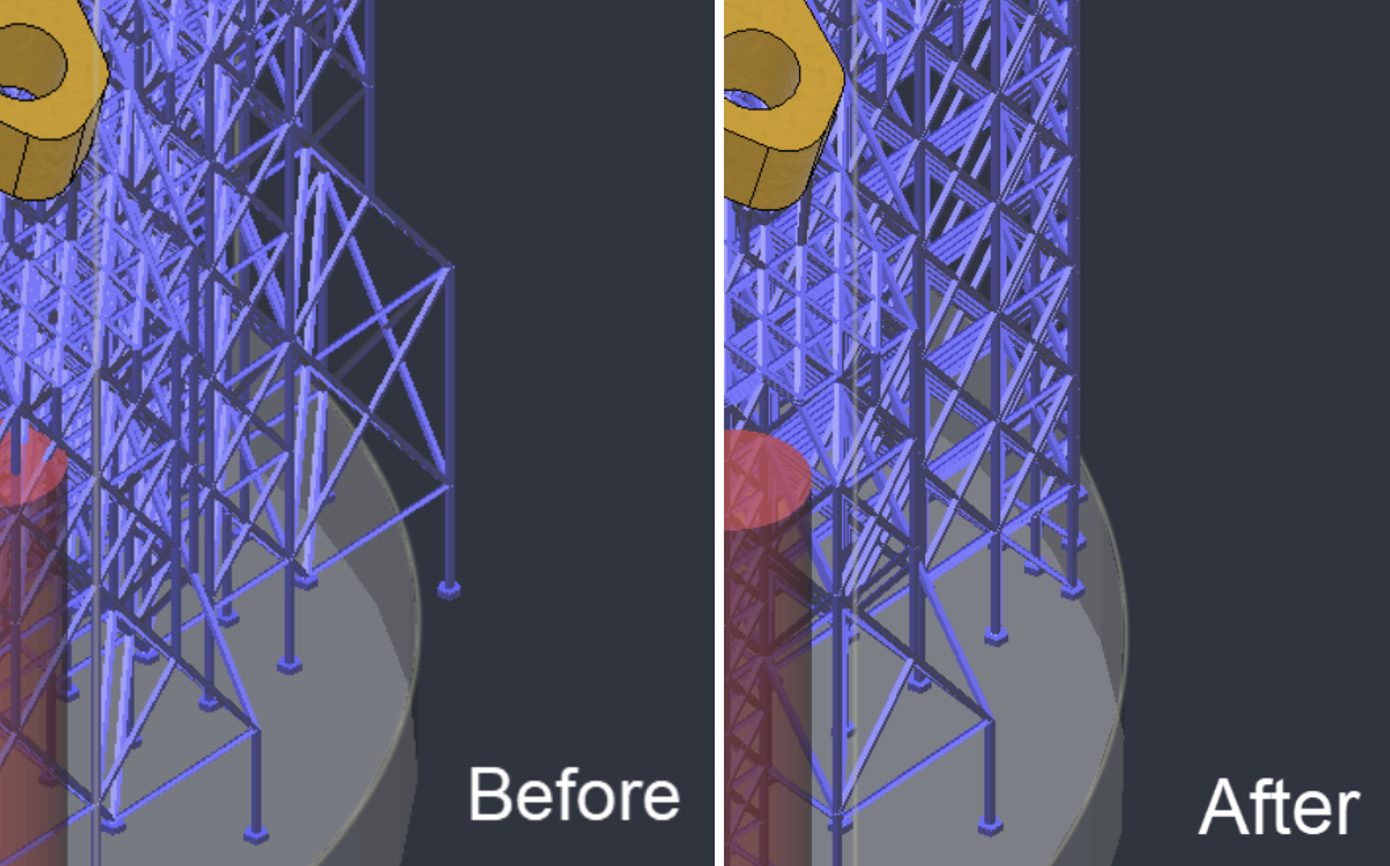
In some cases, support structures could be generated outside the build volume, particularly when using lattice supports or bar supports that projected outward from the model.
This has been addressed in this release, and support structures are now constrained to generate within the build volume.
Supports Now Generate Around No-build Zones
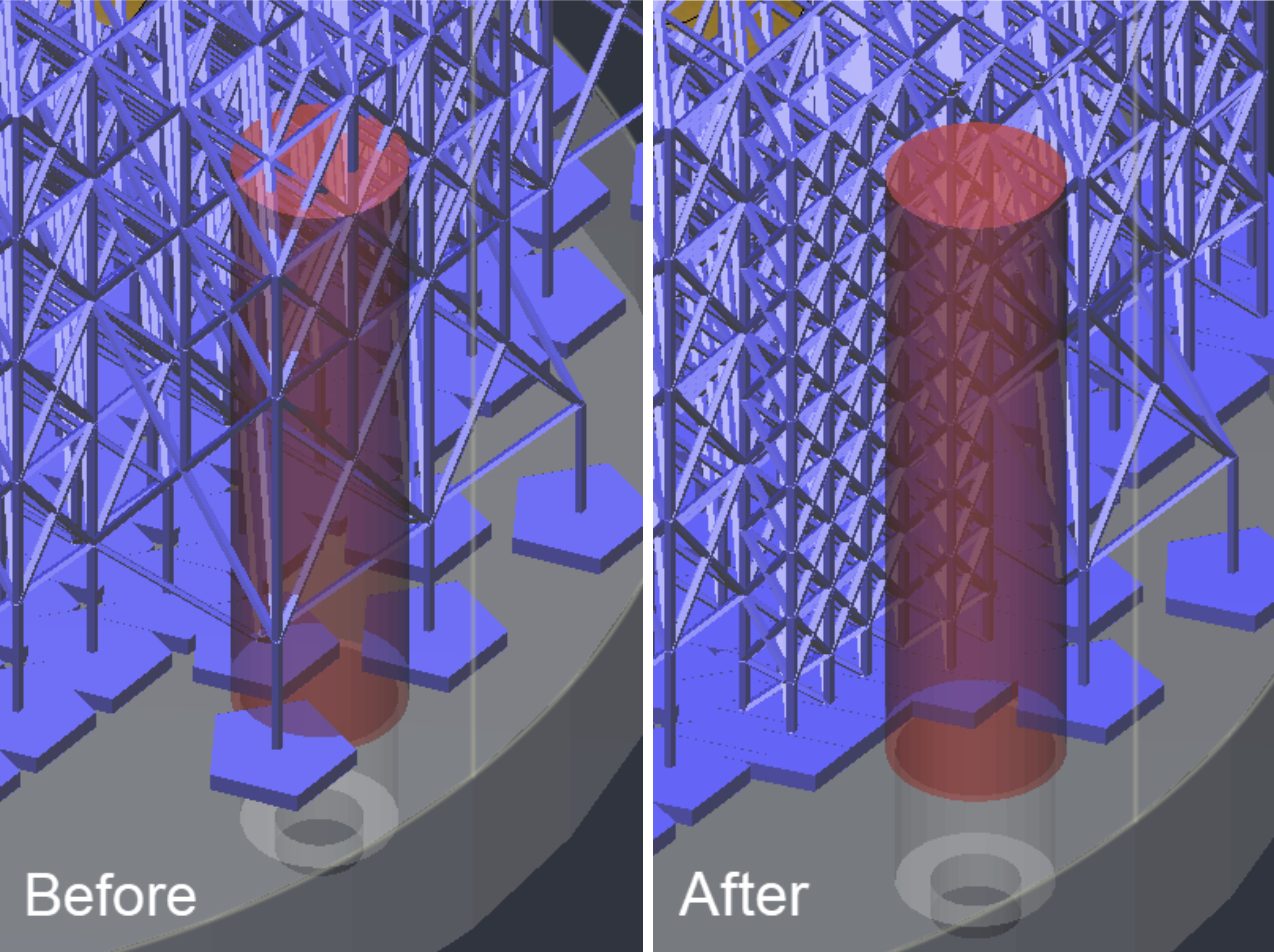
Previously, no-build zones were not taken into account during support generation, which could result in support structures being generated within these areas.
The name “no-build zone” is now treated less like a suggestion. Support generation now accounts for no-build zones, ensuring that support structures are generated around them instead.
Support Trimming
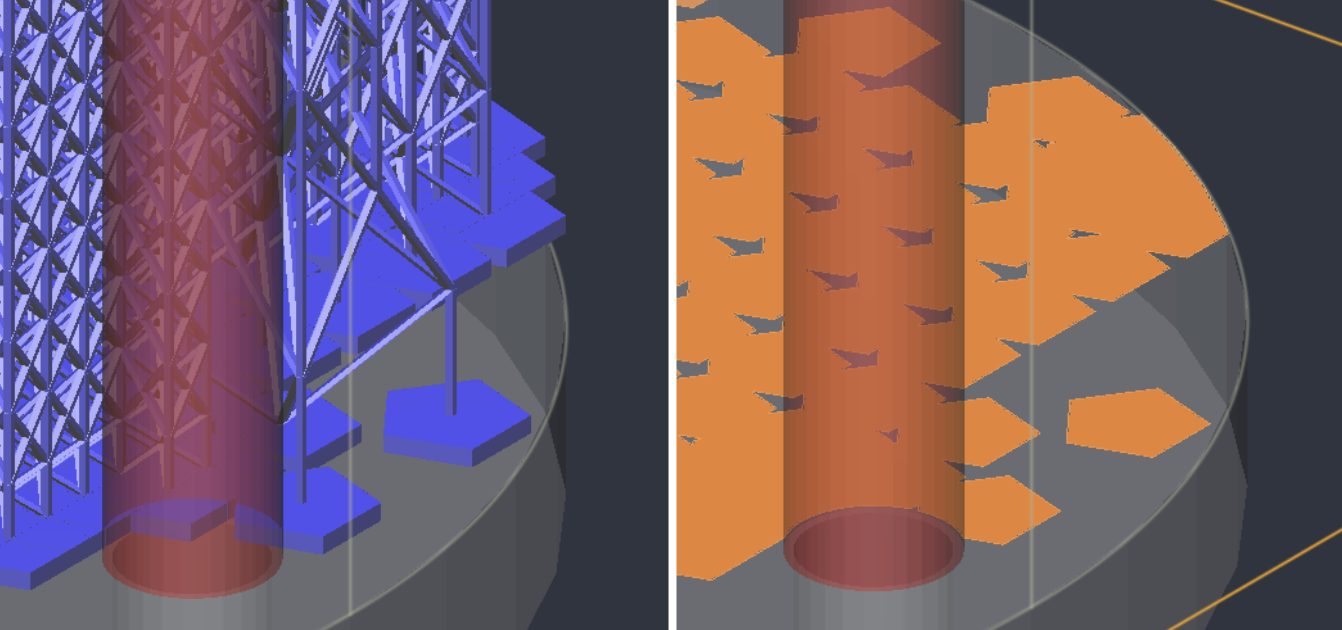
Although support structures no longer generate within no-build zones or outside the build volume, certain support features, such as bar pads, can still extend into these areas.
In these cases, the affected support geometry is trimmed at the 2D slice level. This ensures that the generated toolpath does not overlap no-build zones or extend beyond the build volume.
API
Automate Fusion Workflows Visually with System Modeler
System Modeler is a new visual scripting environment in Fusion that lets you automate engineering workflows by connecting nodes on a canvas, without writing code. Build automation graphs by dragging nodes from the Library panel and connecting them to define how data flows through your workflow.
System Modeler includes four built-in packages: Base, System, Design, and Manufacture, with ready-to-use nodes for math, logic, list operations, geometry, component management, CAM setups, tool libraries, NC programs, and more. You can also create your own packages to store, share, and reuse custom graphs.
This opens up automation to more designers and engineers. Repetitive tasks such as applying parameter changes across components, generating CAM setups from templates, or color-coding geometry by attribute can be built into a graph once and run again when needed. For more advanced workflows, System Modeler supports reusable subgraphs and graph references, loops, conditional logic, list operations, and diagnostics that report node-level outcomes and execution timing.
You’ll find System Modeler in the new Automation tab in the Design and Manufacture workspaces.
API Enhancements in Modeling and Inspect
The Fusion API now provides full create, query, and edit support for Rib and Web features. New Parting Line Draft coverage includes both fixed and moving parting lines, enabling scripts and add-ins to automate plastic and mold-ready modeling workflows that previously required manual steps in the user interface. Your scripts can now handle more of the repetitive work without developing strong opinions about where to click.
Inspection analyses also gain expanded API coverage, including:
- Zebra
- Curvature Comb
- Curvature Map
- Draft
- Minimum Radius
These additions make it easier to automate design validation and manufacturability checks using standalone scripts or Autodesk Assistant.
Expanded Drawing API
The Drawing API now supports a wider range of drawing automation workflows, including expanded control over title blocks. You can:
- Create a title block from an existing title block.
- Read all title block attributes.
- Add new attributes.
- Retrieve title blocks by count, index, or name.
- Import a title block from a reference template or another drawing document.
These capabilities make it easier to reuse standard title block layouts across projects and reduce the amount of repetitive drawing setup. Because entering the same title block information repeatedly builds patience, but not much else.
Additional API support has been introduced for Drawing Sketch, Border, ACM Symbols, Datum, and Taper and Slope, enabling more annotation and detailing tasks to be handled through code. The Drawing API also now includes support for common dimension types — Linear, Angular, Radial, and Diameter — along with Revision Table and Base View creation, allowing more complete drawing setup and documentation workflows to be automated.
Convex Hull for Meshes
A new API capability enables add-ins to calculate the convex hull of a mesh, creating the smallest convex mesh that fully encloses the input geometry. The resulting hull is returned as arrays of vertex positions and triangle indices, providing flexibility for use in custom geometry processing, analysis, and automation workflows.
Volumetric API Now Available (Design Extension)
The Volumetric API has moved out of Preview. For more information about working with Volumetric Modeling through the Fusion API, see Volumetric Modeling with the API.
Additive FEA API Now Accounts for Support Structures (Manufacturing Extension)
The Additive FEA API can now include support structures in the simulation, making it easier to simulate complete build plates through the API.
Previously, accounting for supports through the API required additional workarounds. Now, you can include supports in the solver by adding the new IncludeCard to the API input deck.
Release Notes
To see more fixes, minor enhancements, and keep up with the latest check out our Release Notes for more information on changes to Fusion and Fusion web client.
Fusion Insider
Do you want to engage more with the Autodesk community? Check out the Fusion Insider program to use exclusive previews, and test out the latest build before it’s released to the public.
As a member, you’ll gain inside knowledge of updates and a first look at new features. You’ll also be able to join exclusive events and try pre-release functionality. Plus, you can give feedback directly to the product teams.