 Keqing Song
Learn how the Fusion for personal use 10-document limit works, what counts toward the limit, and when it may be time to upgrade to a Fusion subscription.

Elevate your design and manufacturing processes with Autodesk Fusion
Understanding the 10-document limit and when to upgrade
Fusion for personal use is designed for hobbyists, makers, and non-commercial projects. For many users, the 10 editable document limit provides plenty of flexibility while maintaining access to powerful CAD, CAM, electronics, and drawing capabilities.
As projects become more complex, however, some users find themselves managing larger design portfolios, collaborating with others, or preparing products for commercial use. In those cases, a Fusion subscription may be a better fit, providing access to professional workflows, additional capabilities, and fewer limitations.
Thinking beyond personal projects? Explore Fusion plans, pricing, and a free trial to see what professional Fusion users can access.
1. Level-set on terminology
We all work in Fusion differently, so when talking about the 10 document limit, it’s important to understand what we mean by “projects” and “documents”. Let’s begin by looking at the data panel.
What are projects?

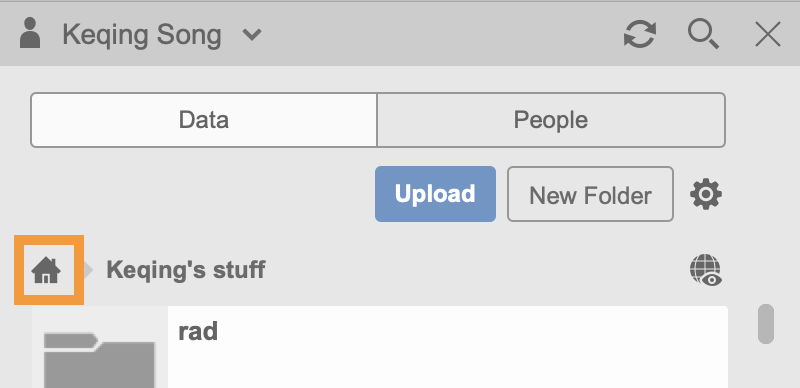
Projects, in the context of the data panelin Fusion 360, are top level folders that can contain sub-folders, documents, images, pdfs, spreadsheets, etc. You can name them, give them a thumbnail, and create as many projects as you want; there is no limit. To see all of your projects, make sure you are at the homepage view of the data panel.
Once you double-click into a project from the data panel, you’ve entered that project and are able to access what’s inside. If you are inside a project, you should be able to click on the “Home” icon to get back to the homepage.
What are documents?

Documents are the things you create, and they live within a project. In this case, all the documents shown in the data panel live in a project called “Keqing’s stuff”. Each document has name, document type icon, thumbnail preview of what it is, last modified date, and a version number.
There are 3 primary types of documents you should be aware of: Fusion Design, Fusion Drawing, and Fusion 2D PCB.
Fusion Design is a document.
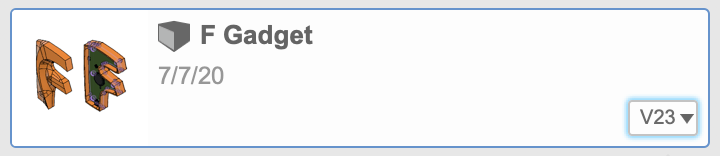
This is a Fusion Design document. You can tell that it’s a Fusion Design by the thumbnail preview as well as the cube icon. When you double-click on a model document, the model opens in canvas, with its own document tab.
Fusion Drawing is a document.

This is a Fusion Drawing document. You can tell that it’s a drawing by the thumbnail preview and the drawing icon. When you double-click on a drawing document, the drawing opens in canvas, with its own document tab.
Fusion PCB is a document.
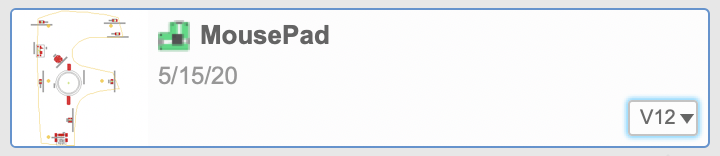
This is a Fusion 2D PCB document. You can differentiate it by the thumbnail and Fusion 2D PCB icon. When you double-click on the document, the 2D PCB document will open in canvas as its own document tab.
What counts toward the 10 document limit in Fusion
- A Fusion design document
- A Fusion drawing document
- A Fusion 2D PCB document
What doesn’t count towards the 10 document limit in Fusion
- Image
- Spreadsheet
- Slides
- Text file
- Fusion Electronic Design
- Fusion Schematic
- Fusion 3D PCB
- Non-translated CAD file
Working on more than 10 active designs?
Many Fusion users begin with Personal Use and later transition to a subscription as their projects grow.
If you routinely maintain more than 10 active designs, manage multiple projects simultaneously, or are building products for customers or sale, a Fusion subscription can provide a more streamlined workflow while unlocking additional product development, manufacturing, and collaboration capabilities.
2. New UI Elements
Now that we are all aligned on what we mean by projects and documents, let’s take a look at some new UI elements we’re working on to help you better keep track of your document count.
Document tracker
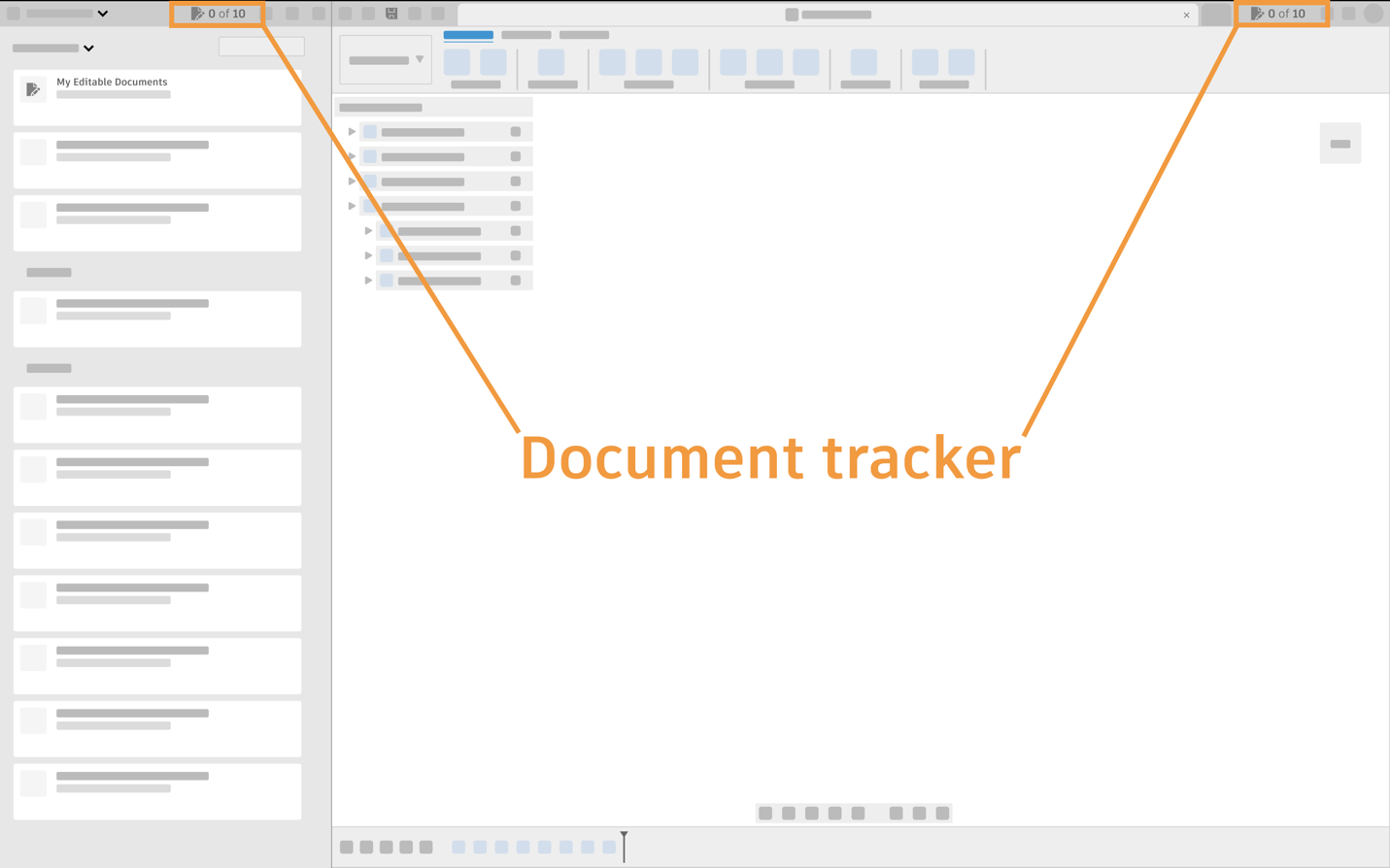
The Document tracker will be visible at all times, and will help you keep track of your editable document count. It will exist in 2 places: top right corner in the quick access toolbar and the data panel.
Quick access filter to My Editable Documents

There will also be a quick access filter in the data panel called My Editable Documents. This is where you can see all your different editable documents in one place, regardless of which project they live in. This will behave very similar to the “My Recent Data” filter that currently exists today.
Document state switcher
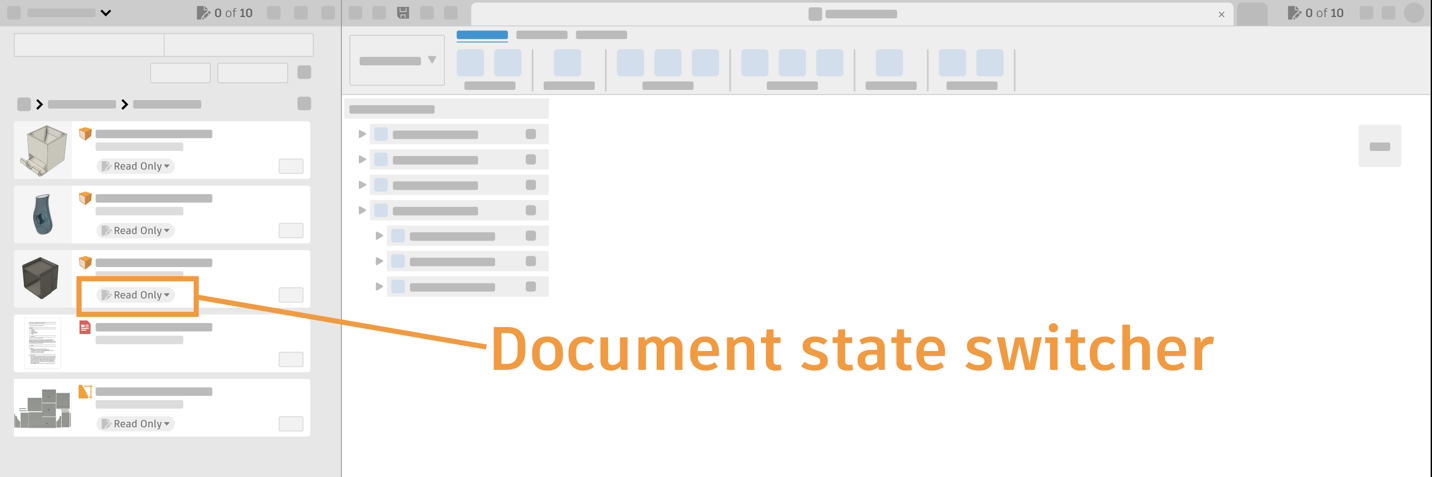
There will also be a document state switcher on each document, showing you whether it is “Read Only” or “Editable”.
3. Making a document “Editable”
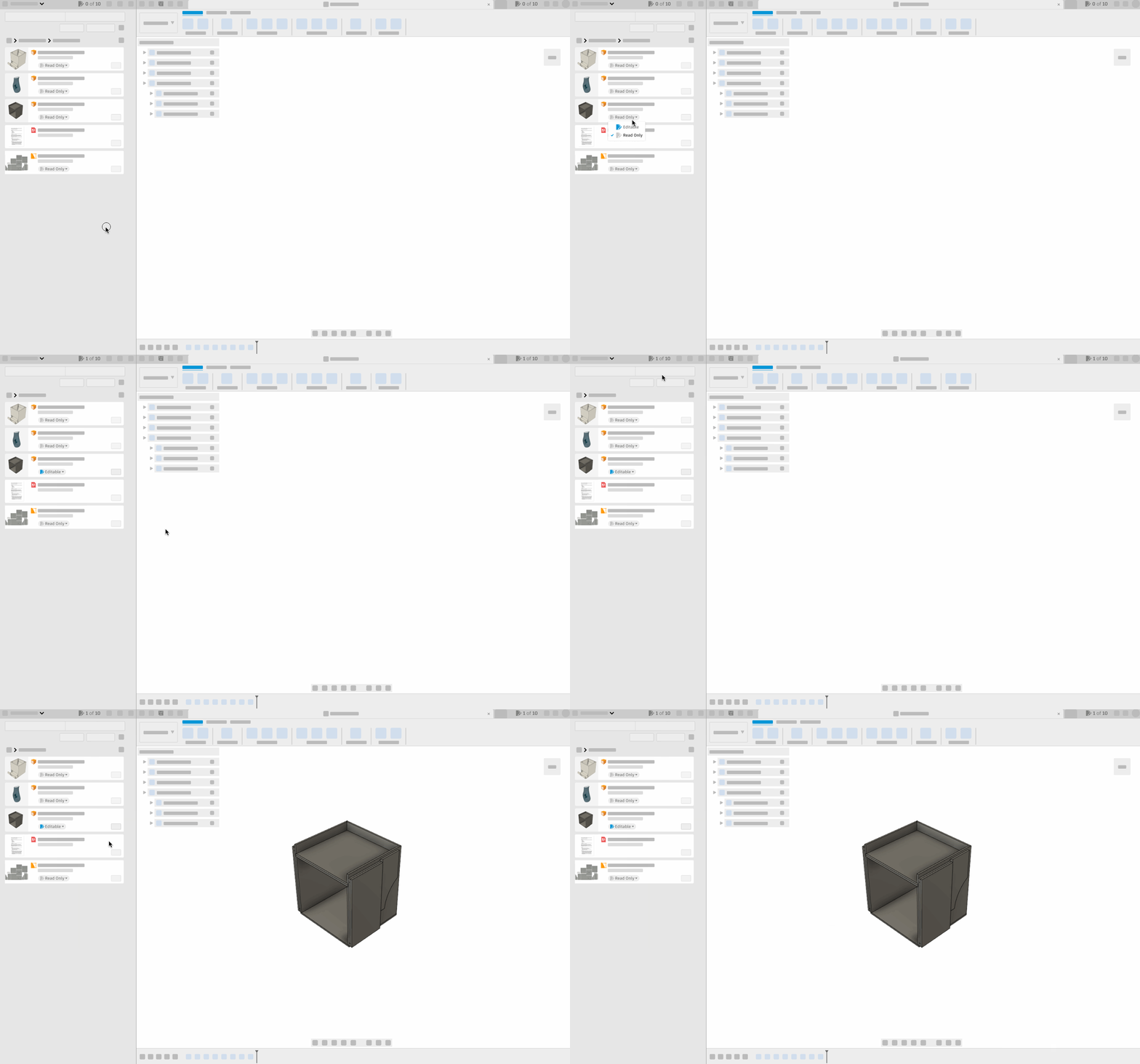
When the change happens early next year, all your documents will be marked as “Read Only”. That’s when you’ll have to decide which documents you want to make editable. You will be able to do this by going to the document you want to work on and clicking on the document state switcher to select the “Editable” option. Once selected, that document will editable. You’ll also see the tracker reflect that you are at 1 of 10 documents.
Have you outgrown Fusion for personal use?
The 10-document limit is designed to help hobbyists and makers focus on their most active projects while still maintaining access to previous work.
You may want to explore a Fusion subscription if you:
- Regularly work on more than 10 active designs
- Maintain multiple product concepts at the same time
- Design products for clients or commercial use
- Collaborate with teammates or external stakeholders
- Need advanced manufacturing workflows
- Want access to additional design, simulation, electronics, and product development tools
Many startups, side-hustle builders, and product developers begin with Fusion for personal use before upgrading as their design portfolios expand.
Not sure if you’re ready? Start a free Fusion trial and explore the full feature set.
4. Reaching the limit
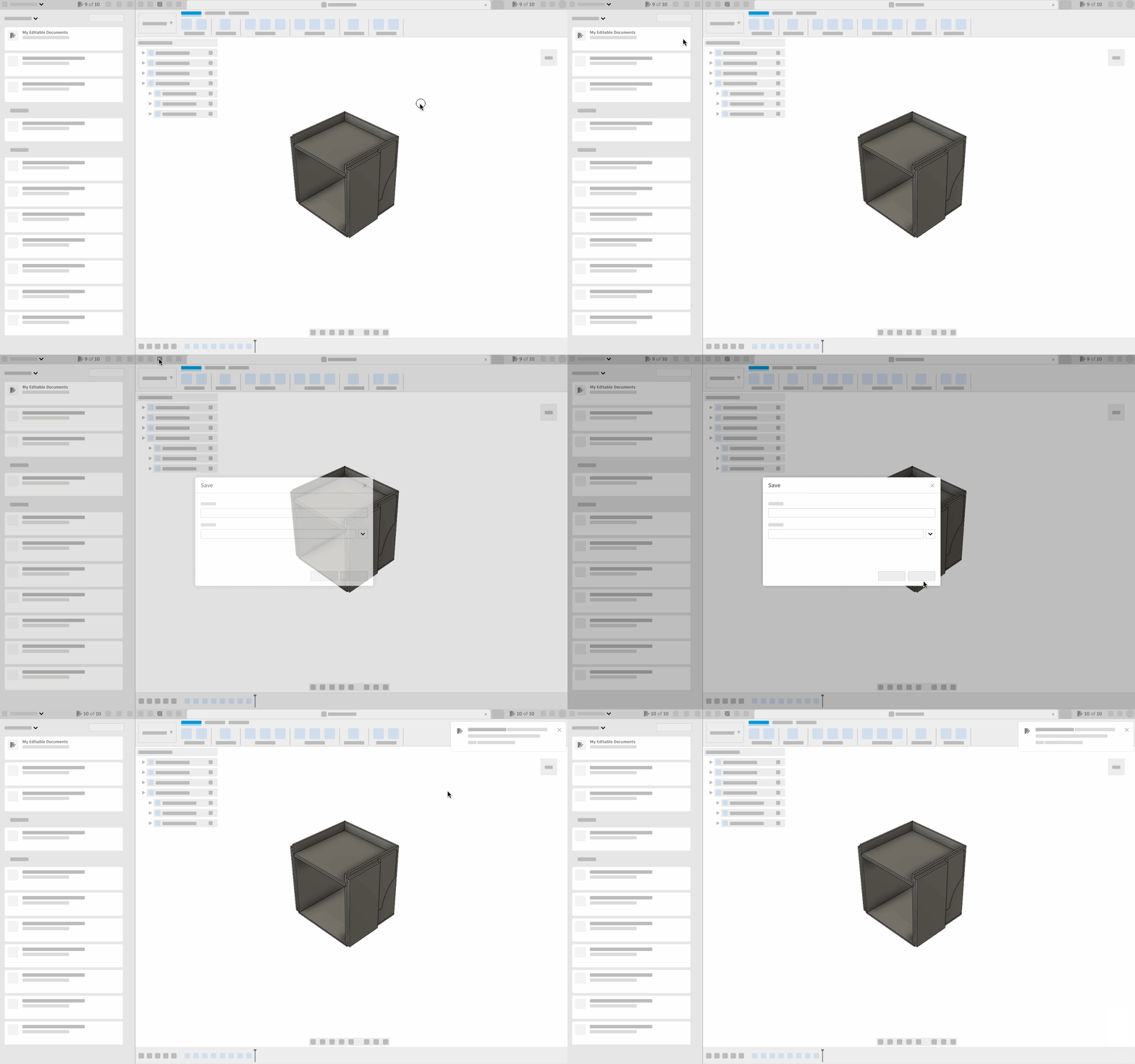
In this example, you’ll see that we have 9 editable documents out of 10. When we try to save this unsaved document, the save happens and the tracker will show 10 out 10, notifying us that we’ve reached out document limit.
What can you do when you’ve reached the limit?
- You can continue to work on any of the 10 editable documents.
- You can make additional space by marking documents as “Read Only”. More on this below.
- You can open “Read Only” documents for viewing. More on this later.
What you can’t do when you’ve reached the limit?
- You can’t save new un–saved documents.
- You can’t make Read Only documents Editable.
Looking for a simpler workflow?
The ability to switch documents between Editable and Read Only gives personal users flexibility when managing active projects. However, if managing document availability becomes part of your regular workflow, it may be worth evaluating a Fusion subscription designed for more active product development environments.
5. Making a document “Read Only”
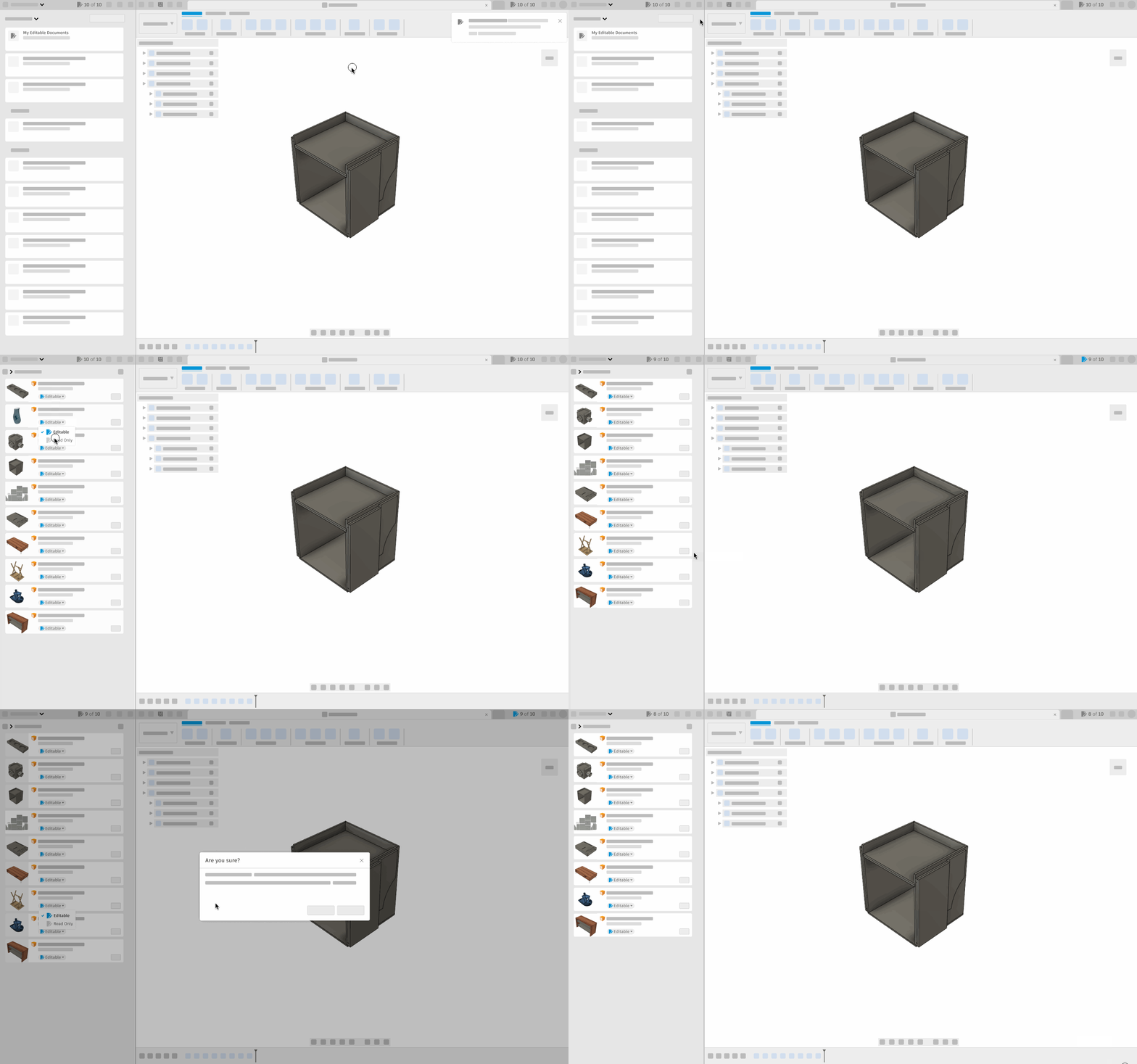
If you decide to make room for new documents, you can go to the quick access filter in the homepage of the data panel to quickly see all the editable designs regardless of where they live. Using the document state switcher, you will be able to make a document “Read Only” with just a few clicks. Once committed, the document will be removed from the filtered view. You can always find that document safely stored in the project it belongs in.
6. Opening “Read Only” documents
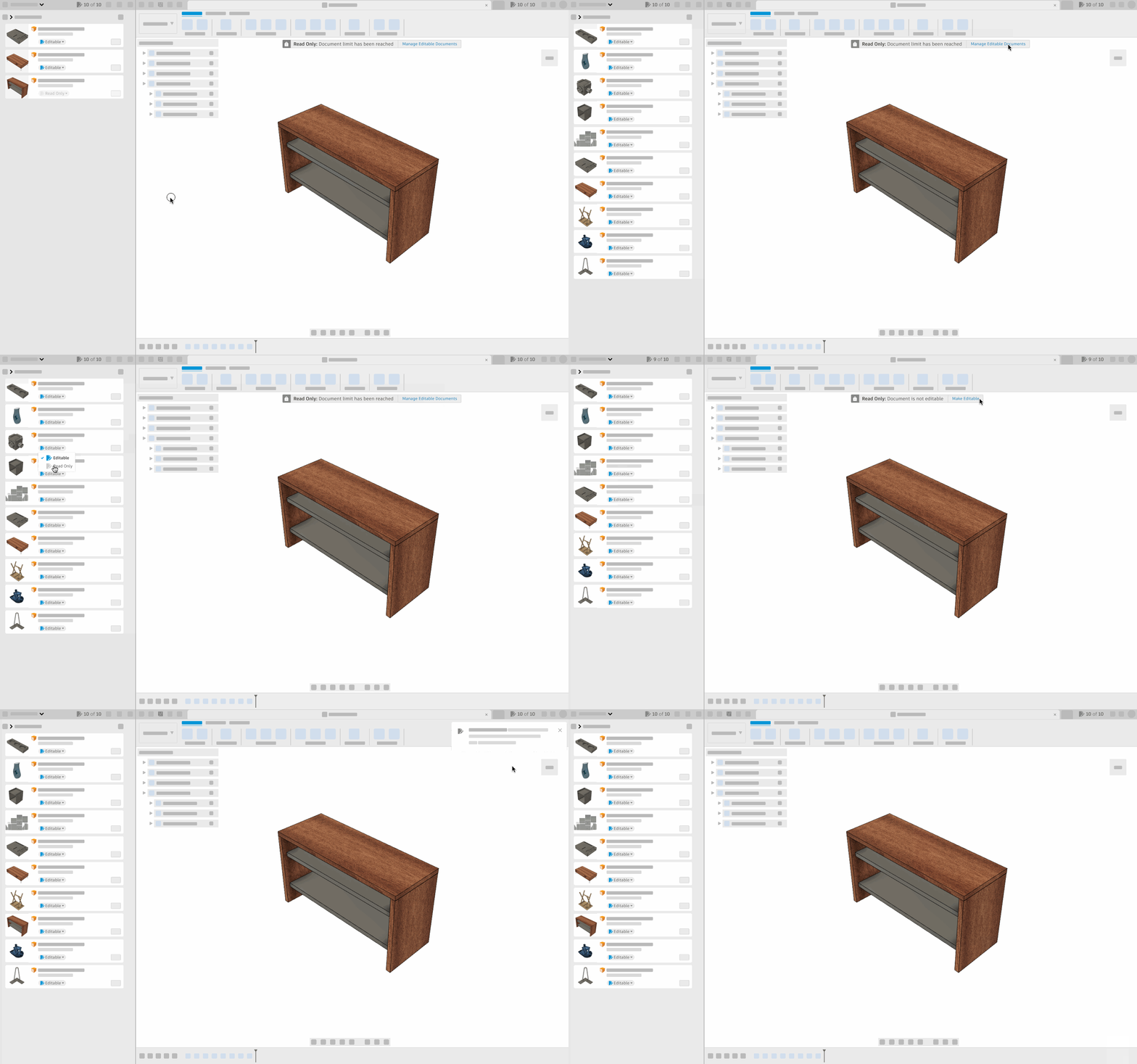
As mentioned above, you can open any Read Only document and view it in canvas, regardless of whether you are under or at the 10 document limit. If you are at the limit and open a Read Only document, you’ll see a message right below the toolbar, letting you know that your document limit has been reached.

You’ll also have the opportunity to go directly into the Editable documents area in the data to manage your documents and make space if needed. Once you’ve made space, the message will update its clickable area, enabling you to make the open document editable.

7. Working with “X-refs”
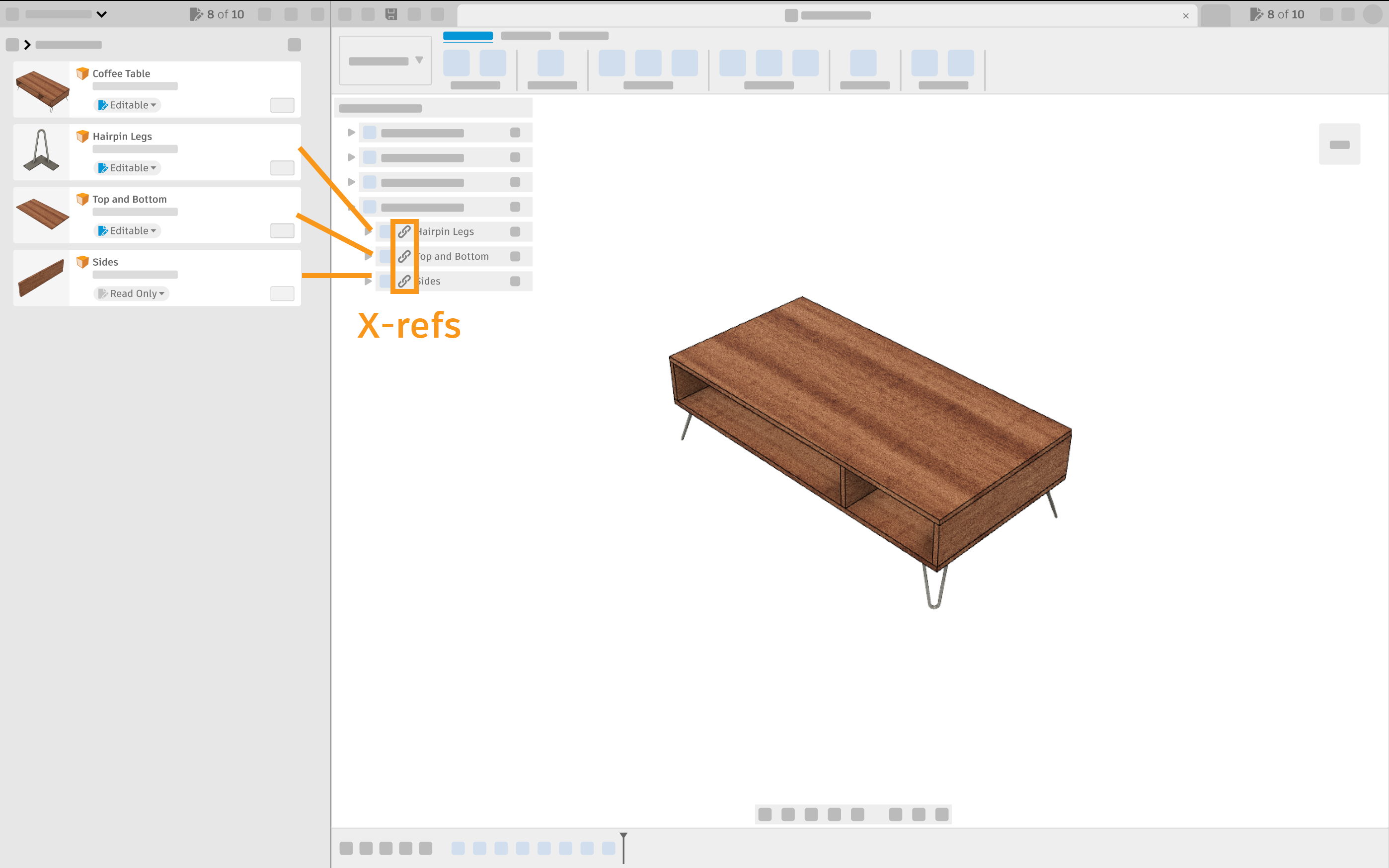
If you are working on a document that contains inserted documents as sub-assemblies, also known as X-refs, they all follow the same Read Only or Editable rules, just like any document does. You can still open the primary document, as well as all of its X-ref documents, regardless of whether they are Editable or Read Only.
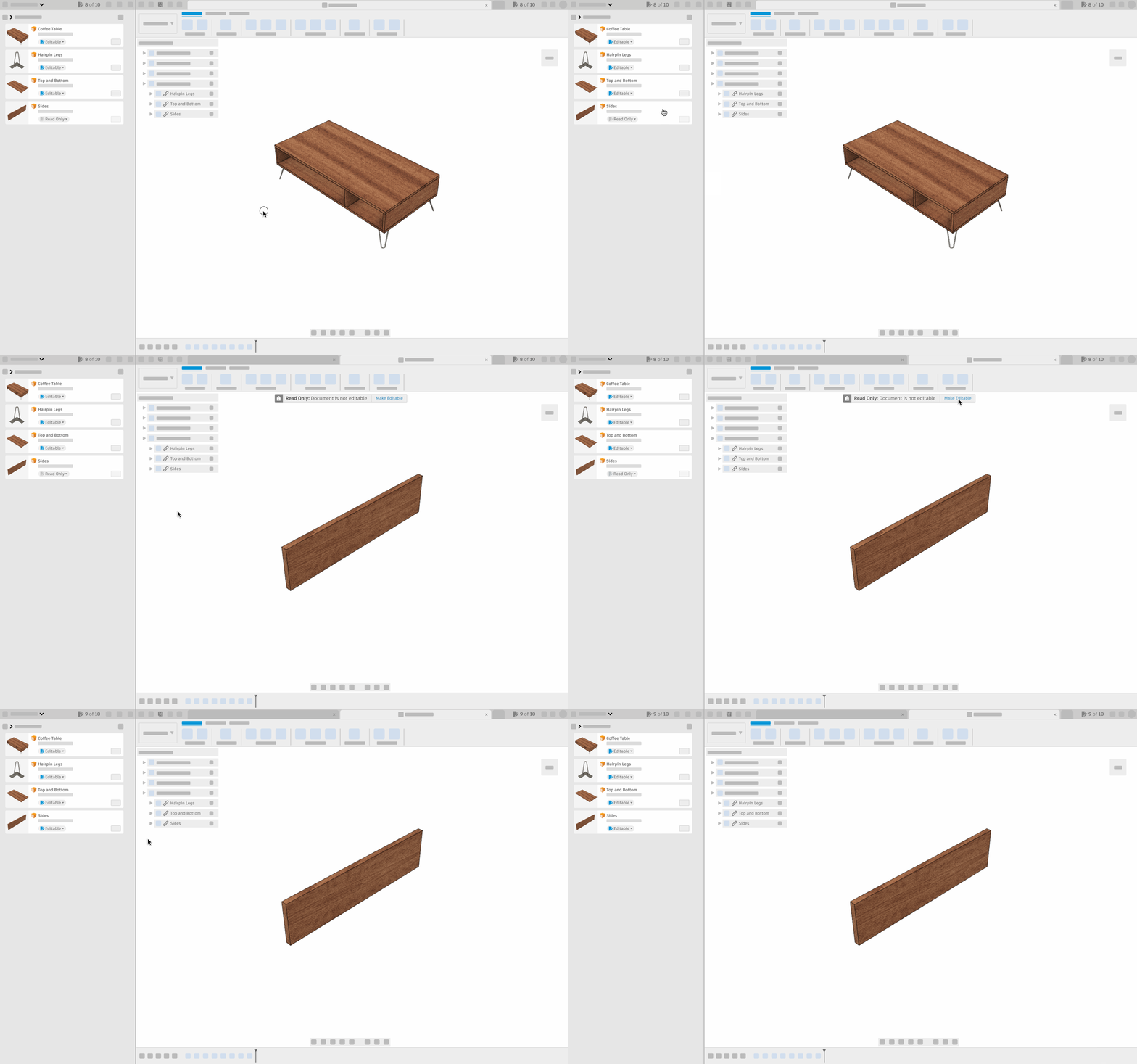
If your primary document is Read Only, you’ll have to make it Editable in order to make changes to the document.
X-refs within a document can be Editable or remain Read Only. You can open as many Read-Only X-refs as you want, the only thing to be aware of is how many you can make as Editable. If you are under the 10 document limit, you can make them editable. If you are at the limit, you’ll have to make room and edit them one at a time.
Fusion for personal use vs. Fusion subscription
Fusion Personal Use is a great option for learning, hobby projects, and non-commercial design work. A Fusion subscription is designed for users who need professional workflows, commercial rights, and access to the full Fusion platform.
Users often consider upgrading when they:
- Maintain larger active design portfolios
- Start selling products
- Launch a business
- Manage client projects
Ready for your next Fusion project?
Fusion for personal use helps hobbyists, makers, and learning users access professional-grade design and engineering tools. Understanding how editable documents work can help you organize projects efficiently and get the most from your experience.
As your projects grow, you may find that a Fusion subscription offers additional flexibility, professional capabilities, and workflow advantages that support more advanced product development needs.
Whether you’re designing your first prototype, preparing a product for manufacturing, or building a business around your ideas, Fusion can grow with you.
Frequently asked questions
Yes. Fusion subscriptions are designed for professional product development workflows and are not subject to the same editable document limitations as Fusion for personal use.
Fusion for personal use is intended for hobbyists, makers, and non-commercial users working on personal projects.
Many users consider upgrading from Fusion for personal use when they begin selling products, managing client work, collaborating with teams, or maintaining a larger portfolio of active designs.