 Krystina Docil
Autodesk Fusion and Hurco put the machine, the post, and the verification in one workflow, so errors surface on a screen instead of at the machine.

Elevate your design and manufacturing processes with Autodesk Fusion
Picture the best version of a first cut. The program loads, the tool changes, the spindle comes up to speed, and nothing surprises you, because the surprises already happened on screen, days or minutes earlier, where they cost nothing. That is the idea behind having Hurco machines in Autodesk Fusion: your machine isn’t an afterthought at the end of a process. It is there from the first setup.
Advanced toolpaths meet deep machine expertise
Autodesk Fusion brings advanced toolpath creation and CAM capabilities. Hurco brings deep expertise in machine tools, controllers, and manufacturing. Together, Fusion and Hurco close the gap between CAM programming and real-world machine operation, so the program you create in Fusion reflects how a Hurco machine runs.
Start with your machine, not a stand-in
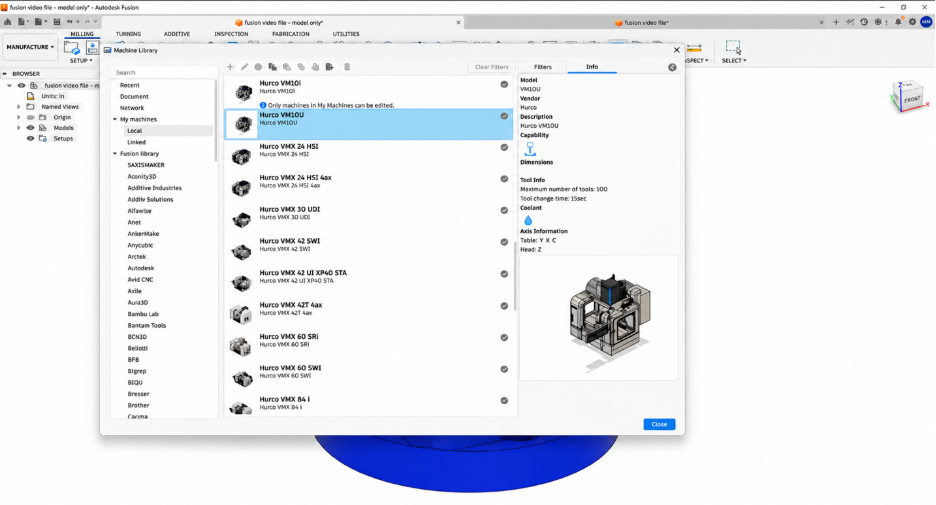
Programming usually asks you to imagine the machine. Fusion lets you pick it. The machine library lists the Hurco machines available for Fusion, searchable by vendor, with machine configurations and post processors aligned with recommendations from Hurco. That means a faster start: less setup time and less customization before you reach your first toolpath.
Assign your machine to a setup, position your part on the table and start programming. Then simulate. Fusion checks for collisions before playback begins, and you watch the program run on your machine, with speed, pan, and rotation under your control. Whatever the machine would have objected to, you meet it first.
Tune it, post it, prove it
A library gives you a head start, and Fusion lets you finish the job. Enter your machine’s real travel limits and spindle speed, and the simulation reflects the machine you own, not an average of the machines that exist. Because your machine definition points to the Hurco post, posting takes one click, points to the Hurco post, posting takes one click, and five-axis programs post as the rotary angles your machine moves to.
After posting, take a second look at your program on the Hurco controller or simulator. Load the program, add stock, and run the graphics to catch any move that cuts where it shouldn’t. The control’s error check goes further, flagging problems such as a spindle speed above the machine’s limit, so you can correct it in Fusion before it reaches a cut. The estimated runtime should land within one to two seconds of the real cycle, provided your part setup and tool lengths are accurate. And if something does need diagnosing, you aren’t explaining your setup from scratch: Autodesk and Hurco technical teams start from the same configuration.
A partnership that keeps working
Machine configurations, post processors, and manufacturing workflows don’t stand still, and neither does this work. Autodesk and Hurco continue to refine them together as technology and customer needs evolve, so the library you start with today keeps getting better.
Go further
To explore Hurco machines in Autodesk Fusion, open the machine library in the Manufacture workspace, copy your Hurco machine and its post into your local library, then create a setup and select Simulate with machine to watch your toolpaths run before they reach the control.
Watch the CAD/CAM videos from Hurco for walkthroughs covering machine setup, post settings, and verification at the control.
Program once in Autodesk Fusion and let your Hurco start every cut with the same confidence you had on screen.
Frequently asked questions
Yes. The Autodesk Fusion machine library lists the Hurco machines available for Fusion, searchable by vendor, with machine configurations and post processors aligned with recommendations from Hurco. You can add a Hurco machine and the Hurco post to your setup without building either from scratch.
In the Manufacture workspace, open the machine library, select your Hurco machine, and copy it into your local library. Then open the post library, filter by vendor to find Hurco, and copy the Hurco post into your local library. Create a setup and assign your machine, and Fusion selects the post automatically.
Yes. In Autodesk Fusion, select Simulate with machine to check for collisions and watch the program run on your Hurco machine before it reaches the control. After posting, you can load the program into the Hurco controller or simulator, add stock, and run the graphics to catch moves that cut where they shouldn’t. The control’s error check also flags problems such as a spindle speed above the machine’s limit.
Yes. When a machine definition is selected, Autodesk Fusion posts A and C angles for five-axis programs and uses the Hurco post that the definition points to. For the most accurate result, enter your machine’s real travel limits and spindle speed in the machine definition.
Fusion provides advanced toolpath creation and CAM capabilities, and Hurco provides expertise in machine tools, controllers, and manufacturing. Together they offer a faster start with less setup and customization, more confidence from simulation and control verification, and a common starting point for Autodesk and Hurco technical teams if you need support. The two companies continue to refine machine configurations, post processors, and workflows together.