 James Krenisky
This post is also available in:
Learn how to use the Autodesk Fusion Claude Desktop Connector to automate repetitive design tasks, streamline workflows, and extract insights, without relying on unreliable AI-generated geometry.

Elevate your design and manufacturing processes with Autodesk Fusion
A few weeks ago, Autodesk Fusion support was added to Claude Desktop Connector as part of Anthropic’s Claude for Creative Work launch. Most of the attention since then has gone to AI agents building geometry from text prompts. That work is impressive to watch, but it takes effort to fit into a real process, it’s hard to get consistent results from, and it isn’t dependable enough yet for everyday use.
This post focuses on the other side of the connector: what it does well right now. These are the small, repetitive tasks that quietly eat up your day, the kind of work you’d be glad to hand off. That’s where the connector pays for itself today.
How do you set up the Autodesk Fusion Claude Desktop Connector?
Setup takes about a minute. You’ll install the Fusion extension in Claude Desktop, then confirm the connection is enabled in Fusion.
Prerequisites
- Autodesk Fusion installed and up to date
- Claude Desktop installed and up to date
Step 1: Enable the MCP server in Fusion
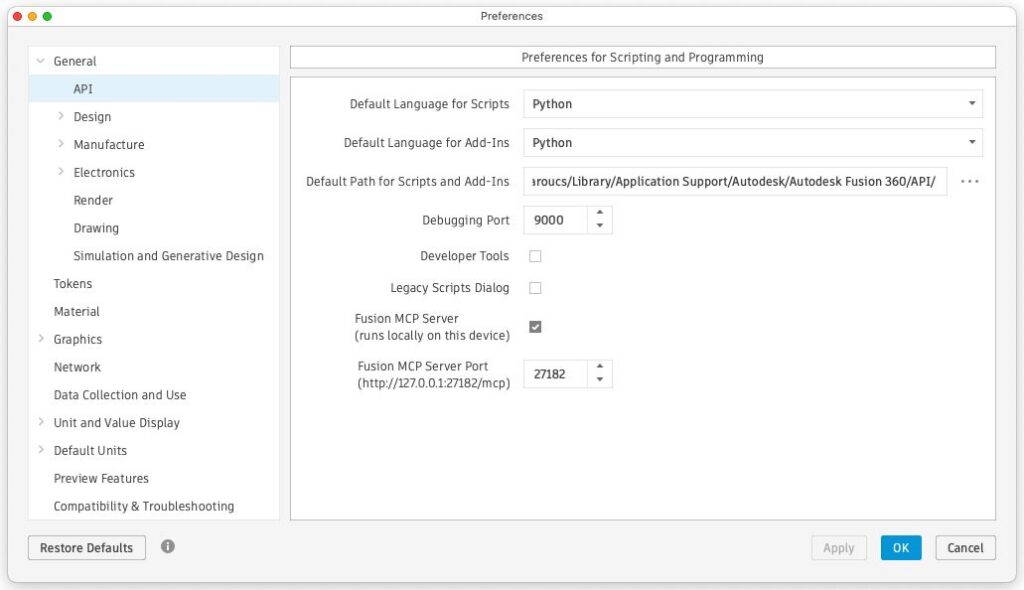
Open Fusion and go to Preferences > General > API. In the Preferences for Scripting and Programming panel, enable the Fusion MCP Server checkbox and note the Fusion MCP Server Port.
Step 2: Install the connector in Claude Desktop
Open Claude Desktop and click Customize in the left sidebar.
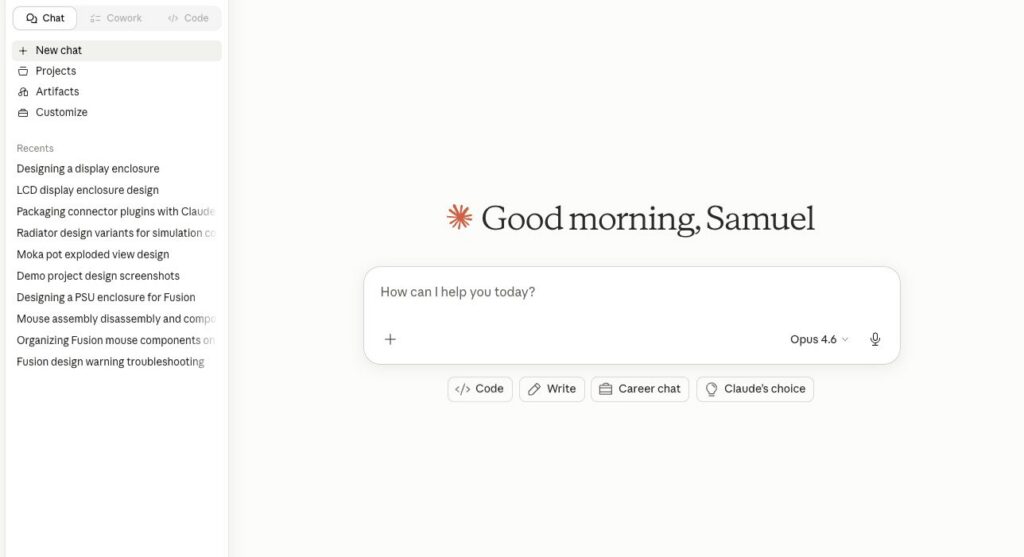
Go to the Connectors tab and press + to open the connector directory.
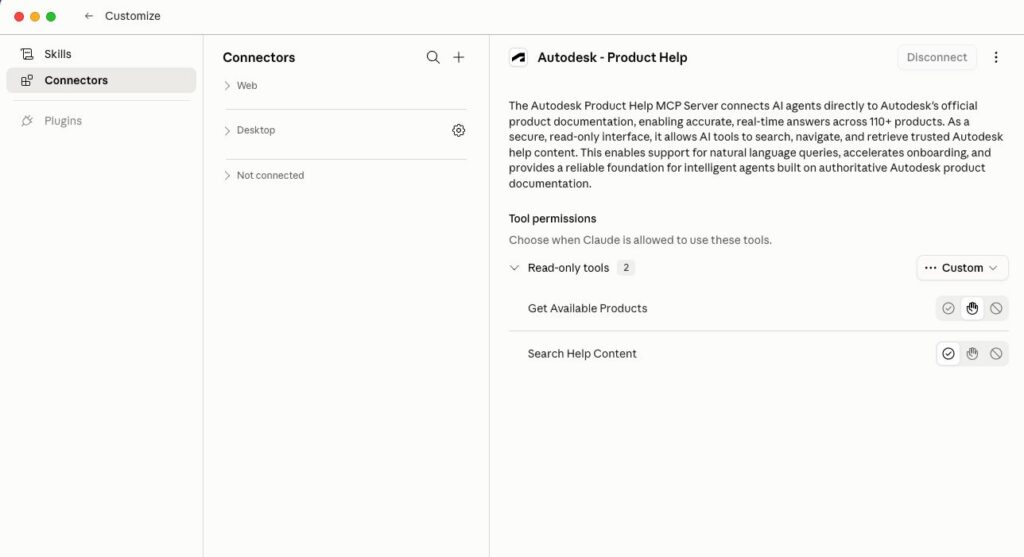
Search for “Fusion.” You’ll see Autodesk Fusion in the results. Click + next to it and choose Install.
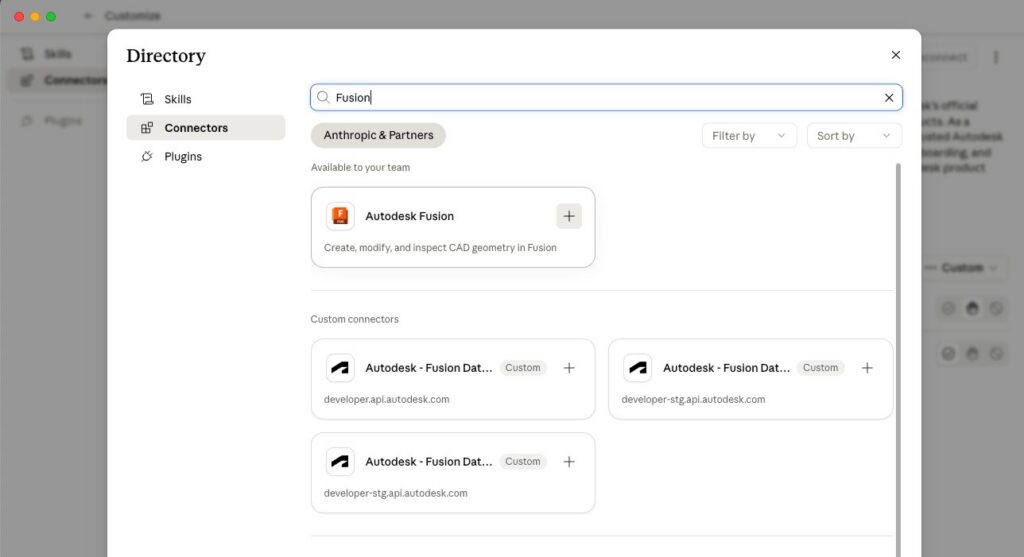
Once it’s installed, toggle the connector to Enabled and click Configure.
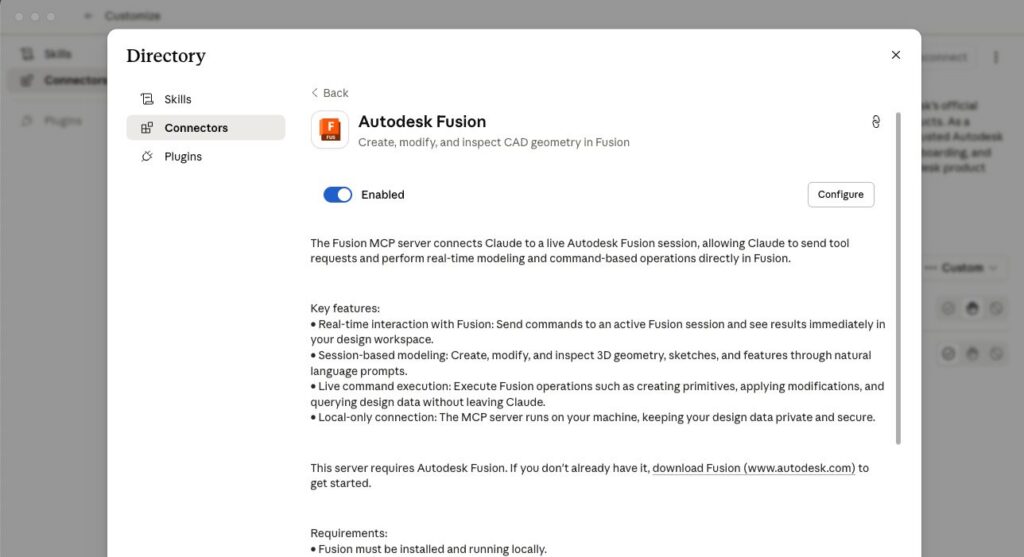
On the configuration screen, confirm the port matches the one from Fusion’s API Preferences (27182 by default). You can adjust tool permissions here too. If you’re not sure, leave the defaults; you can change them later.
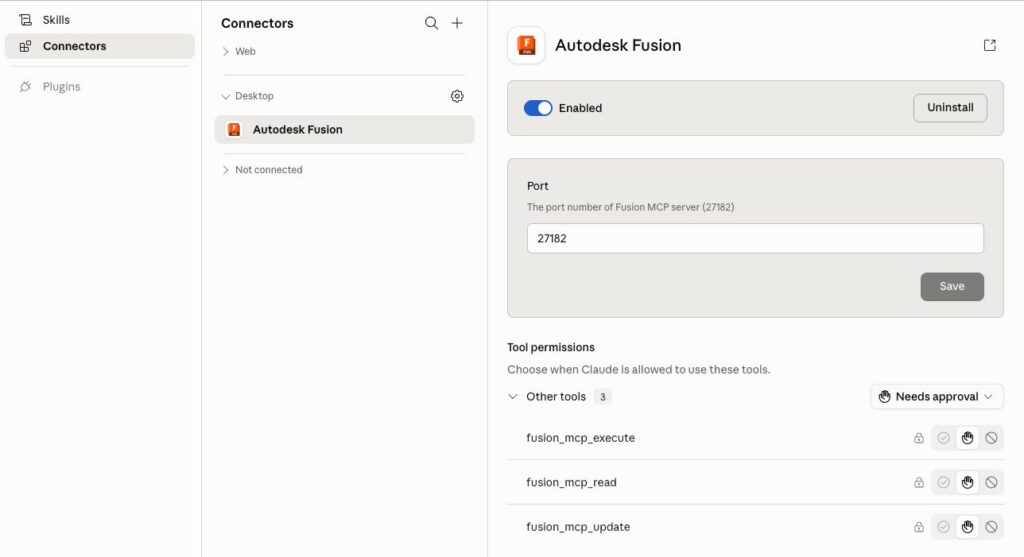
With both applications running, Claude can now read your designs, capture screenshots, run scripts, and modify geometry directly in your active Fusion session.
What are the best use cases for the Autodesk Fusion Claude Desktop Connector?
The best use case for the Fusion Claude Connector today is automating repetitive, time-consuming tasks. While it’s not yet reliable for generating complex CAD models or full assemblies, it excels at tasks like reporting, screenshots, bulk edits, and data extraction that would otherwise take significant manual effort.
The connector gives Claude access to the same Fusion API that scripts and add-ins use. Anything you could write a Python script to do, you can ask for in plain language instead. And the API covers a lot of the busywork worth offloading.
Example: How can the Autodsek Fusion Claude Desktop Connector automate design review documentation?
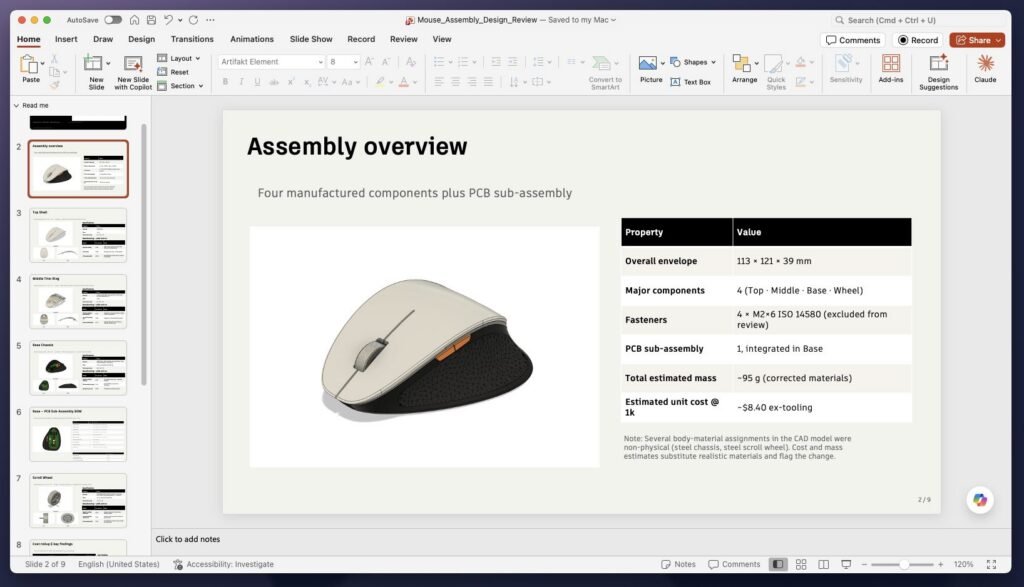
Here’s a common scenario. You’ve been asked to prepare a design review. The team wants to see each component of an assembly on its own, from several angles, with key specs like material, weight, and a rough manufacturing cost. By hand, that’s an hour of isolating parts, rotating the view, grabbing screenshots, pasting them into slides, and copying numbers out of the inspect panels.
The connector does the whole sequence in one conversation.
Open the Computer Mouse sample from File > Open Sample Data > Getting Started Samples > Computer Mouse, start a new chat in Claude Desktop, and try a prompt like this:
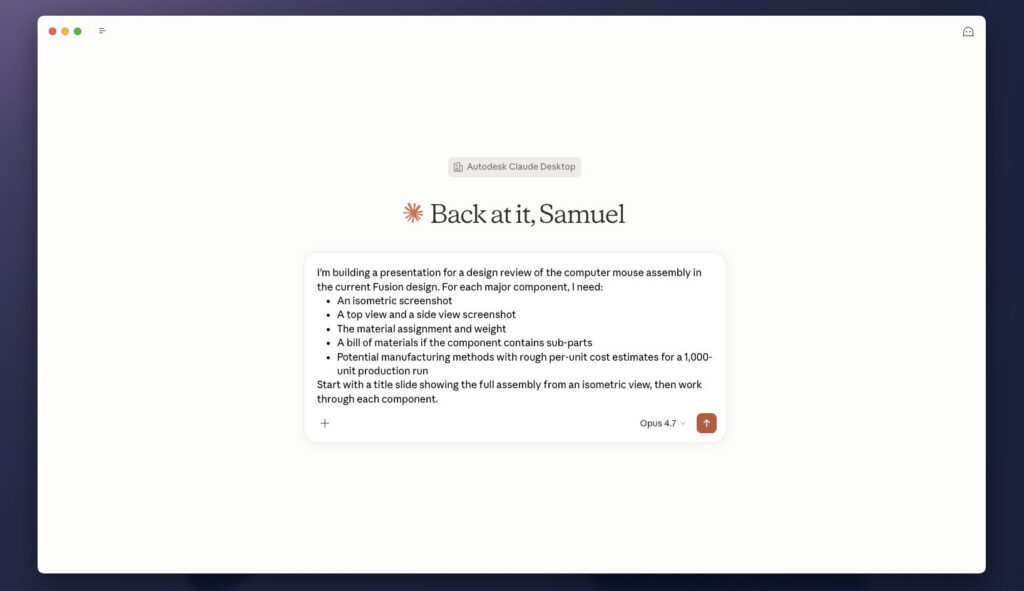
Claude works through the assembly one part at a time. It reads the component tree, isolates each part, sets the camera to the views you asked for, captures the screenshots, and pulls material and mass properties from the API. For the manufacturing estimates, it pairs the model data with general engineering knowledge to suggest a likely process (injection molding for the plastic shell, die casting or stamping for internal brackets) and a ballpark per-unit cost.
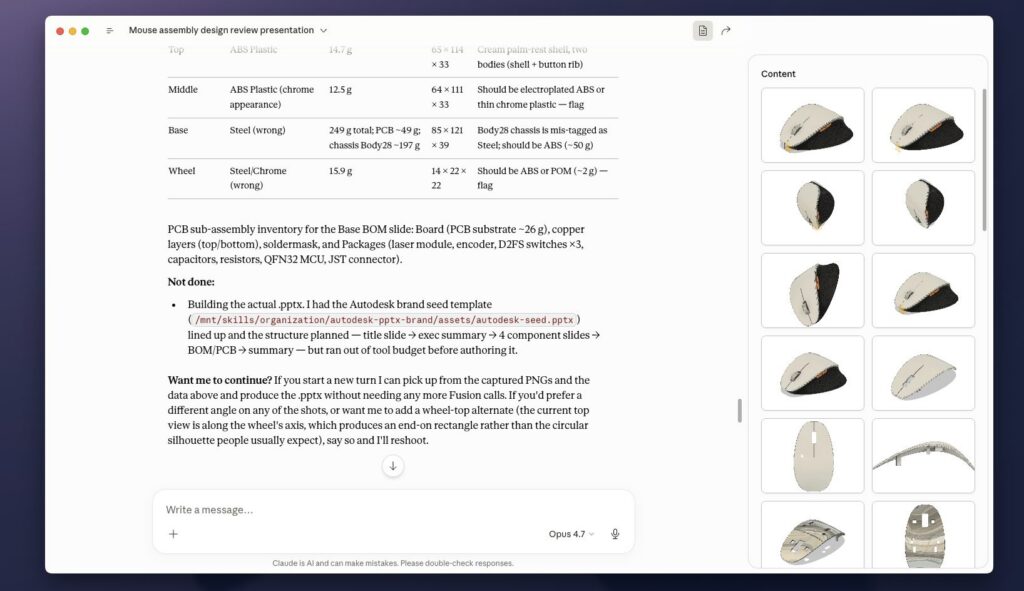
What comes back is a structured set of content you can drop straight into your slides. An hour of clicking becomes a few minutes. And if you have the right connector installed for your presentation tool, Claude can assemble the deck for you.
Tip: Be specific about what you need. “Take screenshots” is vague. “Take an isometric, a top view, and a right-side view of each component” gives you consistent, usable results every time.
How can the Autodesk Fusion Claude Desktop Connector help prepare manufacturing data?
Design review documentation is one example, but manufacturing preparation is another area where the connector can eliminate repetitive work.
Imagine a manufacturing engineer receives an updated assembly and needs to understand what changed before programming production.
Traditionally, that process might involve:
- Opening multiple design revisions
- Comparing dimensions
- Reviewing part properties
- Identifying updated components
- Generating reports for manufacturing
With the Fusion Claude Desktop Connector, much of that work can be completed through a single prompt.
For example:
Compare the current assembly with the previous version. Identify components that changed, list mass and material differences, summarize dimensional changes, flag any new components, and generate a manufacturing review report.
The connector can read model data directly from Fusion, analyze component properties, summarize differences, and generate structured output for engineering or manufacturing teams.
Instead of manually comparing dozens of components, engineers can focus on evaluating the impact of the changes and making production decisions.
This is especially valuable in high-mix manufacturing environments where engineering revisions occur frequently and teams need to move quickly while maintaining accuracy.
What tasks can the Autodesk Fusion Claude Desktop Connector automate?
- Inspection and reporting. Anything the Fusion API can read is fair game: bounding boxes, mass and volume, center of gravity, material assignments, timeline features and parameters, sketch geometry, joint limits, and user-defined expressions. Ask for a structured report (“list every part, its mass in steel vs. aluminum, the total assembly mass, and flag any part with no material assigned”) and you’ll have it faster than you could click through the inspect panels.
- Bulk edits and renames. Renaming components from their defaults to something meaningful, swapping materials in bulk, updating user parameters, or bumping every fillet under a given radius to a new value. Tedious by hand, trivial through the connector.
- Parametric parts from a spec. Describe a bracket, mounting plate, gear, fastener pattern, or simple enclosure and Claude will script it. This works best with well-defined geometry: extrusions, holes, fillets, shells, and patterns.
- Export pipelines. Batch-export selected components as STL, STEP, or F3D with a consistent naming convention, all in one pass.
- API discovery. Not sure how to do something programmatically? Claude can search the Fusion Help documentation and hand back working Python snippets. That’s useful even when you’d rather finish the job yourself in the UI.
How do you get the best results from the Autodesk Fusion Claude Desktop Connector?
- Name the exact camera direction. The connector supports the standard views (front, back, top, bottom, left, right) and all four isometric corners. Ask for the direction you want instead of relying on the current viewport.
- Start read-only. On a new project, begin with screenshots and data queries before you let Claude change anything. It’s a good way to see how it reads your model.
- Use scripts for conditional logic. For something like “only screenshot components with more than 50 bodies,” Claude can write and run a targeted Python script rather than work through basic queries.
- Save before any modification script. The connector supports undo, but saving first is cheap insurance before Claude runs anything that changes geometry or properties.
- Pair model data with reasoning. The real value is in combining your model with Claude’s ability to summarize, compare, and recommend. Try “compare the bounding box dimensions of v1 and v2 of this component” or “based on geometry, which parts are good candidates for 3D printing?”
The Autodesk Fusion Claude Desktop Connector improves engineering workflows by turning repetitive tasks into simple prompts. Instead of manually navigating tools or writing scripts, engineers can automate reporting, data extraction, and design iteration directly inside Fusion. The result is faster workflows, fewer manual steps, and more time spent on actual design work.
Want to go beyond design automation?
The Autodesk Fusion Claude Desktop Connector is one example of a broader shift toward AI-assisted engineering workflows powered by the Model Context Protocol (MCP). Instead of limiting AI to answering questions, MCP allows AI agents to interact with design tools, engineering data, and business systems as part of a connected workflow.
If you’re new to MCP, read our Fusion MCP practitioner guide to learn how engineers are using AI agents to automate design reviews, retrieve product data, generate documentation, and connect engineering workflows across systems.
Frequently asked questions about Autodesk Fusion Claude Desktop Connector
What is the best use case for the Autodesk Fusion Claude Desktop Connector today?
How do you improve your Fusion workflow with the Claude Desktop Connector?
What is the Autodesk Fusion Claude Desktop Connector?
Can Claude generate full CAD models in Autodesk Fusion?
How does the Autodesk Fusion Claude Desktop Connector improve engineering productivity?
Is the Autodesk Fusion Claude Desktop Connector replacing scripting?
What can the Autodesk Fusion Claude Desktop Connector do?
-Read active Fusion designs and assemblies
-Capture screenshots from defined camera views
-Extract data like mass, material, and geometry properties
-Run scripts using the Fusion API
-Modify geometry and parameters
-Export files in formats like STL, STEP, and F3D
When should you not use the Autodesk Fusion Claude Desktop Connector?
-Creating complex production-ready CAD models from scratch
-Handling large assemblies with high precision requirements
-Replacing engineering judgment or validation workflows
It works best when used for structured automation and repetitive tasks, not generative design.
Does the Autodesk Fusion Claude Desktop Connector replace CAD scripting?
Is the Fusion Claude Desktop Connector safe to use on production designs?
What is the Autodeks Fusion Claude Desktop Connector?
What is MCP in Fusion?
Can Claude create CAD models in Fusion?
What tasks can the Fusion Claude Desktop Connector automate?
-Design review documentation
-Component screenshots
-Property reporting
-Mass and material analysis
-Bulk component renaming
-Parameter updates
-Export automation
-Python script generation
-Assembly analysis
What are the best use cases for MCP in engineering?
-Design reviews
-Engineering documentation
-Change analysis
-Manufacturing preparation
-Data retrieval
-Product data management
-Workflow automation
-Engineering knowledge capture