 Clint Brown
Reduce duplicate parts and improve design reuse with Find Similar in Autodesk Fusion. Search by geometry, discover existing designs, and create cleaner product data.
Elevate your design and manufacturing processes with Autodesk Fusion
Design teams move fast. But when existing parts are hard to find, teams oftenn recreate components that already exist somewhere else in the organization.
Introducing Find Similar in Fusion, a capability available with Fusion for Design or the Fusion Design Extension that helps teams discover and reuse parts with similar or identical geometry across a Fusion hub.
That duplicate work can feel harmless in the moment. Over time, it can create more parts to manage, more drawings to maintain, more BOM entries to review, and more variation for sourcing, manufacturing, and service teams.
Find Similar helps teams avoid that cycle by making it easier to search by geometry, compare similar components, and make more informed reuse decisions before creating something new.
Reduce duplicate parts before they multiply
Duplicate parts do more than clutter a hub. Each unnecessary part can create downstream work across sourcing, inventory, documentation, manufacturing, and service.
It may need to be reviewed, released, purchased, stocked, tracked, and
maintained, often alongside parts that already serve a similar purpose.
Inventory carrying costs typically include warehousing, handling, taxes, insurance, depreciation, shrinkage, obsolescence, and the opportunity cost of capital tied up in stock. These costs are often estimated at roughly 20% to 30% of total inventory value, though actual costs vary by business and industry.
That is why design reuse matters. By helping teams find components with similar or identical geometry before creating something new, Find Similar can help reduce duplicate content, improve data consistency, and make Fusion hubs easier to manage.
Search by shape, not just by name
Traditional search depends on how well files are named, tagged, or organized. But design data is not always perfect. A component may live in another project, use a different naming convention, or have been created by a different team.
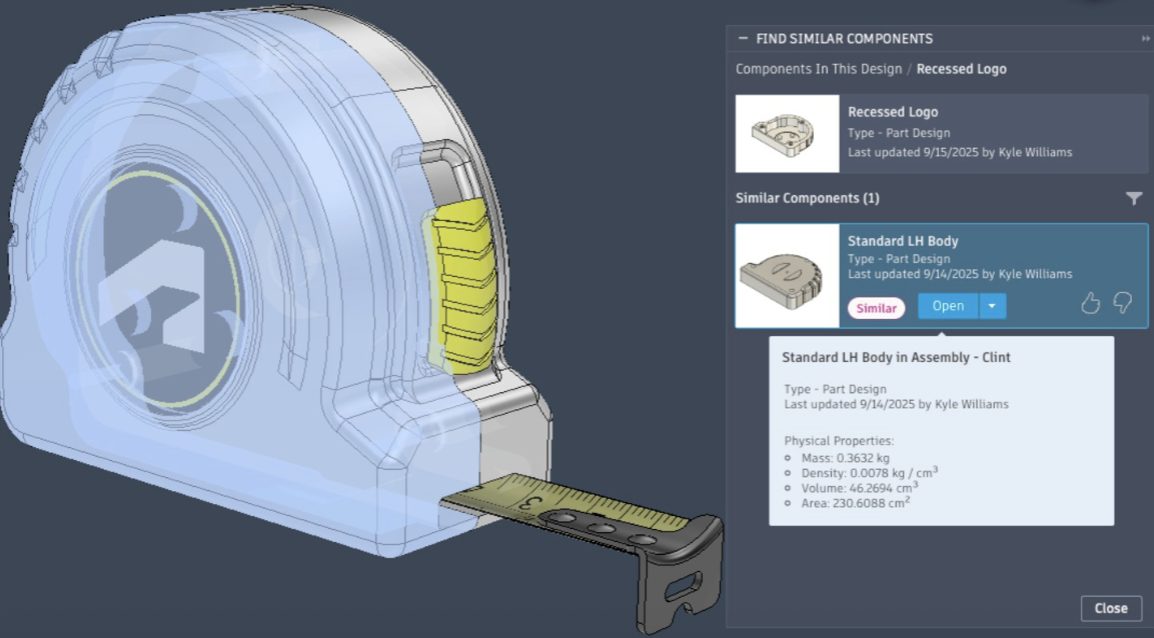
Find Similar helps close that gap by searching for components based on geometry. You can use the command on an assembly or an individual part, then review similarity-ranked results from across your Fusion hub.
That means teams can uncover reusable designs even when they do not know the exact file name, part number, or location.
Find existing designs faster
Before starting a new model, designers can use Find Similar to ask a simple but important question: Have we already made something like this?
The command searches for similar or identical geometry and returns results ranked by similarity, helping teams quickly compare potential matches. From there, designers can decide whether to reuse an existing component, adapt a proven design, or continue creating something new.
Narrow results to what matters
Find Similar includes controls to help focus your search. You can filter results by project and choose whether internal components are included, making it easier to search in the right context and reduce noise.
For teams managing large amounts of design data or working across multiple projects, these filters help make similarity search more practical and actionable.
Build cleaner, more consistent design data
Part reuse is not only about saving modeling time. It is also about reducing unnecessary variation.
When teams can identify existing alternatives before new parts are created, they can make more intentional reuse decisions. Over time, that can help reduce duplicate content, support cleaner Fusion hubs, and create more consistent data for downstream workflows.
Start with what already exists
The fastest part to create may be the one your team has already designed. With Find Similar in Autodesk Fusion, teams can search by geometry, discover similar components faster, and reuse existing designs with more confidence, helping reduce duplication, improve consistency, and keep projects moving.