 Paul Munford
Learn how to build configurable assemblies in Autodesk Inventor using iLogic, Model States, named parameters, and top-down design techniques that make configuration reliable and scalable.
Enhance Your Engineering Workflows
Precise, powerful, and ready for innovation with Autodesk Inventor.

Change a few parameters and watch a model reconfigure itself, that’s the promise of configuration in Autodesk Inventor. In practice, though, applying configuration to a model that wasn’t designed for it can be hard. The fix isn’t a clever workaround after the fact; it’s building the assembly for configuration from the very beginning.
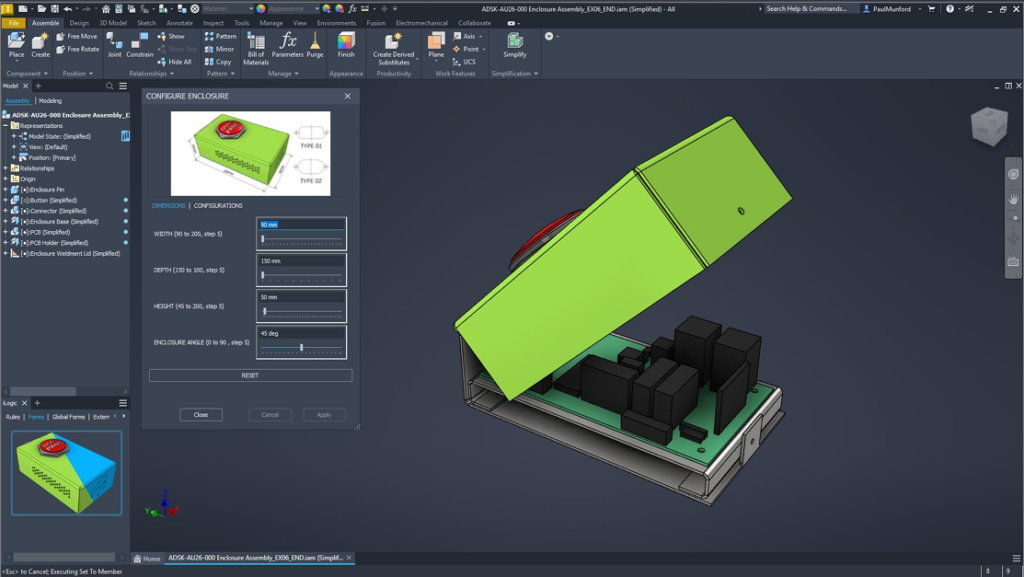
This post walks through a hands-on approach to configurable assemblies in Inventor, using named parameters, iLogic rules, iLogic forms, and Model States — the same building blocks used in a guided lab exercise built around a simple enclosure assembly (small blue box, red “Don’t Panic” button included).
Tabular vs. logic-based configuration
Before diving into iLogic, it helps to separate two different ideas that often get lumped together.
Tabular configuration is the kind used by iParts, iAssemblies, Model States, and Content Center components, and is based on a table: a fixed list of entries, where each row is one valid configuration. The number of variations is limited to the number of rows in that table.
Logic-based configuration (iLogic) works differently. Instead of a fixed list, it uses rules, that are snippets of code that define the limits of configuration. Because the rules can respond to any input within those limits, an iLogic-driven configuration can support an almost infinite number of variations.
A useful analogy: tabular configuration is a restaurant menu, so pick from what’s listed. iLogic is a recipe that adapts based on what the customer actually orders. Table-based configurators are the right choice when the valid options are known in advance, such as nuts, bolts, and other standard library parts. iLogic earns its keep when choices, rules, or relationships need to drive the valid inputs and results.
What this approach covers and what it doesn’t
The focus here is model configuration using iLogic in Inventor, not iParts, iAssemblies, or Content Center components, though Model States come up where they intersect with iLogic. Four learning objectives frame the workflow:
- Prepare an Inventor assembly for configuration by stabilizing names, constraints, and work geometry
- Plan a configurable assembly workflow using named parameters and configuration logic
- Create iLogic rules to pass parameter values and control configurable assembly behavior
- Test configuration options using iLogic forms and Model States in an Inventor assembly
Two ways to build: Bottom-up vs. top-down
Configuration work sits inside a broader modeling philosophy choice. In a bottom-up approach, individual parts are modeled first and then assembled, like building a tandem bicycle from finished components. In a top-down approach, design intent flows downward from the assembly into its subassemblies and parts, closer to designing a spacesuit, where the overall system constrains every component within it.
Top-down design is what makes configuration practical, and it relies on three techniques:
- iLogic: rule-driven parameter and feature control
- Skeletal modeling: a master geometry layout that drives dependent components
- Multibody modeling: multiple solid bodies developed together within one part environment
The configurator workflow, step by step
A configurable assembly workflow built with iLogic generally follows six stages:
- Name parameters: give every parameter a clear, consistent name instead of leaving Inventor’s defaults
- Name browser nodes: rename (or “stabilize”) component and relationship names in the browser before referencing them in code
- Map parameters: connect assembly-level parameters to matching parameters at the component level
- Add configurations: write the iLogic rules that define what changes, and when
- Build an iLogic form: give users a controlled interface for entering values, rather than exposing raw parameters
- Model States and iLogic: decide whether and how Model States factor into the configuration logic
Why naming comes first
It’s tempting to skip straight to writing rules, but stabilizing names is the step that prevents everything downstream from breaking. iLogic rules reference components and relationships by name. For instance, if Inventor’s default name changes (which can happen more easily than expected), a rule that pointed to it silently breaks. Renaming browser nodes before referencing them in an iLogic rule is a small step that avoids a disproportionate amount of troubleshooting later.
Matching parameters across levels
“Top-down” changes are driven by user parameters, which act as placeholders for values. When you change the value, and the model updates. The workflow starts by mapping out design intent: how should the model behave, and what needs to change to make that happen? From there, user parameters are created to control those changes.
The key technique is creating matching named parameters at both the assembly level and the component level. Doing this makes it straightforward to map parameter names and values later, when an iLogic rule needs to push values from the assembly down into its components. For example, an assembly-level Width parameter feeding directly into a Width parameter on each affected part.
Writing the iLogic rules
Once parameters are named and mapped, iLogic rules take over two related jobs:
- Passing values down. A rule can push a top-level user parameter to matching parameters at the component level across every affected part in one pass.
- Controlling behavior. A rule can respond to a parameter’s value by activating or suppressing specific features. A typical pattern: if a
Connectorparameter equals one option, activate one set of features and suppress another; if it equals a different option, reverse it. The same logic extends to swapping entire components in and out of an assembly based on a parameter’s value. For example, removing one lid design and its constraints, then adding a different lid and its constraints, depending on aConfigurationparameter’s value.
Building the interface: iLogic forms
Exposing raw iLogic rules and parameters to an end user is rarely a good user experience. It’s easy to enter a value that breaks the model, and it does nothing to explain what a parameter actually controls. An iLogic form solves this by giving users a dedicated set of controls (sliders, dropdowns, numeric fields) tied to the underlying parameters, with valid ranges built in.
An iLogic form serves three purposes at once: it communicates design intent, gives the user actual controls, and limits inputs to values the model can safely handle.
Model states and iLogic
Model states let a single assembly represent multiple configurations — simplified vs. detailed. Combining model states with iLogic adds a layer of complexity worth planning for deliberately: rules need to account for which model state is active, and in some cases a rule’s scope needs to be explicitly set to “all” model states so it applies consistently regardless of which one is currently displayed.
A practical checklist
Pulled together, the workflow amounts to a repeatable checklist for any configuration project:
- Map out design intent before touching parameters
- Stabilize component and relationship names in the browser
- Create named parameters, matched between assembly and component levels
- Write iLogic rules to pass parameter values down and control feature/component behavior
- Build an iLogic form to expose controlled, valid inputs to the end user
- Decide how (or whether) Model States interact with the iLogic rules, and set rule scope accordingly
- Test every configuration option, including edge cases
The takeaway
Configuration in Inventor isn’t a single feature to turn on, it’s a modeling discipline. The dividend for doing the groundwork (naming, top-down structure, matched parameters) up front is a model that reconfigures reliably from a small, well-designed set of controls, instead of breaking every time someone tries to change it. Tabular tools like iParts and Content Center remain the right choice when the valid options are genuinely fixed and finite; iLogic is what to reach for when the valid configurations are better described by rules and relationships than by a list.
As with most modeling skills, the workflow only sticks with repetition — repeating an exercise on a fresh model, auditing an existing design against the checklist above, and adding one new iLogic rule at a time.
Get started today with a 30-day free trial.
Frequently asked questions
Configuration in Autodesk Inventor is the ability to create multiple product variations from a single design. Instead of creating separate models for each option, designers can use parameters, iLogic rules, and Model States to control dimensions, features, components, and behaviors within one assembly.
iParts use a table-based approach where each row represents a predefined configuration. iLogic uses rules to drive behavior and parameter changes dynamically. iParts are best for fixed, known variations, while iLogic is better for products with more complex relationships and customization requirements.
iLogic is Inventor’s rule-based automation tool. It allows users to create rules that drive dimensions, suppress or activate features, swap components, update parameters, and automate design processes based on predefined conditions.
Use iLogic when configuration depends on logic, rules, or user inputs. Use Model States when you need a finite number of predefined variations such as simplified, manufacturing, or customer-facing versions of a design. Many organizations use both together.
Model States allow a single part or assembly file to represent multiple predefined design variations without creating duplicate files. They are commonly used for simplified models, manufacturing configurations, and alternative design options.
iLogic Forms provide a user interface for configuration. Instead of exposing raw parameters, forms allow users to interact with dropdown menus, checkboxes, sliders, and input fields that control underlying design logic.
Yes. iLogic rules can suppress or activate features based on parameter values. This allows designs to automatically adapt by adding, removing, or modifying geometry as users select different configuration options.
Yes. iLogic can swap components, suppress unwanted parts, activate alternative designs, and manage assembly behavior based on configuration choices.