 Jim Byrne
Inventor 2027.2 is packed with enhancements to automate repetitive tasks and make you more productive. You will find powerful capabilities that you never thought possible with AI and Autodesk Assistant. Assembly modeling also brings several updates for creating constraints, mirroring, and Model State creation. Continue in this article to learn more about those enhancements and more in this great release.
AI enhancements
Autodesk Assistant in Inventor 2027.2 goes far beyond the initial capabilities that you saw in the 2027 release this spring. It now supports improved iLogic workflows, event triggers, and a better understanding of iComponents and Model States.
Ask it to create an iLogic rule that runs when you save, validates the design against company standards, and opens a new conversation to review the results.
The following is a simple example of using Autodesk Assistant to create an external rule for an event trigger that checks the document for an iProperty value before the document is saved.
Next is another simple example of using Autodesk Assistant to create new parameters that will automatically link to existing model dimensions. Then create an iLogic rule from scratch using a single prompt.
Inventor provides a local MCP (Model Context Protocol) server that allows an MCP-capable AI agent, such as Cursor, Claude Code, or GitHub Copilot, to inspect and modify the model in an Inventor session that you already have open. The agent has access to the same set of tools used by the built-in Autodesk Assistant.
The following example uses the local MCP to create a 3D model from an attached AutoCAD drawing with a single prompt.
You can now upload files to Autodesk Assistant to provide additional context for your requests. For example, upload images of your model for design feedback, spreadsheets containing data for creating models, or PDF documents to check your designs against company standards.
You can add files by dragging and dropping them into the chat or copying and pasting images. Autodesk Assistant can access up to five files at a time. You can upload additional files during the same conversation.
Assembly enhancements
Large assemblies shouldn’t mean large amounts of time consuming tasks. Autodesk Inventor 2027.2 reduces the steps in everyday assembly work. Each constraint type now has its own button on the Assemble tab, so you can place a constraint without choosing the type in the dialog first.
Tangent constraints now include multi-select, which means you can constrain a base component to as many others as you need in one operation.
Hold Alt while you hover to show a component’s origin planes, axes, and point as you constrain, and place a bolt and washer together from a single source selection.
The mirror command in Inventor 2027.2 improves the new interface you saw earlier this year by grouping options and making it easier to understand your selections.
The Place and Insert command enables you to place multiple constrained components in one operation.
Model states are easier to manage. A quick-create + button on browser folders starts a new representation, you can drag model states to reorganize their hierarchy, and arrow notation shows where one model state delegates to another. Status icons also flag model states whose generated files are out of date before you place them in another file.
Sketch enhancements
You can now add geometry to a sketch pattern while you edit the feature, in rectangular and circular patterns, for both part and assembly models. If the pattern needs another hole, slot, or line segment, you no longer have to start over.
Dimensions between a line and a tangent circle also support Flip Direction. Right-click the dimension, click Flip Direction, and the dimension reads the way you intended.
Drawing enhancements
Drag a drawing view in any direction and the connected views move with it. Hold Alt to constrain the movement of a view.
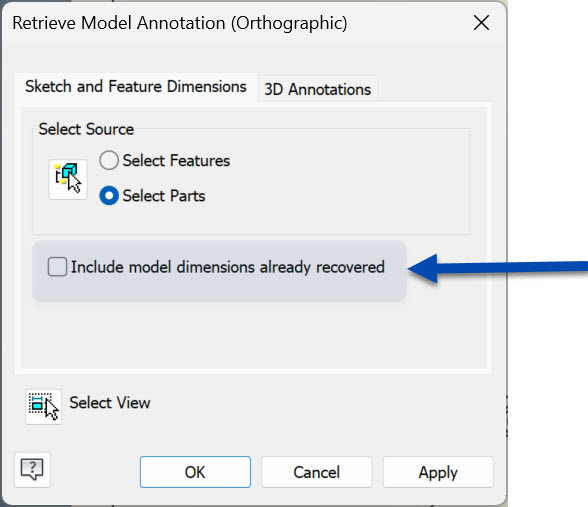
When you retrieve model annotations, a new option excludes dimensions already recovered in other views, so the same dimension doesn’t appear twice.
General enhancements
Start typing a parameter name in a dimension box, a property panel field, a dialog box value field, or the Equation column of the Parameters dialog box. A list of matching names narrows as you type, so you can reuse a parameter without remembering its exact spelling.
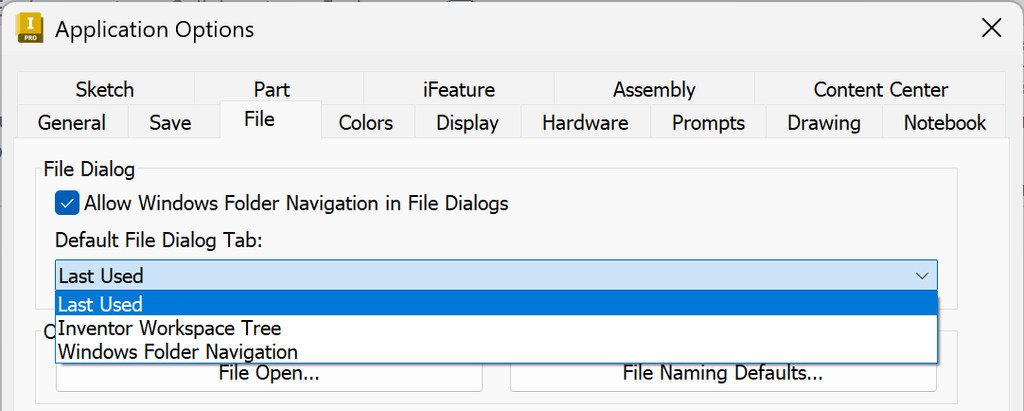
You can also choose which tab the Open and Save As dialog boxes show first: the Inventor workspace tree, Windows folder navigation, or the last tab you used.
Conclusion
As you have seen there are productivity enhancements for everyone in Inventor 2027.2. Install the latest release so you can experience these updates today!