 Shannon McGarry
Learn how Vault Connector connects Vault Professional with Fusion Manage and Autodesk Forma, helping manufacturers synchronize engineering data, streamline collaboration, and reduce manual handoffs.
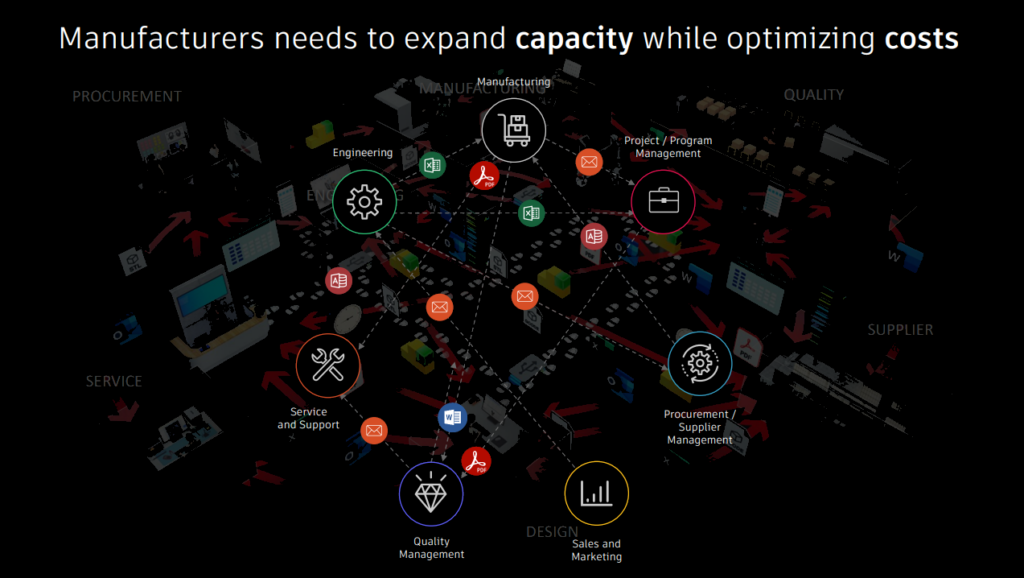
Most manufacturers don’t struggle with a lack of data. They struggle with getting the right data to the right people at the right time.
Engineering teams carefully manage CAD files, revisions, product structures, and approvals in Vault. Meanwhile, project managers need visibility into approved designs. Operations teams need current product information. BIM coordinators need equipment models. Product teams need BOMs and change data.
Too often, moving information between those groups still relies on manual exports, shared folders, spreadsheets, and email attachments.
That’s where Vault Connector comes in.
Rather than forcing everyone into the same system, Vault Connector extends trusted engineering data into downstream workflows. It connects Vault Professional with Fusion Manage and Autodesk Forma, allowing teams to work from the same information while continuing to use the tools that best fit their role.
The result is less time chasing files, fewer manual handoffs, and greater confidence that everyone is working from current information.
Engineering data shouldn’t stop at engineering
For many organizations, Vault is already the system of record for engineering data.
The challenge begins when that information needs to move beyond engineering.
Product teams want visibility into BOMs and change processes. Project teams need approved models and documentation. Coordinators need current design information for planning and execution. When those connections aren’t in place, teams end up working from exports and snapshots that are outdated almost as soon as they’re created.
Vault Connector helps close that gap.
Instead of duplicating data across multiple systems, organizations can synchronize the information each workflow needs while keeping Vault as the authoritative source for engineering content.
Two connected workflows
Vault Connector supports two primary use cases, each designed to extend engineering data into a different part of the business.
Vault + Fusion Manage
Fusion Manage focuses on product lifecycle and change management processes.
Through Vault Connector, organizations can synchronize:
- Items
- Bills of materials (BOMs)
- Attachments
- Selected properties
- Lifecycle-related information
This gives product managers, operations teams, and change coordinators access to current engineering information without relying on manual updates.
Instead of asking engineering for the latest BOM or product status, teams can work from synchronized data that’s already embedded in their processes.
Vault + Forma
Forma focuses on project coordination, delivery, and collaboration.
Vault Connector allows approved engineering information to flow into project environments where stakeholders need it.
That includes:
- Design files
- Folders
- Properties
- Metadata
- Project-related documentation
Engineering teams continue working in Vault. Project teams continue working in Forma. The connector keeps them aligned.
What this looks like in practice
Imagine a manufacturer designing a large piece of equipment for a new facility.
The equipment is designed in Inventor and managed in Vault. Once approved, a project-ready representation is published and synchronized into Forma.
From there, project teams can coordinate the equipment alongside architectural, structural, electrical, and mechanical systems.
The equipment is reviewed in context before construction begins.
Clearance issues can be identified early and potential clashes can be detected before installation crews reach the site.
If a coordination issue is found, the design team updates the equipment model, republishes it, and the project team immediately gains access to the latest approved version. Everyone remains connected to the same approved design throughout the process.
That’s what helps reduce rework, prevent field modifications, and shortens the feedback loop between design and delivery.
How Vault Connector for Forma works
Vault Connector for Forma synchronizes approved content from Vault into selected Forma locations.
Administrators can control:
- Which files are synchronized
- Which folders are synchronized
- Which properties are transferred
- Where content is published
- When synchronization occurs
- How results are monitored
Organizations can share exactly what downstream teams need without exposing all engineering data.
A project team may only need approved equipment models and metadata. A BIM coordinator may need access to project-ready representations. The connector allows each workflow to receive the right information while Vault continues managing the engineering source data.
Synchronization can occur manually or as part of a lifecycle transition, ensuring downstream teams receive current information as designs progress through approval processes.
Why folder mapping matters
Folder mappings connect Vault folders with specific locations in Forma.
Once configured, approved content can flow automatically into the appropriate project areas, eliminating the need for engineers to manually export and organize files every time an update is released.
This creates a much more predictable process.
Instead of wondering whether the latest file was uploaded correctly or whether the project team is looking at the current version, organizations can establish repeatable rules that govern how information moves between systems.
Visibility into every synchronization
A connector is only useful if teams can trust that it’s working.
That’s why Vault Connector provides visibility into synchronization status. Teams can quickly determine:
- Whether a sync completed successfully
- Whether only part of the data was synchronized
- Whether content was skipped
- Whether an error occurred
Status tracking helps administrators identify issues quickly and provides confidence that downstream teams are working from current information.
Vault Connector for Fusion Manage
While the Forma connection focuses on project delivery workflows, the Fusion Manage connection focuses on product lifecycle management.
This integration helps connect engineering data with the broader decisions that surround product development.
Organizations can synchronize:
- Items
- BOMs
- Attachments
- Properties
- Workflow-related information
Change requests, approvals, product updates, and related processes become easier to manage when engineering and lifecycle systems remain connected.
Why this matters now
Manufacturers are being asked to do more with the resources they already have.
Adding capacity isn’t always about hiring more people or buying more software. Sometimes it’s about reducing the friction between teams.
Every manual export creates work, every disconnected spreadsheet creates risk, and every duplicate record creates an opportunity for miscommunication.
Connected workflows help remove that friction.
Instead of spending time finding information, teams can spend more time acting on it.
Vault Connector doesn’t require engineering teams to abandon the processes they’ve already built around Vault.
Files and product structure stay in Vault and engineering continues working the way it always has.
What changes is everything downstream.
Project teams gain access to approved information in Forma. Product lifecycle teams gain access to synchronized data in Fusion Manage. Everyone works from the same trusted source of information without relying on manual handoffs.
For manufacturers focused on increasing capacity, improving collaboration, and reducing rework, that’s the real opportunity.
Creating a continuous flow of information from engineering through product development, project delivery, and beyond.
Frequently asked questions
Vault Connector is an integration that connects Autodesk Vault Professional with Fusion Manage and Autodesk Forma. It allows organizations to synchronize engineering data, files, metadata, items, and workflows between systems while keeping Vault as the primary system of record for engineering information.
Vault Connector helps eliminate manual data transfers between engineering, project teams, and product lifecycle management processes. Instead of relying on spreadsheets, email attachments, and exports, teams can work from synchronized information across connected workflows.
Vault Connector can synchronize items, bills of materials (BOMs), attachments, and selected properties from Vault into Fusion Manage. This helps ensure product lifecycle management processes are based on current engineering data.
Vault Connector can publish approved design files, folders, metadata, and properties from Vault into Autodesk Forma. This allows project teams, BIM coordinators, and stakeholders to access up-to-date engineering information during project planning and delivery.
No. Vault remains the authoritative source for engineering files, revisions, and product structures. Vault Connector simply extends approved information into downstream systems such as Fusion Manage and Forma.
Depending on configuration, organizations can synchronize:
-Files and folders
-Item data
-Bills of materials (BOMs)
-Attachments
-Metadata and properties
-Lifecycle-related information
-Project-ready design representations
Yes. Synchronization can be triggered manually or automatically based on lifecycle state changes. For example, approved designs can automatically be published to Fusion Manage or Forma when they reach a defined release state.
Connecting Vault and Fusion Manage helps lifecycle and change management processes use current engineering information. This reduces manual updates, improves visibility, and helps teams manage product changes more efficiently.
Connecting Vault with Forma allows project delivery teams to work with approved engineering data in the context of buildings, infrastructure, equipment coordination, and site planning. This helps identify issues earlier and reduce downstream rework.
Yes. By ensuring teams work from synchronized and approved information, Vault Connector reduces the risk of outdated files, duplicate records, and communication breakdowns that often lead to costly rework.