 Richard Stubley
This post is also available in:
Learn the key differences between joints and constraints in Autodesk Fusion to streamline your design assembly process with expert tips from Richard Stubley, Senior Product Manager.

Elevate your design and manufacturing processes with Autodesk Fusion
If you’re starting to assemble complex designs in Fusion, one important question often arises: When should you use joints versus constraints? Both methods connect components, but each offers unique strengths depending on your design needs. In this tutorial, I’ll break down the basics of each approach, how they differ, and how to choose the best tool for your workflow.
Joints: Quick and intuitive connection
Joints have been a core feature of Fusion since the beginning. They allow you to define the position and degrees of freedom of components in just two clicks using “joint snaps.” For example, let’s say you want two parts to connect rigidly or allow sliding motion.
- Select the first snap point on a component
- Select the second snap point on the mating component
- Specify offsets if needed (x, y, z directions)
- Choose the motion type (rigid, slider, revolute, cylindrical, etc.)
This quick process locks parts into place or defines simple motion with minimal effort. If your snap points are well-placed (center or edges), joints are perfect for moving fast.
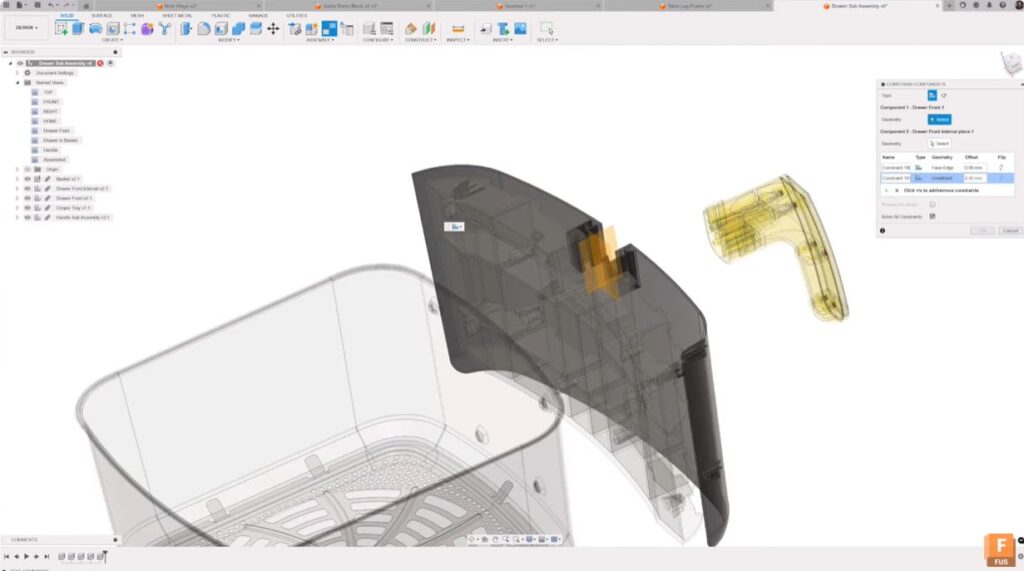
Constraints: For complex geometry and precision
On the other hand, constraints allow you to build up component relationships more granularly. This approach is similar to traditional CAD mates in systems like Inventor or SolidWorks.
You might use constraints when your components have complex mating surfaces or when snap points don’t exist in ideal locations. By building relationships piece by piece (e.g., matching curved faces, edges, or points), you gain full control over how parts fit together.
For example, to assemble a curved surface that’s hard to snap, you could add three constraints step-by-step to fully define the position and orientation.
How to choose – joints or constraints?
- Use joints for speed and simplicity: great when snap points are clear and two clicks can define the connection.
- Use constraints for precision and complex shapes: build up relationships gradually for complicated parts.
- Both tools coexist in Fusion, so you can pick whichever fits the situation best.
Take a look this in-depth video tutorial I created on when to use joints or constrain components:
Pro tip: Ground to parent
A powerful feature beyond joints and constraints is ground to parent. Sometimes you want to lock a component in place relative to its parent assembly so it doesn’t move unintentionally while you navigate your model. This “locks” your part firmly in CAD space, keeping everything anchored and stable during assembly edits.
By understanding when and how to use joints, constraints, and ground to parent, you’ll have versatile tools to handle almost any assembly in Fusion. Whether you’re building quick prototypes or intricate mechanical designs, mastering these connections will accelerate your workflow and improve assembly accuracy.
FAQs: Joints vs. constraints in Autodesk Fusion
Joints in Autodesk Fusion define how components are positioned and how they can move relative to each other by setting their degrees of freedom. They use joint snap points and are designed for fast, intuitive assembly creation, especially when component geometry is predictable. See how joints in Fusion work with a free 30-day trial.
Constraints in Autodesk Fusion control how components relate to one another by defining geometric relationships step by step. They are ideal for precise positioning, complex geometry, or situations where clear snap points are not available. See how components in Fusion work with a free 30-day trial.
The main difference is speed versus precision. Joints are optimized for quick, two‑click connections using snap points, while constraints allow more granular control by building relationships incrementally for complex or irregular geometry. Learn when to use joints or constrain components in Fusion here.
Use joints when components have clear snap points and you want to quickly define position or motion, such as rigid connections or simple sliding or rotating parts. Joints are best suited for straightforward assembly scenarios. Try joints and constraints in Fusion for free today.
Yes. Joints and constraints can coexist within the same assembly in Autodesk Fusion. You can choose the approach that best fits each connection based on speed, precision, and geometry. Try this out for yourself with a free 30-day trial of Fusion.
Joints in Fusion serve a similar purpose to mates in traditional CAD systems but focus more explicitly on defining motion and degrees of freedom, making them particularly effective for simulating real‑world movement in assemblies.
Ground to parent locks a component in place relative to its parent assembly so it does not move unintentionally. This is useful for stabilizing an assembly while you position and connect other components.
Yes. Joints in Fusion explicitly define allowed motion, such as rotation or sliding, while constraints primarily control positional relationships. Choosing the right method ensures assemblies behave predictably during movement and interaction.
Neither approach is universally better. For complex assemblies, joints and constraints are complementary tools. The best results come from using joints for fast placement and motion where possible, and constraints for detailed control where necessary. Try joints and constraints in Fusion, free for 30-days.