 Phil Eichmiller
Phil Eichmiller, Senior QA Engineer on the Autodesk Fusion team shows you how to fix spline and sketch profile issues for smoother designs and successful extrusions.
Working with splines and sketch profiles in Fusion can be tricky, especially when your sketch won’t extrude or behaves unexpectedly. This tutorial walks you through common issues and practical solutions, so you can create smooth, manufacturable designs with confidence.
Understanding splines in Fusion
Splines are flexible, “rubber band” lines used to create complex curves. Their behavior is influenced by the placement and number of control points:
- Elastic tension: The closer the spline points, the tighter the curve. Points farther apart create smoother, more natural curves.
- Turning corners: Place points close together only when you need a sharp corner. Too many points can make the curve wiggly and hard to control.
Tips for smoother splines
- Reduce control points:If your spline is too “wiggly,” try deleting unnecessary points. Select the points and hit delete—this restores tension and smoothness to your curve.
- Strategic placement: Keep points farther apart for gentle curves. Add more points only where sharp turns are needed.
- Undo as needed: If you delete too many points, use undo to restore your previous shape.
Troubleshooting open sketch profiles
A common frustration is not being able to extrude a sketch. This often happens when the profile isn’t fully closed—even if the gap is microscopic.
How to identify and fix open profiles:
- Zoom in: Inspect your sketch at a high zoom level. Tiny gaps can be hard to spot.
- Check endpoint colors:
- Black points: Connected endpoints.
- White points: Not connected—these indicate open profiles.
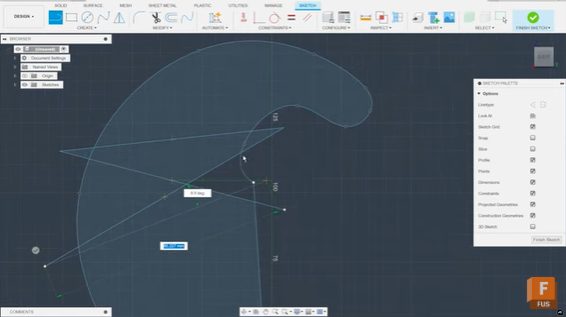
- Crisscross technique: Draw crisscross lines across the sketch to isolate regions that won’t compute as a profile. This helps you find the problematic area.
- Force coincidence: Select the endpoints and use the “coincident” constraint to snap them together, closing the gap.
- Verify closure:Once endpoints are connected, Fusion will recognize the profile as closed, allowing you to extrude.
Splines and sketch profiles in Fusion: Summary of key steps
- Use fewer spline points for smoother curves.
- Place points close together only for sharp corners.
- Delete unnecessary points to restore curve tension.
- Zoom in and check endpoint colors to find open profiles.
- Use constraints to close tiny gaps.
By understanding how splines behave and learning to spot open profiles, you’ll troubleshoot sketch issues faster and create better designs in Fusion. Remember: smooth curves come from strategic point placement, and successful extrusions require fully closed profiles.