 Bryce Heventhal
Learn the top keyboard shortcuts in Fusion and how easy it is to set custom keyboard shortcuts. A few simple steps can speed up your worksflows significantly.

Elevate your design and manufacturing processes with Autodesk Fusion
Keyboard shortcuts in Fusion are essential for maximizinge your efficiency. By learning and customizing just a handful of core shortcuts, you can dramatically speed up your workflow, making repetitive tasks faster and more intuitive
Top keyboard shortcuts in Fusion
Start with the most impactful keyboard shortcuts in Fusion:
- S: Brings up the command search and design shortcuts menu anywhere in your workspace.
- E: Extrude your 2D sketch into 3D geometry.
- L: Draw a line in sketch mode.
- M: Activate the Move tool for repositioning elements.
- Q: Use Press Pull for fast extrusions and cuts.
- D: Sketch Dimension lets you quickly add precise measurements.
- P: Project geometry from elsewhere into your sketch plane.
- O: Offset selected sketch geometry.
- V: Toggle the visibility of selected bodies.
- F6: Zoom to fit your model in view.
Modifiers make these even more powerful. For example, holding Shift plus the middle mouse button lets you orbit, and using Ctrl with a number key changes display styles. Double-clicking the mouse wheel instantly fits the design to your screen.
Custom keyboard shortcuts in Fusion
Not only does Fusion support dozens of preset keyboard shortcuts, you can also easily create your own custom keyboard shortcuts in Fusion:
1. Find any command in the toolbar or dropdown menu.
2. Hover until the three vertical dots appear, then click them and select “change keyboard shortcut.”
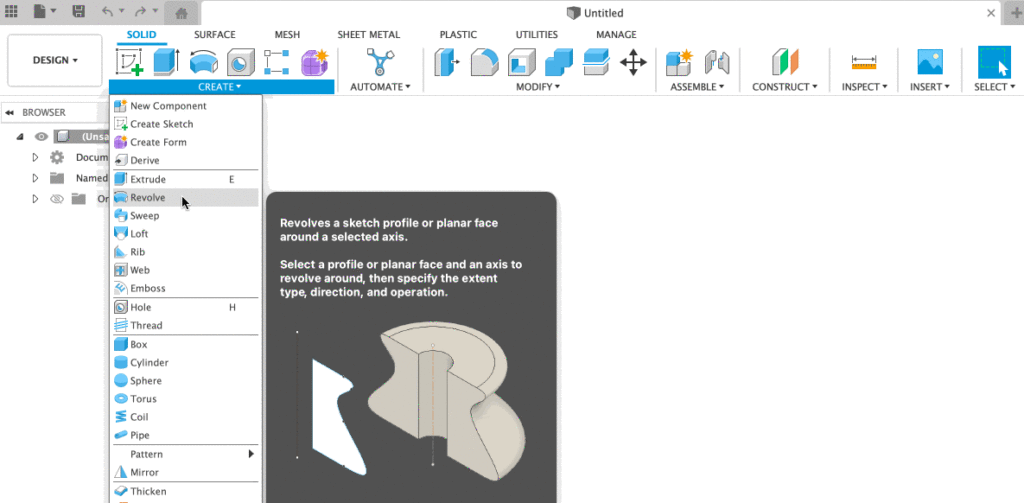
3. Choose your own key combination (including Shift, Ctrl, or Alt modifiers). Fusion will alert you if there’s a conflict with system-defined shortcuts (for example, Ctrl+S for save is reserved).
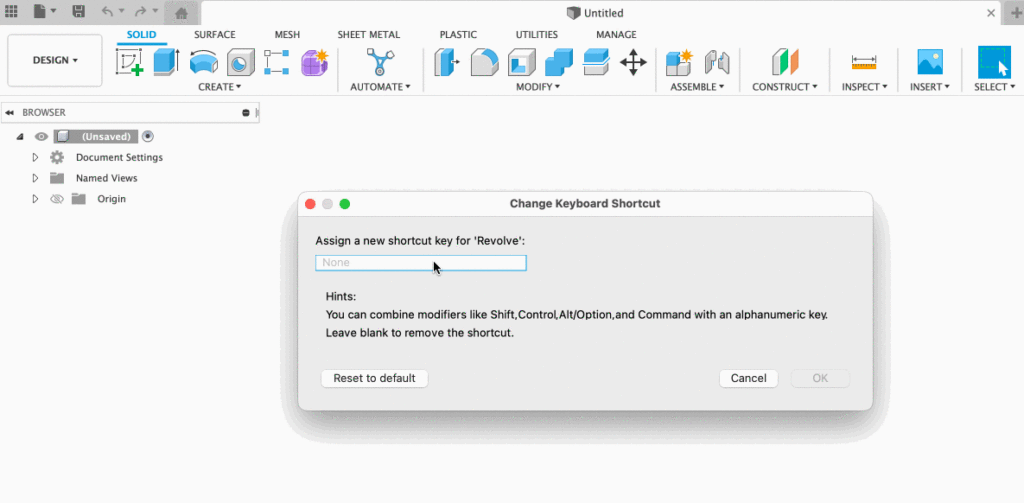
Your custom shortcuts travel with your Fusion account – no matter what computer you use.
Check out the video below to see custom keyboard shortcuts in action:
Contextual and advanced keyboard shortcuts
Keyboard shortcuts in Fusion don’t stop with alphanumeric keys. The right-click “marking menu” offers another controllable layer. For example, in sketches, you can:
- Right-click to access the marking menu—drag in a direction or use the context menu to quickly select tools.
- Use contextual options that change based on what entity (edge, face, or body) is selected, speeding up modeling and editing.
Tips for adoption
- Watch default shortcut hints appear next to commands in dropdown menus.
- Practice with cheat sheets or sticky notes to memorize new commands—many resources are available online.
- Don’t overlook the S key: use it to gather your most-used commands into a personalized, always-available shortcut menu.
Frequently asked questions about custom keyboard shortcuts
- Can I use more than 1 alpha key? No. CKS will take any combination of modifier keys, but will only take one alphanumeric key.
- Can Finish Sketch have a key combo? Yes!
- Can I assign keys to stop sketch? Yes!
- Why can’t I use Command + S as a custom key combo? Some key combos are off-limits to CKS since they have system-level priority. These key combos are:
Now you know how to easily set custom keyboard shortcuts in Fusion! Ready to get started on your next project?