 James Krenisky
Learning how to project geometry onto a sketch plane in Autodesk Fusion enables precise referencing of existing features, improving efficiency in both 2D and 3D design workflows.
Projecting geometry onto a sketch plane is a fundamental feature in Autodesk Fusion. It allows you to reference and re-use surrounding features, streamlining your design workflow for both 2D and 3D modeling. Here’s a step-by-step guide for how to project geometry onto a sketch plane in Fusion.

Elevate your design and manufacturing processes with Autodesk Fusion
What does “project geometry onto a sketch plane” in Fusion mean?
In Fusion, “projecting geometry” means duplicating existing edges, vertices, or curves from outside your current sketch and making them available for use within your sketch. The projected geometry remains linked (“associative”)—if the original changes, your sketch updates automatically.
Why use the project tool?
- Speeds up modeling by referencing existing geometry rather than manually recreating it.
- Ensures dimensional accuracy for features that must align or interact.
- Maintains design intent by keeping relationships up-to-date as parts change.
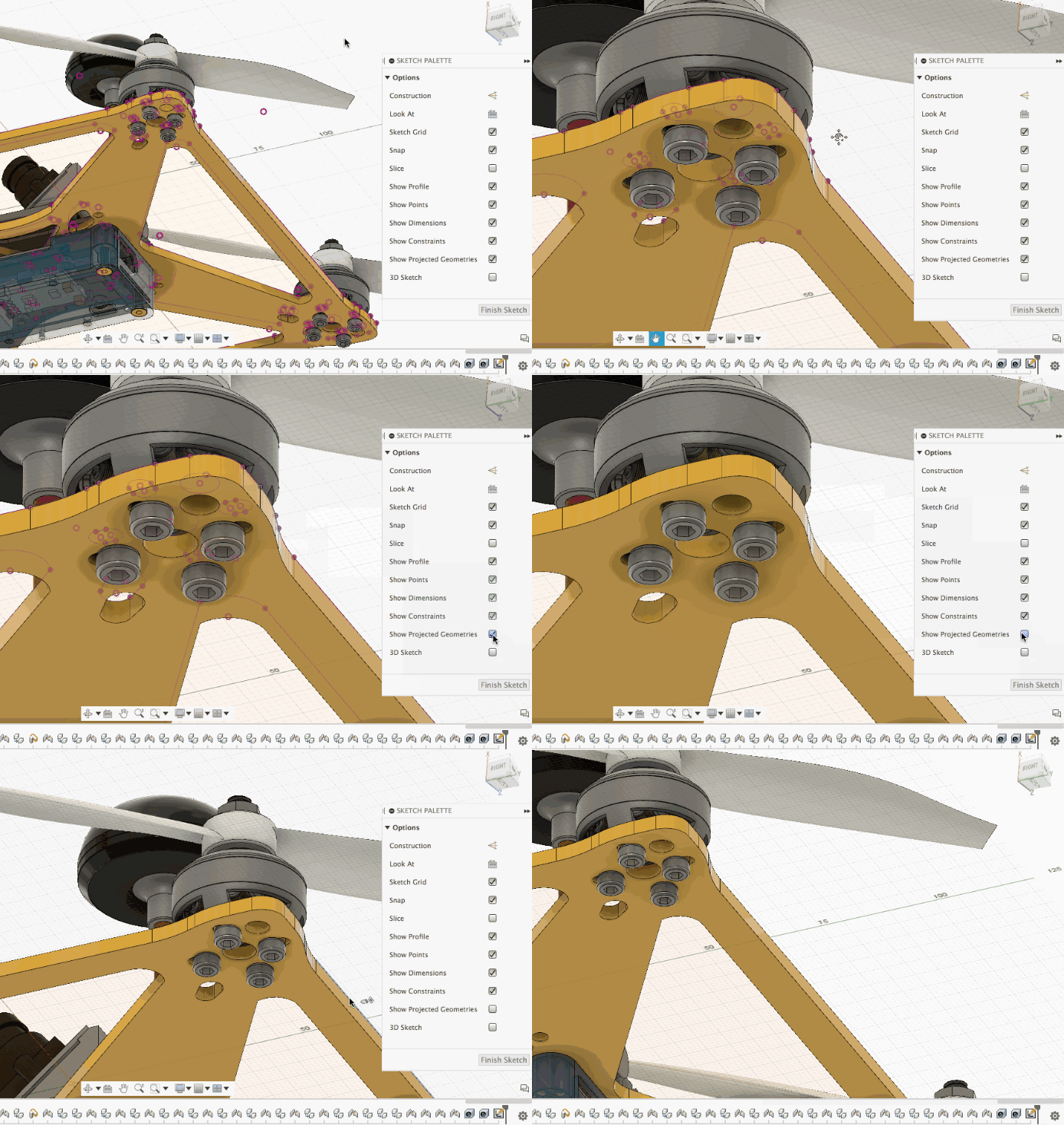
Projecting geometry onto a sketch plane Fusion
- Create or open your sketch
- Start by creating a new sketch on the desired plane or face.
- Use the
Create Sketchcommand and select your target plane.
- Activate the project tool
- Select the geometry to project
- Click on the edges, faces, points, or curves you wish to reference.
- Fusion 360 highlights these with a distinct color (usually purple).
- Confirm projection
- Click OK to finish.
- The geometry now appears in your active sketch, ready for dimensioning or as a reference for further drawing and modeling.
- Associative updates
Projecting to a surface or complex geometry
- For advanced workflows, you can project onto curved surfaces or create projections from 3D features, allowing intricate control over part alignment and feature placement.
- Access these options under Project/Include > Project to Surface and specify your source geometry and destination surface.
Tips for best results
- Use Project for edges and profiles on the same plane.
- Use Project to Surface for complex 3D projections.
- Keep sketches organized to easily identify projected geometry.
Summary table: Project command functions
| Command | Use Case | Shortcut Key | Associative Updates |
|---|---|---|---|
| Project | Flat edges/profiles on a plane | P | Yes |
| Project to Surface | 3D features onto curved/angled surfaces | N/A | Yes |
Mastering the project tool in Fusion 360 accelerates design, eliminates errors, and gives you precise control over complex modeling tasks. With features like associative updating and shortcuts, you’re equipped for professional CAD workflows using the best of Autodesk’s sketch utilities.
Ready to enhance your modeling speed in Fusion? Start projecting geometry onto your sketches today!