 Krystina Docil
Turn a Printables model into the part you need. Customize it in Autodesk Fusion, then send it to Prusa EasyPrint to slice and print.
Elevate your design and manufacturing processes with Autodesk Fusion
Many people start 3D printing with someone else’s model. At some point you want a bracket that fits your exact shelf, a case for your own board, or a prototype of a product nobody has made yet, and that takes a design tool. Autodesk Fusion is built for that step, and with the Prusa EasyPrint & Printables add-in for Fusion, it now connects directly to the Prusa ecosystem you already print with.
Design with freedom, print with confidence
Autodesk Fusion gives you professional CAD for precise, customizable, functional designs: parametric modeling, mesh editing, simulation, and additive setup in one environment. Prusa Research brings trusted printing hardware and an ecosystem to match, including the Printables community and the Prusa EasyPrint slicer.
Together, Autodesk Fusion and Prusa Research provide one connected workflow, from the model you customize in Fusion to the print on your Prusa printer.
What the add-in does
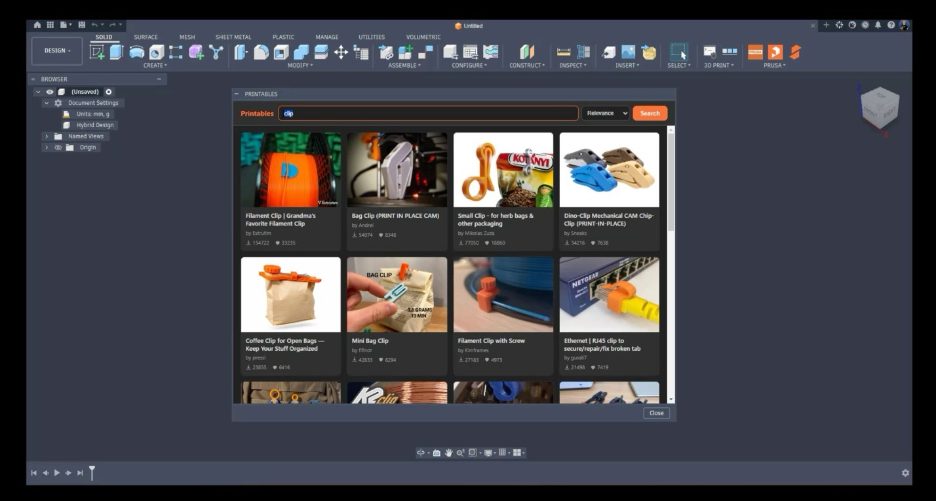
The EasyPrint add-in, published by Prusa Research and free on the Autodesk Design and Make Marketplace, adds a Prusa panel next to the built-in 3D Print panel on the Solid, Mesh, and Utilities tabs of the Design workspace. Two commands take a model from Printables to Prusa EasyPrint:
- Open Printables. Search Printables from a panel inside Fusion and open supported model files in your workspace so you can browse and search hundreds of thousands of free models without switching windows. Open the one you need directly in your design, then reshape it with the parametric modeling and mesh editing tools in Fusion until it fits your project.
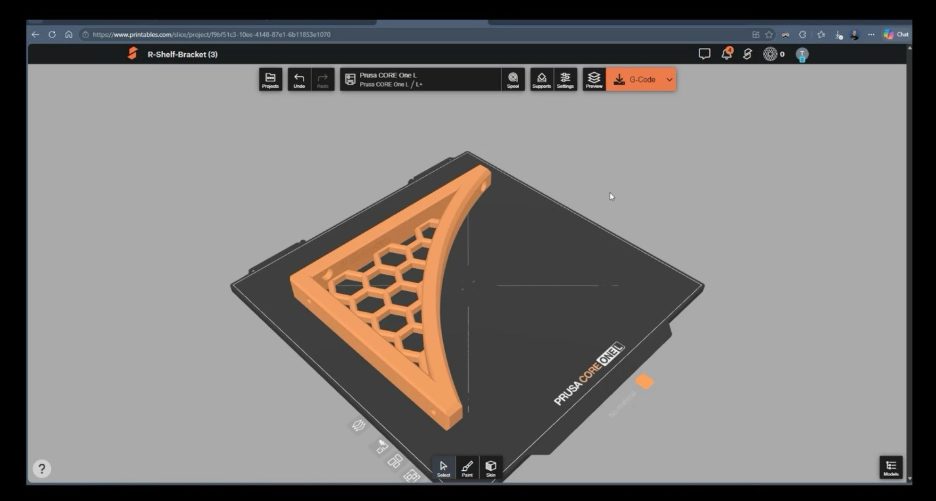
- Send to EasyPrint. Open your model in EasyPrint in your browser, slice it, then send the job to a supported printer via Prusa Connect or download the G-code.
A third command, Create Prusa Setup, is a separate path for when you want to do the whole workflow in Fusion. Pick an Original Prusa printer and a Prusa print profile from the Fusion library. Fusion gathers every body in your design, BRep and mesh, and builds the manufacturing model and additive setup for you. From there, you add supports, slice, and create your print file, all in Fusion.
The add-in supports many Prusa printers, including the MK4S, Core One+, XL, and MINI.
Turn one-off prints into repeatable workflows
A downloaded model gets you a part. Customizing it in Fusion gets you the part you need, and a way to make it again. Because the add-in connects Fusion to Prusa EasyPrint, a change to a parametric dimension updates your design, and your next print is a few clicks away. That is how a one-off print becomes a repeatable workflow, and how a first project grows into a functional part, a prototype, or a finished product.
As your projects grow, Fusion grows with you:
- Simulation checks how a part handles loads before you spend filament on it.
- Lattice generation hollows parts and adds internal lattice structures to reduce weight and material use.
- Generative design explores geometry shaped by your constraints, for parts suited to additive manufacturing.
- Cloud collaboration lets your team share designs and track iterations in one place.
How to get started
- Check the basics. You need the latest version of Fusion on Windows or macOS, an internet connection, and a free Prusa Account for Prusa EasyPrint.
- Install the add-in. Get Prusa EasyPrint & Printables for Fusion on the Autodesk Design and Make Marketplace. It’s free.
- Pick your starting point. Select Open Printables in the Prusa panel on the Solid, Mesh, or Utilities tab to find a model, or start with your own design.
- Follow printables.com/@adskfusion for Fusion models to try first.
- Send to print. Select Send to EasyPrint in the Prusa panel to preview and slice your model in Prusa EasyPrint, then send the job to your printer. To do the whole workflow in Fusion, select Create Prusa Setup.
Fusion already takes you from sketch to simulation to setup in one environment. Now it reaches your Prusa printer too. Get the Prusa EasyPrint & Printables for Fusion add-in and design what you need next.
Frequently asked questions
The Prusa EasyPrint & Printables add-in connects Fusion with the Prusa ecosystem. You can browse Printables from within Fusion, open supported models to customize them, and send your finished design to Prusa EasyPrint for slicing and printing.
Yes. The add-in is published by Prusa Research and is available for free through the Autodesk Design and Make Marketplace.
Yes. The Open Printables command lets you browse and search Printables from a panel inside Fusion and open supported model files directly in your workspace. You can then use Fusion’s modeling and mesh editing tools to customize the model for your project.
Yes. The Send to EasyPrint command opens your model in Prusa EasyPrint in your browser, where you can slice it and send the job to a supported printer through Prusa Connect or download the G-code
Yes. If you want to keep the workflow in Fusion, use the Create Prusa Setup command. You can choose an Original Prusa printer and print profile, create the additive setup, add supports, slice the model, and create the print file without leaving Fusion.