 Abraham Pineda

Vault Connector 2027.2 adds a workflow that has been missing for teams who start in Fusion Manage: create the item once, and the connector creates it in Vault, maps its properties, and links the two. The release also brings a version switch to the Fusion Manage panel, an enhanced Forma configuration, and a round of sync and reliability fixes. Autodesk Vault 2027.2 also lets administrators edit numbering schemes that are already in use, and adds a Show All button to search results in the Vault Client. Job processor settings now appear in the Job Processor interface, and job processor logs go to Windows Event Viewer. Autodesk Assistant in Inventor can now search Vault.
Create Vault items from Fusion Manage
Teams that work top-down define items in Autodesk Fusion Manage before design work begins. Until now, those teams created each item again in Autodesk Vault, re-entered property values by hand, and linked the two items themselves. Vault Connector 2027.2 removes those steps.
A Vault administrator maps a Fusion Manage lifecycle state to the create item action. When an item reaches that state, for example through a change order, the connector does the following:
- Creates the item in Vault with the category and numbering scheme you choose.
- Maps property values from Fusion Manage onto the new Vault item, using the property mappings you configure.
- Links the items and shows sync status on the Vault item.
- Writes the Vault item reference back to the Fusion Manage item.
- Records errors when a creation fails.
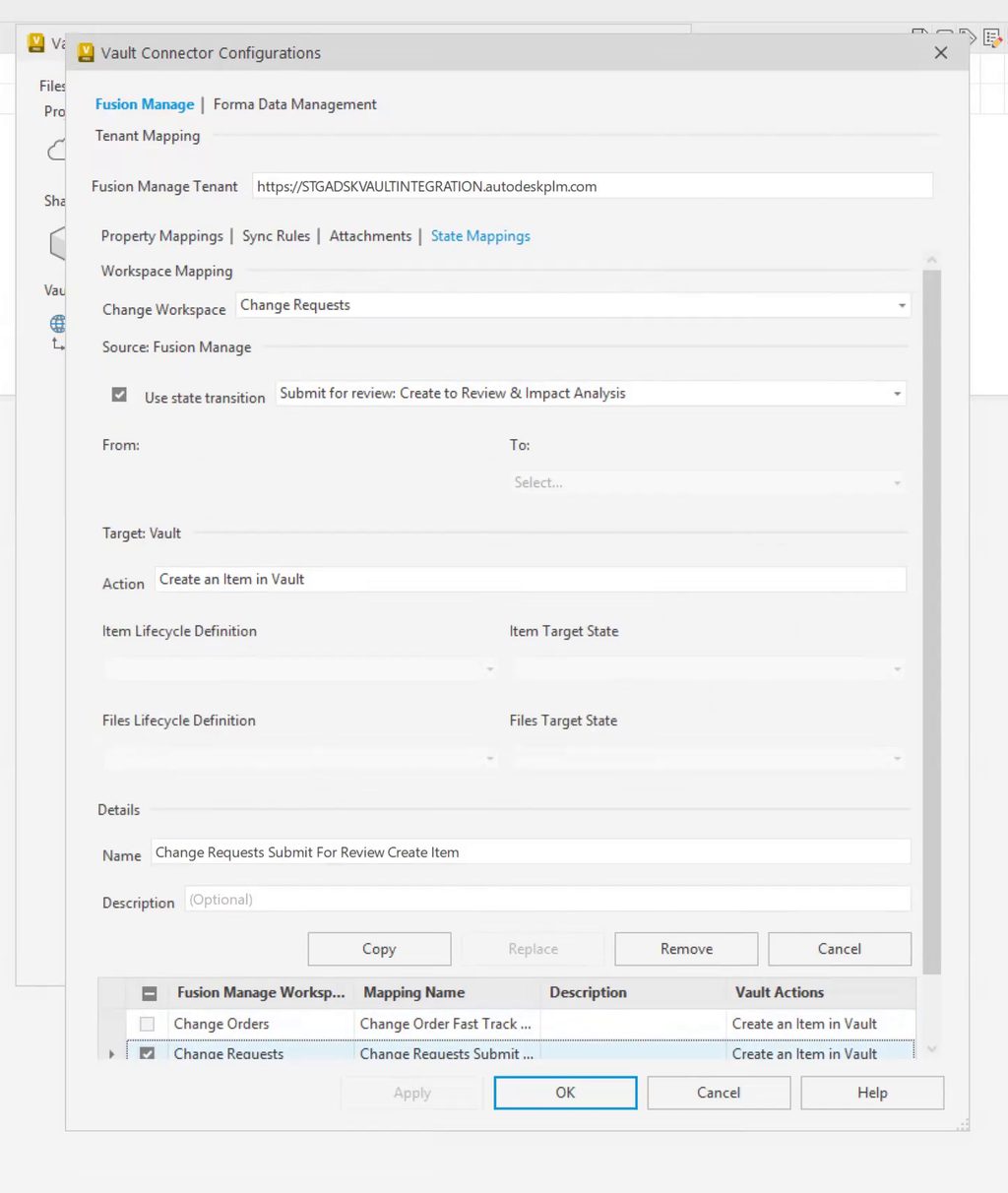
Create item REST APIs are also available through the Vault Data API.
Designed for real setups
- Workspaces: select more than one workspace in a state mapping, and use Basic workspaces with workflow.
- Vaults: create items in more than one vault.
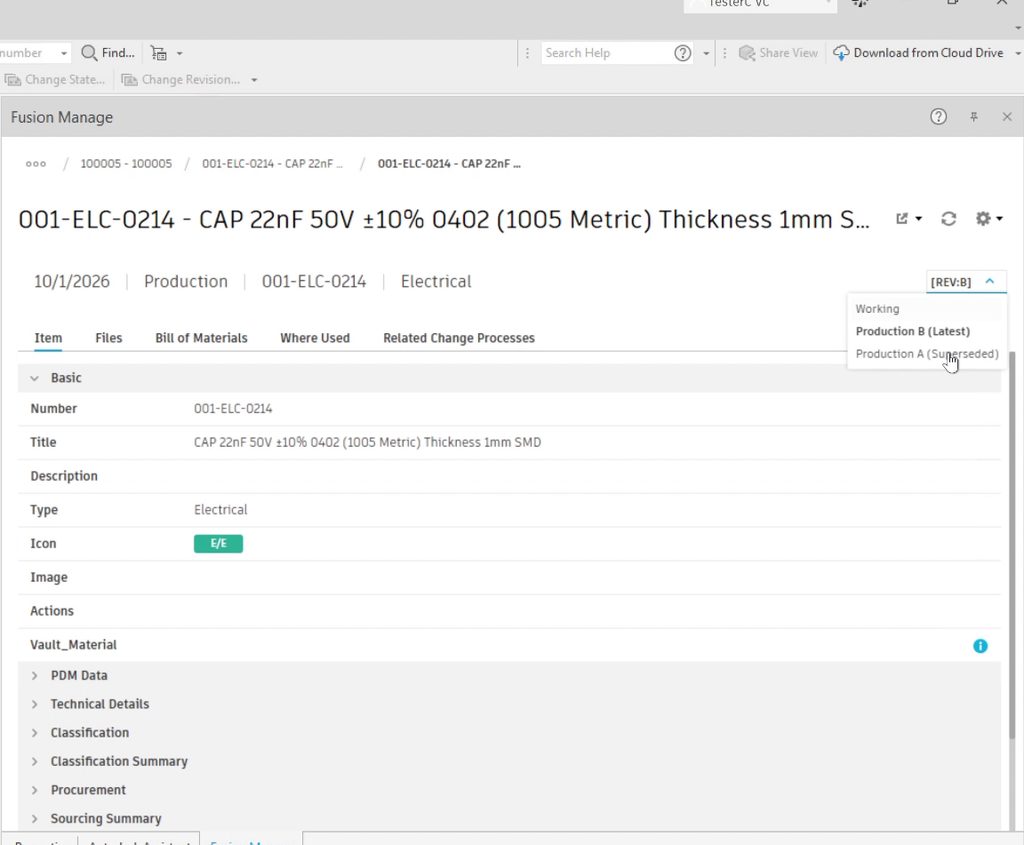
- Revisions: multiple revisions of a Fusion Manage item are treated as one Vault item.
- Mappings: map Fusion Manage fields that are creation-only or not editable, and keep create item and change state actions in separate mappings.
- Safeguards: the connector processes only tasks created after you add a state mapping, and prevents duplicate Vault items when a task retries.
Fusion Manage panel and sync
- Version switch in the Fusion Manage panel in Vault.
- Visualization attachments: upload visualization files as attachments when you sync items to Fusion Manage.
- Clearer sync status: see why an item did not sync when it does not meet sync rules, with updated error status for Fusion Manage and Forma.
- Better dialogs: the add related changes dialog shows how many items you selected and matches Fusion Manage behavior.
- Quick create fixes: money fields drop the currency symbol, and default values appear in non-editable fields.
- Accurate numbers: float fields keep their precision, including values stored in scientific notation.
- Fewer skipped syncs: when the Fusion Manage version is ahead but the source is the current Vault iteration, the connector now overwrites instead of skipping.
Forma configuration and sync
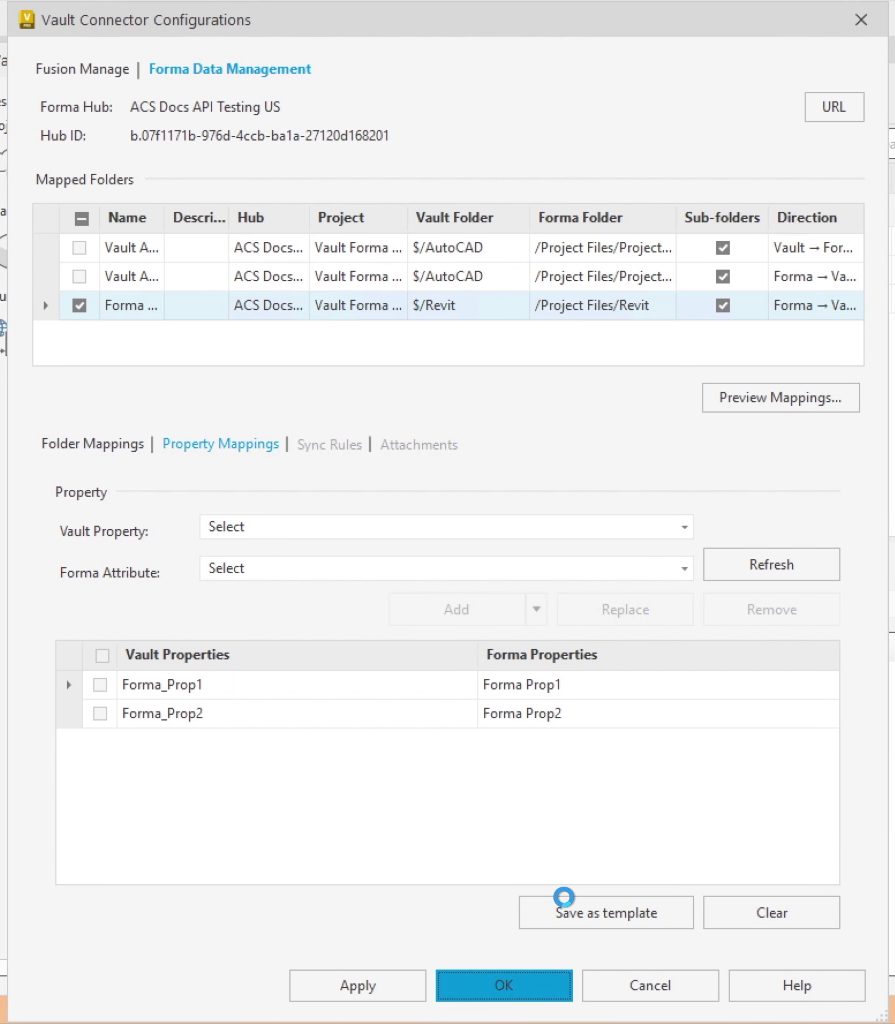
- Enhanced configuration: an updated Forma configuration experience, including the Property Mappings tab.
- Large drop-down lists: support for the large drop-down list attribute.
- Cleaner hub handling: the Forma hub clears once you remove all mappings.
- Large selections: sync many files to Forma without hitting the circuit breaker.
- Deleted files: files deleted in Forma are no longer skipped on resync from Vault.
- Version handling: when the Forma version is ahead but the source is the current Vault iteration, the connector overwrites instead of skipping.
Numbering schemes
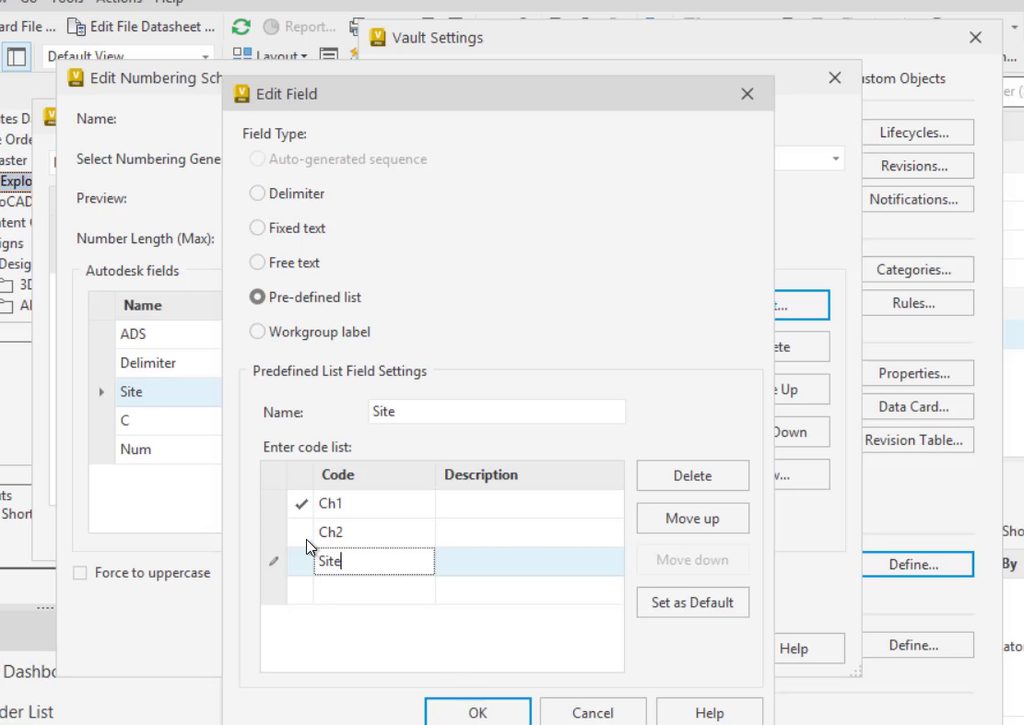
Vault administrators can now edit a numbering scheme that has already generated numbers. Until now, a single generated number locked the scheme, and administrators had to create a new scheme and deactivate the old one.
- Add new options: extend predefined lists, such as a new year code, without disrupting numbers already issued.
- Refine existing options: edit option descriptions and change the default selection.
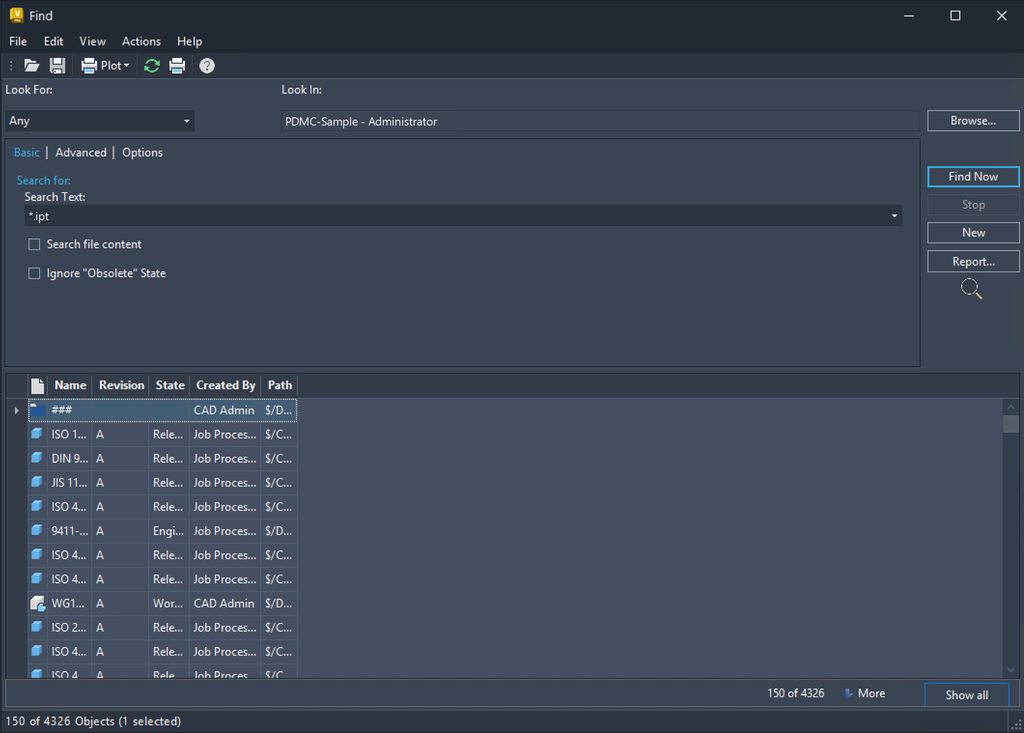
Show all in search results
In the Vault Client, search results and lists arrive a page at a time, and you click More to keep going. A new Show All button loads every matching result at once, with a progress dialog so you can cancel if it takes too long.
- Where it works: Basic and Advanced search results, plus Folders, Items, and change order lists in the Vault Client.
- Cancel any time: stop the request from the progress dialog if loading runs long.
- Administrator control: grant or restrict Show All for each user or group.
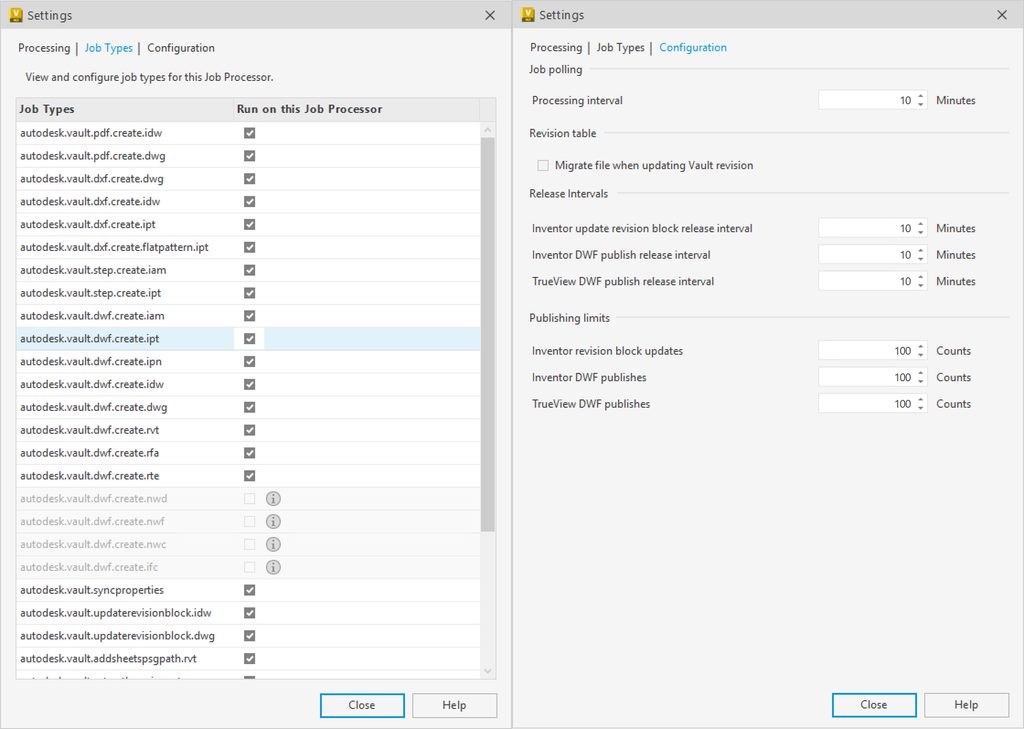
Job processor settings in the UI
Job processor options used to live only in a configuration file, which made them hard to find and manage. Autodesk Vault 2027.2 brings them into the Job Processor interface.
- One place for options: review and change job processor options in the interface instead of editing files.
- Job types per machine: select which job types each machine processes.
- Smooth upgrades: default Vault jobs migrate on upgrade, and the configuration file behavior is maintained.
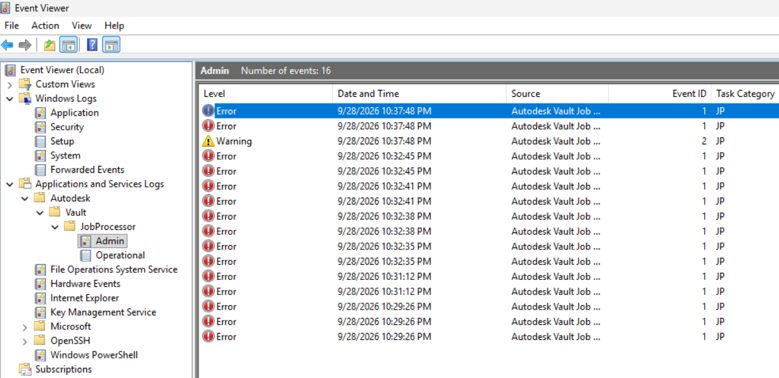
Job processor logs in Windows Event Viewer
Job processor logs now appear in Windows Event Viewer, so administrators get classified, searchable events in a standard Windows tool.
- Classified logs: errors go to the Admin log, and everything else goes to the Operational log.
- Search by job properties: events carry the job ID, job type, vault name, file, job status, and predecessor job.
- Trace a job chain: a shared chain ID links every job in a lifecycle chain, so you can pull the logs for the whole chain with one filter.
- Execution mode: events show whether a job ran in Application mode or Service mode.
- Quieter logs: the default log size is larger, and polling interval entries appear less often.
Vault in Autodesk Assistant for Inventor
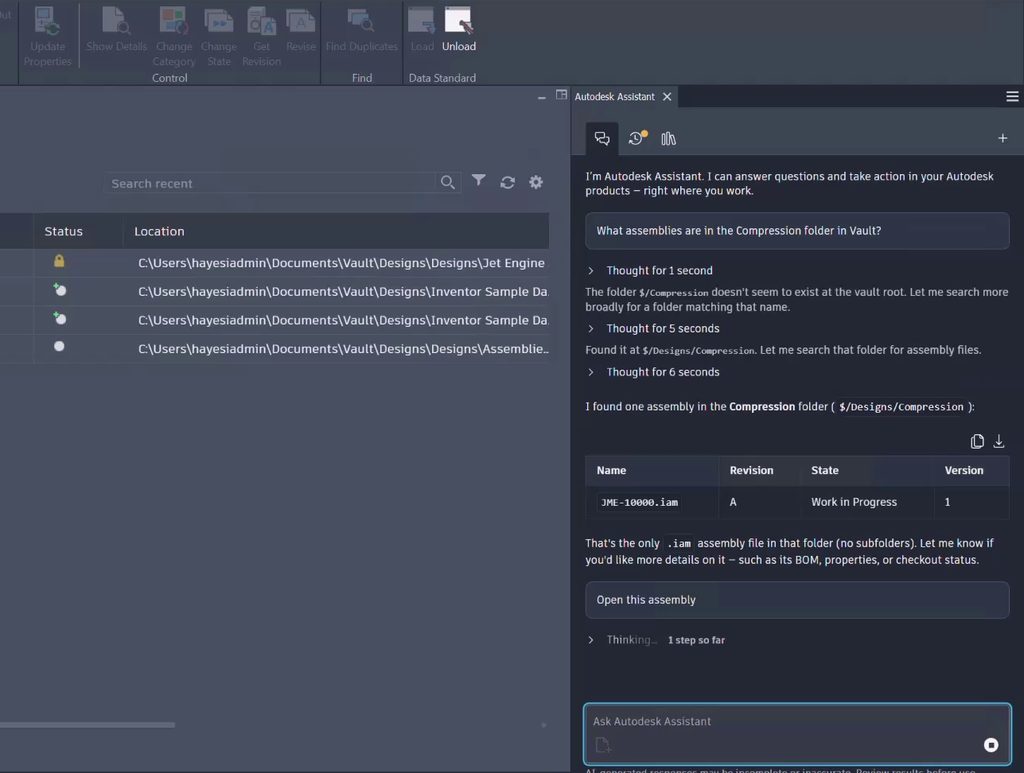
Autodesk Assistant in Inventor now connects to Vault. You can find Vault content with a prompt and stay in your design.
- Search by prompt: ask Autodesk Assistant to find files with Vault basic or advanced search.
- Sign in from the chat: sign in to Vault in Assistant, which checks that your Vault user matches your Autodesk ID.
- Bring files into Inventor: download results to your local workspace, mapped to your Vault project folders.
- Requirement: the Inventor project file must be configured as a Vault project type and activated.
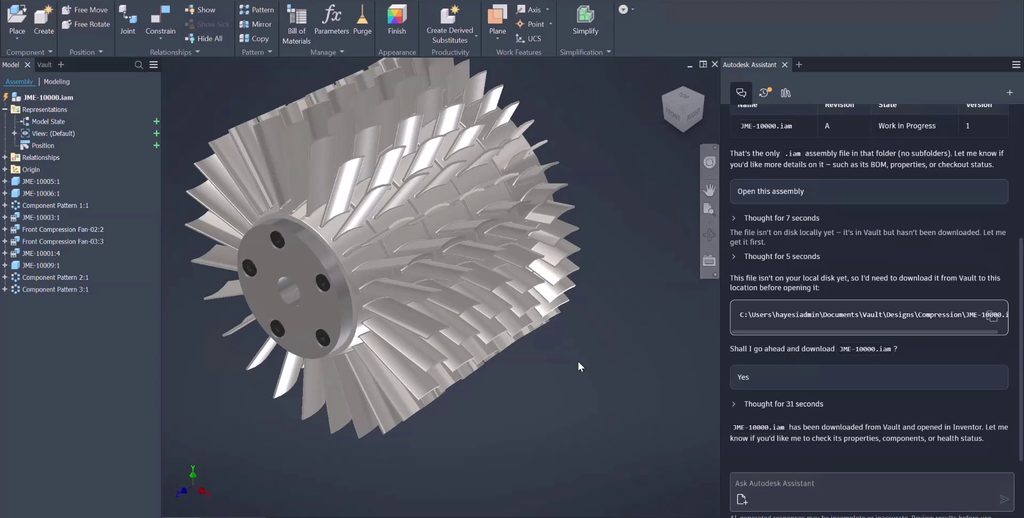
Files in Autodesk Assistant for Inventor
Beyond search, Autodesk Assistant in Inventor can bring Vault files into your session and send your changes back to Vault from the chat.
- Place from Vault: ask Assistant to place a Vault file in your active Inventor session. Assistant downloads the file and its references to your local workspace first.
- Check out and open: check out a Vault file and open it in Inventor without leaving the chat.
- Save and check in: save new files with the default Vault numbering scheme, then check them in.
Model state check-in performance
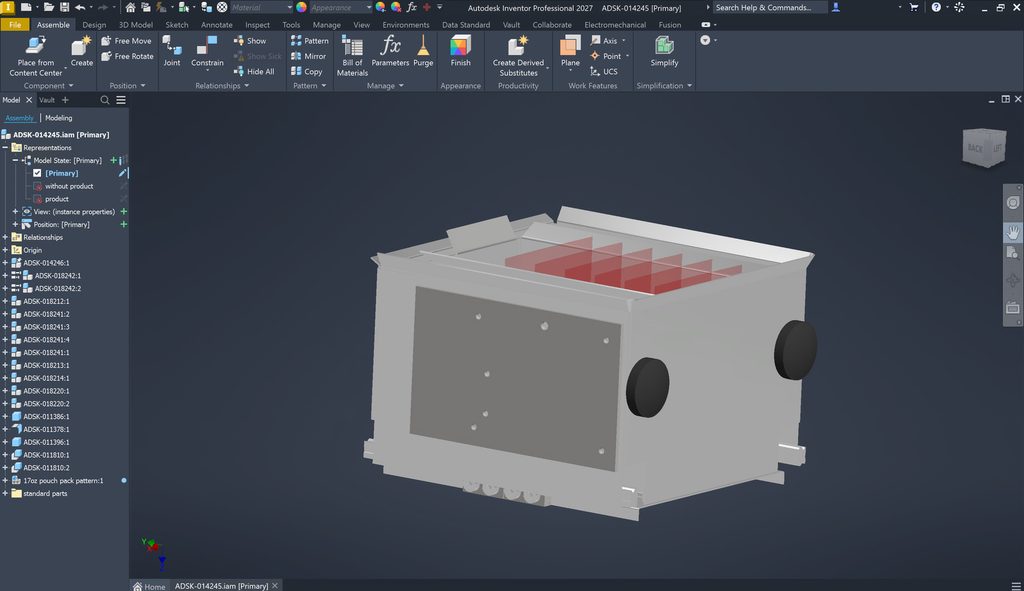
Checking in an assembly with many model states used to mean reading each model state BOM one after another. The Vault add-in for Inventor can now extract model state BOMs in parallel, using background Inventor Server processes. This capability first shipped in Autodesk Vault 2027.1, and 2027.2 builds on it.
- Parallel BOM extraction: model state BOMs are read at the same time instead of one by one.
- Shorter waits: assemblies with many model states check in faster.
- Your choice: turn it on in the Inventor add-in settings. It is off by default.
- New in 2027.2: check-in of large model states no longer hangs on machines created from an image.
Before you upgrade
- Add two attributes: existing Fusion Manage item workspaces need the Initial Origin and Origin attributes for item creation.
- Check permissions: the connector service account needs permission to create items in Vault.
Not covered in this release
- Automatic creation of design files.
- Triggers from objects other than items.
- Live two-way sync of a property after creation.
- Bulk creation for items that already exist in Fusion Manage.