 Shannon McGarry
Learn how furniture manufacturers can streamline production from CAD to CNC using Autodesk Fusion to connect design, toolpaths, nesting, and machines in one workflow, reducing errors and rework.

Elevate your design and manufacturing processes with Autodesk Fusion
Furniture manufacturers face growing pressure to deliver customized products faster, without sacrificing quality or margins. As product variety increases and timelines shrink, disconnected software and manual handoffs often become the biggest bottlenecks in production.
This tutorial walks through how Autodesk Fusion supports an end‑to‑end workflow for furniture production, from digital design through CNC machining, using a single, connected environment. The focus is not on a specific brand of machinery, but on how design, manufacturing logic, and machine output stay linked throughout the process.
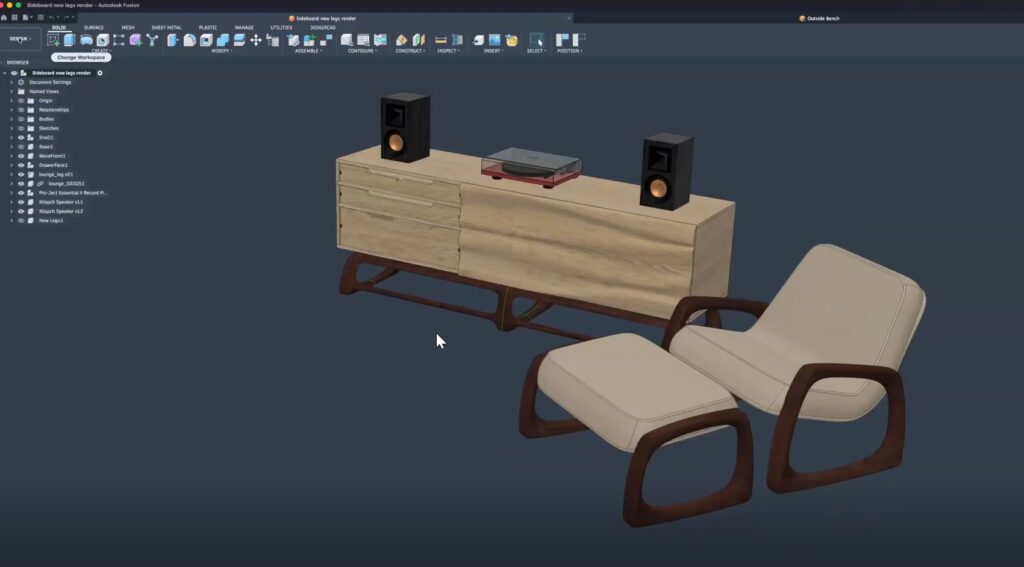
Step 1: Start with a manufacturing‑aware design
Furniture projects often blend different types of geometry, including flat panels, solids, surfaces, and freeform elements. In Fusion, designs can combine:
- Parametric solid modeling for precise dimensions
- Freeform modeling for ergonomic or organic shapes
- Surfaces, sheet metal, and plastic features where needed
Because everything lives in the same model, changes to dimensions or features update downstream manufacturing data automatically. This avoids the common problem of redesigning parts just to keep CAD and CAM in sync.
Fusion also includes built‑in data management, so versions, revisions, and shared designs remain traceable as projects evolve.
Step 2: Validate designs before anything is cut
Before moving to CNC, designs can be validated digitally to reduce physical trial and error.
In Fusion, manufacturers can:
- Review assemblies to ensure parts fit as intended
- Simulate structural behavior to identify weak points
- Adjust designs early if performance or stability issues appear
This validation step helps catch problems that would otherwise surface late, after material has already been cut.
Step 3: Prepare toolpaths directly from the design
Once a design is ready, the same Fusion model is used to generate toolpaths, without exporting files to separate CAM software.
Fusion supports:
- 2D, 2.5D, and 3D milling strategies
- 3‑axis through 5‑axis machining (positional and simultaneous)
- Turning, additive manufacturing, and fabrication workflows
Because toolpaths stay associative to the design, updates propagate automatically. If a part changes, the toolpath updates with it—reducing reprogramming and errors.
Step 4: Nest parts to optimize material usage
For panel‑based furniture and cabinetry, nesting is a critical step in controlling cost and waste.
Fusion includes nesting workflows that:
- Automatically arrange parts across multiple sheets
- Group parts by material thickness
- Account for available stock sizes
Changes to the design or part list update the nest without rebuilding layouts from scratch. This makes it easier to respond to late changes while maintaining material efficiency.
Step 5: Match toolpaths to real machines
Fusion includes a machine library and post‑processing framework that allows toolpaths to be generated for specific CNC configurations.
In practice, this means:
- Toolpaths reflect the kinematics of the target machine
- Post processors generate machine‑ready code
- Large or complex CNC programs can be prepared without manual splitting
The result is a smoother handoff from digital planning to the shop floor.
Step 6: Simulate and preview before running the job
Before sending a job to the machine, Fusion allows manufacturers to preview operations digitally:
- Toolpath simulation shows material removal
- Interference and collision risks can be spotted early
- Complex 4‑ and 5‑axis movements can be reviewed in context
This reduces machine downtime and helps ensure first‑run success.
Why an integrated workflow matters
In many furniture shops, workflow breakdowns occur at handoff pointsbetween design, CAM, and machining. Files get exported, simplified, or re‑created, and valuable context is lost with each step.
A connected workflow keeps:
- Design intent intact
- Toolpaths linked to geometry
- Manufacturing decisions traceable
That continuity is what allows furniture teams to move faster without adding risk.
Kick-off your next furniture design project with Autodesk Fusion.
Furniture production frequently asked questions (FAQs)
Fusion connects design, validation, toolpath generation, nesting, and CNC output in one environment, reducing file handoffs and rework.
Yes. The same design‑to‑manufacturing workflow supports low‑volume bespoke projects as well as repeatable production.
Fusion includes nesting tools that automatically arrange parts across sheets and update when designs change.