 Annaka Ketterer
Start faster, design smarter, and get more done with Fusion’s April update, featuring a streamlined start-up experience, expanded Autodesk Assistant capabilities, and new tools across design, manufacturing, and electronics.
Minor Updates
Our latest minor update brings several important fixes and improvements to enhance your experience. Click to learn more.
v.2702.1.58 – April 23, 2026 (Minor Update)
Design
- Resolved issue where configuration rules could not be applied for Design Extension users.
Usability
- Fixed issue where the Sketch Palette did not appear while creating a sketch.
Data & Cloud
- Fixed issue where the Cloud Library disconnected when launching a new Fusion session.
Stability
- Continued improvements to overall stability.
- Improved stability during startup.
- Improved stability in the Drawings environment.
Highlights
v.2702.1.47 – April 13, 2026 (Major Update)
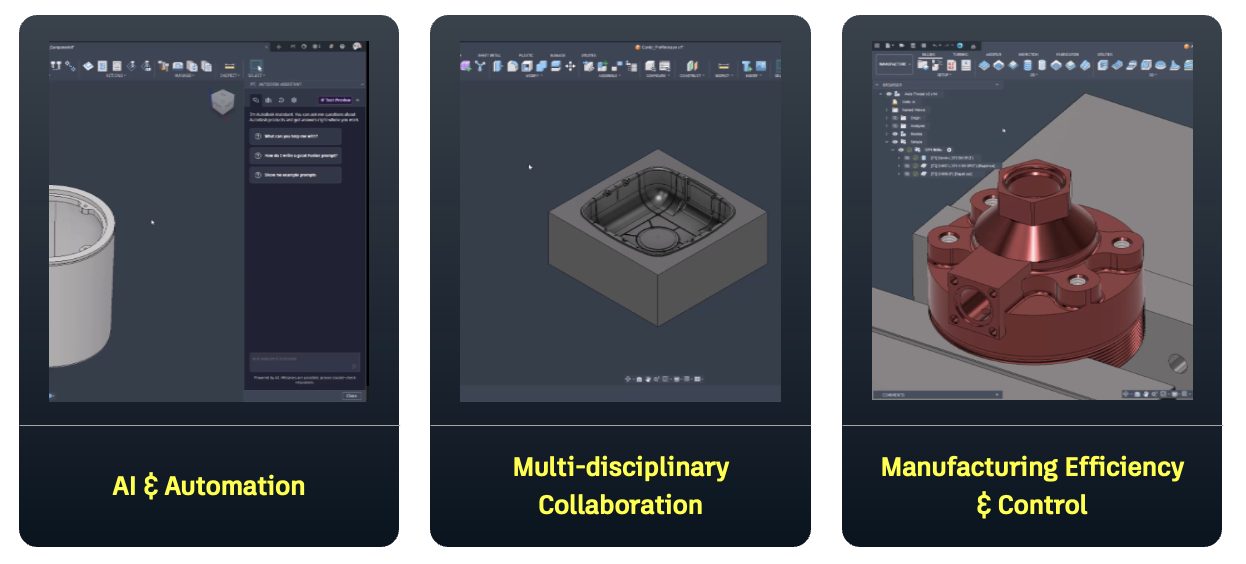
April’s update is focused on making everyday work in Fusion more flexible, more connected, and easier to manage as your designs and workflows grow more complex. Whether you’re working across design, electronics, or manufacturing, the goal is to help you move through your work with greater clarity and control.
Across these areas, you’ll see improvements that reduce setup time, improve how tools and data come together, and make it easier to move between different parts of your workflow. From expanded construction geometry tools and configuration-driven design to better navigation in electronics and more efficient toolpath workflows, this release focuses on strengthening the core experiences you rely on every day.
You’ll also see continued evolution of Autodesk Assistant, with new capabilities like image generation and script execution that expand how you can interact with Fusion and get work done directly within your design environment.
Here’s a quick look at some of the key highlights in this release:
- Autodesk Assistant: Now with Image Generation
Create render-style visuals directly from your design using simple prompts, and iterate quickly without leaving Fusion. - Improved Startup Experience
Fusion now starts in a simplified Home-based experience and returns to Home when designs are closed, making it easier to resume work, manage files, and move between tasks. - Better Visibility into Your Data
Explore BOM relationships more easily and get more complete property visibility in the web viewer and Home tab. - More Control in Design Workflows
New Configuration Rules and expanded construction geometry tools make it easier to build and manage complex designs. - Manufacturing Workflow Updates
Improved selection, toolpath setup, and turning controls help streamline CAM programming. - Electronics & Documentation Enhancements
New navigation tools and workflow improvements make it easier to manage and communicate electronics designs. - Additive & API Updates
More control in additive workflows and expanded API access for automation and customization.
Autodesk Assistant
When we introduced Autodesk Assistant in Fusion, the vision was simple: an AI that doesn’t just answer questions, but actually helps you get work done inside your tools. This release takes a significant step toward that.
Executing scripts with Autodesk Assistant
Autodesk Assistant can now write and execute scripts against the Fusion API directly, inside your workflow, in response to plain-language requests.
Previously, Assistant could only take action in Fusion where we had built a specific, dedicated tool for it. That meant its ability to do things was limited to a fixed set of operations we’d explicitly wired up which could be a real ceiling on what it could help with.
With Script Execute, Assistant can now act across a wide range of workflows supported by the Fusion API. It writes the logic, executes it, and the work gets done without you writing a line of code.
Turning your design into visuals
With this update, Autodesk Assistant also introduces image generation, making it easier to create render-like visuals directly from your design.
Describe the materials, lighting, and environment you’re looking for, and Fusion will generate an image based on your current view. From there, you can refine the result through follow-up prompts to quickly iterate toward the look you need.
To get started, position your model in the desired view, open Autodesk Assistant, and describe the scene you want to generate. The current view is captured automatically and used as the foundation for the image.
Note: Commercial users receive 20 image generations per month.
Learn more about what we released earlier in March
A more accessible, integrated experience
As of the March update you will now find Autodesk Assistant directly in the upper-right corner of both the Home tab and the main Fusion interface, so it’s always within reach when you need it. Open it up, and it lives in a docked panel along the right side of the workspace, letting you continue working without losing your place.
Design, described in your own words
You also now have the ability to describe modeling tasks in natural language and have Autodesk Assistant map your request directly to the appropriate commands.
Instead of navigating menus or searching for the right tool, you can simply describe what you want to do. Create basic geometry, apply features like Extrude, Fillet, Chamfer, Hole, Shell, and Split, or update existing features by adjusting parameters.
It also extends to a broader range of design tasks, from assigning materials and appearances to creating sketches with dimensions, generating circular and rectangular patterns, and building revolve features or additional primitives like spheres, toruses, and coils.
You can even ask questions about your design — like volume or surface area — identify specific geometry, highlight elements, or perform batch actions across larger models.
Carrying that experience into manufacturing
That same interaction model carries into the Manufacturing workspace, where Autodesk Assistant can be used to set up and refine toolpaths.
You can create setups, generate toolpaths, rename or batch rename operations, and select tools using natural language. It also helps surface relevant options as you work, making it easier to move through CAM workflows without constantly stopping to search for the right setting.
Less time managing, more time building (Collaborative Editing)
Additionally, Autodesk Assistant extends into the administrative side of your workflow.
Projects can be created, folders organized, team members invited, and permissions reviewed — all conversationally. Instead of jumping between panels and settings, you can move through these tasks more directly, with changes confirmed before anything is applied.
Usability
Improving the Fusion start-up experience
Fusion now starts with a simpler, more flexible experience. Instead of automatically opening an empty design, Fusion can launch directly into Home where you can quickly resume recent work or start something new.
For new users, Fusion now opens in Home by default. Existing users will continue to start based on their current Start-up experience preference. When the last open design is closed, Fusion will return to Home instead of automatically creating a new empty design.
You can update this behavior at any time by going to My Profile > Preferences > General and setting your Start-up experience to Home or your preferred default design type.
A Smoother, Faster Fusion
This release includes foundational performance improvements across modeling, drawings, and file operations. The following highlights reflect measured gains on representative large and complex datasets.
Assembly and Timeline Performance
- Suppression and deletion operations are up to 85% faster in large assemblies by limiting recompute to only impacted components
File Operations
- Opening and inserting designs is up to 50% faster with graphics caching enabled by default
- Drawing open performance is up to 50% faster for large assemblies and mesh-heavy designs
- Improved performance when opening, saving, and closing complex design files
Modeling Workflows
- Faster patterning and mirroring operations in large assemblies
- Improved performance when calculating properties such as center of mass
- Faster access to the Properties dialog
Interaction Performance
- Smoother selection, highlighting, and general interaction through optimized rendering and reduced redraws
Note: Performance improvements are based on customer-provided datasets. Actual results may vary depending on model size, complexity, and workflow.
Additional Enhancements
Behind the scenes, there are additional improvements that help improve performance and responsiveness as your designs grow in complexity.
Graphics Caching Enabled by Default
Graphics caching is now enabled by default (Preferences → Compatibility & Troubleshooting) and generated automatically during save. This accelerates file open and insert operations, with the greatest benefit seen in complex, graphics-intensive models.
Reduced Recompute for Suppression & Deletion
Fusion now avoids recomputing features in unrelated components when suppressing or deleting timeline features. By limiting updates to only impacted features, performance and responsiveness improve, particularly in large assemblies.
Data Management
This update introduces new ways to explore design relationships, improves visibility in the web viewer, and enhances the Home tab experience so you can move faster and stay aligned as your projects grow.
Learn more about Collaborative Editing (CE) enhancements here.
See More, Do More
We’re making it easier to inspect, understand, and take action on your data with new ways to view design relationships in BOM and enhancements to the Fusion Web Viewer and Home experience.
New Navigator
Navigator helps you quickly understand complex assemblies by visualizing your Bill of Materials as an interactive tree (horizontal or vertical) or a radial graph. Access BOM Navigator from the Inspect menu in Fusion Desktop or beside the Bill of Materials tab in Fusion Web to see how components relate and explore your assembly structure with greater clarity.
Viewing properties in Fusion web viewer
You can now view and review properties for child components, in addition to root components, directly in the Fusion web viewer. This provides more complete visibility into your design structure when inspecting and validating data.
Details page UI enhancements
We improved the Details page in the Fusion Home tab so you can understand design information faster and with less guesswork. A new properties header makes it clear which file you’re viewing and what details apply, and we clarified messaging when design details aren’t available; so you spend less time hunting and more time taking action.
Multi-Select Results in Home search.
Fusion’s Home tab search now supports selecting multiple results, so you can select and act on multiple designs directly from search results to complete batch actions faster like open or make available offline.
Fusion Manage Enhancements
Custom Properties enhancements (Fusion & Fusion Manage)
Following the launch of Custom Properties in January, we’ve introduced several enhancements to give admins greater control and flexibility. You can now sort and filter through custom properties, localize property names and descriptions, and delete properties that are no longer relevant to your business.
Learn about custom properties
Workspace Manager modernization (Fusion Manage)
We’ve also modernized the Workspace Manager experience in Fusion Manage to make workspace administration more intuitive and efficient. The updated design improves navigation and organization, allowing admins to move more easily between workspaces. You can now search and filter workspaces by name for quicker access, and organize them in the Main Menu directly in Workspace Manager for a more streamlined configuration experience.
Learn about Workspace Manager
Improve Managed Items tab with sorting and filtering (Fusion Manage)
Managing change workflows with large numbers of items is now easier. The Managed Items / Affected Items tab now supports sorting, filtering, and column configuration, helping you quickly find and focus on the items you need while streamlining review and change management.
Learn to sort and filter items in the Managed Items tab
Automatic refresh of Manage Properties in Fusion BOM (Fusion Manage)
Fusion Manage properties in the BOM will now update in real time as lifecycle events occur like item number generation or a revision is released, so you’re always looking at the latest Fusion BOM information without needing to manually refresh.
The Fusion BOM will now automatically reflect updates from Assign Item Number, Quick Release, and Change Orders, helping keep your data in sync and reducing the risk of working from outdated information.
Design
Configuration Rules for more intelligent design (Design Extension)
This release introduces Configuration Rules (included in Design Extension), which lets you create logical rules that drive or limit configured aspect values in a configured design in Fusion.
Configuration Rules can help you automate combinations of values in highly configurable products and ensure you can only create valid, manufacturable configurations across a product range.
By using a visual rules engine, Configuration Rules provides a way to author rules that is more accessible and easier to understand than learning code syntax.
To use Configuration Rules:
- Drag and drop blocks into the Configuration Rules canvas to build your logical rules.
- Turn each rule on when you’re ready to apply it.
- Apply the rules, and existing values in the configuration table update to comply with the rules.
- As you continue to create and modify configurations, Fusion enforces the rules in real time to maintain consistency and manufacturability.
Note: Configuration Rules are available as part of the Design Extension.
Learn more about Configuration Rules.
Patterning of Construction Geometry
You can now pattern construction geometry, including work planes, work axes, and work points, using rectangular, circular, and path-based patterns. This is supported directly within the Pattern command by selecting Construction Geometry as the object type. This makes it easier to build and reuse structured reference geometry without needing to manually recreate repeated setup.
Learn about Pattern.
Construction Geometry Enhancements
This release continues to build on Construction Geometry workflows with improvements to both creation and interaction. A new perpendicular plane option allows you to define a construction plane directly from a selected planar face or work plane, simplifying common setup tasks.
Interaction updates also make it easier to work with reference geometry, with clearer edge highlighting and support for snap point selection when defining planes and axes.
In addition, Plane Along Path and Point Along Path are no longer limited to the bounds of the selected edge or chain. You can now position them beyond the endpoint, giving you more flexibility when defining reference geometry without needing additional setup.
Learn about Construction Geometry.
Fastener Stack Analysis
Design > Inspect > Fastener Stack Analysis
Fastener Stack Analysis lets you evaluate threaded components in an assembly and assess fitment. The analysis can identify issues such as insufficient thread engagement, incompatible thread designations, and mismatched thread types or sizes.
Whether reviewing your own design or validating components created by different engineers, the analysis highlights issues and indicates what needs to be corrected. Thread validation is integrated directly into the existing Stack Analyzer workflow, allowing you to review threaded fasteners in context.
Learn about Fasteners.
User Coordinate System (UCS)
User Coordinate System allows you to define a custom coordinate system within a design, including an origin, three axes, and three reference planes that can be used for sketching. It is available in the Construct dropdown within the Design workspace.
The UCS is created as a timeline feature and can be edited or suppressed as needed. It can be used across workflows where working with custom orientation or positioning is required, including defining sketch boundaries and working with complex geometry.
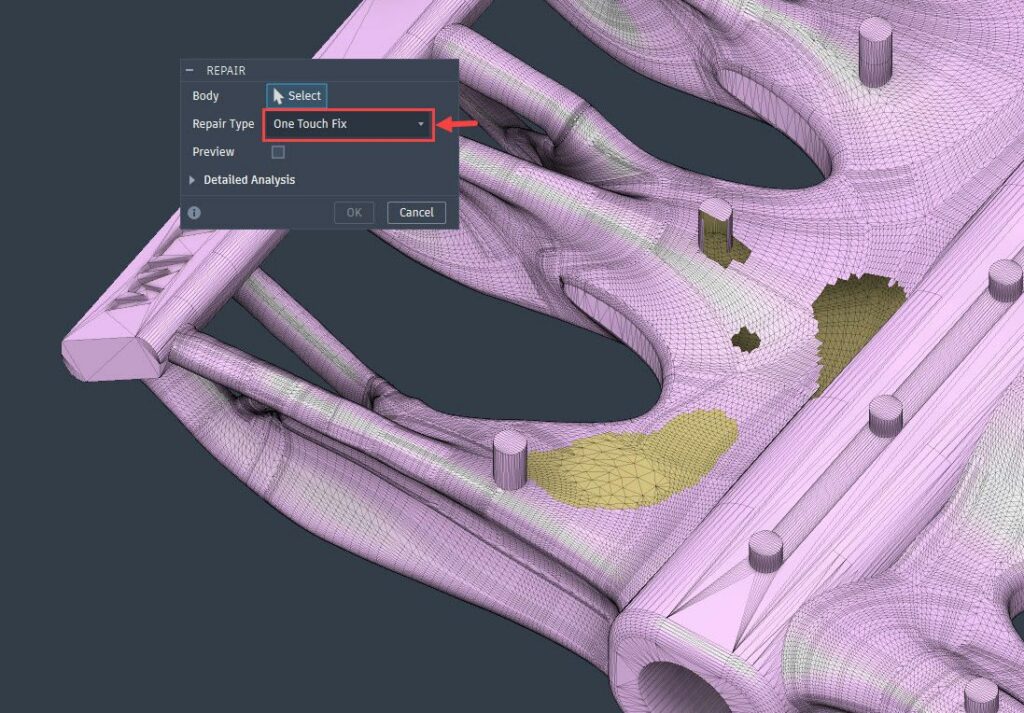
One Touch Fix for Mesh Repair
Design > Mesh > Prepare > Repair
Mesh Repair now has a One Touch Fix option added, making mesh cleanup faster and more accessible. This feature automatically applies a combination of repair operations in a single step, helping users resolve common mesh issues without manually selecting and running individual repair operations
Learn about Mesh Repair.
Sheet Metal
Corner Closure
Corner Closure introduces the ability to automatically close corners between adjacent flanges in sheet metal designs. This removes the need to manually create corner geometry when flanges are created out of order.
Corner seams and miter geometry are generated automatically based on the active Sheet Metal rule. The functionality supports flanges on the same plane as well as flanges separated by a single bend, including 2-bend and 3-bend flange conditions.
Learn more about Corner Closure.
Render
Improved Scene Settings Defaults in Render
We’ve improved how Scene Settings behave in the Render workspace to make it easier to maintain consistent visuals across your designs.
You can now save your preferred Scene Settings using Save As Defaults, and those settings will automatically be applied the next time you enter the Render workspace in any design. There’s no longer a need to manually restore your defaults each time.
Camera settings, such as Perspective and Orthographic, are now also saved and correctly applied with your defaults.
To give you more control, we’ve added three options for managing Scene Settings:
- Save As Defaults to apply your preferred settings across future renderings
- Restore Saved Defaults to return to your custom saved configuration
- Restore Defaults to revert back to Fusion’s original settings
These updates make it easier to standardize your rendering setup and reduce repetitive adjustments when moving between designs.
Learn more about Scene Setting in Render.
Additional Enhancements
This release also includes a range of improvements across sketching, measurement, and general modeling workflows:
Measure Command Improvements
Design > Inspect > Measure
When the Measure command is active, you can now modify selections. For example, you can deselect items without resetting the entire selection set.
Learn about the Measure command.
Split Face Chain Selection
The Split Face command now supports Chain Selection and automatically selects connected sketch segments.
Learn about the Split Face command.
Sketch – Auto-Detect Centerline in Mirror
Design > Sketch > Mirror
The Mirror command now automatically selects a centerline as the default mirror line when a single valid centerline is present. This minimizes manual selection and makes creating symmetric geometry faster and more intuitive.
Learn more about Mirror in Sketch.
Edit Isoparametric Curves in Place
You can now edit isoparametric curves in Edit in Place.
Multiple Text on a Path in Sketch
Design > Sketch > Text > Text on Path
You can now place multiple text instances along a selected path.
Learn more about Text in Sketch.
Plane at Angle Reference Support
The Plane at Angle command now supports planes, lines, and axes as reference objects.
Learn more about Construction Geometry.
Select Components for Constraints
You can easily locate components associated with an assembly constraint. In the Browser, right-click a constraint and choose “Select Components” to automatically locate the components in the relationship. This makes it easier to identify constraints associated with specific components.
Learn about Assembly Constraints.
Standard Content Library Expansion
The standard content library has been expanded with over 100 new component families, while existing families remain customizable.
Improved Sketch Input Stability
Unintended sketch lines caused by fast or sensitive mouse movement are now automatically prevented.
Drawings
Configuration Tables in Drawings Enhancements
Configuration tables in drawings now include additional data from configured designs, including part numbers, suppression states, and visibility states. This allows more configuration information to be represented directly in the drawing.
Configuration columns can be shown or hidden to focus the table on the information needed for the drawing. Configuration tables in drawings continue to reflect live model data, with these additions now included alongside existing configuration values.
Simulation
Enhanced Injection Molding Simulation Material Database
The Injection Molding Simulation material database just got better. As of this update you will now have access to a more comprehensive database of both materials and manufacturers:
- Total number of New Materials added: 480
- Total number of Materials updated: 596
- New Manufacturers added: 18
- New Total number of Materials: 13871
- New Total number of Manufacturers: 634
Electronics
Electronics Browser (Schematic and 2D PCB)
A new Electronics Browser has been introduced for Schematic and 2D PCB environments, providing a centralized way to navigate sheets, modules, and module instances within a design. The browser supports sheet-level actions such as creating, renaming, and managing schematic sheets, and can be docked like other panels in Fusion.
You can preview schematic sheets on hover and access tools such as Named Views, Document Settings (including grid), Assembly Variants, and Find in Window directly from the browser. The Electronics Browser also includes context-aware actions and visual highlighting, and follows the same interaction patterns as the Fusion Browser.
Improved Port Selection
Port selection and editing in Electronics has been updated to provide a more consistent interaction model. You can now move ports by dragging them directly, delete them with a single click, and select them to view details without using modifier keys.
When connecting nets, a snapping indicator is now shown to provide visual feedback during placement.
Flattened Reference Designators
Reference designators in module-based designs can now be made shorter and easier to read in 2D PCB through the use of flattened reference designators. Components can carry both hierarchical and flattened reference designators while maintaining full cross-probing between Schematic and PCB.
Renumbering supports both flat and hierarchical modes and can be driven from either the Schematic or 2D PCB.
Silkscreen in Drawings
Silkscreen is now supported in Electronics PCB Drawings, allowing symbols, logos, and other silkscreen entities to be included in drawing views. Silkscreen can be displayed across standard drawing view types, including base, projected, and detail views, with support for top and bottom silkscreen and documentation layers.
This also applies to ECAD–MCAD assemblies. A new Silkscreen node in the browser provides access to elements such as reference designators, values, and other silkscreen content within the drawing.
Additional Enhancements
This release also includes a range of improvements across Electronics workflows:
3Dconnexion SpaceMouse Support
Electronics workspaces now support 3Dconnexion SpaceMouse devices for navigation.
Ortho Move Performance Improvements
Performance improvements have been made to Ortho Move when working with large groups of components.
Improved PDF Export
PDF export now includes native, searchable text, supporting selection, copy and paste, and search within exported documents.
Enhanced Layerstack Support in Drawings
Layerstack support in drawings has been expanded to support assemblies with multiple PCBs.
Copy and Paste Component Attributes
Component attributes can now be copied and pasted between schematic parts, with built-in validation during the operation.
Curved Net Bend Styles
Curved net bend styles now use a visible default radius when creating connections.
Manufacturing
Window Selection for Surface Selections
Window selection is now supported when selecting faces, face contours, and drive surfaces in the Manufacture workspace. You can select multiple surfaces at once using familiar window selection behavior, instead of selecting each face individually.
This works across common selection areas, including Machining Boundary, Machine/Avoid, and Drive Surface selections, and follows the same interaction patterns as standard Fusion window selection. This makes it easier to define machining geometry for complex parts and work more efficiently when selecting larger surface sets.
Automatic and Standard Thread Milling Definition Methods
Two new modes have been added to the Thread milling strategy. “Automatic” mode detects Fusion-defined threads on geometry that you select and automatically inputs all required parameters to produce the toolpath.
“Standard” mode allows you to select the desired thread definition (size, designation, class) instead of manually entering thread parameters. This is useful if the thread has not been defined in Fusion.
Turning
Tool Call Strategy
A Tool Call Strategy option has been added for Turning setups, allowing you to control how the turret is positioned before the next operation. You can define whether the turret moves to the tool used in the next operation, a selected tool, or an empty tool station, and you can also set the Z-axis position as part of this setup.
This removes the need to manually insert NC commands to call and position tools, providing more control over how tool changes are handled in turning workflows. This capability is UI- and post-driven and does not include simulation feedback.
Pattern Rotation Preferences (Manufacturing Extension)
Pattern Rotation Preferences allow you to define how tool positioning is handled for circular and mirror patterns in the Manufacture workspace. You can choose whether operations follow linear positioning or rotate around the axis, depending on how you want the machining sequence to be executed.
This provides more control over where machining is performed for patterned operations, rather than relying on post-defined behavior. The feature requires a machine configuration and post processor that support connection moves, and it applies when the tool orientation is aligned with the rotary axis.
Box Clearance for Multi-axis 3D Toolpaths (Manufacturing Extension)
You can now use a box clearance geometry to have improved control of linking motions within multi-axis 3D toolpaths in Fusion. This feature is accessed alongside the regular plane, cylinder and sphere geometries available at the top of the linking tab on the toolpath form. It can also be accessed when making a leads and links modification to a toolpath. A tick box allows you to control whether the box remains symmetrical or not as you scale it up and down with drag handles in the graphics window.
2D Tilt and Turn for Tool Orientation
Tilt and turn tool orientation options are now available for 2D toolpaths in Fusion. They can be found in the optional Tool Orientation section on the Axis tab. The new feature allows you to set a tool orientation by either manually entering tilt and turn angles, or defining them by dragging the axes in the graphics window.
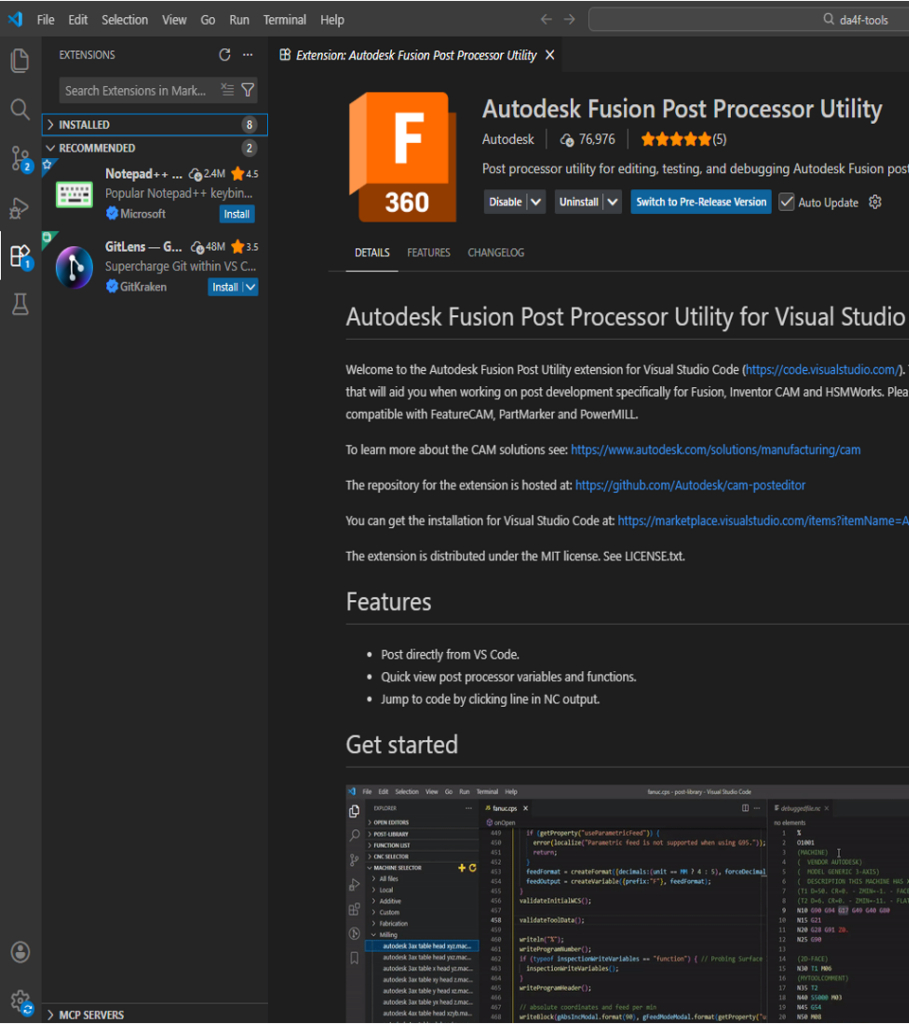
Fusion Post Processor Utility for Visual Studio Code
The Fusion Post Processor Utility extension for Visual Studio Code has been updated with improvements to support developing, testing, and debugging post processors. This update includes enhancements to the Machine Selector and CNC Machine Selector, along with improvements to debugging workflows.
Additional updates include IntelliSense support and a new Regression Test view, providing more visibility when working with post processor logic. The extension is currently marked as a pre-release, allowing you to switch back to the previous official version if needed.
Additive
New Arrangement Criteria options for Additive Arrange
The Additive Arrange command now provides greater control over how components are orientated and arranged through a new Arrangement Criteria table in the Solver tab. This enhancement allows you to define exactly which arrangement criteria should influence the nesting result—and just as importantly, to set their order of priority using the arrows at the bottom of the table.
Each selected criterion contributes to how each component is oriented during the arrangement process. The solver evaluates the enabled criteria in priority order, selecting orientations from the allowed rotations defined in the Objects tab.
Note: Arrangement Criteria are applied only when Rotation is enabled in the Objects tab, and are available exclusively for True Shape arrangement methods.
Learn more about the new Arrangement Criteria options for Additive Arrange.
Assign Body Presets added to toolbar
We have improved the accessibility of the Assign Body Presets command by adding it to the toolbar under the Modify tab. Previously, this command was only accessible via right-clicking on the print setting in the Additive setup.
Duplicate command now duplicates body presets
The Duplicate command has been updated to also duplicate a component’s assigned Body Preset. When duplicating components that have a Body Preset assigned, the same preset is now automatically assigned to the duplicated components.
This enhancement streamlines the workflow and eliminates the need to manually reassign Body Presets when working with builds that contain multiple component copies.
Additional Enhancements
This release also includes a number of updates across Design and Documentation workflows:
Turning Finishing Toolpath Visualization
Turning finishing toolpaths now correctly display “In-Control Compensation” directly in the canvas.
Machine Builder Playback
A Play control has been added in Machine Builder to visualize axis motion during setup.
Steep and Shallow Strategy Improvement
Added the ability to define a custom angle threshold for perpendicular passes, replacing the previous fixed value.
Manufacturing Browser Improvements
You can now assign colors to notes in the Manufacturing browser for better visibility.
API
Mesh Silhouette added to the API
The mesh silhouette command has been added to the API. This allows the user to project the silhouette of a mesh body onto a defined plane.
Additive FEA API now available
The API for Metal Powderbed Process Simulation is now provided as a preview feature. You are encouraged to use it and report any problems or suggestions using the Fusion API and Scripts forum. Users are now able to access and execute Process Simulation workflows programmatically, enabling automation, custom workflows, and integration with external tools and scripts. For an example of the API, see the PRM generation command in the 3D Printing Essentials add-in.
API for Preferences->Compatibility & Troubleshooting is now available
The options under Preferences → Compatibility & Troubleshooting are now exposed through the Fusion API. Scripts and add-ins can read and set these same options that you see in the Preferences UI.
Insider Program
Do you want to engage more with the Autodesk community? Check out the Fusion Insider program to use exclusive previews, and test out the latest build before it’s released to the public.
As a member, you’ll gain inside knowledge of updates and a first look at new features. You’ll also be able to join exclusive events and try pre-release functionality. Plus, you can give feedback directly to the product teams.
Release Notes
To see more fixes, minor enhancements, and keep up with the latest check out our Release Notes for more information on changes to Fusion and Fusion web client.