 Emily Suzuki
Autodesk Fusion’s sheet metal tools provide efficient ways to design and manufacture 3D folded sheet metal parts, enabling users to create components with accurate bend and thickness rules and generate flat patterns for production. This video tutorial covers key functionalities, such as creating sheet metal components, applying rules, and using essential tools like Flange, Bend, and Rip to prepare designs for manufacturing.
Key topics covered include:
How to create sheet metal components in Fusion
Components are created similarly to standard ones. However, they require selecting a sheet metal rule that dictates thickness and bend properties, which can be modified anytime during design.
Understanding sheet metal rules management
Users can edit, create, or delete rules defining thickness, k factor, and bend conditions to match materials like steel or aluminum, facilitating accurate bend behavior in designs.
How to use the Flange tool
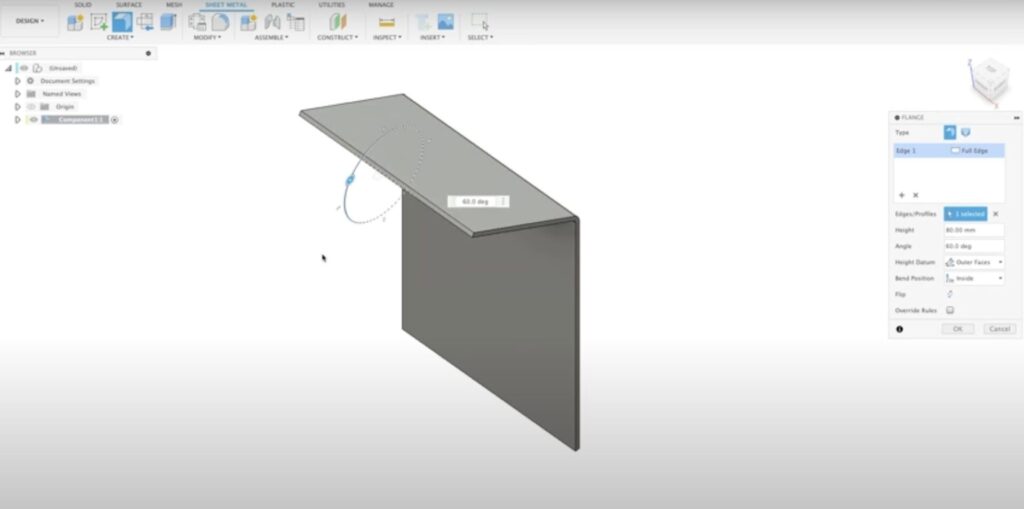
The flange tool, a primary feature, creates sheet metal parts from sketches, sketch areas, or body edges, automatically applying thickness and bend conditions based on the selected rule.
Leveraging Bend tool functionality
This tool bends flat sheet metal parts along defined bend lines, allowing angle adjustments and bend direction control while maintaining bend reliefs and conditions.
Using the Rip tool for unfolding
To enable flat pattern creation from enclosed sheet metal loops, the Rip tool introduces gaps or cuts, which are necessary for unfolding parts for manufacturing processes like water jet cutting.
Flat pattern creation
Users can generate a 2D flat pattern from 3D sheet metal parts, which includes bend lines and edges, exportable as DXF files for manufacturing with proper layering and spline conversion options.
Unfolding to modify
Temporary unfolding allows modifications such as adding holes or slots that affect both 3D and flat patterns, with the ability to refold and update flat patterns accordingly.
Manufacturing workspace integration
The flat pattern can be used in manufacturing workspaces to set up cutting tool paths, including etching bend lines for clear fabrication instructions and precise part production.
Ready to put your skills to the test? Check out this on-demand sheet metal course.