 Bryce Heventhal
Transitioning from HSMWorks to Fusion is simple, offering compatibility with existing workflows and enhanced features for more efficient and advanced manufacturing solutions.
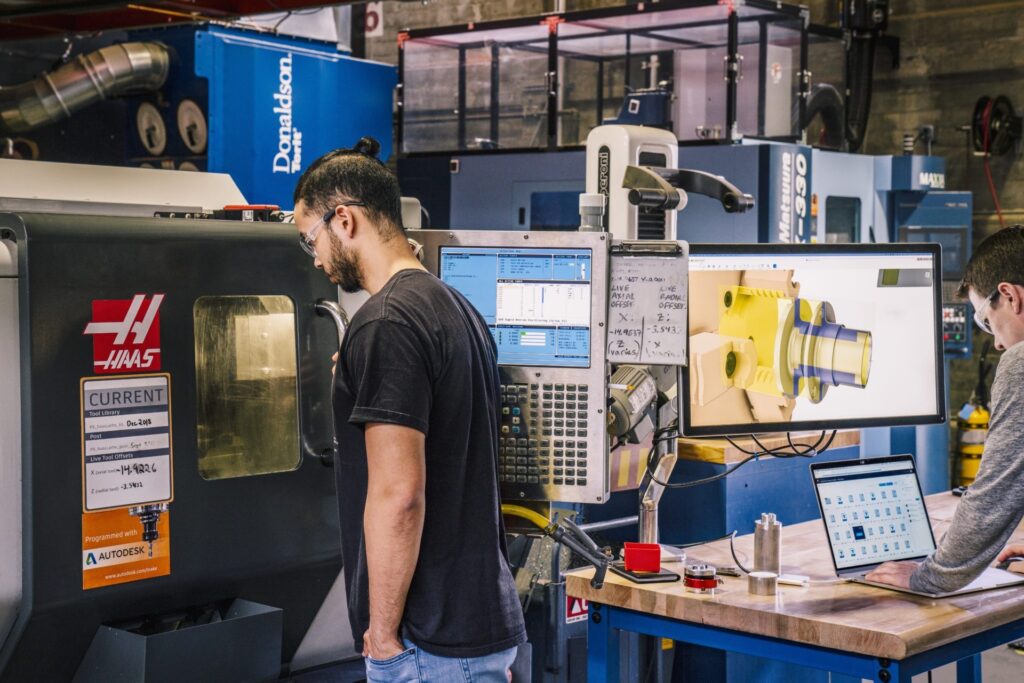
As of March 25th, 2025, HSMWorks is no longer be available as a Fusion entitlement for new subscribers. But don’t worry—HSMWorks will continue to receive support until its end-of-life on March 25th, 2028. This gives you plenty of time to transition to Fusion, which offers similar capabilities along with some fantastic new features. Let’s walk through transitioning from HSMWorks to Fusion together.

Elevate your design and manufacturing processes with Autodesk Fusion
Out with the old, in with Fusion
Don’t let moving to a new tool scare you. Fusion carries over the CAM setups, toolpaths, tool libraries, post processors, and templates you’ve grown accustomed to using in HSMWorks. Here’s how Fusion matches and even enhances what you’re familiar with:
Toolpath compatibility and enhancements
- 2D toolpaths: You’ll find the same 2D toolpaths in Fusion, so there’s no disruption to your workflow.
- 3D toolpaths: Fusion has the same 3D toolpaths as HSMWorks, plus advanced options for more programming automation.
- Multi-axis toolpaths: Enjoy the same multi-axis toolpaths with additional advanced options to streamline your programming.
- 2-axis turning toolpaths: Fusion has the same 2-axis turning toolpaths and adds advanced options for more precise lathe programming.
Workflow comparisons
The workflows in Fusion closely mirror that of HSMWorks, making the transition easy. The ‘Job’ setup in HSMWorks CAM Manager matches the ‘Job’ setup in Fusion’s CAM Browser, including stock, orientation, WCS location, offsets, and post processor settings. The toolpath workflow is similar too—left to right, top to bottom.
Geometry imports made easy
Importing your geometry into Fusion is straightforward. Save all your assemblies and components as native SLDASM and SLDPRT files. In Fusion, pick your project, click ‘Upload,’ and select your SolidWorks assembly and component files. Choose the top assembly and click ‘Upload.’ Fusion supports the same file types as HSMWorks including SLDPRT/SLDASM, PRT/ASM, STEP, IGES, PARASOLID, and SAT.
You can also synchronize your design changes using AnyCAD. If you update a design in SolidWorks, you can easily update the same design in Fusion using AnyCAD. This synchronization ensures that your downstream CAM operations are automatically updated.
Seamless tool library transition
Export your current tool libraries from HSMWorks as *.HSMLIB files and import them into Fusion’s tool library. Fusion offers direct access to the latest, searchable vendor-maintained tool libraries, allowing you to stay updated with industry standards.
Post processor integration
HSMWorks and Fusion use the same post processor CPS, making it easy to transition. Access the Fusion online post library directly inside Fusion and download the post for your machines. You can also import your personalized post processors directly by navigating to C:\Program Files\Autodesk\HSMWorks2025\posts\, selecting your post processor, and importing it.
Effortless toolpath templates transfer
Create toolpath templates in HSMWorks to export tools, parameters, and settings. To import these templates into Fusion, simply rename the filename from *.HSMWORKS-TEMPLATE to *.F3DHSM-TEMPLATE. Apply these toolpath templates directly within your setup in Fusion.
*Note: Some toolpath parameters may differ between these interfaces. Some geometric re-assignment may be needed.*
Ready to make the switch from HSMWorks to Fusion
Transitioning from HSMWorks to Fusion doesn’t have to make you nervous. Fusion is a comprehensive CAD, CAM, CAE, PCB, and data management cloud-based solution and with the compatibility and enhanced features Fusion offers, you’re set to not only continue your existing workflows but also take advantage of new automation and precision tools. Embrace the future of design and manufacturing with Fusion and unlock your potential for more efficient and advanced manufacturing solutions.