 Christa Prokos
The Autodesk Vault Thin Client gives users browser-based access to controlled Vault data without requiring the full desktop client. It provides a streamlined way for stakeholders across manufacturing, procurement, and project management to find, review, and act on engineering and product data management information.
Optimize Data Management with Autodesk Vault
Secure, organize, and manage your engineering data efficiently.
The release of Autodesk Vault 2027.1 transforms the Thin Client experience with a more seamless sign-in, a cleaner and more intuitive workspace, and AI-powered Autodesk Assistant capabilities that help users find data and complete PDM tasks faster. The result is a more consistent and efficient way to work with less searching, less manual work, and less friction.
Vault 2027.1 Thin Client Highlights
A simpler way to sign in: now with Autodesk ID
The new Thin Client experience begins with a more familiar way to get started. With Autodesk ID integration, users can now sign in to the Thin Client using the same credentials they already use across Autodesk products and services, then move directly into their Vault workspace.
This familiar entry point simplifies access, especially for occasional and downstream users who need quick access to product information without unnecessary steps.
A refreshed, more usable workspace layout
Once inside, users are welcomed by a refreshed Thin Client interface with an updated layout, clearer navigation, and a redesigned file-space table.
Practical enhancements such as multi-select, horizontal scrolling, a resizable property panel, and the ability to pin important information make it easier to review large amounts of engineering data and keep relevant details visible while working.
These improvements make browser-based product data review more efficient for users who need access to controlled engineering information but may not require the full desktop client.
AI-powered Autodesk Assistant comes to the Thin Client
Available to Vault Professional users, the Autodesk Assistant tech preview is now integrated into the Thin Client same as it is in the desktop client, offering contextual suggestions and guidance. Supporting both Thin Client and desktop client workflows, Autodesk Assistant helps users navigate tasks, answer questions, and accelerate design work with AI-powered recommendations.
Users can ask the Autodesk Assistant to check metadata against standards, create charts and visual reports, copy an existing item, build a project folder structure, or support lifecycle-related actions. Instead of remembering every menu or command, users can start supported workflows conversationally and remain focused on reviewing, organizing, and advancing product data.
Examples of what you can do with the Autodesk Assistant
The examples below are available in both the Autodesk Vault 2027.1 Thin Client and desktop client.
Standards checks
Once the design task is finished, users can ask Autodesk Assistant to run a standards check. Vault validates that all file’s and item’s metadata meet organization standards, helping teams reduce manual cross-checking and identify issues earlier.
Charting and data visualization
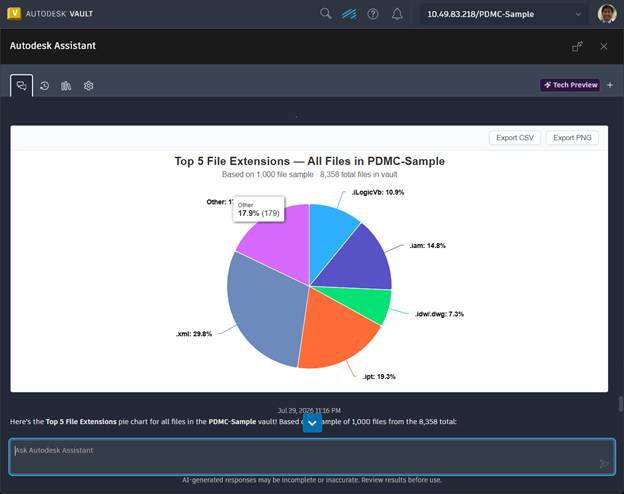
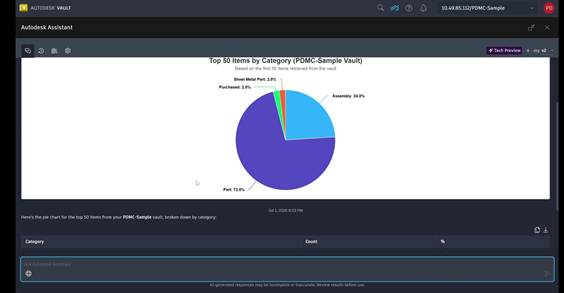
Users can ask Autodesk Assistant to turn Vault data into charts and visual reports directly in the Thin Client. Reports can be reviewed in Vault or downloaded as HTML files, making it easier to track progress, understand trends, and share insights without relying on external reporting tools.
Copy item
Ask Autodesk Assistant to copy an existing item, including its metadata and properties, and use it as the starting point for new work. This speeds up project setup and helps maintain consistency across item variants.
Export a BOM
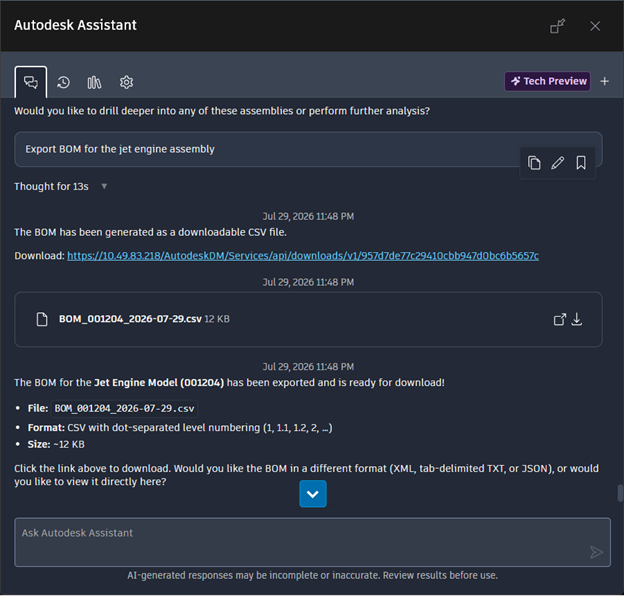
Export an item’s bill of materials as a CSV file directly through Autodesk Assistant. The file can then be shared with suppliers and other stakeholders or used for downstream processing and analysis.
Create folders
Ask Autodesk Assistant to create a project folder structure from a predefined template. Teams can begin with a consistent setup without creating each folder manually.
Change lifecycle state
Move items through lifecycle states directly with Autodesk Assistant. Users can advance work through defined processes without navigating multiple dialogs or leaving their current workflow.
Autodesk Vault 2027.1 helps teams work faster in the Thin Client
For teams that rely on the Thin Client to review and act on Vault data, these updates make everyday work more straightforward. Users can get into the system more easily, move through information with fewer interruptions, and keep the details they need in view as they work.
With Autodesk Assistant available directly in the Thin Client, common tasks can also be started more quickly, without requiring users to navigate through multiple menus or remember every command. Together, these improvements help manufacturing, procurement, quality, and project teams spend less time managing the interface and more time reviewing information, making decisions, and keeping work moving.
Built with the community
Autodesk Vault continues to evolve with direct user input. Through Vault Ideas, the Vault Forum, and feedback programs, customer voices directly influence the product roadmap. Vault 2027.1 reflects essential customer collaboration and much more.
As mentioned above, Autodesk Assistant in Vault is currently available as a tech preview. Capabilities will continue to evolve over time based on user feedback and ongoing development. Join the community of users and share your feedback here: Autodesk Assistant in Vault
Ready to explore Autodesk Vault 2027.1?
Whether you’re new to Vault product data management or a long-time customer, Autodesk Vault 2027.1 continues to help you work faster, collaborate more effectively, and stay confident that your data is secure and connected—without changing the workflows you rely on every day.
For more information, see What’s New in Vault 2027.1.
Check out more on Vault 2027.1
Autodesk Vault 2027.1 What’s New Overview
Autodesk Vault 2027.1 Expands Connectivity and Data Continuity Across Workflows