 Cesar Escalante

If you tried Autodesk Assistant in Revit early on, you may have noticed that how you phrase a request shapes what you get back. A quick, open prompt often gets a partial result, while a specific one is more likely to get you what you need. That’s normal for any new way of working, and it’s easy to fix.
Autodesk Assistant in Revit is now generally available and has changed a lot since the April Tech Preview. The Revit 2027.3 and 2027.4 updates added a Stop button, labeled Undo, Add files for context, access journal logging, and clearer explanations when a request can’t be done. Here’s what that means for your next prompt.
This is the first post in Prompt to Practice, a new series where we take one Assistant prompt at a time into real Revit production work. In this post I’ll cover how to start, what Assistant handles well today, how to write prompts that land, and how to check every change before it leaves your desk.
Start with one question
Open the panel and click the suggested prompt “What can you do for me?” Assistant lists what it can answer and what it can change in your open model. Assistant now gets updates on its own schedule, which means it can receive targeted updates independently of the broader Revit release cycle. This enables Autodesk to deliver new Assistant capabilities and address important issues more quickly, without waiting for the next Revit release.
Then tell it where you are in the project, for example “We’re in design development” or “We issue a permit set on Friday,” and ask what it can help with at that stage. How-to answers come from official Autodesk documentation, with links to the source.
What Assistant does well today
Assistant handles three kinds of requests: how-to help, questions about your model, and changes to your model. These are the areas where I’d start, with a prompt to try for each.
| Area | What it does | Try this |
| Find and inspect | Finds elements by category, level, name, or parameter and reads their values | “Find all doors on Level 1” |
| Edit parameters | Changes or copies parameter values across many elements at once | “Set Comments to ‘X’ for all doors on Level 2″ |
| Views and graphics | Creates plans and sections, applies view templates, and shows, hides, or recolors elements | “Isolate the doors on Level 1 and color them red” |
| Rooms | Lists, renames, and colors rooms in the active view | “Color the rooms in this view by name” |
| Schedules | Creates schedules for any category, with filters, sorting, and grouping | “Create a door schedule sorted by level” |
| Sheets and tags | Creates and numbers sheets, places views, and tags elements | “Create a new sheet per level, add the floor plans” |
| Export | Exports views to PDF or images, and schedules to CSV | “Print the new sheets to a PDF file” |
| Model checks | Flags elements by parameter value and helps spot potential issues | “Find all rebar longer than 40 feet, excluding stirrups” |
| Model health | Compares views against sheets to find what’s missing from the set | “List all floor plan views that aren’t placed on a sheet” |
It also has limits, and it’s upfront about them. Assistant works in the one file you have open, and it covers a defined set of workflows, not everything in Revit. When you ask for something outside that set, it says so, explains why, and suggests a manual path.
If your first prompt missed, try this formula
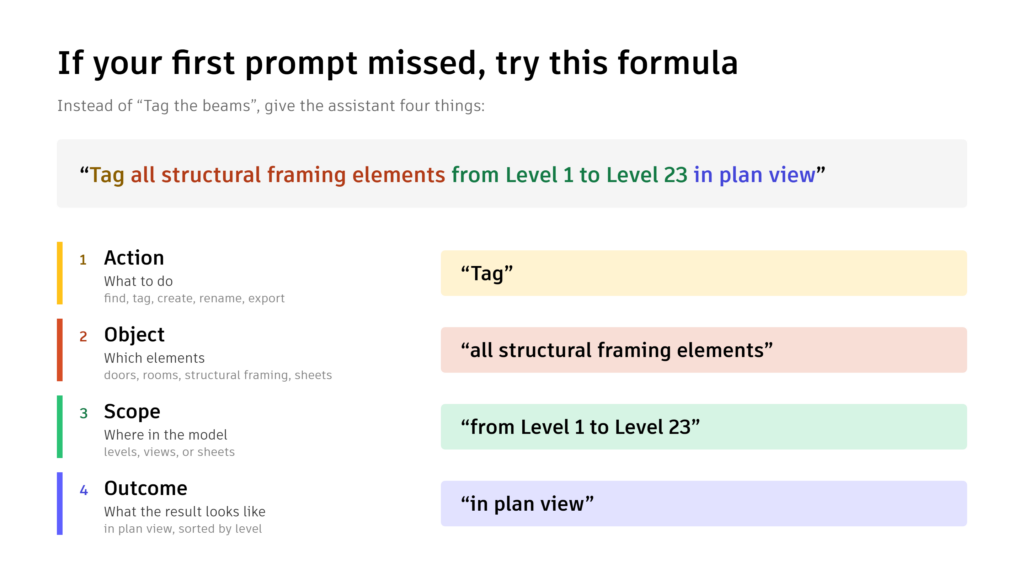
Most of the “it didn’t work” moments I’ve seen started with a short, open prompt. Assistant had to guess at what you meant, and it guessed wrong. Give it four things instead:
- Action: what to do (find, tag, create, rename, export)
- Object: which elements (doors, rooms, structural framing, sheets)
- Scope: which levels, views, or sheets
- Outcome: what the result should look like (in plan view, sorted by level)
| Instead of | Try |
| “Tag the beams” | “Tag all structural framing elements from Level 1 to Level 23 in plan view” |
| “Make a door schedule” | “Create a door schedule for Levels 1–3, grouped by level and sorted by mark” |
For larger changes, split the work in two. Ask Assistant to list what’s there first, review it, then ask for the change. And start with one task per prompt before you chain several together.
Found a prompt that works? You can save it and reuse it. I’ll show how in a quick tip in a couple of weeks.
How to check its work
Assistant acts when you ask it to, and changes can be reviewed and, in most cases, reversed. Like any AI tool it can get things wrong, so check important results before you rely on them.
It asks before big changes. Deleting elements, or changing a type other elements share, needs your yes first. Read what it says it’s about to do before you approve. Assistant is a helper, not a substitute for your review. You remain responsible for confirming that the results are accurate and complete.
You can watch it work. Each step shows in the panel as it runs, with a checkmark when it finishes, and the model updates as you watch. If something looks wrong, hit Stop.
Undo tells you what it did. AI-driven changes are labeled in the Undo menu, so you can tell Assistant’s edits from yours and roll them back. Each run is also logged in the Revit journal.
Then check it the way you’d check anyone’s work. After a parameter edit, open a schedule and scan the column. After tagging, spot-check a few views. After sheet setup, review a sheet list.
Who can use it, how to turn it on, and what happens to your data
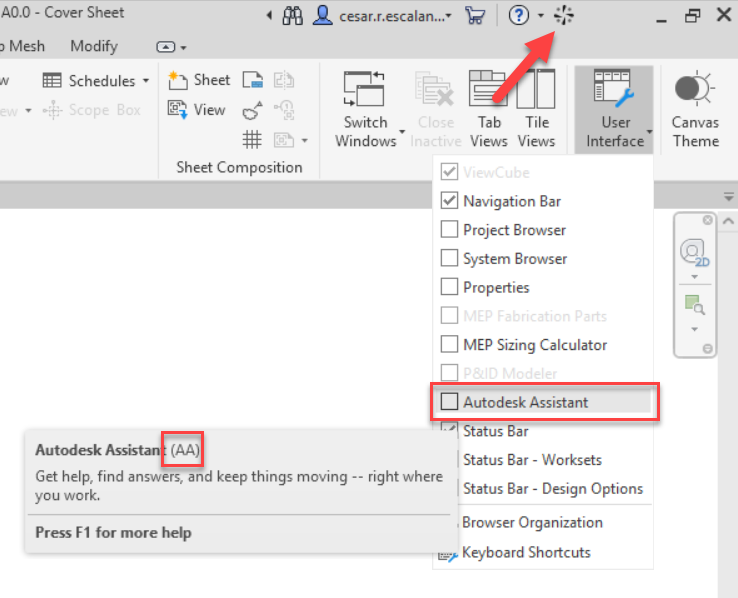
Who: Assistant is built into Revit 2027 and later, with availability varying by region.How to turn it on: Sign in to Revit with your Autodesk account, then click the Assistant icon next to Help in the title bar, or go to View > User Interface > Autodesk Assistant, or type the shortcut AA. If it doesn’t show up, restart Revit. There’s nothing to install or configure. More in Revit Help.
Your data: Your chats and saved prompts are stored with your Autodesk account, and they aren’t used to train LLM models. For details, see Trust, privacy, and your data, or ask Assistant directly. It answers from Autodesk’s AI Transparency Cards and tells you which card it used.
Try one prompt today
Open Revit 2027, pick one prompt from the table above that fits your work, or draft one on your own, run it, and check the result. If it misses, rate the response in the panel so the team sees what went wrong.
Next in Prompt to Practice: How to use Autodesk Assistant to create and number sheets, place views, and review and print to PDF your sheet set before issue.
Happy Revit-ing!
Related reading:
On AEC Tech Drop:
- Autodesk Assistant in Revit – Tech Preview: Your AI Support to Create More and Work Smarter
- What’s New in Revit 2027: A Smarter, More Connected Way to Work
- What’s New in Revit 2027.3 and 2027.4: Prompt-driven Automation with Autodesk Assistant
In Revit Help:
- Autodesk Assistant in Revit
- How Autodesk Assistant works
- Trust, privacy, and your data
- How to enable Autodesk Assistant in Revit
- Autodesk AI Transparency Cards